
A meeting ends with three next steps. A customer needs a follow-up. A launch has several small actions that must happen before the team can move forward. Those commitments become easier to finish when everyone can see who owns them and what comes next.
Wave To-Dos turns everyday action items into shared, trackable commitments. Organize related work into to-do groups, assign teammates, set priorities and due dates, and keep the details close to the task. Use list and board views, break larger actions into sub to-dos, and review completion alongside the team's progress updates.
Watch the Wave To-Dos showcase
The 48-second showcase uses actual Wave UI components with fictional sample data from Northstar Studio. The workspace contains six to-do groups, six teammates, and three teams. Launch Week has 24 actions: 16 open and eight completed. Its featured welcome-kit task includes four sub to-dos, a description, and handoff notes. All names, dates, actions, and results are illustrative.
What is Wave To-Dos?
Wave To-Dos is the action-item management tool inside Wave. It gives a team a place to record a specific commitment, name the person responsible, and track it through completion. It can support meeting follow-ups, customer handoffs, launch preparation, internal operations, and other work that needs a clear next step.
A to-do group organizes related actions and has its own owner, teams, status, priority, and planning dates. Each to-do has its own assignee, completion status, priority, due date, estimate, labels, and supporting context. The group owner can coordinate the review while different teammates complete the individual actions.
In the sample, Riley owns Launch Week and prepares the pilot welcome kit. Jordan confirms support coverage, Maya reviews the onboarding walkthrough, and Casey sends pilot invitations. The shared group makes the handoffs visible across the team.
Organize actions into to-do groups
1. A central to-do group catalogue
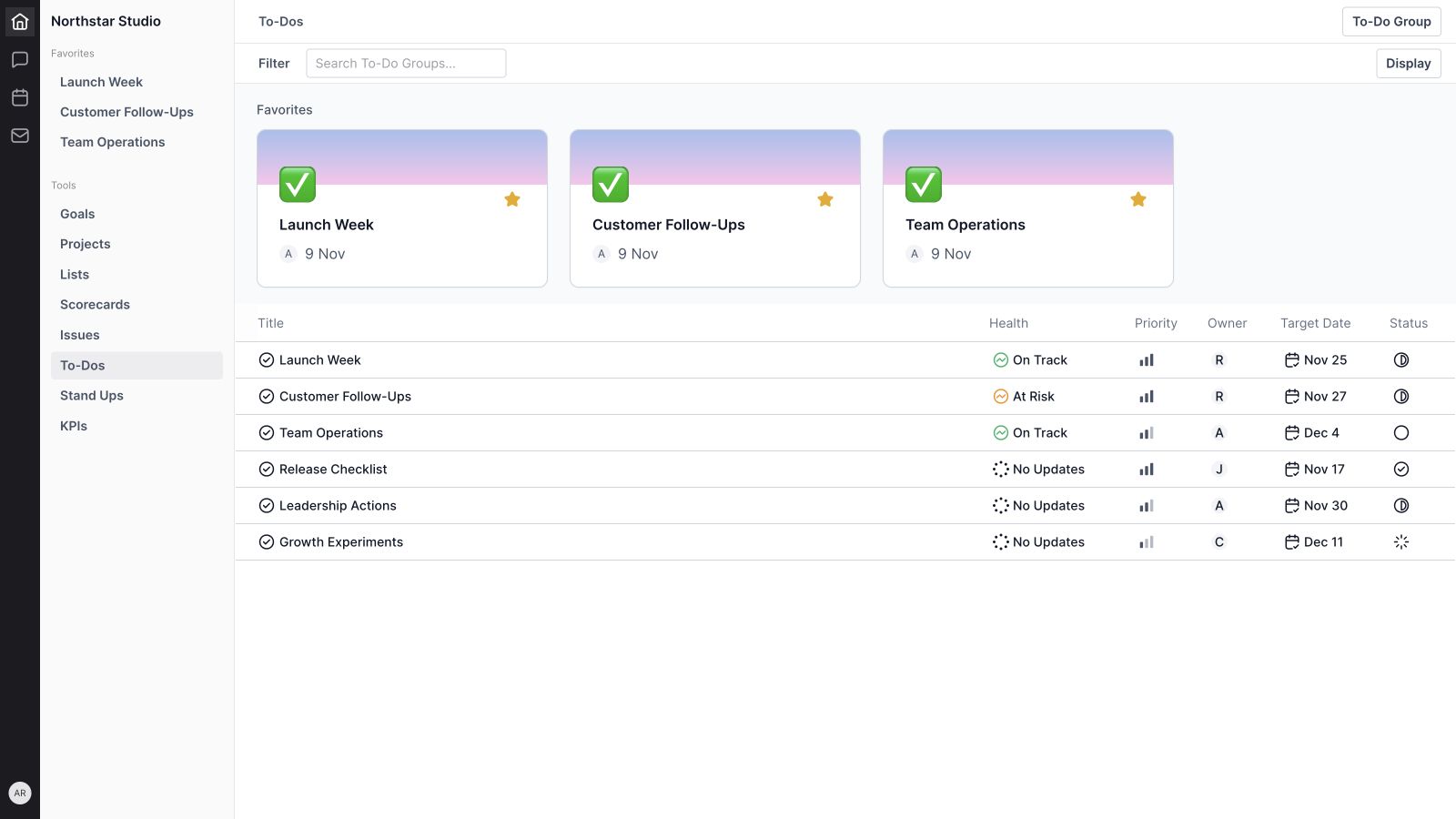
The To-Dos catalogue shows each group's title, health, priority, owner, target date, and status. It gives the team a quick overview of several workstreams before opening their individual actions.
The sample includes Launch Week, Customer Follow-Ups, Team Operations, Release Checklist, Leadership Actions, and Growth Experiments. These names identify a useful review context for the actions inside.
2. Group creation and naming
Create a group with a title and associated teams. The form also provides an emoji and properties for status, priority, owner, start date, and target date. Its Create More option supports adding another group after the current one. Use a specific name so teammates know where new actions belong.
3. Team associations
Associate a to-do group with the teams involved in its work. Launch preparation may involve product, engineering, and customer success, while a customer follow-up group serves a different review. Team associations keep that organizational context beside the actions.
4. A clear group owner
Give the group an owner responsible for keeping its review useful. This person can check that actions have assignees, clarify ambiguous commitments, and follow up on unresolved handoffs. Group ownership is separate from responsibility for each to-do.
5. Group status and priority
To-do groups support Backlog, Planned, In Progress, Completed, and Cancelled statuses. Priority is a separate field with No Priority, Urgent, High, Medium, and Low options. Status describes the group's stage; priority expresses its relative importance.
6. Start and target dates
Set a start date and target date for the group. The target appears in the catalogue, making it easy to scan upcoming commitments across workstreams. Individual to-dos retain their own due dates for the smaller steps inside that timeframe.
7. Favorites and quick access
Favorite frequently used groups to make them easier to return to. Favorite cards appear above the catalogue, and favorites are also available in workspace navigation. Group naming and emoji controls help distinguish the work you review most often.
8. Catalogue search and filters
Search groups by name and narrow the catalogue by status, owner, priority, or target date. Display controls manage the catalogue presentation, including the favorites area. A growing workspace can stay focused on the groups relevant to the current review.
Make each commitment clear
9. Action titles and descriptions
Write a title that describes the next action. “Prepare the pilot customer welcome kit” gives a teammate more direction than “Welcome kit.” Use the description to explain the audience, expected result, and what needs to be true before the task is complete.
The sample description names the kit's contents and defines completion: it must be reviewed and ready to send to every pilot account owner. That gives the assignee and reviewer a shared expectation.
10. Individual assignees
Assign each to-do to the teammate responsible for moving it forward. The assignee appears beside the task in list view, on its board card, and in its properties. A clear owner makes the next follow-up easier to direct.
11. Open and completed states
Individual to-dos use Open and Completed states. Mark an action complete when its agreed work is finished, and reopen it when more work is needed. These simple completion states are separate from the broader planning statuses on the group.
12. To-do priorities
Set priority independently for each action. In the sample, confirming support coverage is Urgent and preparing the welcome kit is High. Individual priorities help a team decide what to discuss first within the same group.
13. Due dates
Add a due date when an action has a real commitment. Dates appear alongside the task and in its details, so the team can review timing without opening every record. The welcome kit is due before invitations are sent, making that handoff easier to discuss.
14. Estimates
Select an estimate from the workspace's configured options. The demo uses Small, Medium, and Large. Estimates support a discussion about effort; priority communicates urgency, and completion records whether the action is finished. Available estimate values depend on the organization's setup.
15. Labels
Apply labels to identify themes across a group. Launch, Customer Success, Engineering, and Research distinguish the fictional actions in the showcase. Labels help the team find related work without changing the task's ownership or completion state.
16. Inline property editing
Adjust key properties directly from the task row or board card, including assignee, priority, due date, estimate, and labels. These controls support quick updates during a review. Open the details when the change needs a fuller explanation.
17. Moving a to-do to another group
The To-Do Group property lets you change where an action belongs. A customer follow-up captured during a launch review can move into the group responsible for handling it. Preserve a clear description and next step so the receiving team understands the handoff.
Review the work from the right angle
18. List view
List view presents to-dos in compact rows with their properties alongside them. It works well for scanning actions, checking dates, and reviewing ownership. The showcase groups Launch Week into 16 open and eight completed to-dos.

19. Kanban board view
Switch to Board through Display to review the same actions as cards in columns. Cards give the title and supporting properties more space. In the sample priority board, the urgent support-coverage task is easy to distinguish from lower-priority preparation.
20. Grouping by status, priority, or assignee
Choose Status, Priority, or Assignee as the grouping field. Status separates unfinished and completed actions. Priority highlights urgency. Assignee organizes the review around responsibility. These are different perspectives on the same to-dos.
21. Group visibility and counts
Display controls let you show or hide groups, and group headings show task counts. List groups can also be collapsed. Use these controls to keep a short review focused while retaining the rest of the work for later.
22. Ordering and moving actions
List and board interactions support arranging tasks and moving them across supported groups. The meaning of the move follows the grouping: a status column represents completion state, while an assignee column represents ownership. Make those changes deliberately during a review.
23. Task search and detailed filters
Search by to-do name or ID. Filters include Status, Assignee, Creator, Estimate, Priority, Label, Due Date, Created Date, and Updated Date. Focus a review on a specific question, such as which high-priority actions belong to a teammate or which tasks were recently updated.

Keep instructions and collaboration with the task
24. To-do detail panels
Open a to-do to review its title, description, attachments, and properties together. The panel also contains Sub Todos, Comments, Notes, and Activity tabs. Previous and next controls help you move through the available tasks during a review.
25. Sub to-dos
Break a larger action into smaller steps. Sub to-dos can have their own names, completion states, assignees, priorities, estimates, due dates, and notes. The parent task shows the completed count, such as 2/4.
The welcome-kit example includes confirming the contents, drafting the message, adding the walkthrough and support links, and reviewing the kit with customer success. Two steps are complete; the remaining steps have owners and dates.
26. Notes
Use the rich Notes editor for working context, decisions, instructions, and the next checkpoint. The sample notes explain the audience, list the required resources, and clarify the final review. That information stays with the action when the next teammate picks it up.
27. Task and group comments
Discuss a specific action in its Comments tab. The group also has a comments entry point for conversations about the workstream as a whole. Put the conversation at the level where a teammate will expect to find it later.
28. Attachments and supporting resources
Add media and files to support the task's instructions or discussion. A brief, example, or screenshot can clarify what needs to be done. Keeping relevant resources beside the action reduces the need to reconstruct context from separate conversations.
29. Activity history
Activity tabs provide a place to review recorded changes on a to-do or group. Use the history to understand how the work evolved. Notes and comments can explain the reasoning behind a change when the recorded event alone is not enough.
Review progress and maintain the group
30. Scope and completion totals
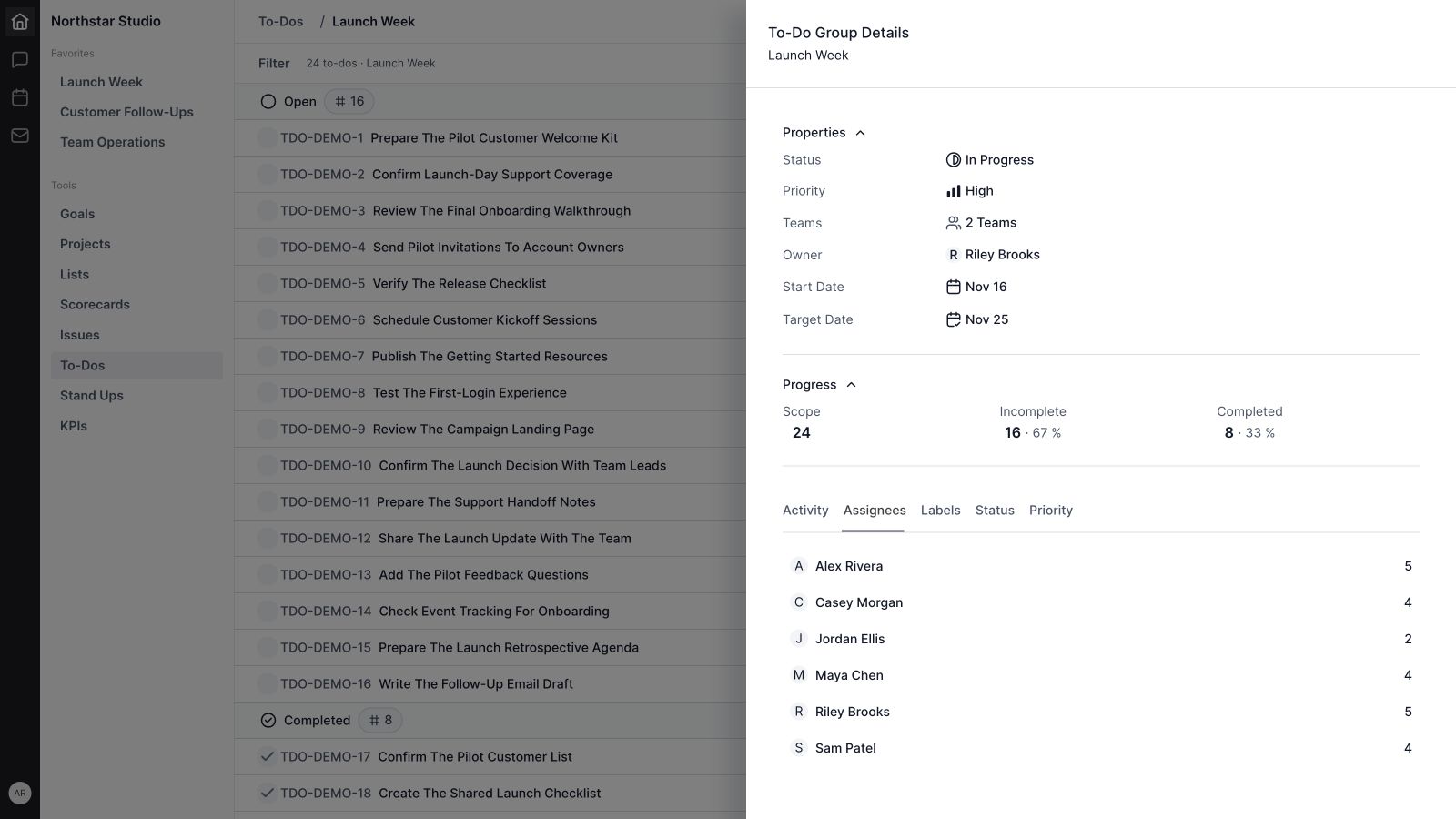
Group details shows Scope, Incomplete, and Completed totals with percentages. Launch Week has 24 to-dos: 16 incomplete and eight completed, displayed as 67% and 33%. These figures describe task completion, rather than effort or the value of the outcome.
31. Assignee, label, status, and priority breakdowns
Review counts through the Assignees, Labels, Status, and Priority tabs. Each breakdown helps focus attention on the corresponding tasks. The demo's assignee view shows how the 24 actions are distributed across six teammates.
Task counts are useful prompts for a conversation. Five small actions can take less time than one substantial commitment, so discuss the work behind the count before drawing conclusions about workload.
32. Health updates
Post a group update to explain progress, risks, and the next checkpoint. Health appears in the catalogue, while the update timeline keeps the assessment with its author and date. A group can be On Track with open tasks when those actions are progressing according to plan.
The sample update summarizes eight completed actions and names the welcome kit, support coverage, and invitations as the next commitments. Health is a team assessment, separate from the completion percentage.
33. Links and IDs
Copy a task or group URL to direct a teammate to the relevant work. Copy ID provides a compact reference for meeting notes and follow-up. Sharing the reference does not change the workspace permissions required to access it.
34. Notification preferences
The group's details menu includes Notifications. Use the available preferences to choose how you follow to-do activity. Delivery depends on the notification channels and settings configured in Wave.
35. Archive, delete, and selection controls
Archive tasks or groups that no longer belong in active work. Delete controls are also available, and selection checkboxes support managing multiple records through the available selection actions. Choose the action that matches the intended cleanup and review the confirmation before removing work.
36. To-dos across the workspace
To-dos can appear in personal, team, manager, and meeting contexts as well as their group. This helps the team review commitments where the conversation happens. Available actions depend on the view and its editing permissions.
A practical weekly workflow with Wave To-Dos
Start with one group your team can review consistently. The Launch Week example follows five steps:
- Capture a specific action. Write the next step as a clear title. Add the expected result and useful instructions in the description.
- Make the commitment visible. Assign a teammate, set priority, and add a due date when the timing matters. Use an estimate if it helps the review.
- Split larger actions. Add sub to-dos when different steps need their own owners or dates.
- Review the right view. Scan the list for dates, use the priority board for sequencing, or group by assignee to discuss responsibility.
- Finish and communicate. Check the agreed result, update the notes or comments, mark the action complete, and post a group update with the next commitments.
For the welcome kit, “done” means it has been reviewed and is ready to send. The title identifies the action; the description and smaller steps make its completion clear to everyone involved.
When to use To-Dos, Projects, Lists, or Issues
Use Wave To-Dos for concrete action items and follow-ups that need ownership and completion. Use Wave Projects for a defined delivery effort, and Wave Lists for flexible collections of requests, ideas, or checklist items.
Use Wave Issues when the starting point is a problem or unresolved question. Wave Goals holds the outcomes the team wants to achieve, while Wave Meetings provides a place to review the relevant commitments together.
A useful operating rhythm connects those conversations: identify the desired outcome, surface obstacles, and give the next actions owners. Keep each group's purpose clear so teammates know where to capture and review work.
Wave To-Dos frequently asked questions
What is Wave To-Dos used for?
Wave To-Dos organizes action items, meeting follow-ups, customer handoffs, checklists, and everyday team commitments. It combines ownership and dates with views, supporting context, and progress reviews.
What is the difference between a group owner and a task assignee?
The group owner coordinates the overall workstream and its review. A task assignee is responsible for a particular action. One group can therefore contain work assigned to several teammates.
Does Wave To-Dos have a Kanban board?
Yes. Display provides List and Board views. Tasks can be grouped by Status, Priority, or Assignee.
Can I set due dates, labels, and estimates?
Yes. To-dos support due dates, labels, estimates, and priority. Groups also have start and target dates. Label and estimate choices depend on the workspace's configuration.
Can I break a to-do into smaller steps?
Yes. Sub to-dos support their own completion states, assignees, priorities, estimates, dates, and notes. The parent task shows how many are complete.
How does Wave To-Dos show progress?
Group details shows scope, incomplete and completed totals, percentages, and breakdowns by assignee, label, status, and priority. Health updates add a written assessment of progress and risk.
Can I keep discussions and files with a task?
Yes. To-do details includes Comments, Notes, Activity, and attachment controls. The group also has comments and updates for the overall workstream.
Is the showcase using real customer data?
No. It uses actual Wave UI components with fictional tasks, people, dates, and updates in an isolated sample workspace.
Give your next action a clear owner
Wave To-Dos brings the action, the owner, the supporting context, and the review into one place. Start with commitments your team already makes, give each one a visible next step, and make their review part of your weekly rhythm.
Get started with Wave or explore the workspace at ourwave.io.


