
A customer asks for a change. Someone spots an improvement. A teammate volunteers to handle it. Without a shared place to capture the request and its next step, useful work can disappear between messages and meetings.
Wave Lists gives teams a flexible way to organize requests, ideas, checklists, and ongoing work. Create a list, give it an owner and teams, then manage its items with assignees, priorities, due dates, estimates, labels, subitems, and supporting context. Switch between list and Kanban views, review progress, and keep discussion close to the work.
Watch the Wave Lists showcase
The 48-second showcase uses actual Wave UI components with fictional sample data from Northstar Studio: six lists, six teammates, three teams, and 24 customer requests. The featured request includes four subitems, a description, and review notes. Names, dates, and results are illustrative.
What is Wave Lists?
Wave Lists is a shared work-organizing tool inside Wave. A list holds related items that need attention, ownership, or follow-through. An item can be a customer request, an improvement idea, a preparation step, or another piece of work your team wants to track.
The list and its items have different responsibilities. A list has an owner, associated teams, overall status, priority, and planning dates. Each item has its own assignee, priority, due date, estimate, labels, and completion status. That lets one person oversee the queue while different teammates handle individual requests.
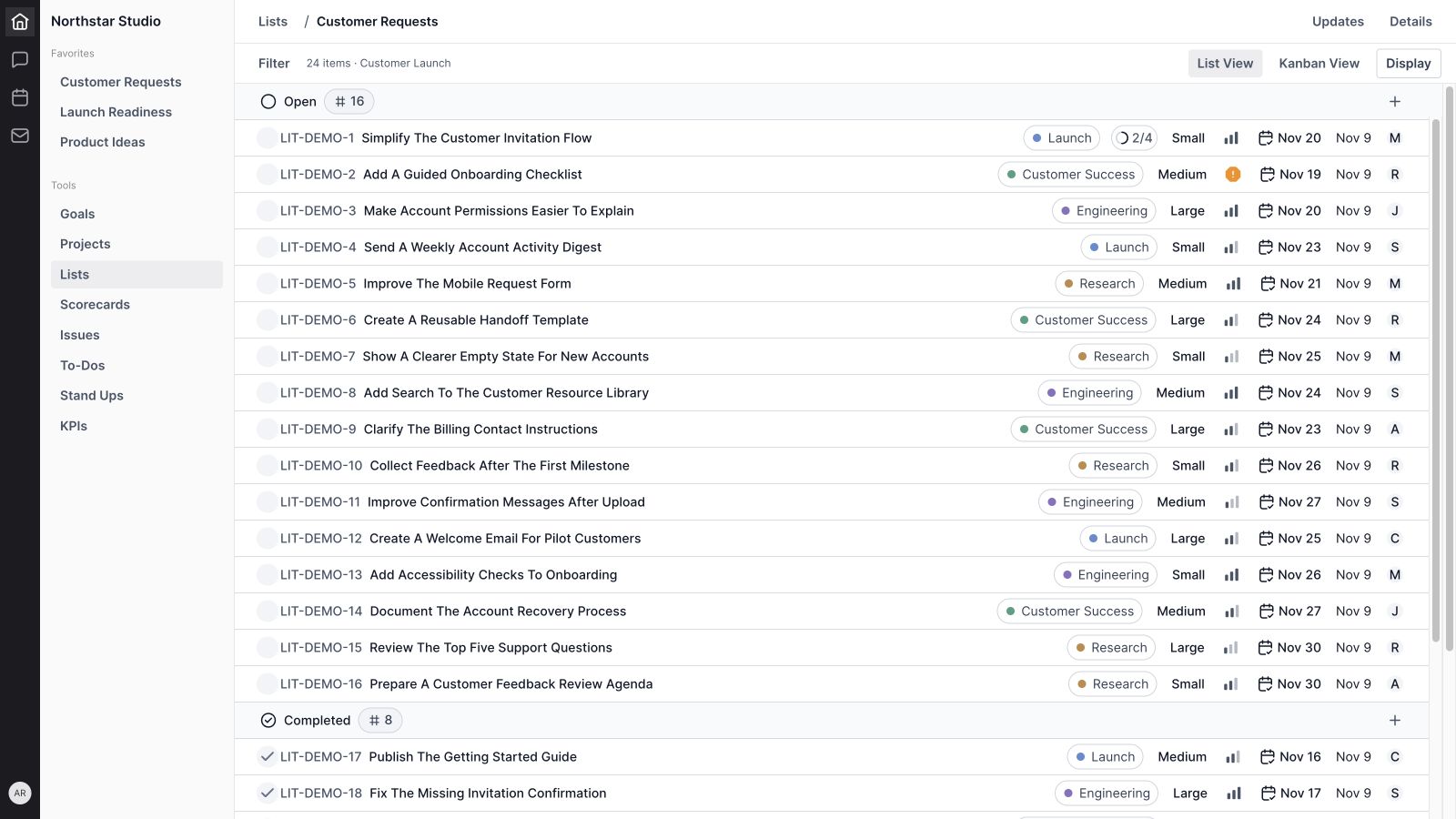
For example, Riley owns the sample Customer Requests list. Maya handles the invitation-flow improvement, Jordan reviews account permissions, and Sam works on the activity digest. Their work stays together without making Riley responsible for completing every item.
Organize lists across your team
1. A central list catalogue
The Lists catalogue brings your lists into one overview. Its columns show title, health, priority, owner, target date, and status. Use it to scan several workstreams and decide which list needs a closer look.
In the demo, Customer Requests sits alongside Launch Readiness, Product Ideas, Customer Onboarding, Operations Improvements, and Team Offsite. These are different uses of the same organizing structure.
2. List creation and naming
Create a list with a title and associated teams. The creation form also provides an emoji and properties for status, priority, owner, start date, and target date. A specific name such as Customer Requests helps teammates understand where new work belongs.
3. Team associations
Associate a list with the teams involved in its work. A customer-facing improvement queue can involve both product and customer success, while an internal operations list can belong to a different group. Team associations keep the organizational context visible.
4. A clear list owner
Assign an owner to the list itself. This person can keep the queue organized, lead its review, and make sure new items receive a next step. List ownership is separate from the assignee on each item.
5. List status and priority
Lists support Backlog, Planned, In Progress, Completed, and Cancelled statuses. A separate priority field supports No Priority, Urgent, High, Medium, and Low. Status describes where the list stands; priority describes its relative importance.
6. Start dates and target dates
Set planning dates on the list and review its target date from the catalogue. These dates give the overall workstream a timeframe. Individual item due dates remain available for the smaller commitments inside it.
7. Favorites and quick access
Favorite frequently used lists to make them easier to return to. Favorite cards appear above the catalogue, and favorites are also available in workspace navigation. Keep the few lists you review often close at hand.
8. Catalogue search and filters
Search for a list by name and narrow the catalogue using status, owner, priority, and target-date filters. Display controls let you manage the catalogue presentation, including its favorites area. These controls help a growing workspace remain manageable.

Turn captured work into clear commitments
9. Item titles and descriptions
Give every item a clear title and use its description for the problem, expected outcome, or useful background. “Simplify the customer invitation flow” tells the team more than “Invites.” The description can then explain what the customer should be able to do.
10. Individual assignees
Assign an item to the teammate responsible for moving it forward. The assignee appears in the list, on the board card, and in the detail panel. Keeping an owner beside the request makes the next conversation easier to direct.
11. Open and completed items
List items use Open and Completed states. Mark an item complete when its agreed work is finished, and reopen it when further work is needed. Completion indicators and group counts help the team distinguish outstanding work from finished requests.
12. Item priorities
Set each item’s priority independently of the list’s priority. This lets a team identify urgent work within an otherwise routine queue. The demo gives the onboarding checklist Urgent priority and the invitation-flow improvement High priority.
13. Due dates
Add an item due date to make the commitment visible. Dates appear beside the work and in its properties, so a teammate can see what is due without opening every request. Use the due-date filter when preparing a focused review.
14. Estimates
Choose an estimate from the options configured for the workspace. Estimates give the team another dimension for discussing effort. The sample uses Small, Medium, and Large; your available values depend on your organization’s estimate setup.
15. Labels
Apply labels to categorize items across the list. Labels can distinguish themes such as Launch, Customer Success, Engineering, and Research. They support filtering and make related requests easier to recognize without changing their ownership or status.
16. Inline property editing
Many item properties are available directly from a row or board card, including assignee, priority, estimate, labels, and due date. Use those controls for a quick adjustment, then open the detail panel when the decision needs more context.
17. Moving an item to another list
The item’s List property lets you change which list it belongs to. A request captured during an initial review can move to the list responsible for handling it. Keep the title and supporting context clear so the receiving team understands the handoff.
Choose the view that fits the review
18. List view
List view presents items in compact rows with their key properties alongside them. It works well for scanning many requests, checking due dates, and reviewing completion counts. In the sample, the Open group contains 16 items and the Completed group contains eight.
19. Kanban board view
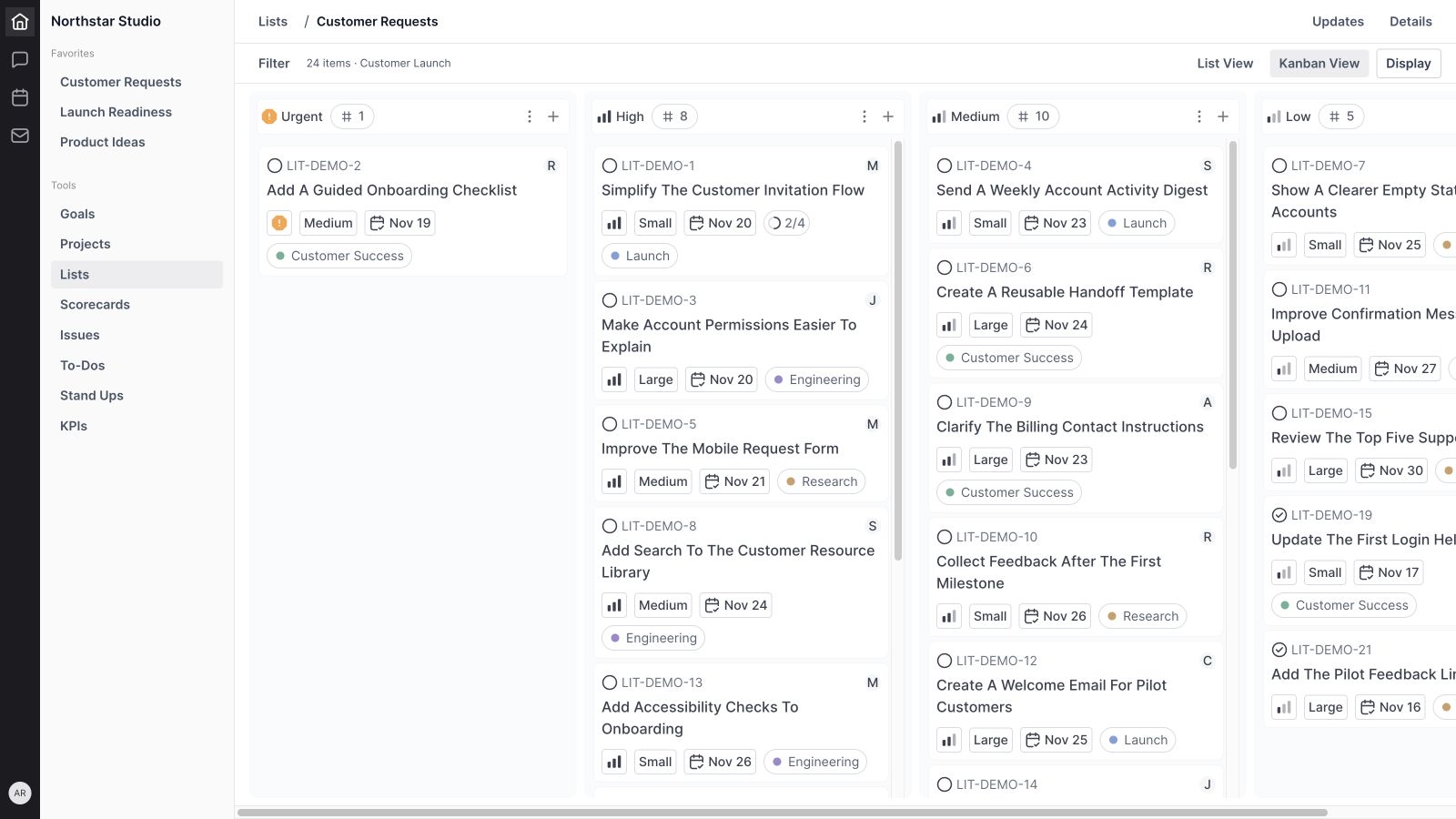
Board view presents the same work as cards in columns. It provides more room for an item’s title and supporting properties, making it useful for a visual review of the queue. Switch views through Display.
20. Grouping by status, priority, or assignee
Choose Status, Priority, or Assignee as the grouping field. Status separates open and completed work. Priority emphasizes urgency. Assignee makes it easier to see who is responsible for which items. These are different ways of reviewing the same list.
21. Group visibility and counts
Display options let you show or hide groups, and group headings show item counts. In list view, groups can also be collapsed. Use these controls to keep a review focused while retaining the rest of the list for later.
22. Dragging and ordering work
List and board interactions support arranging work, including moving items across supported groups. In a status grouping, the destination represents status; in an assignee grouping, it represents ownership. Make those changes deliberately so the visual organization stays meaningful.
23. Item search and detailed filters
Search the item view by name or ID. Filters include Status, Assignee, Creator, Estimate, Priority, Label, Due Date, Created Date, and Updated Date. Combine the appropriate controls to answer a specific question, such as which high-priority requests are assigned to a teammate or which items were recently updated.
Keep details and collaboration beside the work
24. Item detail panels
Open an item to review its title, description, attachments, and properties together. The panel also contains Subitems, Comments, Notes, and Activity tabs. Previous and next controls help you move through items during a review without repeatedly returning to the full list.
25. Subitems
Break a request into smaller steps. Subitems have their own names, completion states, assignees, priorities, estimates, due dates, and notes controls. The parent item shows a completed-subitem count, such as 2/4.
In the demo, simplifying invitations includes reviewing customer feedback, mapping the invitation states, creating a revised prototype, and validating the flow. Splitting those steps makes the handoff between design and customer success explicit.
26. Notes
Use the Notes tab for working context that should stay with the item: review findings, decisions, meeting preparation, or the next checkpoint. The rich editor gives the team space to explain the reasoning behind a short title.
27. Comments
Discuss an individual request in its Comments tab. Lists also provide a list-level comments entry point for conversations about the queue as a whole. Keeping the conversation at the appropriate level helps teammates find the answer when they return to the work.
28. Attachments and supporting resources
Add media and files to support an item’s description or discussion. For a customer request, that might be a screenshot showing the issue or a brief explaining the desired outcome. Keep only relevant supporting material attached so the request remains easy to understand.
29. Activity history
Activity tabs provide a place to review recorded changes on an item or list. Use that history to understand how ownership, properties, or context evolved. It complements the discussion and notes rather than replacing an explanation of an important decision.
Review progress and maintain the list
30. Scope and completion totals
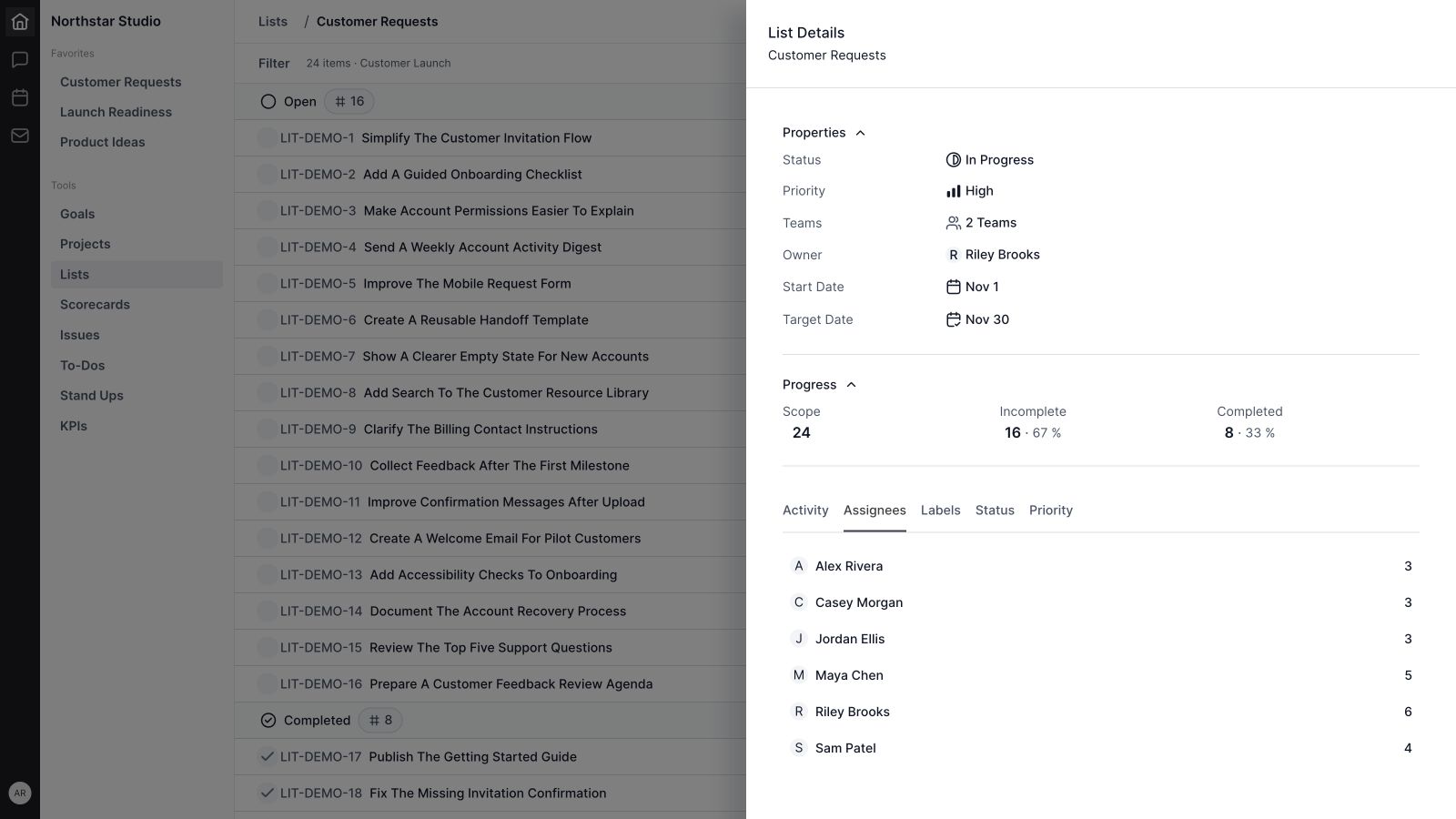
List details shows Scope, Incomplete, and Completed totals with percentages. In the sample, the list has 24 items: 16 incomplete and eight completed, displayed as 67% and 33%. These figures describe item completion; they do not measure effort or customer impact.
31. Assignee, label, status, and priority breakdowns
Explore the list through its Assignees, Labels, Status, and Priority tabs. Each breakdown shows counts and provides a way to focus on the corresponding items. An assignee count is a useful review prompt, but a large count does not necessarily mean more effort when the items differ in size.
32. Health updates
Post a list update to explain progress, risks, and the next checkpoint. Health appears in the catalogue, while the update timeline keeps the accompanying explanation with its author and date. A health update is a team assessment, separate from the item completion percentage.
33. Links and IDs
Copy a list or item URL to bring a teammate to the relevant work. Copy ID provides a compact reference for a conversation or meeting note. Sharing a reference helps everyone discuss the same request; access still follows the workspace’s permissions.
34. Notification preferences
The list’s details menu includes Notifications, which opens preferences for list-item events. Choose the available settings that fit how you follow the work. Delivery depends on the notification channels and preferences configured in Wave.
35. Archive, delete, and selection controls
Archive lists or items that no longer belong in active work. Delete controls are also available, with confirmation where the workflow requires it. Selection checkboxes and selection actions help manage multiple records. Use the action that matches whether the work is simply inactive or should be removed.
36. Lists in the wider workspace
List items can appear in personal, team, and meeting contexts, so the same work can be reviewed where the conversation happens. Available actions depend on the view and its editing permissions. A meeting can focus on the relevant items while the underlying list remains their shared home.
A practical customer-request workflow in Wave Lists
Start with one list and a small set of labels your team will actually use. The sample Customer Requests workflow follows five steps:
- Capture the request. Write a title that describes the desired change and add enough background to understand the customer’s problem.
- Make the next commitment clear. Assign a teammate, set priority, and add a due date when there is a real commitment. Choose an estimate if it helps the review.
- Split larger requests. Use subitems when different steps need different owners or dates.
- Review from the right angle. Scan the list for dates, use the priority board for triage, or group by assignee to discuss responsibilities.
- Close the loop. Update the notes or comments, mark finished items complete, and post a list health update with the next priorities.
The useful result is a request that has an owner, enough context, and a visible next step. A full list is not the goal; a list the team can act on is.
When to use Lists, Projects, or To-Dos
Use Lists for a flexible queue of related requests, ideas, or checklist items. Use Wave Projects when you need to organize a defined project and its delivery work. Use To-Dos for straightforward action items, and Wave Goals for the outcomes your team is trying to achieve.
These tools can support the same operating rhythm. A request list can inform project priorities, and the team can discuss the relevant work in Wave Meetings. Keep the purpose of each collection clear so teammates know where to capture and review work.
Wave Lists frequently asked questions
What is Wave Lists used for?
Wave Lists organizes related requests, ideas, checklists, and ongoing work. It combines item ownership and properties with multiple views, subitems, notes, discussion, and progress reviews.
Does Wave Lists have a Kanban board?
Yes. Display lets you switch between List and Board views. Items can be grouped by status, priority, or assignee.
What is the difference between a list owner and an item assignee?
The list owner oversees the overall queue. An item assignee is responsible for a specific piece of work. A list can therefore have one owner and items assigned to several teammates.
Can I track due dates, labels, and estimates?
Yes. Items support due dates, labels, estimates, and priority. The list itself also has start and target dates. Estimate and label choices depend on the workspace’s configuration.
Can I break an item into smaller steps?
Yes. Subitems provide smaller steps with their own completion status and supporting properties. The parent shows how many subitems are complete.
How does Wave Lists show progress?
List details shows scope, incomplete items, completed items, and percentages. Other tabs break down items by assignee, label, status, and priority. Health updates add a written team assessment.
Can I keep discussions and files with an item?
Yes. Item details includes Comments, Notes, Activity, and attachment controls, keeping supporting context close to the request.
Is the showcase using real customer data?
No. The showcase uses actual Wave UI components with fictional names, requests, dates, and updates in an isolated sample workspace.
Bring your next work list into Wave
Wave Lists brings the request, the owner, the details, and the review into one place. Start with a queue your team already maintains, give each item a clear next step, and make it part of your regular review.
Get started with Wave or explore the workspace at ourwave.io.


