
A goal needs more than a title and a deadline. Your team needs to know what success looks like, who owns the result, what happens next, and whether the work is still on track. Wave Goals brings that context into a shared place, with goal collections, clear ownership, milestones, notes, and progress reviews.
This guide walks through Wave Goals and its features, from organizing company priorities to reviewing an individual goal. The product demo uses actual Wave interface components populated with fictional sample data so you can see how a working team might use it.
Watch the Wave Goals product demo
The 48-second showcase follows Northstar Studio, a fictional six-person team preparing a customer launch. Its workspace contains six goal collections, 12 goals in the featured collection, and 60 milestones. You will see goals grouped by status and owner, a detailed customer activation goal, milestone planning, review notes, a collection summary, and health updates.
The example includes completed goals and goals that need attention. That gives the board a useful purpose: helping the team decide where to focus its next conversation.
What is Wave Goals?
Wave Goals is Wave’s tool for organizing outcomes and tracking the work toward them. A goal collection holds a set of related goals. Each goal can have an owner, status, priority, due date, labels, description, attachments, and milestones. Notes, comments, and activity keep the surrounding context available.
For example, a collection called “Q4 Customer Launch” could contain goals for customer activation, product readiness, research, and launch messaging. Each goal has one accountable owner, while its milestones can be assigned to different teammates. The collection then provides a shared review point for the broader initiative.
Use the sections below to explore the tool:
- Organize goal collections
- Choose views and find the right goals
- Define each goal and its owner
- Plan milestones and preserve context
- Review progress and maintain the workspace
- Set up a practical team workflow
- Frequently asked questions
Organize goal collections
1. Group related outcomes into collections
Collections give related goals a shared home. Organize them around a quarter, a launch, a customer initiative, or a team focus. A useful collection name tells people why these outcomes belong together, such as “Customer Experience” or “Product Reliability.” Open a collection to review its goals and supporting context.
2. Create collections for new initiatives
Use the Goal Collection creation action when a new initiative needs its own space. This keeps an ongoing customer program separate from a short launch effort while letting both appear in the same overview. Start with a focused scope so the collection remains understandable as its goal list grows.
3. Give collections recognizable names and icons
Collection names can be updated as the work becomes clearer, and an emoji helps distinguish one collection from another. These small visual cues make it easier to find the right initiative in a busy workspace. Keep names descriptive enough that a teammate can understand the purpose without opening every collection.
4. Favorite the collections you review most
Favorite collections appear as cards on the Goals overview, giving you a quick route into the work you revisit. You can remove a favorite when an initiative is no longer part of your regular review. In the demo, Customer Launch, Customer Experience, and Product Reliability are the team’s focal points.
5. Scan the collection overview
The collection table brings together title, health, priority, owner, target date, and status. That gives a team lead a practical starting point before opening individual goals. Scan for an approaching target date or a collection that needs attention, then drill into the relevant initiative for the details behind it.
6. Separate collection status from health
A collection’s status describes its stage, while health updates communicate how the work is going. A collection can be in progress and still need attention. Keeping those ideas distinct helps a review stay useful: the team can discuss risk without pretending that an initiative’s lifecycle stage explains its condition.
7. Assign a collection owner and teams
Collection properties include an owner and associated teams. Use the owner to make responsibility for the overall initiative clear, then associate the teams involved. This sits alongside ownership of individual goals: the collection owner coordinates the broader result, while goal owners remain responsible for their particular outcomes.
8. Set start and target dates
Start and target dates establish the collection’s planning window. They help distinguish a current initiative from upcoming work and provide context for the due dates of its individual goals. In the sample, Q4 Customer Launch runs from October through December, with specific goals and milestones due within that period.
9. Make collection priority visible
Set a priority on the collection to communicate its relative importance. Priority is useful when several initiatives compete for the same team’s attention. Review it alongside health and target date rather than treating it as a complete planning decision: a high-priority collection still needs clear outcomes and realistic ownership.
10. Search and filter collections
Search the collection overview and filter by fields such as status, owner, priority, and target date. These controls help narrow a growing workspace to the initiatives relevant to a review. For example, a lead can focus on collections they own or inspect the work associated with an upcoming target date.
Choose views and find the right goals

11. Review goals in a list
List view provides a compact way to scan goals and their properties. Status, assignee, priority, labels, due dates, and milestone information stay close to the goal title. This works well when the team wants to move through many goals during a review without opening each detail drawer.
12. Switch to a board
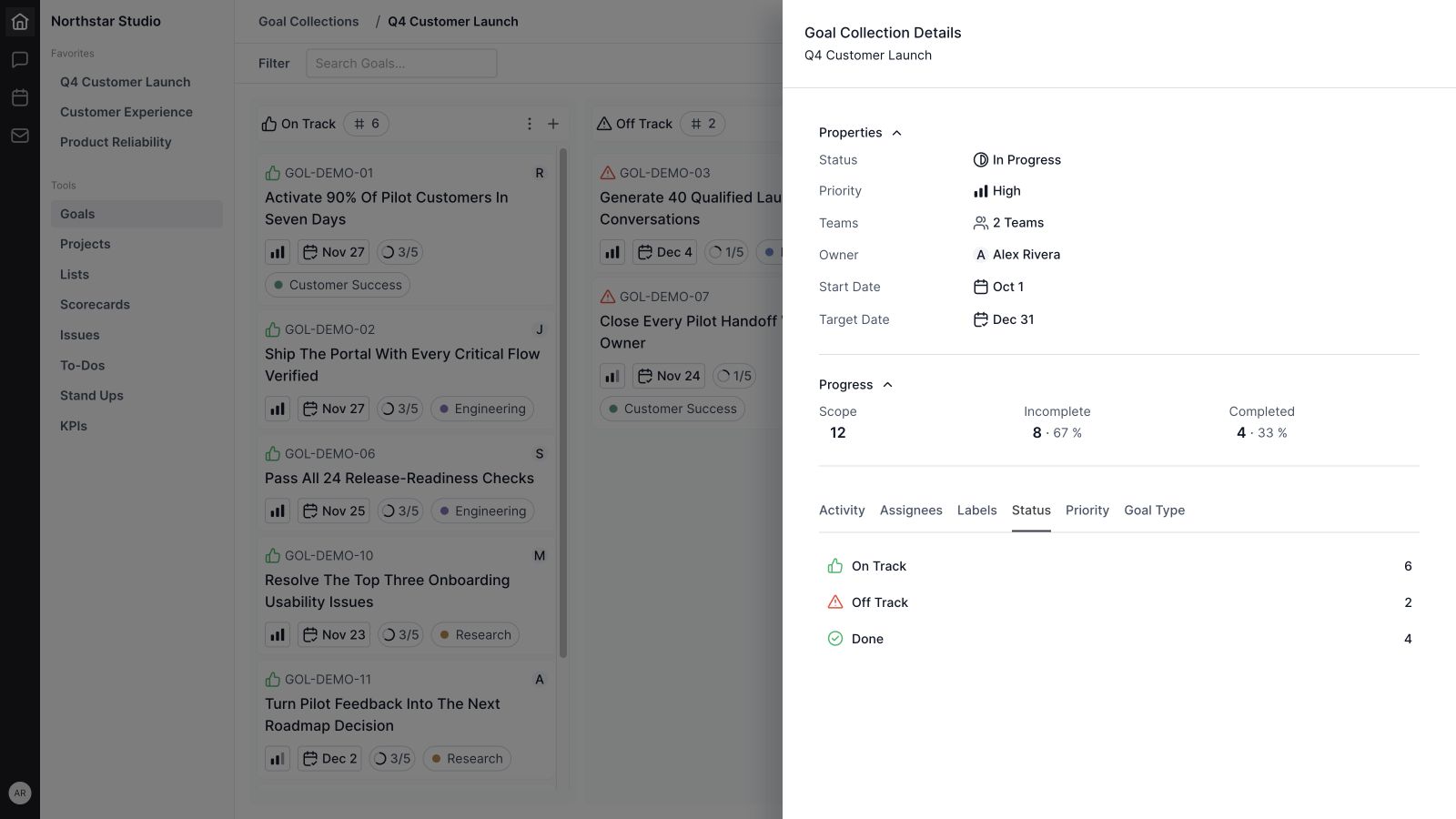
Board view displays goals as cards in columns. Cards surface useful context, including ownership, priority, labels, due dates, and milestone completion. In the demo, the status board separates On Track, Off Track, and Done so the team can quickly identify outcomes that deserve discussion.
13. Group goals around the review you need
Group goals by status, assignee, priority, or goal type. The Display controls also let you choose which groups to show. A status review highlights progress and risk; grouping by assignee helps a lead discuss each owner’s outcomes; grouping by type separates company and individual goals.
14. Reorder and move board cards
In an editable board, drag cards to reorder them or move them between groups. Moving a card changes the property represented by that grouping, such as its status or assignee. Use the right grouping before making a change so the visual action matches your intent.
15. Search and filter the goal list
Goal filters include status, assignee, creator, goal type, priority, label, due date, created date, and updated date. Combine the relevant filters with search to focus the view. A weekly review might start with off-track goals, while an individual check-in might focus on one assignee’s upcoming due dates.
Define each goal and its owner
16. Create goals and continue adding more
The goal creation flow lets you define an outcome and its core properties, including ownership, status, priority, labels, due date, and collection. The Create More option supports adding several goals in a planning session. Write a specific result for each goal so the board remains meaningful after the planning meeting ends.
17. Distinguish company and individual goals
Goal Type distinguishes Company and Individual goals. Use it to clarify whether an outcome represents a shared organizational priority or an individual commitment, then group or filter the view accordingly. This classification supports discussion; the goal still needs a clear owner and a definition of success.
18. Explain the result with a title and rich description
A goal’s title provides the short version of the outcome. Its rich description adds the definition, boundaries, and evidence the team will use to judge success. In the demo, “Activate 90% of pilot customers in seven days” gives the team a measurable target, while the description explains what activation means.
19. Give each goal an accountable owner
The Assignee property identifies the person responsible for the goal. Other people can contribute through milestones and discussion, but a single goal owner makes follow-through clearer. Grouping by assignee then gives each person a practical review view across their goals, including the ones that are complete or off track.
20. Keep goal status current
Goal statuses are On Track, Off Track, and Done. Use On Track when the result is progressing as expected, Off Track when it needs intervention, and Done when the outcome is complete. A useful status update reflects the result itself, supported by notes or discussion that explain what changed.
21. Add priority and labels
Priority communicates urgency or importance, while labels organize goals around themes such as Launch, Customer Success, Engineering, or Research. Labels are especially helpful when an initiative spans several disciplines. They give the team another way to filter the collection and inspect related goals together.
22. Give the outcome a due date
A goal’s due date makes its timing visible in the list, board, and detail view. Set it around when the result needs to be achieved, then use milestone dates to plan the steps leading up to it. During review, consider the due date alongside status and the remaining milestones.
23. Keep the goal in the right collection
The Goal Collection property connects a goal to its initiative and can be changed when the work belongs elsewhere. This is useful when planning reveals that an outcome supports a different program. Keep the surrounding description current so the new collection provides a coherent picture of the work.
24. Attach supporting resources
Use the goal’s attachment controls to keep supporting resources close to the outcome. A brief, research summary, or launch document can provide the context behind the target and its milestones. Give the description enough explanation that a teammate understands why each resource matters before opening it.
Plan milestones and preserve context

25. Break goals into milestones
Milestones turn a broad result into smaller steps the team can act on. Add and reorder milestones within the goal, edit their titles, and remove steps that no longer belong. For the activation example, the milestones move from agreeing on the definition to reviewing the full pilot cohort.
26. Plan milestone ownership, priority, effort, and timing
Milestone rows support an assignee, priority, time estimate, and due date. That lets the goal owner distribute the work while keeping it connected to the outcome. A designer might own the checklist, an engineer the measurement step, and the customer success lead the final cohort review.
27. Track milestone completion alongside goal status
Mark milestones complete and use their completion count to understand how much of the planned work has been finished. The featured goal shows three of five milestones complete. That count describes completed steps; the goal’s On Track, Off Track, or Done status remains a separate judgment about the outcome.
28. Keep goal and milestone notes nearby
The goal’s Notes tab provides space for decisions, review notes, and the next checkpoint. Milestones also provide a notes surface for step-specific context. Keep the broad success definition in the goal description and use notes for the working record, so people can find both the target and the latest thinking.
29. Work with collaborative and AI-assisted notes
The notes editor supports collaborative editing and AI-assisted drafting where those services are available in your workspace. AI-assisted content can be reviewed before accepting or rejecting it. Use these capabilities to develop a clearer draft or shared working note, then verify that the final text accurately reflects the team’s decisions.
The showcase displays prepared example notes. It does not demonstrate an AI response or a live collaboration session.
Review progress and maintain the workspace
30. Discuss the goal in comments
The Comments tab keeps discussion attached to the goal. Replies and reactions help teammates respond in context, while available edit and delete controls support maintaining the conversation. Ask questions about the outcome or a specific blocker here so the explanation stays accessible to the next person reviewing the goal.
31. Follow the activity record
Activity views provide a record of changes and discussion associated with the work. Use them to catch up before a review or understand the sequence behind the current state. This adds context to a status or property change without requiring the owner to retell the entire history each time.
32. Share collection health updates
Collection updates let the team communicate progress with a health signal and explanatory text. Health options include On Track, At Risk, and Off Track. A useful update names what moved forward, what threatens the target, and the next action, giving the collection’s health indicator a clear explanation.
33. Review collection progress and breakdowns
The collection detail view summarizes scope, incomplete goals, and completed goals, including percentages. Additional tabs break the collection down by assignee, label, status, priority, and goal type, with entries that can narrow the goal view. This helps a lead move from an overall picture to the goals behind it.
In the demo collection, four of 12 goals are Done, so the summary shows 33% completed. That is a count of completed goals, not an average of milestone completion or a financial measure. Use it alongside the individual goal context when discussing progress.
34. Share references and move between details
Copy a goal or collection URL or ID when you need to reference it in another conversation. Goal details also provide previous and next navigation so you can move through the current set without repeatedly returning to the list. References are useful during handoffs, planning, and recurring reviews.
35. Archive or remove outdated work
Goal and collection menus provide archive and delete actions, and the collection overview supports selected-item actions. Use these controls deliberately when an initiative has ended or a record no longer belongs. Keeping active views focused makes it easier for the team to distinguish current commitments from historical work.
36. Manage collection notification preferences
The collection’s Notifications action opens preferences for that collection. Available choices follow the workspace’s notification configuration, including inherited controls. Review them when joining or taking ownership of an initiative so the notifications you receive support your role in the work.
A practical way to use Wave Goals
Start with one real initiative and a small set of outcomes. You can expand the structure after the team has used it in a review.
- Create the collection. Choose a clear name, owner, associated teams, planning dates, and priority.
- Define the outcomes. Write each goal as a result the team can evaluate. Add the success criteria to its description.
- Assign ownership. Give each goal one accountable owner, a goal type, a due date, and useful labels.
- Plan the milestones. Break the work into manageable steps with owners and dates. Add estimates where they help planning.
- Review by status. Start with off-track goals, discuss what has changed, and record the next decision in comments or notes.
- Review the collection. Check completed and incomplete goals, inspect the relevant breakdowns, and publish a concise health update.
Wave Goals also fits into a broader team workflow. Use Wave Projects for project delivery, review outcomes during Wave Meetings, and use Wave Accountability to clarify responsibilities. These tools provide related contexts for discussing the work; keep each goal’s outcome and owner explicit.
Wave Goals FAQ
What is the difference between a goal and a goal collection?
A goal describes an outcome with its own owner, status, due date, and milestones. A goal collection groups related outcomes under a shared initiative, with collection-level ownership, teams, dates, health updates, and progress summaries.
Can I track both company and individual goals?
Yes. Wave Goals includes Company and Individual goal types. You can use the type on each goal and group or filter the view to review either category.
Which views are available in Wave Goals?
Goals can be viewed as a list or board. Group them by status, assignee, priority, or goal type, and use search and filters to narrow the work shown.
How is goal progress shown?
Goals have On Track, Off Track, or Done status and display milestone completion counts. The collection summary shows the number and percentage of completed and incomplete goals. These signals describe different aspects of progress and should be reviewed together.
Can different people own milestones within the same goal?
Yes. A goal has an accountable assignee, while individual milestones can have their own assignees, priorities, estimates, and due dates. This lets several teammates contribute to one owned result.
Does Wave Goals support notes and attachments?
Yes. Goals include a rich description, attachment controls, notes, comments, and activity. Milestones also support notes. Collaborative and AI-assisted note capabilities depend on the services available in the workspace.
How should a team use collection health updates?
Use them to explain how the initiative is going. Pair the health signal with a short account of progress, risks, and the next action. The explanation helps the team interpret the overview’s health indicator.
Is the showcase using real customer data?
No. The showcase uses actual Wave interface components with fictional people, collections, goals, milestones, and updates. The sample is designed to demonstrate a useful workflow without exposing a customer workspace.
Give your team a clearer path from goals to progress
Wave Goals brings the outcome, owner, milestones, and review context together. Start with one collection, define the results that matter, and use the views and updates to keep the team focused on what needs to happen next.
Get started with Wave or talk with the Wave team about your workflow.


