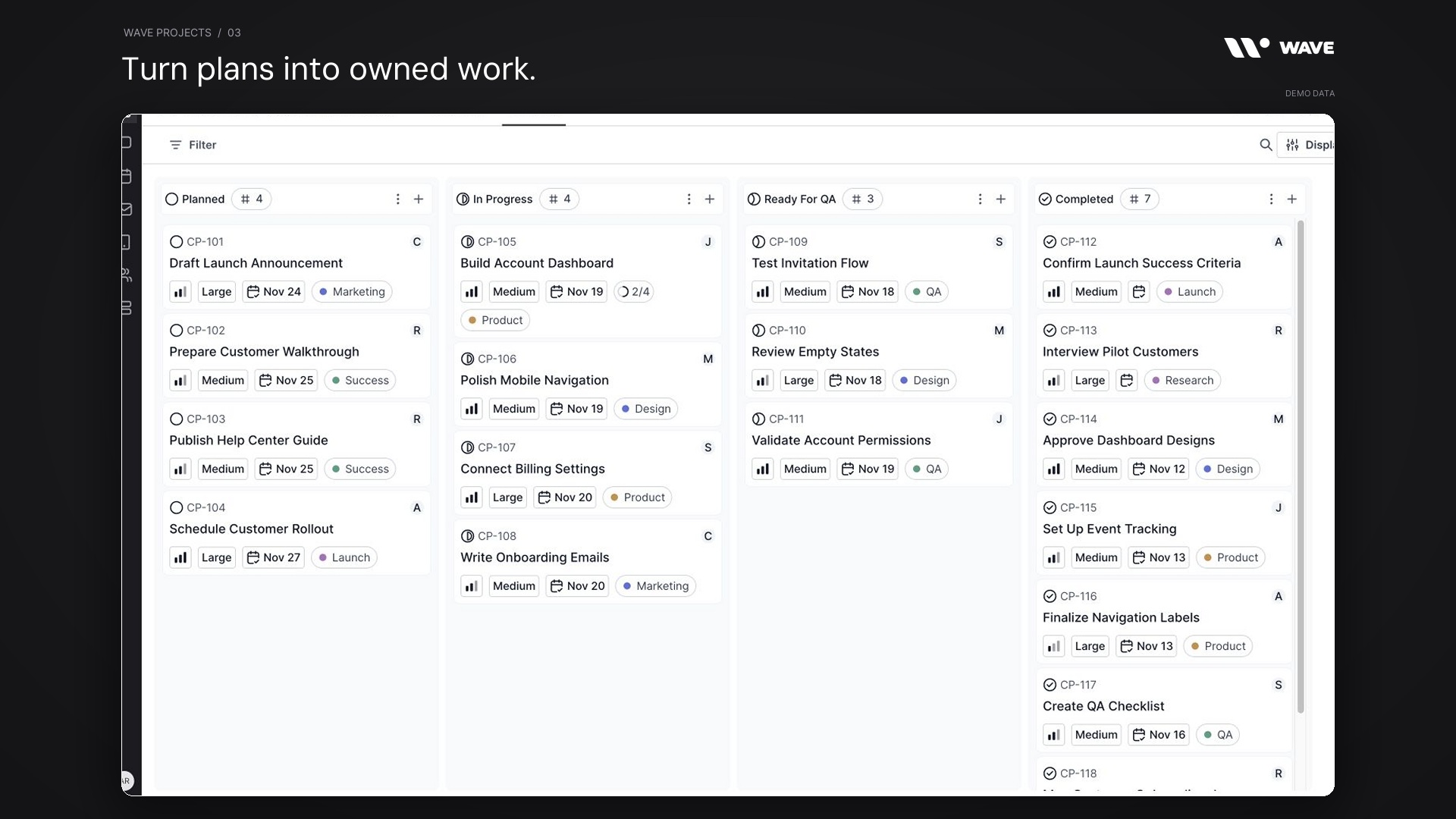
Wave Projects brings project plans, tasks, owners, timelines, and progress updates into one shared workspace. It gives your team a place to define the outcome, organize the work, and see what needs attention as a project moves forward.
A launch usually starts with a clear idea. The complexity arrives later: designs live in one place, the checklist lives somewhere else, and the latest status is buried in a conversation. Wave Projects keeps that context alongside the work. Open a project to understand the plan, switch to its tasks to see who owns the next step, and check its updates to understand how delivery is going.
This guide covers the Wave Projects feature set, from the project overview and task board to subtasks, timelines, resources, collaboration, reporting, and notifications.
Watch the Wave Projects product demo
The showcase follows a fictional Customer Portal Launch across eight sample projects, 18 launch tasks, and six teammates. It moves from the project portfolio into the brief, board, task details, timeline, and health updates.
Illustrative demo built with Wave’s actual UI components and fictional project data. The names, assignments, dates, and progress shown are examples.
What is Wave Projects?
Wave Projects is the project management tool inside Wave. It helps teams organize an initiative around a shared outcome, then break that initiative into tasks with clear ownership and useful context.
A project has its own overview, properties, resources, task views, comments, updates, and details. Tasks add another level of structure: an assignee, status, priority, due date, estimate, labels, subtasks, notes, and activity history.
That structure works for a product launch, a customer onboarding rollout, a website refresh, a hiring initiative, or an internal process improvement. The project describes what the team is trying to achieve. Its tasks describe the work required to get there.
Explore the guide: Planning and project organization · Tasks and daily execution · Collaboration and progress · Connected work and project controls · Getting started · FAQs
Planning and project organization
1. A project overview that explains the outcome
The Overview tab gives each project a home for its brief. Add a name, choose an emoji, customize the cover, and write the description your team needs to understand the work. The description supports a rich document canvas, so you can organize the brief into useful sections instead of relying on a one-line title.
For the Customer Portal Launch in the demo, the overview explains the intended customer experience, the pilot rollout, and the launch criteria. A teammate joining midway through the project can see the purpose before opening individual tasks.
A useful starting brief answers four questions: What are we delivering? Who is it for? What is included? What will tell us the project is complete?
2. Owners, teams, priorities, and dates
Project properties bring the main delivery decisions together. Set the project owner, associate the relevant teams, choose a status and priority, and add start and target dates. Those properties are available in the project overview and details, with key fields also accessible from the portfolio.
The project owner is responsible for the overall outcome; individual tasks can belong to different teammates. In the demo, Alex owns the launch while design, engineering, customer success, and marketing work is assigned across the team.
Use priority to make tradeoffs visible. When two projects compete for the same person’s attention, a clear owner, target date, and priority make the discussion more concrete.
3. Resources, attachments, links, and connected content
The Resources area keeps supporting material with the project. Add attachments, links, or content so teammates can find the brief, design handoff, QA checklist, research, and other references from the project itself.
Wave also supports opening linked project content in a canvas. That lets a project carry both the task plan and the documents that explain the work. Tasks have their own resource support, so a file or reference that matters to one specific action can stay with that action.
For example, attach the overall rollout brief to the project, then keep the account-dashboard design reference with the dashboard task. This gives each resource a clear place in the workflow.
4. A searchable portfolio with favorites and filters
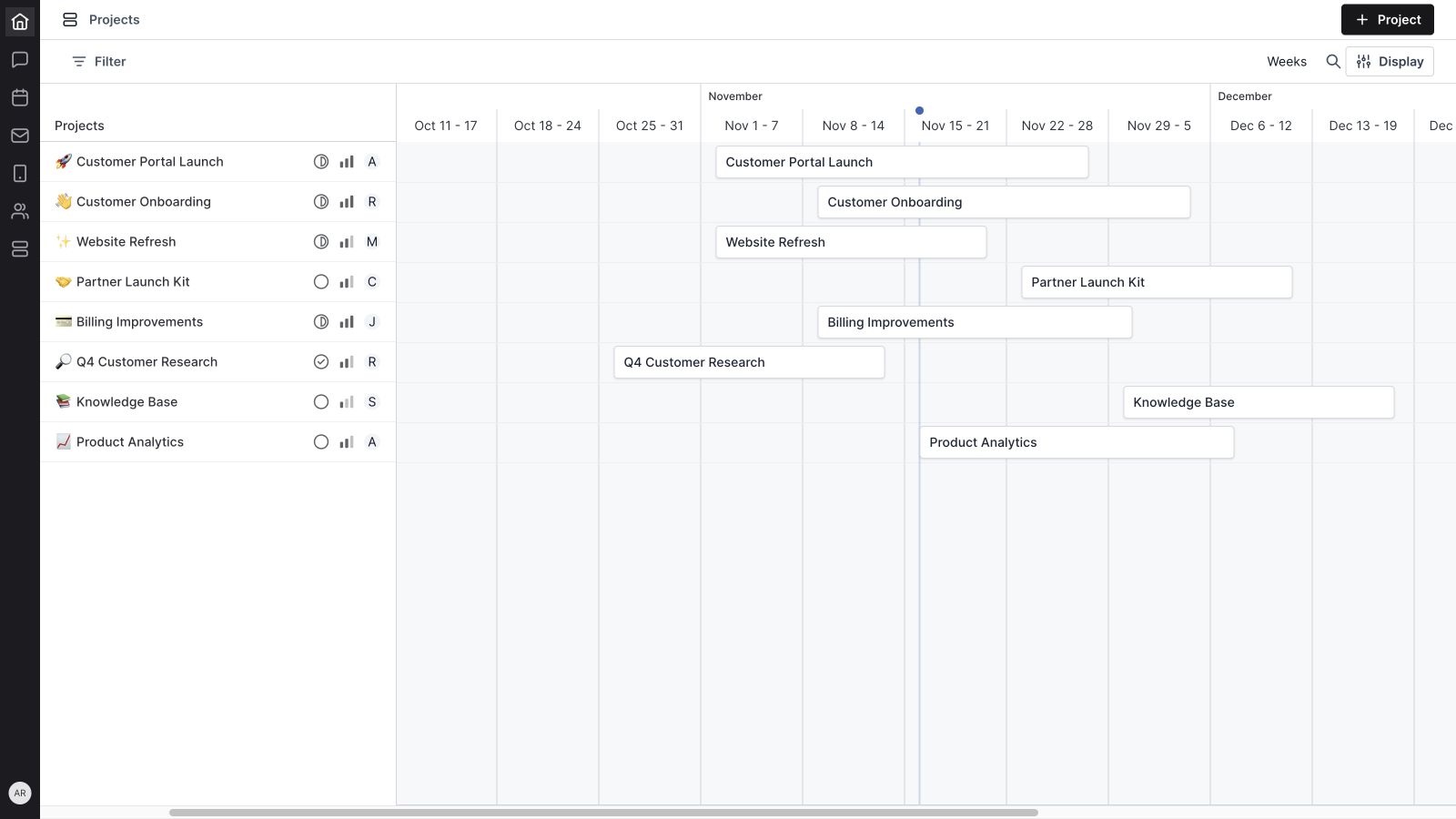
The Projects page gives you a view across initiatives. Its list includes the project title, health, priority, owner, target date, and status. Favorite the projects you return to most often to keep them easy to reach.
Search helps you find a project by name. Filters narrow the portfolio by status, owner, priority, or target date. You can also choose whether favorites appear in the portfolio display.
In the sample workspace, the Customer Portal Launch and Customer Onboarding projects sit alongside Website Refresh, Billing Improvements, and other initiatives. That makes it possible to review the team’s work as a whole before drilling into a single board.
5. A project timeline for seeing dates together
Switch the portfolio display to Timeline to see projects laid out across time. Wave supports day, week, month, quarter, and year scales, so you can look at near-term delivery or a broader planning horizon.
The timeline uses project start and target dates. You can adjust dates, move or resize project bars, reorder projects, and open the project you want to inspect. Project controls also expose ownership, status, and priority alongside the timeline.
For a launch, this view helps you spot overlapping initiatives. If the website refresh and customer onboarding rollout both finish in the same week, the team can review the dates together and decide whether the plan is realistic.
Tasks and daily execution
6. List and board views of the same work
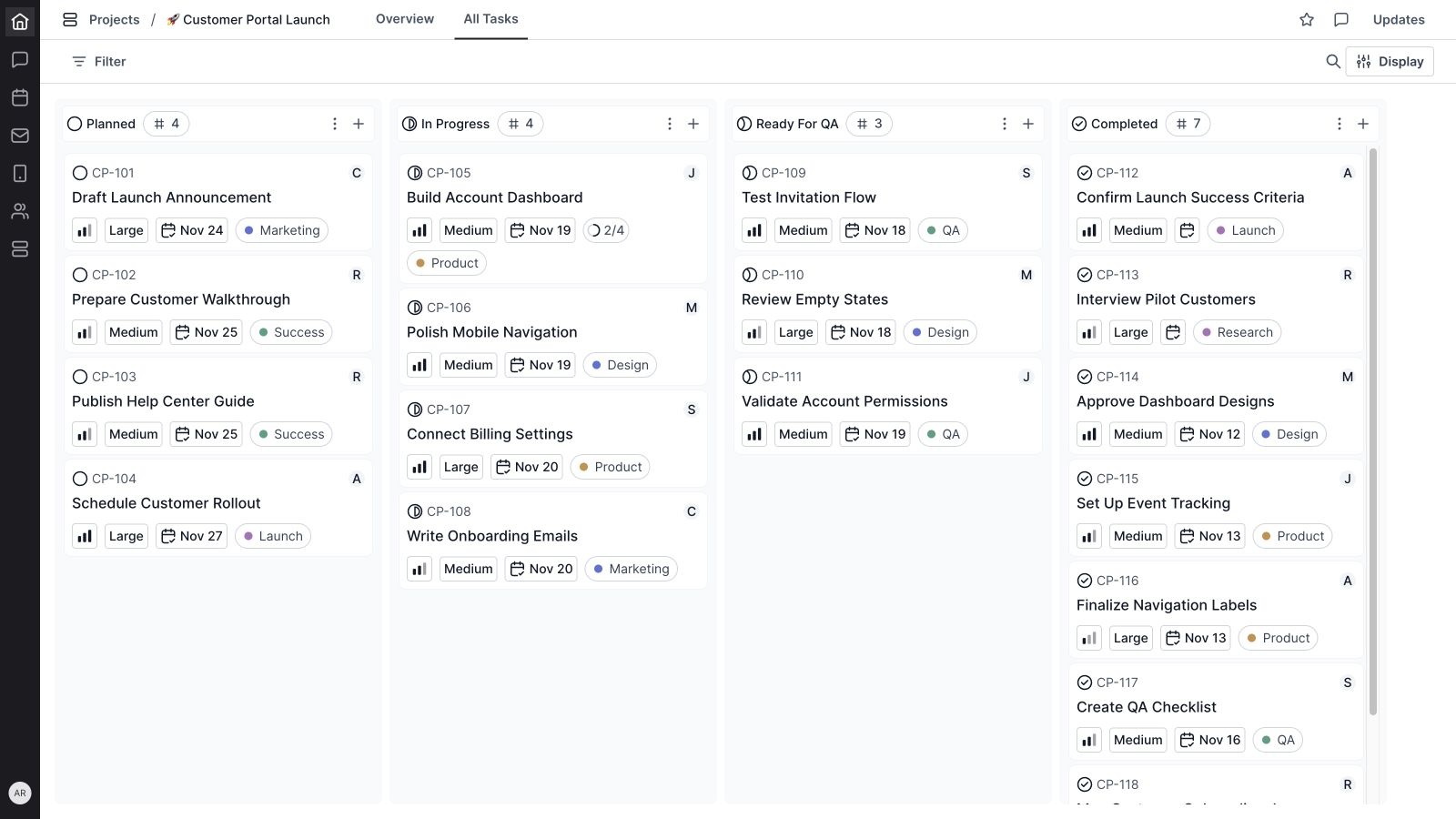
Inside a project, All Tasks provides list and board views. The list is useful for scanning work and updating properties inline. The board makes the flow of work visible across columns.
Group tasks by status, priority, or assignee, and show or hide groups to focus the view. Status grouping helps a delivery review. Assignee grouping helps you discuss ownership. Priority grouping helps the team choose what to work on next.
Board cards show practical context, including task identifiers, assignees, priorities, estimates, due dates, labels, and subtask progress when present. Drag tasks to reorder them or move them between groups. You can also create tasks from the relevant group.
The demo uses four visible status columns so the launch is easy to scan: Planned, In Progress, Ready for QA, and Completed. The underlying project still has one set of tasks as you change the display.
7. Task statuses for the full delivery cycle
Wave’s task statuses cover the stages a team needs to describe the work clearly:
- Backlog: work captured for consideration.
- Planned: work selected and ready to be scheduled or started.
- In Progress: work someone is actively doing.
- Blocked: work that needs an obstacle removed.
- Ready for QA: work ready to be checked.
- Completed: finished work.
- Cancelled: work the team has decided not to pursue.
Agree on what those statuses mean for your team. For the portal launch, “Ready for QA” means the implementation is ready for someone else to test. “Completed” means the agreed checks have passed. The status becomes useful when everyone applies the same definition.
8. Task details that make the next step clear
Open a task to view its title, description, and properties. Assign an owner, set the priority and due date, choose an estimate, apply labels, and associate the task with its project. Priority options include Urgent, High, Medium, Low, and No Priority.
The description can explain the expected result and acceptance criteria. Labels give the team another way to identify related work, such as Design, QA, Research, or Launch. Estimates communicate the expected size of the work using the options configured in your workspace.
In the demo, “Build account dashboard” belongs to Jordan, carries a High priority, and has a November 19 due date. Its description names the required account information and the loading, empty, and error states. That is enough context for another teammate to understand what delivery means.
9. Subtasks with their own useful details
Break a larger task into subtasks when it contains several concrete steps. Subtasks support completion state, ownership, priority, estimates, due dates, and notes. You can also reorder them as the sequence changes.
The parent task shows subtask progress, which helps the team see what remains without opening every item. The sample dashboard task has four subtasks: account summary, activity feed, interface states, and responsive QA. Two are complete in the showcase.
Use a separate task when work needs to stand on its own in the project board. Use a subtask when it is a smaller part of the parent task’s outcome. Both levels can carry enough detail for a useful handoff.
Collaboration and progress
10. Comments, notes, resources, and activity history
Task details include Subtasks, Comments, Notes, and Activity tabs. Keep questions and discussion in Comments, put durable working context in Notes, and use Activity to review changes. Projects also have their own comment view for discussions that affect the whole initiative.
Wave’s collaboration controls support replies, mentions, reactions, and resources. A design question can stay beside the task it affects; the answer can remain available when QA starts later.
This is especially useful during a handoff. A teammate can read the task description, review the discussion, open the attached reference, and check the remaining subtasks from the same work context.
11. Health updates that explain how a project is going
Project health updates let the owner communicate whether work is On Track, At Risk, or Off Track, with written context behind the status. The portfolio surfaces health so you can identify projects that need attention.
Updates form a timeline, and teammates can reply or react. A useful update describes what changed, what is next, and where help is needed. For example: “The build is moving into QA. Pilot invitations are scheduled for November 23. We need final approval on the onboarding email by Friday.”
Project status and project health answer different questions. Status describes the project’s stage. Health describes confidence in the plan. An In Progress project can still be At Risk if a key decision or deliverable is late.
12. Project details and progress breakdowns
The project details view brings properties and progress together. Review the scope, completed and incomplete work, and completion percentage. Breakdowns by assignee, label, status, and priority help you understand where the work sits.
Use those views to guide a delivery conversation. If most unfinished work belongs to one person, review the assignments. If several high-priority tasks are blocked, focus the discussion on removing those blockers. The activity view provides additional context about what changed.
Task completion is a useful signal, but it is still worth reviewing the remaining work. Seven finished tasks out of 18 tell you something about progress; they do not automatically mean seven eighteenths of the project’s effort is complete.
13. Notifications for changes that matter
Wave includes project notification preferences for events such as project status changes, posted updates, approaching deadlines, task assignments, blocked tasks, completed tasks, and comments on your tasks.
Review the available project notification controls to match the way you participate. A project owner may need a different level of visibility from a teammate who owns one specific task. Keeping those preferences intentional helps important updates get attention.
Connected work and project controls
14. Project work in personal, team, meeting, and calendar contexts
Wave can surface project tasks in personal and team work views. Projects also have a meeting-agenda view, so the team can review project work during a meeting and keep the discussion tied to the actual tasks.
In Calendar, project task panels support finding project work and bringing tasks into a schedule. The practical workflow is straightforward: identify the next task in Projects, make time for it in your day, then review progress with the team.
Projects sits alongside the rest of Wave’s operating tools. For customer-facing teams, the Wave Phone system supports customer communication, while Projects provides a place to organize the delivery work that follows.
15. AI assistance in the project writing workflow
The project description uses Wave’s document canvas, which includes AI writing assistance. That gives you a starting point for drafting or refining the written context around a project: the brief, the desired outcome, or a clearer explanation of the work.
Make the final brief specific to your team. Include the decisions, constraints, and acceptance criteria that people need to act on. A readable overview is most useful when it reflects the real plan and stays current as the project changes.
16. Sharing references and keeping the workspace organized
Project controls include Copy URL and Copy ID, making it easy to reference the right project in a conversation or another document. Favorites provide a quick route back to active work.
Archive projects when they no longer belong in the active portfolio. Tasks also support archiving, and task groups provide bulk actions such as moving work to Completed or archiving a group’s tasks. Delete controls are available when an item should be removed.
A simple maintenance habit helps: close out finished work, archive inactive initiatives, and make sure the projects still in view have a current owner and status.
How to get started with Wave Projects
You can build a useful project without configuring every option at once. Start with one real initiative and enough detail for the team to work from it.
- Create the project. Give it a name that describes the outcome, such as “Customer Portal Launch.” Add an emoji or cover to make it recognizable.
- Write the overview. Explain the outcome, scope, and definition of done. Add the resources people will need.
- Set the main properties. Choose an owner, relevant teams, status, priority, start date, and target date.
- Add the work. Create tasks with clear titles, assign owners, set useful due dates, and add descriptions or subtasks where the work needs more detail.
- Choose the working view. Start with a status board or grouped list. Hide groups you do not need in that review, and use labels or filters to focus the discussion.
- Establish an update rhythm. Review blockers, check the remaining work, and post a health update. Use the portfolio timeline when dates across projects need attention.
For the sample launch, the first weekly review can be concrete: the project is On Track; seven tasks are complete; three are ready for QA; four are in progress; and four are planned. The next conversation is about the work and decisions required to reach the pilot date.
As the project evolves, update its brief and task details along with its status. The goal is for the next person who opens the project to find a useful account of what the team is doing now.
Wave Projects FAQs
What can I manage with Wave Projects?
Use Wave Projects for initiatives with a shared outcome and multiple pieces of work, including launches, customer onboarding, website improvements, internal operations, and cross-team delivery.
Does Wave Projects have a Kanban board?
Yes. A project’s All Tasks view supports both list and board displays. You can group tasks by status, priority, or assignee and control which groups appear.
Does Wave Projects have a timeline?
Yes. The Projects portfolio includes a Timeline display based on project start and target dates, with day, week, month, quarter, and year scales.
Can I assign tasks and subtasks to different people?
Yes. Projects have an overall owner, tasks have assignees, and subtasks support their own ownership and properties. This lets the team divide the work while keeping the project outcome clear.
Can I keep documents and files with a project?
Yes. Project resources support attachments, links, and content. Tasks also support resources, and Notes provides a place for additional working context.
How do I track project progress?
Use task statuses and subtask completion for execution detail, the project details view for progress and breakdowns, and health updates to explain whether the project is On Track, At Risk, or Off Track.
Can we review Projects during a meeting?
Yes. Wave supports project views in meeting agendas, letting the team review the work in the context of its meeting.
Bring your next project into Wave
Wave Projects gives your team a shared plan, clear task ownership, and a visible account of progress. Start with one initiative, add the context people need, and build a review rhythm around the work.
Get started with Wave or contact us to discuss your team’s workflow.


