
The Wave phone system brings business calls, text messages, voicemail, and customer context into your Wave workspace. Your team can see the conversation, understand who the customer is, review available call recordings and summaries, and follow up from the same place.
For a startup, the conversation is only the beginning. A prospect asks about a pilot. A customer needs help getting started. A teammate needs to know what you promised. Wave Phone keeps those interactions connected to the people and work behind them.
See the Wave phone system in action
This 24-second showcase follows a customer conversation from a call to its summary, transcript, and follow-up message.
Illustrative demo using Wave’s interface with fictional contacts and simulated call activity.
In the example, Ava at Northstar Studio is preparing a 12-person pilot. Alex opens her conversation, calls her, reviews the key details, and confirms the next step by text. The customer’s information stays alongside the conversation throughout.
Explore this guide: What Wave Phone is · Phone system features · An example workflow · Getting started · FAQs
What is the Wave phone system?
Wave Phone is the business calling and messaging tool inside Wave, the platform at ourwave.io. It gives your workspace a business phone number and a place to manage customer communication alongside your contact records.
The workspace brings together an activity list, a conversation thread, and contact context. You can move between calls and messages without rebuilding the history each time. Phone also includes a dedicated voicemail view and settings for numbers, supported devices, business verification, texting registration, and blocked numbers.
That makes it useful for founders handling early sales, teams onboarding customers, and businesses that need several people to understand the same customer relationship. One person can own the next response while the conversation remains connected to the workspace.
Wave phone system features
1. A business phone number for your workspace
Wave lets authorized workspace members search available phone numbers, review the number’s displayed monthly price, and purchase a number for the workspace. The phone number becomes the starting point for business calling and, once approved and enabled, business texting.
Keeping customer communication on a workspace number gives the team a consistent business identity. It also keeps those conversations in the tool where the team manages them.
The current self-service setup supports one phone number per workspace. Number availability, calling readiness, and texting readiness are shown in the product; acquiring a number does not by itself mean every messaging feature is enabled.
2. Incoming and outgoing business calls
Start a new call from Phone or call from an existing conversation. Incoming calls show a caller window with options to accept or reject. During a call, a movable call window keeps the call accessible while you review the customer’s history.
Call status helps distinguish connecting, connected, and reconnecting states. Where a recoverable active call is available, Wave also provides a rejoin option. Completed call activity remains in the conversation, giving the next interaction a useful starting point.
For example, before calling a customer about onboarding, you can review the message that prompted the call and the contact details beside it. The call starts with the context already available.
3. Business text messaging
Send and receive text messages through the customer conversation. A question can arrive by text, turn into a phone call, and end with a written confirmation in the same thread.
Message status helps you understand what happened to an outgoing message. If a send fails, the conversation shows the problem so you can respond appropriately. This is useful when a short message carries a specific commitment, such as an appointment time or the next onboarding step.
Business texting requires an eligible number and approved registration. Wave’s Trust Center shows the registration process and status, so your team can see what is needed before texting becomes available.
4. Media attachments on supported numbers
Phone supports message attachments when the workspace number supports MMS. This lets a conversation include relevant media as well as text, subject to the attachment options and limits shown in the composer.
Attachments must finish uploading before the message can be sent. MMS support depends on the number, so teams should check their number’s capabilities before planning a workflow around media messages.
5. Calls and messages in one conversation history
The activity list helps you move between customer conversations. Inside a conversation, messages and call events appear together, preserving the sequence of the relationship: what the customer asked, when the team called, and what happened afterward.
This matters when a colleague picks up the conversation later. They can review the history before replying instead of asking the customer to repeat the background. Search helps you find the person or conversation you need, and the conversation’s history search helps you return to earlier details.
Use the activity filters to switch between all, open, and completed conversations. Unread indicators make recent activity easier to spot while you work through the list.
6. Contact and company context beside the conversation
Phone brings Wave’s contact context into the communication workspace. When a conversation is linked to a contact, you can see the associated record alongside the thread, including the contact information and company context available on that record.
When an unfamiliar number becomes a real customer relationship, you can associate the conversation with an existing contact or create and link a contact. This gives the conversation an identity the team can recognize later.
For teams already using Wave’s CRM, this connection makes Phone part of the customer workflow. The conversation and the person behind it stay close together.
7. Conversation ownership and completion
Assign a conversation to a teammate so there is a clear owner for the next response. Mark a conversation complete when the current exchange is handled, and reopen it when more work is needed.
Ownership and status answer two different questions: who is responsible, and does this conversation still need attention? Used together, they help a small team coordinate a shared customer inbox.
A useful habit is to assign the owner as soon as the next action becomes clear. If a customer needs an onboarding answer from operations, the person taking that action should own the conversation. Complete it after the response or agreed handoff is finished.
8. Call recording playback
When a call recording is available, you can play it from the call activity in the conversation. Playback controls include seeking through the recording, volume, and playback speed. Available recording actions also include downloading the audio.
That gives the team a way to revisit a detail that a short note might miss: the customer’s wording, a question that needs another answer, or the explanation behind a decision. Recording availability is shown on the individual call.
9. Call summaries and transcripts
Wave Phone can show a generated summary and transcript for a call. The summary provides a quick way to review the main points; the transcript gives you the fuller conversation, organized into speaker segments when that information is available.
Open the call details to move between the summary and transcript. Available actions let you copy a summary or a completed transcript, making it easier to carry a useful detail into your next piece of work.
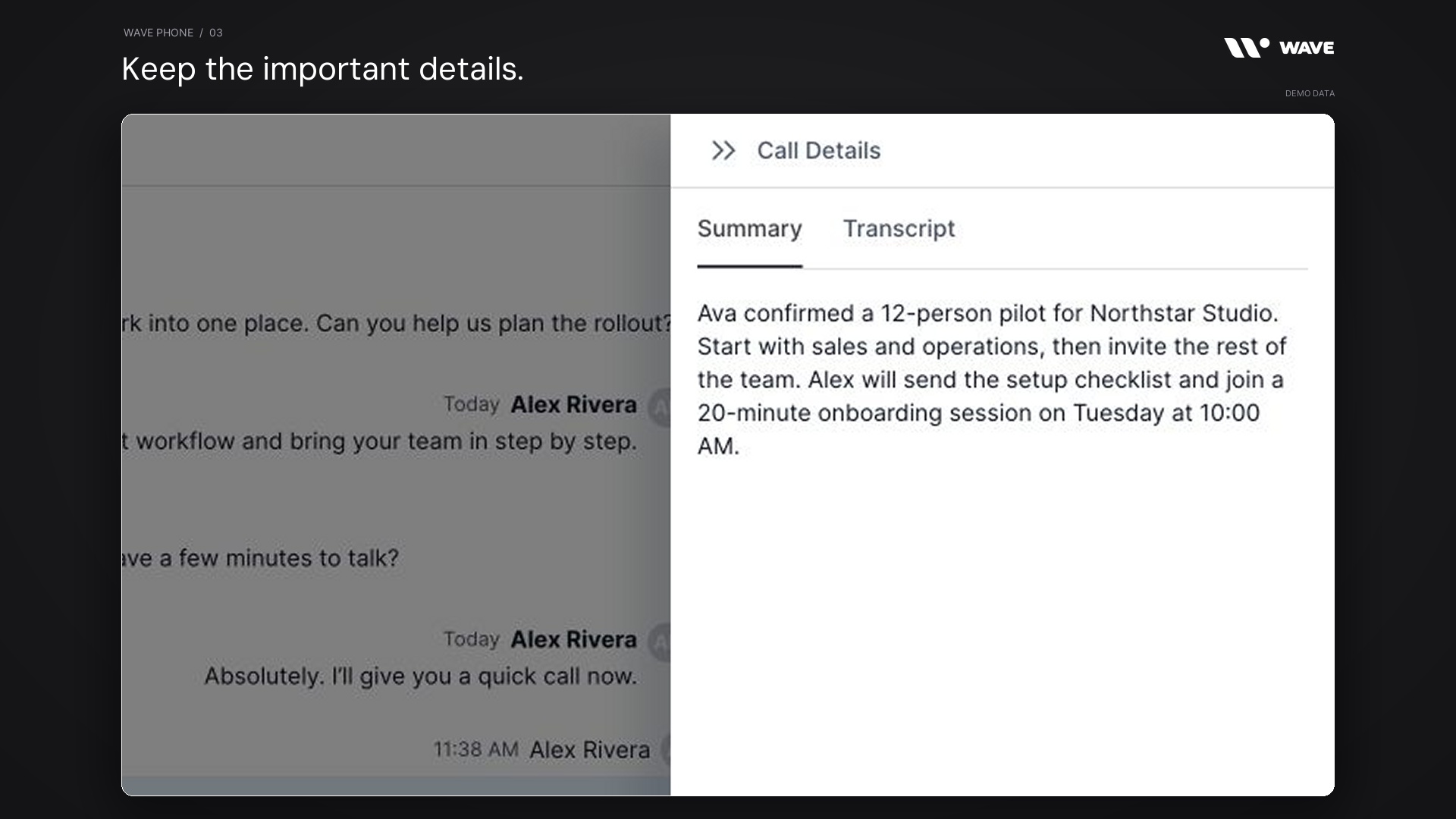
These views are particularly helpful when a call includes several decisions. In the showcase, the summary captures the pilot size, the first teams to invite, and the onboarding session. Alex can then use those details to write a specific follow-up.
Summaries and transcripts may still be processing or may be unavailable for a particular call. Review important names, dates, and commitments against the conversation before using them in a customer response.
10. A dedicated voicemail inbox
The Voicemail view brings voicemail activity into one place. It shows the contact or phone number, available summary information, and playback controls. You can filter to unheard voicemails when you want to focus on messages that still need listening.
An unheard count in the Phone navigation helps the team notice new voicemail activity. As voicemail is played and marked heard, its status can be reflected across the workspace.
This creates a practical return-call routine: review unheard messages, listen to the relevant recording, open the customer context, and decide who should respond. Available voicemail transcripts and summaries provide another way to review the message.
11. Caller ID name management
Submit a business name for an eligible Wave phone number so it can appear on supported caller ID displays after provider review. You can also update a submitted name through the caller ID settings.
Caller ID uses the approved business verification in the Trust Center. A texting campaign is not required just to submit a caller ID name. The name is subject to the product’s format requirements and provider approval; display support can vary.
12. A Trust Center for business verification and texting
The Trust Center gives authorized members a place to manage business verification and optional business texting registration. It separates business identity from the registration needed to enable texting on an eligible number.
You can review status, provide the required information, and address corrections when a registration needs attention. The interface also provides registration details and cancellation controls where those actions are available.
Phone includes a link to Free Caller Registry for submitting business and number information when dealing with unwanted spam labeling. Registration does not guarantee that a carrier will remove a label.
For a team preparing to launch, the practical benefit is visibility. You can see which setup steps are complete and which still need action before depending on the number for customer communication.
13. A workspace blocklist
Manage blocked numbers in Phone’s Blocklist settings. You can block a number, review the workspace’s blocked entries, and unblock a number when appropriate. Existing conversation history can be accessed where available.
Central management gives the team a place to handle unwanted contacts consistently. It is also useful for correcting a block if a legitimate customer’s number was added by mistake.
14. Supported desk phones
Wave Phone includes device management for teams that want a physical desk phone as part of their setup. The current supported model in the self-service device flow is the Yealink T57W.
Add the device, associate it with a Wave number, and follow the preparation and pairing instructions. Setup uses the phone’s MAC address to produce one-time pairing details. The device view shows registration information and offers a repair-pairing flow when needed.
Check the supported model and device requirements in your workspace before purchasing hardware. A listed desk-phone option does not imply that every SIP handset is supported.
15. Message links and history management
Copy a message’s text or its link when you need to refer a teammate to a specific part of the conversation. Available recording actions also let you copy the call summary or completed transcript.
Phone includes controls to delete an individual call and its associated recordings and transcripts, or to delete a conversation and its history. Conversation deletion affects the shared workspace, so use completion status to clear finished work from the active list when you want to retain its history.
From customer call to clear next step
The features work best as a connected routine. Here is how the fictional Northstar Studio example in the video fits together.
- Open the customer conversation. Alex sees Ava’s messages and the contact information beside them. Her request is about getting the team started.
- Call with the background in view. Alex starts the call from the existing conversation. There is no need to reconstruct why Ava reached out.
- Review the available call details. The summary captures the 12-person pilot and planned onboarding session. The transcript provides the fuller exchange.
- Confirm the next action in writing. Alex sends a short text confirming the pilot, the setup checklist, and Tuesday at 10:00 AM.
- Keep ownership clear. The team can leave the conversation with the person responsible for the follow-through and complete it when the current work is handled.
The outcome is a conversation another teammate can understand: who the customer is, what was discussed, and what should happen next. The video illustrates that workflow with sample data; it is not a customer case study or a recording of a live customer call.
Who is Wave Phone for?
Founders managing early sales. Keep prospect calls and follow-up texts connected to contact records. Pair the communication workflow with a simple founder sales pipeline so an interested conversation has a clear next step.
Teams onboarding customers. Review the conversation before calling, confirm setup details afterward, and give the next response an owner. Available summaries and transcripts help teammates revisit what was discussed.
Small teams sharing customer communication. Use conversation status, ownership, and voicemail review to coordinate work across people. A shared history is especially useful when the person replying today was not on yesterday’s call.
Businesses that prefer a desk handset. Use the supported device setup to connect a compatible physical phone while managing customer context in Wave.
How to get started with the Wave phone system
Start with one customer workflow your team already handles, such as a sales callback or an onboarding conversation. Then set up the number and capabilities that workflow needs.
- Open Phone in your Wave workspace. Review the activity, contacts, and voicemail areas so the team knows where conversations will live.
- Set up the workspace number. An authorized member can search available numbers, review the displayed price, and complete acquisition. Check the number’s calling readiness.
- Complete the relevant Trust Center steps. Submit business verification for caller ID, and complete the separate business texting registration if the team will send texts. Wait for approval and an enabled texting status before relying on messaging.
- Connect the customer records. Review your contacts and link conversations to the right person as you start using the number.
- Agree on ownership and completion. Decide who handles new conversations, who reviews voicemail, and when a conversation should be marked complete.
- Test your actual workflow. Check an incoming call, an outgoing call, and any approved messaging or supported device setup the team intends to use.
Review Wave’s current pricing and the prices shown during phone setup. Number charges and texting registration details should be checked in the product rather than assumed from the demo.
Wave phone system FAQs
Can I make and receive calls with Wave Phone?
Yes. Wave Phone supports incoming and outgoing business calls when your workspace has an owned, voice-ready number. You can start a new call or call from an existing conversation, and accept or reject incoming calls.
Does the Wave phone system support SMS and MMS?
Wave Phone supports business text messaging on eligible, approved numbers. Media attachments require MMS support on the number. Complete the business texting registration shown in the Trust Center and confirm that texting is enabled before using it.
Does Wave Phone include call recordings, summaries, and transcripts?
Wave Phone provides playback for available call recordings and views for available generated summaries and transcripts. These can be reviewed from the call activity. Processing and availability are shown for each call, so a transcript or summary should not be assumed to exist for every conversation.
Can my team share responsibility for customer conversations?
Yes. Conversations can be assigned to teammates and marked open or complete. The activity list lets the team distinguish active conversations from completed ones while keeping the history available.
Does Phone connect with Wave contacts?
Yes. Phone shows linked contact context beside the conversation. You can associate a conversation with an existing contact or create and link a contact, helping the team connect the number to the person and company behind it.
Can I use a physical desk phone with Wave?
Wave includes a device setup flow for the Yealink T57W. Authorized members can add the device, connect it to a Wave number, and follow the pairing instructions. Confirm the current supported hardware in the product before buying a handset.
How many phone numbers can I add?
The current self-service setup supports one phone number per workspace. Check the options available in your workspace as the product evolves, or contact Wave about your requirements.
Where can I try Wave Phone?
Create a Wave account or sign in to your existing workspace and open Phone. Review number setup, readiness, and any approvals needed for the features you plan to use.
Bring your business conversations into Wave
The Wave phone system brings calling, messaging, voicemail, and customer context into the workspace where your team runs the business. Available recordings, summaries, and transcripts help preserve the details; conversation ownership and status help the team act on them.
Start with the next customer conversation. Keep the context close, make the next step clear, and give someone responsibility for following through.
Get started with Wave or talk with us about your phone workflow.


