
Wave Meetings brings meeting preparation, structured agendas, notes, transcripts, and recaps into the same workspace as your team’s work. See what is coming up, give the conversation a clear purpose, and keep the decisions useful after the meeting ends.
A calendar invitation tells people when to arrive. A useful meeting also needs the right context, an agenda, a way to capture the discussion, and a clear record of what happens next. Wave Meetings connects those parts through My Meetings, Agendas, guided meeting sessions, and AI Notes.
This guide covers the current Wave Meetings feature set, including team and one-on-one meetings, recurring schedules, agenda building, linked work, meeting timers, transcription, note sharing, ratings, and recaps.
Watch the Wave Meetings product demo
The 48-second showcase follows a fictional customer portal launch. The sample workspace contains seven upcoming meetings, five past meetings, six agendas, six teammates, a six-section launch-review agenda, five transcript segments, and a populated recap. The scenes show preparation, meeting details, a guided session, transcript review, and the meeting history.
The demo uses actual Wave UI components with fictional data in an isolated preview. Navigation, scene composition, and supporting text are prepared for the presentation. Transcript text and recap values are sample content. No real meetings were started, invitations sent, audio captured, or note access changed.
What is Wave Meetings?
Wave Meetings is the meeting workspace inside Wave. It combines a view of upcoming and past meetings with reusable agendas, meeting detail panels, guided agenda navigation, notes, transcripts, and post-meeting records.
In the example, Alex Rivera leads a customer launch review. The team needs to check the account dashboard, resolve a pilot-access question, and agree on the customer handoff. Maya owns design, Jordan and Sam own engineering, Riley owns customer success, and Casey owns marketing. The meeting has a 45-minute plan and ends with a fictional 43-minute recap.
That example shows the intended workflow: prepare the discussion, work through the important items, record decisions, and return to the outcome later. Meeting notes and operational work stay connected, so the next conversation can begin with context.
Explore the guide: Meeting organization · Scheduling and preparation · Agendas and linked work · Running the meeting · AI notes and transcripts · Recaps and follow-up · Feature availability · Getting started · FAQs
See the meetings that need your attention
1. My Meetings: Upcoming and Past
My Meetings separates upcoming meetings from past meetings. Upcoming helps you prepare for the next conversation; Past provides a place to return to completed sessions. Meeting entries carry their titles and useful context instead of appearing as anonymous time blocks.
The sample week includes a customer launch review, a product and design sync, a one-on-one, customer onboarding, launch readiness, product planning, and leadership. The past view shows earlier occurrences, making it easier to distinguish the next review from the previous discussion.
2. Date navigation and meeting counts
The upcoming workspace includes a month selector, an All Meetings choice, and date controls with meeting counts. Select a day to narrow the list, or review the broader schedule when planning ahead.
This is useful before a busy launch week: a date with several meetings may need more preparation than a day with one check-in. The counts describe the meetings available to the current workspace and view; they should be read with the active filters and connected-calendar context.
3. Connected-calendar meetings and join links
Wave’s meeting views can include external calendar occurrences alongside internal Wave meetings. External entries show provider and timing context. When a valid conference link is available, an appropriate joining action can open the meeting destination, including recognized Google Meet, Microsoft Teams, or Zoom links.
Joining a linked call is separate from running a structured Wave agenda. For calendar connections, availability, and scheduling links, see the Wave Calendar guide. The showcase does not join a real call or demonstrate a new provider connection.
4. Filters and display preferences
Meeting filters include type, status, and host. Display preferences include visibility choices for team and one-on-one meetings. Agenda filters have their own type and creator controls, with search available in the agenda workspace.
For example, Alex can concentrate on team reviews while preparing launch week, then return to one-on-one conversations. These controls help reduce the visible list without removing the underlying meetings. The most useful view depends on the work you are preparing to do.
Prepare a meeting people can act on
5. Start Meeting and Schedule Meeting
The Meeting menu offers Start Meeting and Schedule Meeting. The first supports moving into a meeting workflow when it is time to begin; the second supports preparing a future session with its date, timing, host, and agenda.
Choose the workflow deliberately. A planned customer review benefits from preparation and a clear agenda, while an immediate team discussion may begin sooner. Starting an internal meeting is not the same action as opening an external video-conference link.
6. Team meetings and one-on-one meetings
Wave distinguishes team meetings from one-on-one meetings. The type appears in meeting cards and connects with the relevant agenda and configuration. Both fit within the meeting workspace, while keeping the purpose of the conversation visible.
A launch review needs the delivery team and shared project context. Alex’s one-on-one with Jordan has a narrower audience and a different agenda. Giving those conversations separate structures helps avoid turning every recurring meeting into the same generic status update.
7. Titles, descriptions, hosts, and meeting properties
Meeting setup and details include a title, host, meeting type, agenda, date, and start/end times. The overview also provides description context. Host permissions determine which editing actions are available.
The sample “Customer launch review” describes a concrete outcome: align on pilot readiness, resolve blockers, and agree on the customer handoff. Its overview shows Alex as host and the Customer Launch Review agenda, helping participants understand the purpose before the session begins.
8. Repeating schedules and occurrence edits
Meeting recurrence options include never, weekly, every two weeks, monthly, and quarterly. Recurring meetings appear as occurrences so the schedule can represent repeated conversations over time.
When editing an eligible recurring meeting, the interface distinguishes changes to the selected meeting from changes to it and following meetings. Review that scope before saving. A one-week schedule adjustment and a permanent cadence change have different effects on the team’s plan.
9. Meeting overview, comments, and attendees
The meeting overview brings properties and agenda information into a detail panel. It also includes discussion and attendee views, allowing the meeting’s context to sit close to the meeting entry.
Use this surface to check the host, schedule, agenda, and participants before starting. Comments can hold preparation questions or context that deserves attention. Access and editing depend on the meeting and current member’s permissions; opening the overview does not make every field editable.

10. Headlines and talking points
Agendas can include a Headlines section for announcements, news, and key updates. Meetings with that section expose related headline access and counts, making preparation visible before the conversation starts.
For the launch review, useful headlines include customer feedback, the readiness of the walkthrough, and a change in the pilot plan. Keep an announcement concise, then use the appropriate issue or project section when the team needs to make a decision or do deeper work.
Build an agenda around the work
11. A reusable agenda library
Agendas are reusable meeting structures. The library shows agenda names, type, section counts, and total time, helping you choose a format that suits the conversation. Team and one-on-one agendas can serve different needs.
The sample library includes Customer Launch Review, Weekly Leadership, Product Planning, Customer Discovery, Weekly One-on-One, and Career Growth. A recognizable name and a realistic duration make the right structure easier to find and reuse.
12. Agenda sections, ordering, and time budgets
The agenda builder supports named sections, ordering, and per-section time budgets. Its summary shows the section list and total planned duration. Section controls allow editing the content and adjusting the allocated minutes.
The sample launch review totals 45 minutes: five for check-in, five for headlines, fifteen for project delivery, ten for decisions, five for next steps, and five for the conclusion. The distribution makes the priorities explicit before the meeting starts.

13. Text, documents, canvases, and reference material
Agenda content types include text, PDFs, knowledge content, canvases, whiteboards, and datasheets. These choices let the meeting reference the material needed for the discussion, subject to the configured resource and its permissions.
A customer review might need a short opening prompt, a reference document, or a shared canvas. Choose a format that supports the decision. A section should give participants something useful to review or contribute, rather than adding material solely to fill the agenda.
14. Projects, lists, issues, and to-dos
Agenda sections can connect to projects, lists, issues, and to-dos. This gives operational work a place in the meeting structure. The available items depend on the configured section and the team or member context.
In the launch example, project delivery covers the dashboard and onboarding work; issues hold blockers that need a decision; to-dos capture follow-up. For the broader delivery workflow, see Wave Projects. A meeting discussion becomes useful when the next action has a clear owner.
15. Goals, scorecards, and KPIs
Wave’s agenda types also include goals, scorecards, and KPIs. These bring progress and performance context into a structured review, using the resources configured for that agenda section.
A leadership review can connect a metric with the goal it supports and the issue it raises. The point is to make the numbers part of a decision: what changed, what needs attention, and who will follow up. The feature does not imply that every metric is automatically available or correctly configured.
16. Agenda preview and meeting-view configuration
Agenda Preview lets you inspect the structure before using it in a live meeting. Configuration controls determine the relevant team or member context and the items shown in supported agenda sections.
Preview is a useful preparation step. Check that the intended project, list, or reference material is available, that the section names are understandable, and that the total time fits the meeting. A saved template still needs the right context for the people using it.
Keep the conversation focused
17. Guided agenda navigation
The meeting session places the agenda alongside the active discussion. Section navigation makes the current topic visible and gives the meeting a clear sequence. Host and attendee permissions affect who can control shared meeting state.
In the showcase, Customer Portal Delivery is the selected section. The next topics—decisions, next steps, and conclusion—remain visible, so the team can see where the conversation is heading and reserve time to finish properly.
18. Section timing and total elapsed time
The meeting time card shows planned section durations, elapsed section times, and total elapsed time. The current section and progress display help the host compare the actual discussion with the original plan.
The sample session is 18 minutes and 30 seconds into the review. The first two sections are complete and the project discussion is underway. These are fixed demonstration values; they illustrate the display without running a production meeting clock.
19. Attendee presence and meeting controls
Meeting sessions include attendee indicators and configuration controls. The application distinguishes host actions from attendee participation, including control of shared timing and supported transcription actions.
Presence context helps a host understand who is involved, while permissions keep consequential controls tied to the appropriate person. Treat an avatar or access indicator according to its context: people with access to a note are not necessarily the people currently attending a call.
20. Meeting notes beside the discussion
The meeting notes surface separates editable meeting notes from the transcript view. Notes provide a place to capture decisions, interpretation, and next steps; the transcript preserves the available conversation text.
For the launch review, a useful note is “Keep the pilot to the first customer team,” followed by owners and dates. That is easier to act on than a long paragraph of discussion alone. The note should reflect what the team actually agreed.
Keep useful notes and transcript context
21. AI Notes in the Meetings sidebar
The Meetings navigation includes AI Notes, with note entries that open their own workspace. Meeting-note creation is available through the relevant navigation controls, and notes can be associated with meeting context.
This gives the team a direct route back to a conversation’s record. The sample sidebar includes a launch review, pilot feedback, product discovery, and leadership notes. Clear titles make later retrieval easier than leaving every note with a generic meeting name.
22. Transcription controls and capture states
Supported note surfaces expose transcription controls and capture states, including starting, pausing, resuming, submitting, and finalizing where those actions apply. Structured meeting dictation also has host and active-meeting requirements.
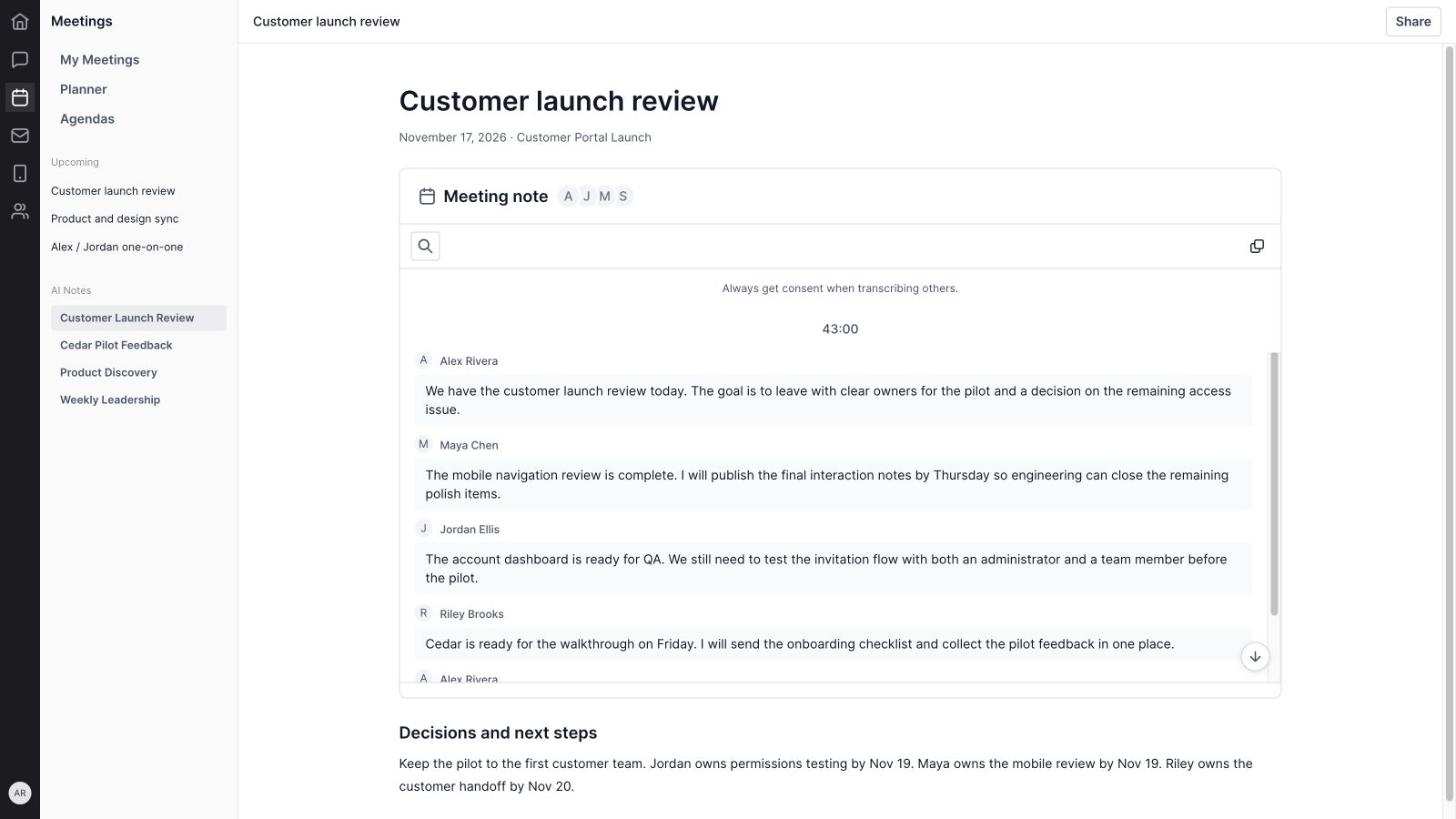
The interface includes a consent reminder when transcribing others. Confirm the appropriate capture setup and permission before starting. The showcase uses prepared transcript text; it does not record a microphone, capture a call, or claim that a live transcription session completed.
23. Browser and desktop capture capabilities
Capture behavior depends on the environment. The application has browser dictation paths and a supported desktop integration for microphone and system-audio capture. The desktop path requires the relevant desktop capability and permissions.
Do not assume that opening Wave in any browser automatically captures every participant in a video call. Check the selected environment and input status. A transcript is only as complete as the audio made available to the capture workflow.
24. Speaker context, transcript search, and copying
The transcript viewer supports segmented text, speaker context when available, search, copying, and navigation back to the latest transcript content. These controls help you review a particular part of a conversation without rereading everything.
The demo includes five fictional segments attributed to Alex, Maya, Jordan, and Riley. The speaker labels are sample data, not evidence that automatic speaker identification was tested. Use the text and any available speaker context together when checking a decision or commitment.
25. AI-assisted meeting-note drafting
The meeting-note editing workflow includes AI assistance for creating or revising notes from available context. The implementation supports previewing proposed content and accepting it into the note, rather than treating every generated draft as final.
Use that assistance to organize material into decisions and actions, then review the result. Confirm names, dates, ownership, and the meaning of ambiguous discussion before relying on the note. AI availability depends on workspace access, available context, and usage entitlements.
26. Shared notes and people with access
Meeting notes distinguish the owner, people whose access comes from the scheduled meeting, and people explicitly added through sharing. The note’s access display provides context, and eligible users can manage explicit collaborators through the sharing workflow.
This distinction matters when following up with someone who did not attend. Review the access list before assuming they can open the note. The demo shows fictional access members; it does not grant access or send a note to anyone.
27. Collaborative note editing and save state
Meeting-note and canvas workflows support collaboration and saved content, with explicit loading, saving, finalizing, and failure handling in the relevant surfaces. A note and its transcript can have different processing states.
Before leaving a meeting, check that the intended notes are saved and that transcription has finished the required processing. A completed-looking sample screen is not a substitute for the actual save state in your workspace. The practical goal is a record the team can reopen and use.
Turn the meeting into a useful record
28. Conclusion, ratings, and attendance
The conclusion workflow includes member ratings and attendance information, with an average rating displayed where appropriate. This gives the meeting a defined closing step and a way to reflect on its usefulness.
Use the close to confirm decisions and ownership, then collect the relevant feedback. A rating is most useful when the team can connect it with a concrete improvement, such as a clearer agenda, better preparation, or more time for the issue that needed a decision.
29. Recap summaries by agenda area
Meeting recaps can summarize supported agenda areas with their recorded metrics. The recap is tied to the meeting’s agenda and available data, so its contents depend on the sections used and the activity captured.
The showcase illustrates a populated summary for headlines, projects, issues, and to-dos. The values are fictional examples of the recap display. They are not live customer outcomes, and they do not demonstrate automatic task creation from the transcript.
30. Section durations and attendee records
Recap views include section durations when timing was recorded and attendee information when available. Together, these help explain how the meeting used its time and who was involved.
The example records 43 minutes across six sections: four for check-in, five for headlines, sixteen for delivery, nine for decisions, five for next steps, and four for conclusion. Comparing that record with the 45-minute plan can improve the next review.
31. Past meetings as a preparation resource
Past meetings provide a route back to completed sessions and their available records. Earlier occurrences help preserve context across recurring conversations, so the next review can start with what happened last time.
Before the next launch check-in, Alex can revisit the previous decisions, identify unresolved items, and check whether the promised follow-up happened. A meeting history becomes valuable when it informs the next agenda rather than sitting unused.
32. Follow-up across the Wave workspace
Meetings sit alongside the rest of Wave. Project and task context can enter the agenda, calendar planning determines when the conversation happens, and team discussion can continue through Wave Chat. Customer context can remain in Wave CRM.
The useful habit is to keep the meeting record and execution connected: confirm the decision in the note, maintain the actual task in the relevant work area, and review progress at the next meeting. This guide does not imply that every follow-up action is created or sent automatically.
Current feature availability
This guide reflects the interface and implementation inspected on November 17, 2026. A structured internal Wave meeting, an external calendar event, and an AI meeting note are related surfaces with different controls. Availability depends on meeting ownership, resource permissions, connected accounts, supported capture environment, and AI usage access.
Native desktop audio capture requires the desktop integration and relevant permissions. Browser capture should not be assumed to include remote call audio. AI notes need review, transcript speaker context depends on available metadata, and recap sections depend on what was configured and recorded. No unlimited transcription, universal provider support, guaranteed speaker recognition, or automatic transcript-to-task execution is claimed here.
How to get started with Wave Meetings
- Open My Meetings. Review Upcoming and Past, then use date and filter controls to find the relevant conversation.
- Choose the meeting’s purpose and audience. Use a team or one-on-one format and give it a recognizable title.
- Choose or build an agenda. Add the sections and references the discussion needs, with a realistic time budget.
- Confirm the properties. Check the host, date, start/end times, and recurrence. Review occurrence scope when editing a series.
- Preview the agenda. Make sure the intended project, issues, documents, or metrics are available to the right people.
- Run the discussion and capture decisions. Use the agenda and timing context. Enable transcription only when the setup, access, and consent are appropriate.
- Close with owners and next steps. Review notes, finish the meeting workflow, and check the available recap and save states.
- Prepare the next conversation from the record. Revisit past decisions and update the work in its relevant Wave tool.
Wave Meetings FAQs
Where do I find Wave Meetings?
Open Meetings in the Wave navigation. The current sidebar includes My Meetings, Planner, Agendas, upcoming meeting shortcuts, and AI Notes.
Does Wave Meetings support team and one-on-one meetings?
Yes. Wave distinguishes those meeting types and supports relevant agenda and configuration workflows for each.
Can I create recurring meetings?
Yes. The meeting recurrence options include weekly, every two weeks, monthly, and quarterly, as well as a non-repeating option. Eligible edits distinguish a selected occurrence from it and following meetings.
What can I put in a meeting agenda?
Agenda types include text, PDFs, knowledge content, canvases, whiteboards, datasheets, projects, lists, goals, issues, to-dos, scorecards, KPIs, headlines, and a conclusion. The content shown depends on section configuration and access.
Does Wave Meetings include notes and transcription?
Yes. Meeting-note and transcript surfaces are available, with capture controls depending on the meeting, permissions, environment, and AI usage access. Supported desktop capture and browser dictation have different capabilities.
Can I search or share a meeting note?
The transcript viewer includes search and copy controls. Eligible users can manage a meeting note’s explicit collaborators, while access may also come from ownership or the scheduled meeting.
What appears in a meeting recap?
Available recaps can include agenda-area summary metrics, recorded section durations, and attendee information. The conclusion workflow also supports ratings and attendance. The record depends on the meeting’s configuration and captured data.
Does this showcase contain real conversations?
No. The video uses actual Wave UI components with fictional meetings, people, transcript text, and recap values. No real audio was captured or meetings changed to produce it.
Give every meeting a clear next step
Wave Meetings brings preparation, discussion, notes, and follow-up into one workspace. Start with a clear purpose, build an agenda around the work, capture the decisions, and use the record to make the next conversation more useful.
Get started with Wave or contact us to discuss your team’s meeting workflow.


