
Wave Calendar brings meetings, project work, focus time, and scheduling links into one planning workspace. See what is happening, make room for the work behind it, and give people a clear way to book time with you.
Inside the current Wave app, Calendar is part of Planner, under Meetings. The calendar view connects your schedule with project tasks and booking settings, so a customer call, the preparation it needs, and the follow-up work can sit in the same weekly plan.
This guide covers Wave Calendar’s current features, from connected accounts and event controls to project time blocks, reusable scheduling links, availability, buffers, and the public booking experience.
Watch the Wave Calendar product demo
The 48-second showcase follows a fictional customer portal launch. It includes three calendar sources, 28 calendar records, three project entries, 18 project tasks, six teammates, and five scheduling links. The scenes move from the week and day views into a customer meeting, project work, focus time, and booking settings.
The demo uses actual Wave UI components with fictional data in an isolated preview. Navigation and scene composition are prepared for the presentation. No real calendar events, invitations, bookings, or customer records were created or changed.
What is Wave Calendar?
Wave Calendar is the calendar and scheduling workspace inside Wave. It combines calendar sources, day/week/month views, event creation, task scheduling, focus and out-of-office blocks, and meeting booking links.
In the example, Alex Rivera is coordinating a customer portal launch. The week includes Cedar Labs rollout reviews, product-team check-ins, time to finish the account dashboard, and a protected block for pilot feedback. Customer scheduling links sit beside that plan, with availability and meeting limits defined before anyone books.
The useful outcome is a schedule that explains both the commitments and the work. A meeting has participants and an agenda. A task has an owner and a time block. A booking link has a purpose, duration, and availability.
Explore the guide: Accounts and calendar views · Events and meetings · Focus time and project work · Scheduling and booking links · Feature availability · Getting started · FAQs
See your schedule in context
1. Wave, Google, and Outlook calendar sources
Planner includes Wave Calendar and a Calendar Account connection flow for Google Calendar and Outlook Calendar. If a provider is already connected, the interface offers the option to connect another account.
The showcase uses Wave Calendar, Alex’s Google calendar, and a company Outlook calendar. Keeping the source visible helps explain which account a meeting belongs to and which calendar should receive a new event. Connected-account access and provider permissions determine the actions available for a particular event.
2. Calendar visibility and colors
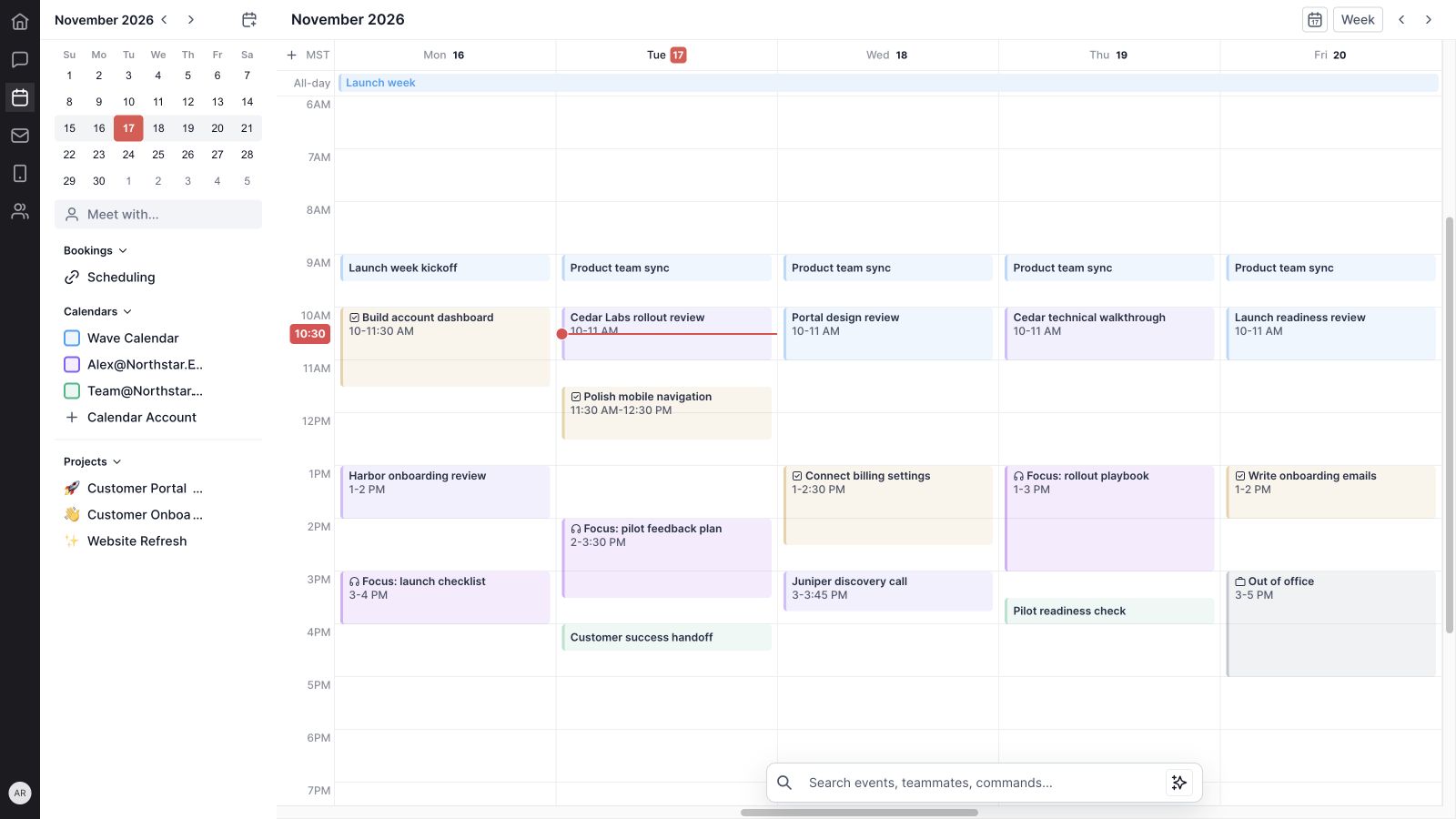
The sidebar lists calendar sources with visibility controls and color options. Show the calendars relevant to the current review, hide others, and use color to distinguish the schedule at a glance. Project entries have their own visibility and color controls.
For example, Alex can review customer meetings alongside project work, then narrow the view when preparing a customer conversation. Hiding a source changes the view; it does not remove the underlying meetings.
3. Day, Week, and Month views
Wave Calendar offers Day, Week, and Month views. Week gives a useful picture of competing commitments. Day makes room to review one day in detail. Month provides a broader date-based overview for upcoming milestones and meetings.
The view menu also includes a weekend visibility control. The showcase uses a five-day workweek, with the day view focused on Tuesday’s customer review, project work, and afternoon focus block. Choose the view that fits the decision you need to make.
4. Mini calendar, Today, and period navigation
The mini calendar provides direct date selection, while previous and next controls move through the calendar. Today returns to the current date. The main view has its own period navigation, with the interval following the selected day, week, or month view.
This makes it practical to move between an immediate commitment and a later launch date. You can inspect the coming week, check the pilot kickoff, and return to today without rebuilding your view.
5. Time-zone selection
The timed calendar and event composer expose time-zone controls. The time-zone menu provides named locations and offset context, helping you choose the relevant zone when planning a meeting.
The sample week uses Phoenix time. When a customer or teammate works elsewhere, review the selected zone along with the date and clock time. The public booking page also gives visitors a time-zone choice when selecting an available slot.
Give every event the details it needs
6. Event creation and the compact composer
The Create menu and calendar creation controls open the event composer. Enter a title, choose the date and time, select a calendar, and add the information needed for the meeting. The composer keeps the schedule visible around the draft.
Alex’s sample event is “Cedar Labs rollout review.” It has a defined one-hour slot and a clear purpose: review rollout goals, confirm first-week owners, and agree on the pilot handoff. That is more useful to the team than an unexplained calendar block.
7. Start times, end times, and all-day events
Event controls include a date, start time, end time, and an All Day option. Timed events occupy their place in the day or week grid. All-day items appear in a separate row, keeping date-based commitments distinct from hourly appointments.
The demo includes a launch-week marker and a pilot-start milestone alongside timed meetings and work blocks. Use the all-day format for a date-based marker, and a timed block when the commitment needs a specific part of the day.
8. Repeating events
The event recurrence control includes non-repeating, daily, weekly, monthly, annual, and weekday patterns. Labels adapt to the event date where relevant, making the selected pattern easier to understand.
A recurring team check-in is a good fit for this control. Define the purpose and cadence once, then review the resulting calendar series. Recurrence handling still follows the connected calendar’s capabilities and the event’s permissions.
9. Participants and recipient context
The event composer includes participant entry, with compact participant indicators and a control for reviewing or changing the list. Names or email addresses give the event an explicit audience.
The Cedar Labs draft includes Morgan and Reese, the customer’s operations and engineering leads. Checking the participant list before saving helps keep the meeting aligned with its purpose. An entered participant is not, by itself, proof that an external invitation has been delivered.
10. Agendas and descriptions
Events can reference an available meeting agenda and include a description. The agenda selector connects the meeting with its intended structure; the description gives participants the context they need before joining.
The sample review uses a customer-rollout agenda and a short description of the decisions to make. Use this space to explain the goal, preparation, and expected next step. Detailed project execution can continue in Wave Projects.
11. Locations and video-call providers
The event composer provides a location field and a video-call provider selector. Its provider options include Google Meet, Microsoft Teams, and Zoom. Existing events with conference information can expose a joining action.
Choose the meeting location that matches the workflow and connected account. The demo shows Google Meet as the selected provider without creating or joining a real call. Scheduling-link conferencing has its own options and capability checks, described below.
12. Event reminders
The composer includes reminder choices such as no reminder, at the event time, and five, ten, thirty, or sixty minutes beforehand. The selected reminder appears in the composer’s control row.
A ten-minute reminder gives Alex a small preparation window before the customer review. Event reminders are separate from the email and text reminders configured for booking links; their availability and delivery depend on the corresponding calendar connection.
13. Public/private visibility and busy/free status
The event footer includes visibility and availability controls. Public/private visibility describes the event’s visibility setting, while busy/free describes how the time should be treated for availability.
These settings serve different purposes. A focus block can be private and busy; an informational event may be free. Review both when creating an event, and remember that provider permissions and calendar sharing settings govern what other people can actually see.
14. Editing, moving, and deleting eligible events
Open an eligible event to review or edit its details. The calendar also supports moving editable event blocks to another time or date, and the event editor exposes deletion where the event allows it.
Wave distinguishes events that can be changed from shared or provider-owned items that are read-only. Moving a block is useful when the day changes, but review the resulting event state before treating a schedule change as complete. The showcase does not modify a production meeting.
Plan the work around the meetings
15. Focus Time
Focus Time is a dedicated creation mode for protecting a block of work. Its composer includes a title, date and time, description, visibility, availability, reminder controls, and a meeting-decline preference.
The sample reserves 2:00–3:30 p.m. for the pilot feedback plan. It is private and busy, with “Decline Only New Meetings” selected. Other choices include declining new and existing meetings or not declining meetings. The connected calendar determines how those preferences are applied.
16. Out of Office
Out of Office provides another distinct planning mode, with a time range, a description, and meeting-decline controls. It also includes a message field for the out-of-office response.
Use it when an absence should be visible in the plan and new commitments need to account for it. In the sample week, Friday afternoon is marked out of office. The block communicates the absence; provider support determines the corresponding invitation behavior.
17. Project task drawers
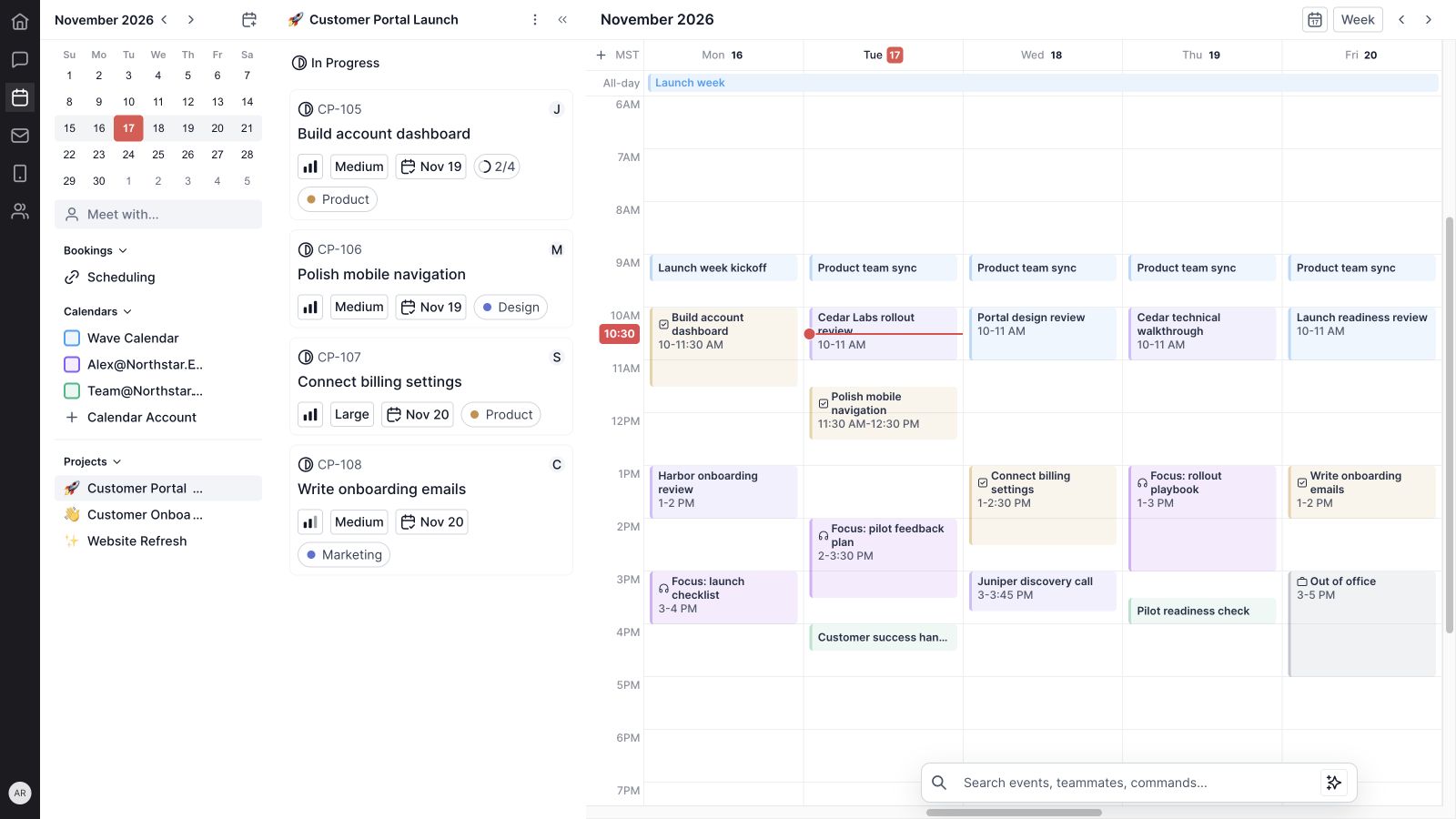
The Projects section brings project work into the planning surface. Selecting a project opens a task drawer beside the calendar, with task cards and status controls. Cards carry useful context such as the task title, owner, priority, estimate, due date, and labels.
The showcase opens Customer Portal Launch and displays four tasks in progress: build the account dashboard, polish mobile navigation, connect billing settings, and write onboarding emails. The team can see the work beside the time already committed.
18. Task time blocks
Wave Calendar supports placing project tasks into the calendar and creating task blocks through the composer. Dragging an eligible task from the drawer into the grid gives the work a planned time, while the calendar retains its project context.
A task deadline and a scheduled work block answer different questions. The due date says when the result is needed; the calendar block says when someone plans to work on it. In the demo, the account dashboard has a morning work block before the later launch deadline.
19. Task properties in the composer
The Task mode includes project and task selection, status, priority, assignee, due date, estimate, labels, and notes. These controls keep the scheduled block connected to the work it represents.
For an existing task, its properties can populate the task composer. Review those details before saving a change, especially the project, owner, and due date. This keeps planning tied to a defined task rather than leaving an anonymous block on the schedule.
20. Meet with teammate filtering
The sidebar’s Meet with control lets you select teammates and focus on matching meetings in the calendar. The current matching logic uses event participant and attendee identity information.
This is useful when reviewing meetings involving a specific teammate. It should be understood as a filter over available calendar event data, rather than a promise of complete organization-wide free/busy visibility.
21. Event search and quick commands
The search bar brings together events, teammates, and commands. Search for a recognizable event title, choose a teammate, change views, navigate dates, or start a new event, task, focus block, or out-of-office entry.
An Ask Atlas entry point opens Wave’s assistant. The command surface provides a quick route into the relevant workflow; it does not imply that meetings are automatically booked or rearranged by the assistant.
Make it easier for people to book the right time
22. Recurring and one-off scheduling links
The Scheduling panel groups recurring and one-off links. A recurring link can be reused for an ongoing meeting purpose, while a one-off link supports an individual scheduling need. Each entry shows its title and duration, with link-management actions nearby.
The sample contains three recurring links—customer rollout review, product walkthrough, and weekly customer office hours—and two one-off links for a Cedar technical review and a pilot feedback session. These are separate meeting purposes with appropriate durations.
23. Booking titles, descriptions, durations, and locations
The booking editor includes a title, description, and duration choices of 15, 20, 30, 45, or 60 minutes. Location controls include a location field, a phone-call option, and conferencing selection.
The current booking conferencing selector offers no conferencing, Google Meet, and Microsoft Teams. Teams requires a capable Microsoft calendar source. The customer-rollout example uses a 30-minute meeting and a description that tells the visitor what they will accomplish.
24. Weekly availability and multiple time windows
The Times section lets you enable or disable days and define start/end windows. Add controls support additional availability windows on a day, making it possible to represent a split working schedule.
In the demo, Monday through Thursday are available from 9 a.m. to 5 p.m., Friday ends at noon, and the weekend is disabled. Set windows that reflect when the meeting can reasonably happen, then review them alongside existing calendar commitments.

25. Booking calendar selection and conflict avoidance
The Calendar section selects the source associated with bookings. The current editor shows Avoid Conflicts enabled, and booking drafts request conflict avoidance.
Choosing the correct source matters: it connects the booking workflow with the calendar used to evaluate availability and hold the resulting appointment. Keep that connection current, and check the public booking page when the available slots differ from what you expect.
26. Buffer times and meeting limits
Limits & Buffers lets you define time before and after booked meetings and set a meeting-count limit by day, week, or month. These controls help make availability reflect the preparation and follow-up around each call.
The sample adds ten minutes before a meeting, fifteen minutes after it, and a limit of four meetings per day for that meeting type. The buffer gives Alex time to prepare and capture the next step, rather than planning consecutive calls with no space between them.
27. Link customization and management
Scheduling links have a shareable URL, and the editor includes a Customize Link flow for the link slug. The list also provides copy, edit, color, and delete actions. Clear names help visitors understand which meeting to choose.
The editor currently displays a link-expiration setting, but the inspected draft-building flow does not pass that setting into the saved booking-link payload. This guide therefore does not present configurable expiration as a verified completed workflow.
28. Booking invitations and reminders
Basic Notifications includes Calendar Invitation, Email Reminders, and Text Reminders. Email reminders depend on a matching email account for the booking owner and supported sender capability. Text reminders depend on the organization’s texting capability and the visitor’s consent. Some reminder controls are also plan-dependent.
When supported, the email-reminder setting identifies its sender and a one-hour reminder window. The public form conditionally offers SMS consent for eligible bookings. Check the enabled controls in your workspace before making reminders part of a customer process.
29. Public booking and confirmation
A published booking link opens a visitor-facing flow with meeting information, available dates and times, and time-zone selection. After choosing a slot, the visitor can enter their name, email, additional guest emails, and notes. The form includes conditional phone and SMS consent fields when text reminders are available.
The booking flow confirms a successful reservation or reports a problem with the chosen slot. It also handles unavailable links and cases where there are no available times. Confirmation settings offer a confirmation page or a redirect URL after booking. The video demonstrates the organizer’s configuration, without submitting a real reservation.
Current feature availability
This guide reflects the interface and implementation inspected on November 17, 2026. Connected-provider permissions affect event editing, conferencing, reminders, and meeting-decline behavior. Some shared events are read-only, and reminder settings depend on account, organization, and plan capabilities.
Three distinctions are useful when setting up a workflow: recurring booking links are different from recurring calendar events; the event composer and booking-link editor expose different conferencing choices; and the visible link-expiration setting is not a verified saved configuration in the inspected flow.
The demo’s events, contacts, project work, and scheduling URLs are fictional. It illustrates the interface and settings, without claiming a provider sync, invitation delivery, automatic decline, or real booking was completed.
How to get started with Wave Calendar
- Open Planner under Meetings. Review Wave Calendar and connect the Google or Outlook accounts relevant to your work.
- Choose a useful view. Start with Week, set weekend visibility, and confirm the time zone.
- Make calendar sources recognizable. Choose visible sources and colors that are easy to distinguish.
- Add a meeting with a clear purpose. Review its calendar, time, participants, agenda, location, and reminder.
- Schedule project work. Open a project drawer and give important tasks a realistic place in the week.
- Protect focus time and absences. Use the appropriate mode and review the available decline and visibility settings.
- Create a scheduling link. Set its purpose, duration, availability, calendar, buffers, and meeting limit.
- Review the visitor experience. Check the published link’s information, time zone, and available slots before sharing it.
For the customer work around the schedule, explore Wave CRM, Wave Mail, and Wave Chat. Use Wave Projects for project ownership and delivery.
Wave Calendar FAQs
Where do I find Wave Calendar?
Calendar is currently part of Planner under Meetings in the Wave app. The legacy calendar route redirects to Planner.
Does Wave Calendar connect to Google and Outlook?
Yes. The Calendar Account flow offers Google Calendar and Outlook Calendar connections, including adding another account. Available event actions depend on provider permissions and connection capabilities.
Which calendar views are available?
Wave Calendar offers Day, Week, and Month views, along with weekend visibility, a mini calendar, date navigation, and a Today control.
Can I put project tasks on my calendar?
Yes. Project task drawers and Task mode support planning task work on the calendar. The task composer includes project, status, priority, owner, due date, estimate, labels, and notes.
Does Wave Calendar support focus time and out-of-office blocks?
Yes. Both have dedicated creation modes, with date and time controls and meeting-decline preferences. The connected calendar determines how invitation-related preferences are applied.
Can customers book meetings through Wave?
Scheduling links provide a public booking flow with meeting details, available slots, time-zone selection, and visitor information. The organizer can configure availability, buffers, meeting limits, and confirmation behavior.
Are email and text booking reminders always available?
No. Email reminders require supported sender capability and the booking owner’s matching email connection. Text reminders require organization texting support and visitor consent. Plan restrictions may also apply.
Does the showcase use real customer meetings?
No. It uses actual Wave UI components with fictional calendar, task, and booking data. No production events were changed, invitations sent, or reservations submitted.
Give your week a clear plan
Wave Calendar brings meetings and the work around them into the same planning surface. Connect the calendars you use, give events useful context, reserve time for project work, and make scheduling links fit the way your team works.
Get started with Wave or contact us to discuss your team’s calendar and scheduling workflow.


