Wave Chat brings team conversations, shared context, and the work itself into one workspace. Use channels for ongoing topics, direct messages for focused conversations, and team messages for the people working together. Keep replies in threads, share files, and place a launch brief or project beside the discussion.
A useful conversation should leave the next person with enough context to act. That means knowing what changed, where the supporting material lives, and what the team agreed to do next. Wave Chat connects those pieces through messaging, canvases, tool tabs, and huddles.
This guide explains Wave Chat’s features and shows how they fit into a real team workflow: a customer portal launch moving from design handoff to QA and pilot invitations.
Watch the Wave Chat product demo
The showcase follows a fictional launch team through a populated channel, a three-reply thread, shared files, a launch brief, a project board, and a saved huddle transcript. The sample workspace includes five channels, six teammates, 12 messages and replies across the launch channel and a direct conversation, and an 18-task project.
Illustrative demo built with Wave’s actual UI components and fictional data. Names, conversations, dates, project progress, and the huddle recap are examples.
What is Wave Chat?
Wave Chat is the team communication tool inside Wave. It supports channel conversations, direct messages, team messages, threaded replies, reactions, attachments, and a rich message composer. Conversations can also contain shared canvases and tabs for collaborative Wave tools.
When a written exchange would be easier to resolve live, a huddle gives the team a place to talk, use video, or share a screen. Notes and conversation context can stay close to the discussion. When transcription is used and a summary is available, saved huddle details provide a way to revisit what was said.
The result is a practical workflow: discuss a decision in Chat, record the agreed direction in a shared brief, and open the related project to organize the follow-through.
Explore the guide: Conversations · Messages and media · Shared work · Huddles · Getting started · FAQs
Organize conversations around your team’s work
1. Channels for topics, projects, and ongoing work
Channels give a conversation a clear home. Create one around a project, department, recurring activity, or topic that needs an ongoing discussion. A recognizable name helps teammates understand where an update belongs.
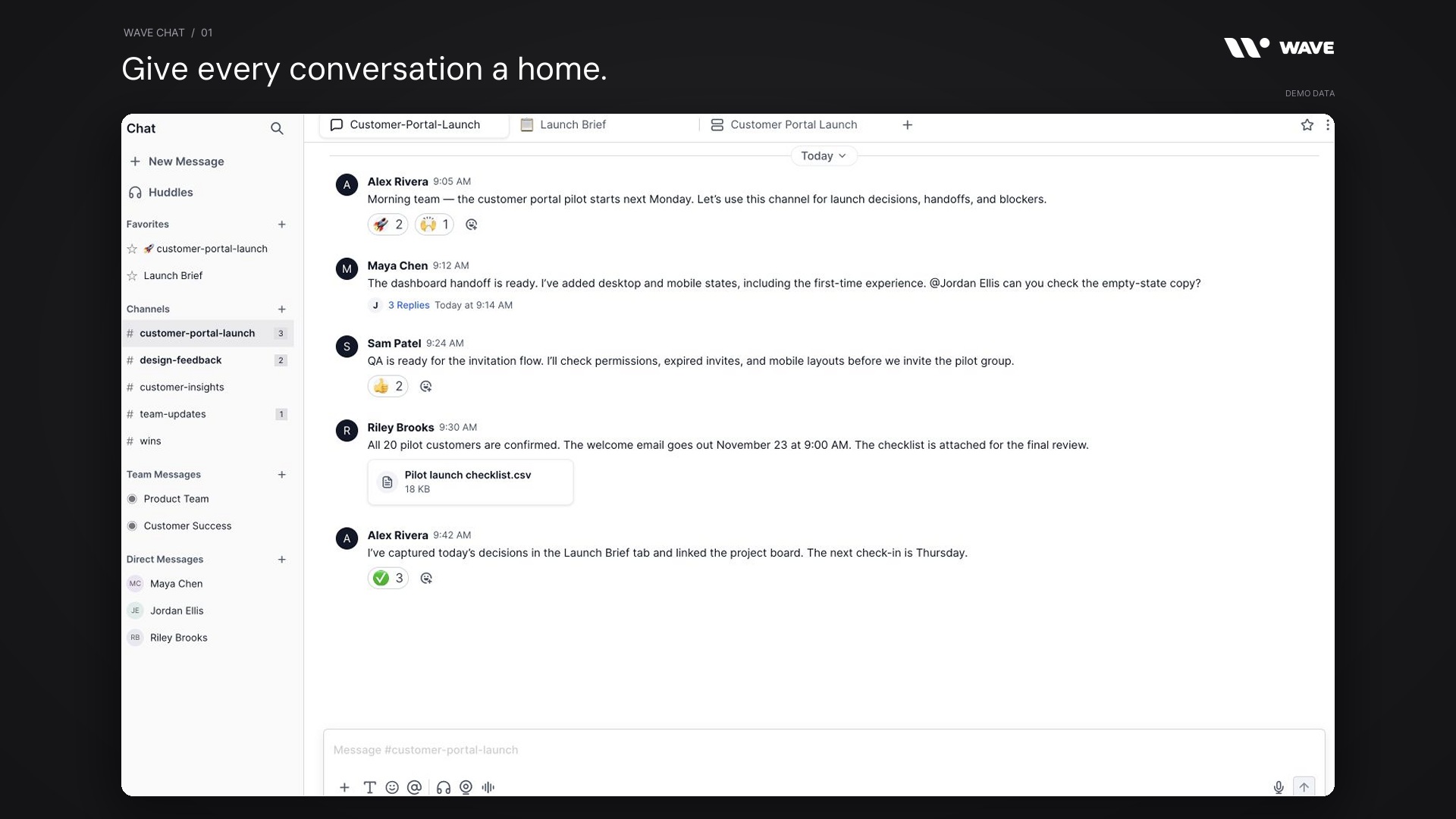
The demo uses customer-portal-launch for launch decisions and handoffs, alongside channels for design feedback, customer insights, team updates, and wins. This makes the purpose of each conversation visible before someone opens it.
Start with a small number of channels that match how the team works. A launch channel can hold the day-to-day conversation while its shared brief preserves the current plan. When a topic develops its own participants and rhythm, it may deserve a separate channel.
2. Direct messages and team messages
Direct messages support focused conversations with selected people. Team messages provide a conversation around a Wave team. The Chat navigation separates channels, team messages, and direct messages so you can return to the right type of discussion.
For the portal launch, Alex and Riley can discuss the pilot feedback plan directly, while the Product Team uses its team conversation for broader delivery work. Decisions that affect the whole launch team can then be shared in the launch channel.
Use the conversation’s audience intentionally. A narrow exchange is useful for a quick question; a shared channel is useful when others will need the answer later.
3. Public and private channels, with member invitations
Channel setup includes a name, an optional emoji, and a visibility choice. Public channels are available to people in the Wave workspace. Private channels can only be viewed or joined by invitation.
Conversation controls include an Invite Member action where your access allows it. This lets you bring the right people into an existing discussion as work changes.
Choose visibility based on who needs the conversation. A general product-updates channel may suit a broad audience. A focused launch working group may need a smaller membership. Copying a conversation link is a way to reference it; it does not replace the conversation’s access rules.
4. Threaded replies that keep a discussion together
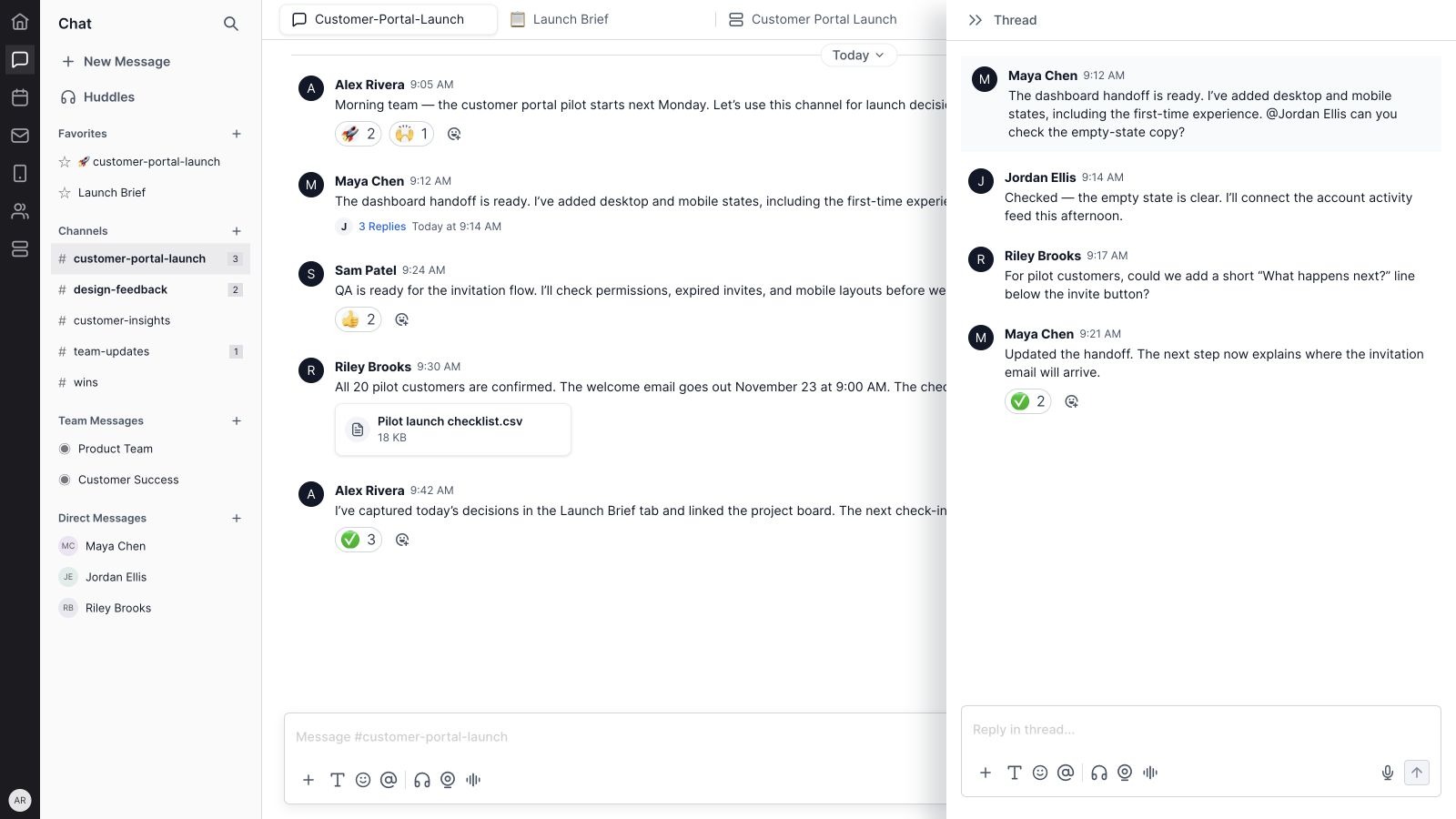
Reply in a thread when a question belongs to one particular message. Wave shows the reply count with the parent message and opens the discussion in a thread drawer, keeping the original context visible.
In the demo, Maya posts the dashboard handoff. Jordan confirms the implementation plan, Riley asks for a clearer invitation message, and Maya records the change. Those three replies stay together instead of splitting the main channel into several overlapping conversations.
Thread replies support the same practical communication habits as the main conversation: explain the issue, identify the decision, and leave a clear next step. Reactions and message controls are available within the thread as well.
Send messages with enough context to be useful
5. Rich-text formatting, mentions, and emoji
The Chat composer includes formatting controls for readable updates. Use bold or italic text, lists, quotations, inline code, and code blocks when they help explain the work. A short structured update is easier to scan than a long paragraph mixing decisions, questions, and deadlines.
Mentions help you address the relevant person or team. The composer provides a mention control, and emoji can be added directly to a message. These controls let a team keep its natural tone while making requests explicit.
For example, a QA handoff can list the three flows to test, mention the person responsible, and identify the date when feedback is needed. The formatting supports the message; the useful part is the clear request.
6. Reactions for quick acknowledgement
Emoji reactions let teammates acknowledge a message without adding another full reply. Wave displays reaction counts with the message and provides a picker for adding a reaction.
In the sample channel, teammates use a rocket to acknowledge the launch kickoff, a thumbs-up for the QA plan, and a check mark when the next steps are clear. Teams can agree on a few consistent meanings while still using reactions informally.
Use a written reply when someone needs an explanation, decision, or answer. A reaction works best when the original message already contains the context.
7. Attachments and file previews
Attach supporting files to the message that explains them. Wave’s Chat composer supports images, documents, spreadsheets, presentations, and supported audio and video formats. You can choose a file or use the attachment drop area.
Messages display file information and download controls. Supported media and document types have preview experiences, including images, PDFs, audio, and video. This gives teammates a route from the discussion to the material behind it.
The showcase includes a pilot launch checklist beside Riley’s update about the customer invitations. The message explains why the file matters and what the team should review, rather than leaving an attachment without context.
8. Links with useful previews
Share a URL in the conversation to point teammates to a page or resource. Wave supports link previews with available information such as the page title, description, and source. Preview content depends on the linked page.
The demo links to the Wave Projects guide as part of a launch-copy review. The preview gives the team a recognizable reference in the message history.
Include the reason for sharing the link: what changed, which section needs feedback, or what decision it supports. That short explanation makes the reference easier to understand when someone returns later.
9. Audio clips, video clips, and dictation
Chat’s composer includes controls to record audio and video clips. A short clip can explain a design choice, demonstrate a flow, or give feedback that would be cumbersome to describe in text. Video recording supports camera and screen capture workflows, with a preview before attaching the result.
Dictation provides another way to compose a written message by speaking. It is useful when you want the final result to remain readable text in the conversation.
Choose the format that suits the handoff. Use text for a precise decision, a screenshot or file for a reference, and a clip when seeing or hearing the explanation helps. Recording and live media controls use the permissions and devices available in your browser.
Keep track of the conversation
10. Drafts, unread indicators, and message history
Wave Chat includes draft handling so unfinished messages can remain available as you move through your work. Unread indicators help you identify conversations with activity that needs attention.
Message history is organized with dates and timestamps. A date-jump control helps you move through the conversation, and the message view supports loading older history and returning to the latest messages. Typing indicators provide context when someone is composing a response.
These details are useful for asynchronous work. A teammate returning after a meeting can check the unread activity, review the relevant discussion, and continue a draft with the right context.
11. Favorites and conversation discovery
Favorite the conversations you use most often to keep them close at hand. The sidebar groups favorites, channels, team messages, and direct messages. Conversation selection and channel search help you find the discussion you need.
The sample workspace favorites the launch channel and its brief because the team returns to them throughout the week. The remaining channels stay available in the main navigation.
A useful naming convention does much of the work: use names people would naturally look for, keep the purpose specific, and archive conversations when the work has ended.
Put shared knowledge and tools beside the discussion
12. Shared canvases and conversation notes
Chat supports canvases and notes as tabs alongside a conversation. Use them for a launch brief, meeting decisions, working notes, or another document the participants need to revisit.
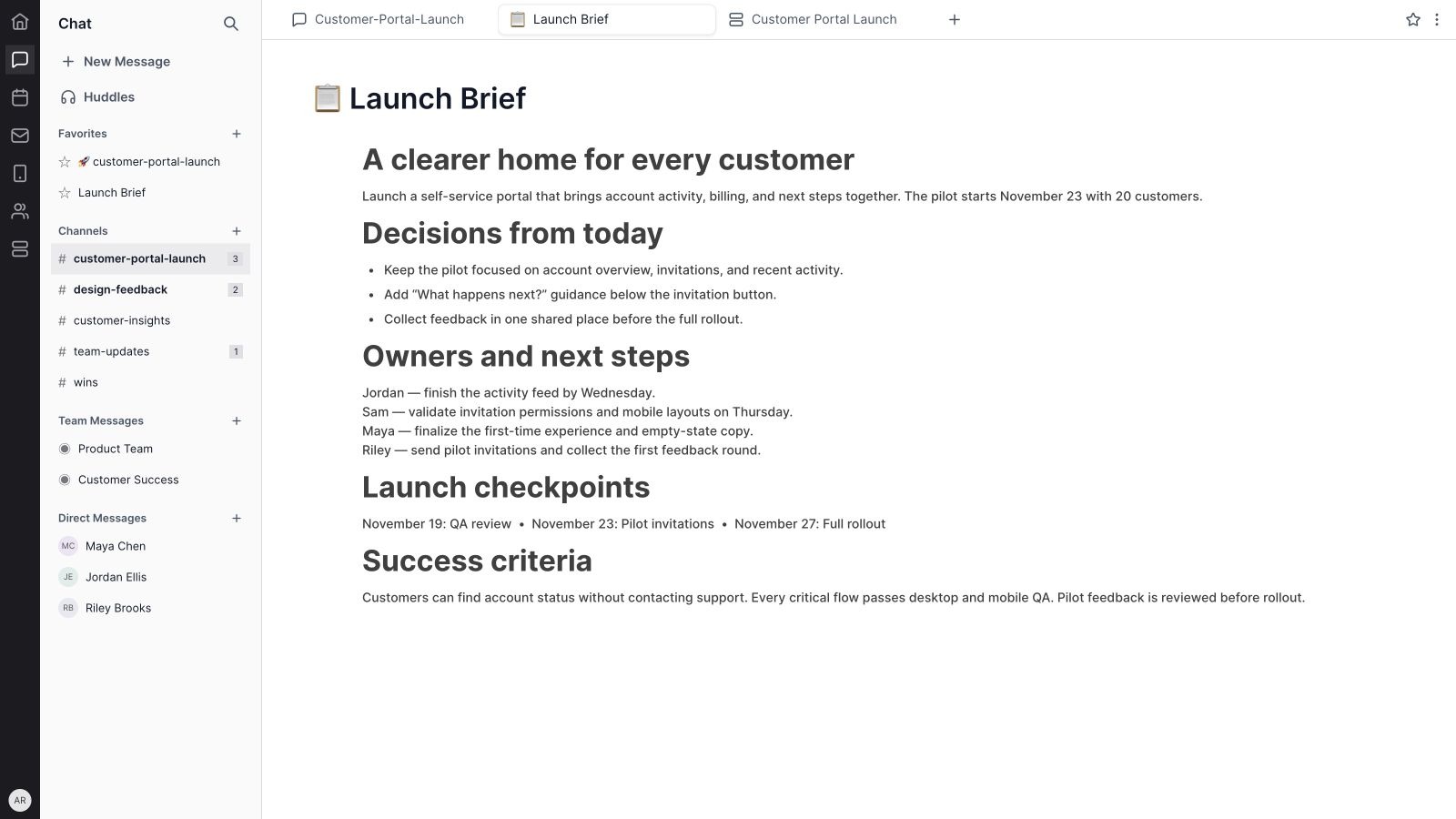
The Launch Brief in the demo records the project outcome, decisions from the discussion, owners, next steps, checkpoints, and success criteria. The conversation contains the exchange that produced the decision; the brief contains the current agreed plan.
Wave’s document controls support rich content, recognizable titles and emoji, and useful reference actions. Notes can be favorited, linked, and exported to PDF. Keeping a durable brief beside Chat reduces the need to reconstruct the plan from individual messages.
13. Tabs for connected Wave tools
A conversation can include tabs for collaborative Wave tools. Available tools include Projects, Goals, Knowledge, Lists, Scorecards, Issues, To-Dos, KPIs, Whiteboards, Sketches, Canvases, and Data Sheets, depending on which tools are enabled in the workspace.
Choose the relevant work item when a tool supports it, then keep that tab beside the conversation. Tabs can be selected and reordered so the team’s working context stays easy to reach.
In the showcase, the launch brief sits beside the Customer Portal Launch project. Opening the project tab reveals its 18-task board with owners, statuses, priorities, and due dates. The team can move from discussing the handoff to reviewing the work in the same Chat workspace.
For a deeper look at task planning and delivery, see the Wave Projects feature guide. The useful connection is simple: the conversation explains the work, and the project provides its execution structure.
Move from messages to a live huddle
14. Voice, video, and screen sharing
Start or join a huddle when a live discussion would help the team resolve something faster. Huddles support microphone and camera controls, screen sharing, and participant views. Listen-only participation is also available in the huddle flow.
A short huddle is useful for reviewing an interface, resolving an ambiguous requirement, or checking a plan together. For the portal launch, the team can review the invitation flow on screen and agree on the final QA checks.
The huddle interface supports a compact view as well as an expanded view, so participants can keep working with the surrounding context. Availability depends on the conversation, workspace access, and the state of the huddle.
15. Huddle notes, chat, captions, and transcripts
Huddles bring collaboration panels into the live conversation, including notes, a thread, and transcript views. Captions can help participants follow the discussion when transcription is active.
Use the notes to record decisions as they happen. Keep a question or reference in the huddle thread when it belongs to that discussion. These supporting views give the conversation a useful written record alongside the live exchange.
Transcription is a separate part of the huddle workflow. A huddle without captured speech should not be treated as if it has a complete transcript or summary. The saved details show what is available for that session.
16. Saved summaries, transcripts, and huddle history
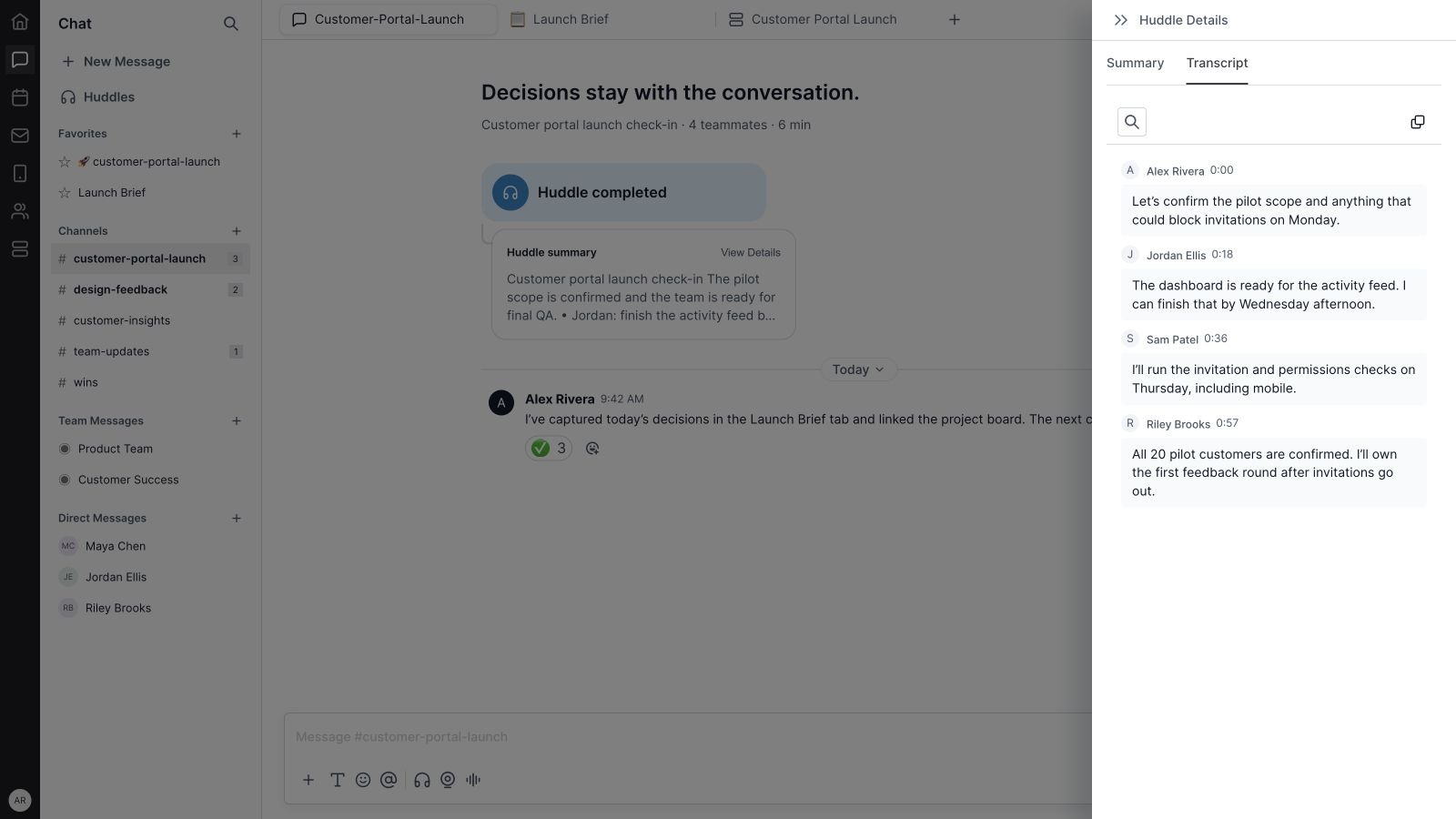
Completed huddles can appear with a recap card and a View Details action. When a summary has been generated, the details provide the main points and follow-up items. The transcript view presents captured speech with speakers and timestamps, plus search and copy controls.
The demo recap records four concrete responsibilities: Jordan finishes the activity feed, Sam runs the QA checks, Riley coordinates the pilot customers, and Maya finalizes invitation guidance. The transcript provides the discussion behind those next steps.
The Huddles page gives you a separate history view, with search and filters for active, ended, one-to-one, and group huddles. This makes a past discussion easier to find when the team needs to revisit it.
Manage attention and keep conversations useful
17. Conversation notification preferences
Conversation settings include notification controls for new messages and mentions. The primary message setting follows the conversation type: channel, direct, or team messages.
Review those preferences according to your role in the conversation. Someone coordinating a launch may need to follow every update, while a specialist contributing to one part of the work may primarily need direct requests.
Use mentions deliberately and keep important requests explicit. A useful notification should lead to a message that tells the recipient what needs their attention.
18. Message actions and conversation housekeeping
Message controls include copying text and copying a message link. Your own messages also expose editing and deletion controls where available. Editing lets you correct an instruction or update a detail in the original message.
Conversation menus provide reference actions such as Copy URL and Copy ID, along with notifications, membership actions, and lifecycle controls. Leaving, archiving, or deleting a conversation is available according to the conversation type and your access.
Keep active conversations focused. When a launch ends, capture the useful decisions in its brief, make sure the follow-up work has an owner, and archive the discussion when it no longer belongs in the active set.
How to get started with Wave Chat
- Create the right conversation. Choose a channel, direct message, or team message. For a project channel, use a name the team will recognize.
- Choose the audience. Set channel visibility and invite the people who need the discussion.
- Post the purpose and next checkpoint. Explain what the channel is for, what the team is working toward, and when the next review happens.
- Add shared context. Create a brief or notes tab and attach the relevant project or other collaborative tool.
- Use threads for focused questions. Keep replies together, share supporting files, and mention the person who needs to respond.
- Close the loop. Use a huddle when live discussion helps, record the decisions, and put the follow-up work in the connected tool.
For the sample launch, that produces a complete handoff: the channel explains the pilot plan, a thread resolves the invitation-copy question, the brief records the decision, and the project board shows who owns the remaining tasks.
Wave Chat FAQs
Does Wave Chat support channels and direct messages?
Yes. Wave Chat supports channels, direct messages, and team messages, with separate navigation for each conversation type.
Can I create a private channel?
Yes. Channel creation includes public and private visibility. Private channels are available by invitation.
Can I reply to a message in a thread?
Yes. Threaded replies keep a focused discussion attached to its original message. The parent message shows a reply count, and the thread opens in a drawer.
Can we share files, audio, and video in Chat?
Yes. Chat supports file attachments and supported media previews. The composer also includes audio and video clip recording controls and dictation.
Can I add a project or document to a conversation?
Yes. Shared canvases, notes, and collaborative tool tabs can sit beside the conversation. Projects is one of the supported tools, subject to workspace configuration.
Does Wave Chat include huddles?
Yes. Huddles support live conversation with voice, video, screen sharing, and collaboration panels. Saved details can include captured transcripts and generated summaries when those are available.
Is Wave Chat the same as the Wave Phone system?
Wave Chat is for conversations and collaboration inside the workspace. The Wave Phone system provides a separate set of calling and customer-communication tools.
Bring your next team conversation into Wave
Wave Chat gives your team a place to discuss the work, keep its context close, and carry decisions into action. Start with one useful conversation, add the brief and tools people need, and make the next step clear.
Get started with Wave or contact us to discuss your team’s workflow.


