
Wave Mail brings your connected email accounts, customer conversations, drafts, and contact context into one workspace. Review the inbox, find the right thread, see who you are talking to, and prepare the next response without separating the message from the relationship.
For a small team, email is often where customer work begins. A prospect asks a question, a customer confirms a rollout, or a teammate sends the details needed to move a project forward. The useful part is what happens next: understanding the request, identifying the people involved, and making the next action clear.
This guide covers Wave Mail’s current features, settings, and availability limits. The product demo follows a fictional customer rollout from a populated inbox into a conversation, a reply, a draft, an audience update, search, and a snippet library.
Watch the Wave Mail product demo
The 44-second showcase uses two sample email accounts and 22 mail records: 16 inbox conversations, two sent records, two drafts, and two archived records. It also includes four labels, a three-message customer thread, four saved snippets, and a six-recipient audience list.
Illustrative demo built with Wave’s actual UI components and fictional data. The surrounding navigation and scene composition are prepared for the presentation. No real mailbox messages were sent, scheduled, or changed.
What is Wave Mail?
Wave Mail is the email workspace inside Wave. It connects Gmail and Outlook Mail accounts, organizes messages into familiar views, and provides conversation reading, drafting, reply, and recipient controls. It also connects the correspondent to CRM information when a matching record is available.
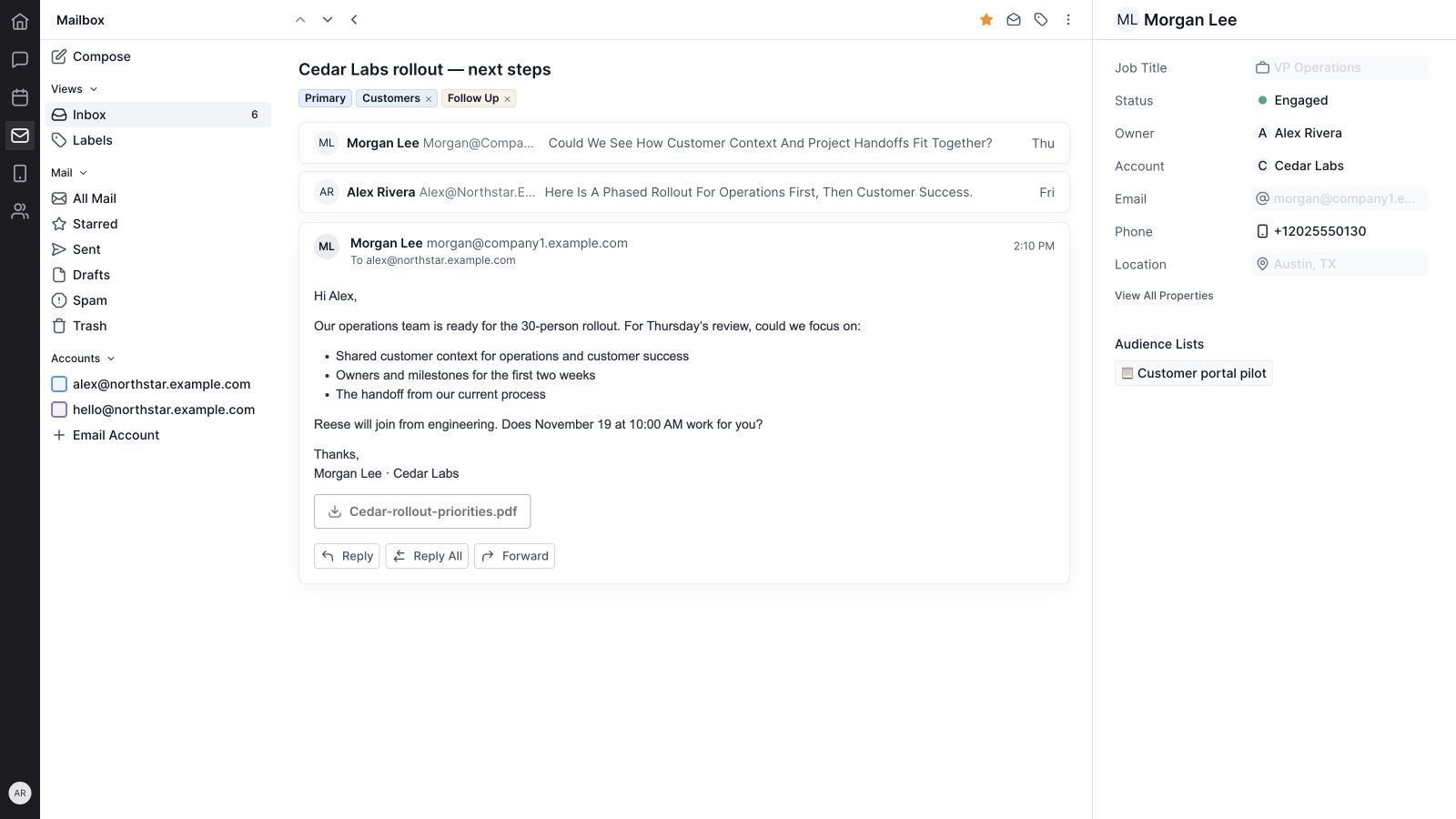
In the example, Morgan Lee at Cedar Labs is preparing a 30-person rollout. Alex can open Morgan’s email, review the earlier conversation, see the Cedar Labs account and contact owner, and draft a reply that confirms the review agenda. The email remains the conversation; the CRM record supplies the relationship context.
Available actions depend on the email provider, account connection, permissions, and message capabilities. A connected Gmail account and a connected Outlook account do not necessarily expose identical actions. Wave shows unavailable controls when a particular operation is not supported.
Explore the guide: Accounts and organization · Conversations and drafting · Message actions · Customer context · Settings · Feature availability · Getting started · FAQs
Bring your inboxes into one workspace
1. Gmail and Outlook Mail connections
The Add Email Account flow offers Connect Gmail and Connect Outlook Mail. Connect the account through its provider’s authorization process, then return to Wave to review its connection state and available mail.
The sender identity matters as much as the connection itself. Sending requires an account with a usable email address and a valid connection state. An account that needs reconnection or cannot resolve its mailbox identity should be fixed before it is used for customer communication.
2. Multiple accounts, visibility controls, and account colors
The sidebar lists connected accounts and lets you choose which accounts are visible in the current mail view. Account colors help distinguish messages from different addresses. You can focus on one account, select several, or return to the combined view.
The demo uses Alex’s address and a general company address. Both appear in one inbox, while colored account markers help explain where each message belongs. These are account-selection controls; they do not by themselves establish a shared-inbox assignment or team-permission workflow.

3. Inbox, All Mail, Starred, Sent, Drafts, Spam, and Trash
Wave Mail includes familiar destinations for different parts of email work. Inbox is the main arrival view. All Mail broadens the review. Starred surfaces marked messages, Sent holds outgoing conversations, and Drafts provides access to saved work. Spam and Trash keep those messages separate from the inbox.
Labels has its own view for reviewing grouped conversations. Moving between views changes what you are reviewing while retaining the surrounding account navigation.
4. Conversation previews and unread counts
The message list shows the sender, subject, preview text, and timestamp. Conversation counts indicate when a row contains several messages. Unread styling and counts draw attention to conversations that still need review, while attachment indicators identify messages with supporting files.
In the sample inbox, the Cedar Labs row contains three messages and one unread message. The subject and preview explain the next decision before Alex opens the thread: the operations team is ready, and Morgan wants to review the rollout plan.
5. Labels and grouped organization
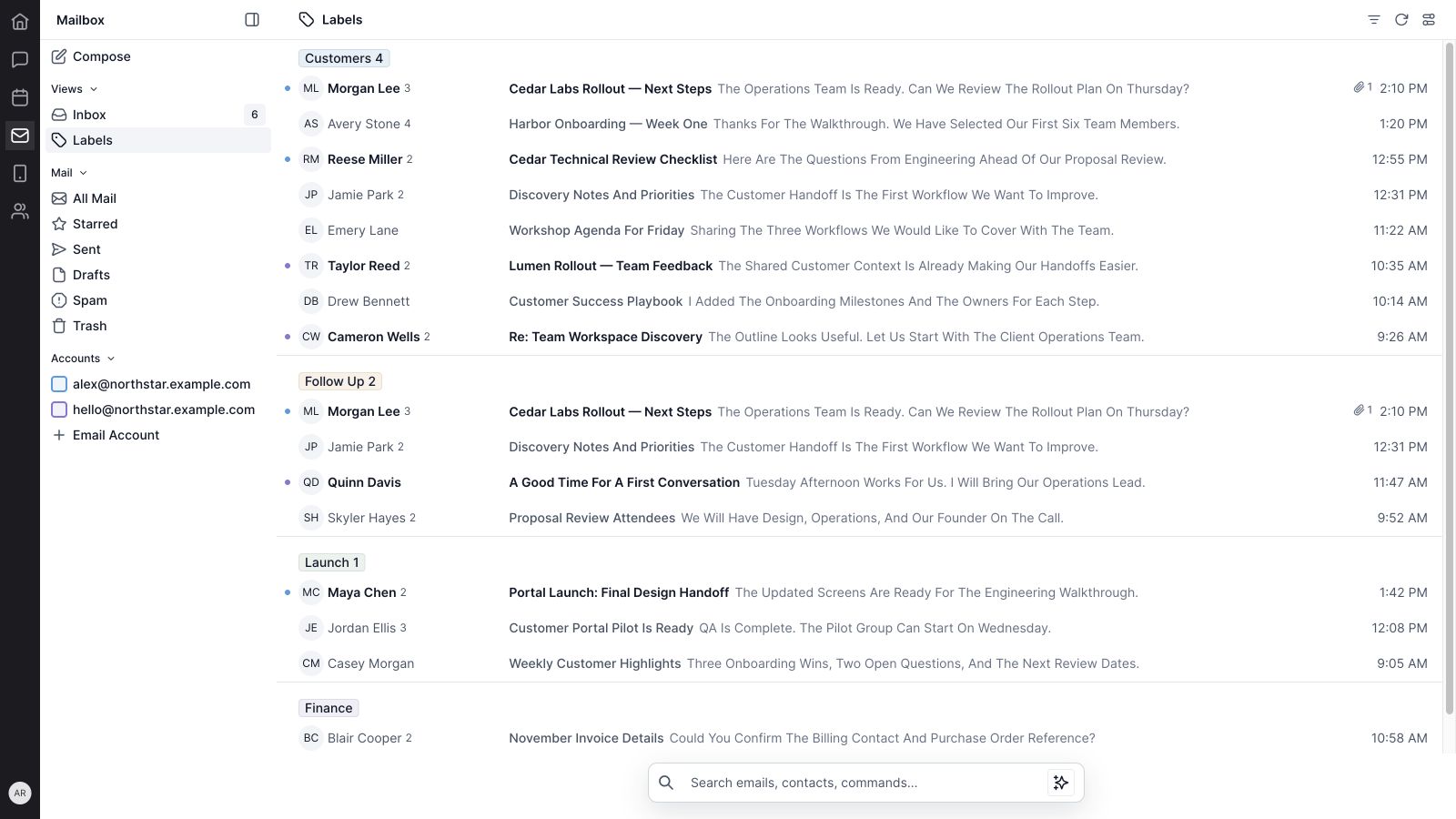
Labels provide a way to organize messages around your team’s work. Wave includes controls to create, rename, color, apply, remove, and delete labels where the connected account supports those actions. The Labels view groups matching conversations under their label headings.
The example uses Customers, Follow Up, Launch, and Finance. A customer conversation can belong to both Customers and Follow Up, preserving its relationship context while identifying that it needs attention. Keep labels specific enough that the team understands what belongs in each group.
6. Unread, category, label, and archived-message filters
Show Filter Options exposes Categories, Labels, Is Unread, and a Filter menu with Show Archived. Category options include Primary, Promotions, and Social. These controls narrow a busy list to the messages relevant to the current review.
Filter scope matters. Some category, multiple-label, and archived-message filtering is applied to messages already loaded in the current view. Do not assume that a filtered result proves no matching message exists elsewhere in an unloaded mailbox history. Use search and load older messages when you need a broader review.
7. Search and quick commands
The search surface helps find email by recognizable information such as sender, email address, subject, and preview text. Results provide a direct route back to the conversation. The same surface offers quick commands for composing and navigating Mail.
Searching Cedar in the demo brings up the rollout conversation, the technical review, the earlier walkthrough, and the saved agenda draft. A consistent account or project name in the subject makes related work easier to find.
Ask Atlas opens Wave’s assistant conversation from the Mail search area. It is an entry point to the assistant; its presence does not mean every email is automatically summarized, rewritten, or answered.
Read the conversation and prepare the response
8. Threaded conversations with earlier-message context
Opening a conversation shows its subject, labels, participants, and message content. Earlier messages can appear as collapsed previews, while the latest message is expanded. Longer conversations support loading additional messages and opening earlier items to read their content.
This helps a teammate understand how the request developed. Morgan’s initial question, Alex’s rollout suggestion, and the latest review request form one conversation. The team can respond to the current decision without losing the earlier explanation.
Message bodies support received HTML content as well as text. The reading view preserves the substance of the sender’s message, including lists and links, rather than reducing the conversation to a preview line.
9. Reply, Reply All, and Forward
The conversation view includes Reply, Reply All when there are additional recipients, and Forward. Responses open in an inline composer beneath the message, keeping the relevant context nearby. Recipient controls make it possible to review the audience before sending.
In the demo, Reply All includes Morgan and Reese, the engineering lead joining the rollout review. The response confirms the time, the agenda, and what Alex will bring. Forward is useful when another person needs the conversation, but it requires an intentional recipient choice.
Provider support and account state still apply to the send action. Review the resulting status instead of assuming a message was delivered because a button was clicked.
10. Compose with sender selection, To, Cc, and Bcc
Compose opens a separate draft panel. Choose the sending account, add the To recipients, reveal Cc and Bcc where needed, enter a subject, and write the message. Recipient chips can be removed before sending, and recipient suggestions help find available contacts or addresses.
The sample draft names the purpose in its subject: Cedar Labs — Thursday review agenda. Its body explains the topics and expected next step. Selecting the correct sender is part of that review, especially when more than one work address is connected.
The current standard composer uses a text-based message field. The feature set shown here does not imply a full email-template design editor.
11. Saved drafts and minimized compose panels
A populated compose draft can be saved when it is closed, and an existing saved draft can be reopened from Drafts for further editing. Minimizing a compose panel keeps the work available through the draft launcher so you can read another conversation and return.
These are useful for messages that need a second check. Alex can prepare the review agenda, consult Morgan’s thread, and return to the draft with its recipients, subject, and body intact. Draft saving and sending remain separate actions.
12. Audience lists and Mass Send preparation
The composer’s Mass Send panel supports selecting email lists and adding explicit recipient addresses. The panel shows the resolved audience size, and the send button reflects the recipient count. A valid sender and message content are required before the send action becomes available.
The showcase prepares a customer portal pilot update for a six-person list. The draft explains the first-week steps and the feedback review date. It is a separate audience message, with wording appropriate to the whole group.
Review list membership, addresses, the recipient count, and the sending account before sending. Mail’s audience controls should not be confused with the multi-step prospecting campaign workflows covered in the Wave CRM guide.
13. Received attachments and downloads
Messages can display attachment counts in the list and named attachment download controls in the reading view. When attachment details and provider access are available, the filename gives the reader a clear way to retrieve the supporting material.
Morgan’s fictional email includes Cedar-rollout-priorities.pdf. The attachment belongs to the received conversation and supplies context for the review. Reading or downloading a received attachment is a separate capability from uploading a new attachment in the composer; see the availability notes below.
Keep the inbox useful as work changes
14. Star, read status, and archive actions
Message controls include starring, marking read or unread, and archiving where supported. These actions serve different purposes. A star can mark a conversation worth returning to; unread status can help identify something that still needs review; archive removes a conversation from the active inbox without treating it as trash.
Wave checks action availability against the account and message. For example, the inspected UI distinguishes unavailable Outlook read-status actions. Use the actions actually enabled for the connected account rather than assuming provider parity.
15. Spam, Trash, and moving messages back to Inbox
Wave provides separate Spam and Trash views, with message controls for moving mail to trash or marking it as spam where supported. Eligible messages expose a Move To Inbox action for returning them to the inbox.
These controls help separate unwanted messages from active work. Their availability depends on the message’s state and provider capabilities. The standard Mail interface described here does not establish a permanent-deletion workflow.
16. Multiple selection and bulk actions
Row checkboxes let you select several messages. A selection bar shows the selected count and provides applicable actions such as marking read or unread, moving to trash, or restoring eligible messages. Clear Selection returns to the normal list.
Bulk actions are useful for handling a defined set of messages together, but selection does not make an unsupported provider operation available. Review the selected items and the enabled action before applying a change.
17. Message-level export and print controls
The message’s More Actions menu includes Export and Print. These are message-level actions for situations where a conversation needs to be retained or reviewed outside the normal Mail view, subject to the available service and account support.
This is distinct from exporting an entire mailbox. The account settings screen currently shows a disabled Export Your Data control, so this guide does not present whole-mailbox export as an available workflow.
Connect email to the customer relationship
18. Contact and company context beside the conversation
On a sufficiently wide screen, the message view includes a customer-context panel. Wave resolves the correspondent against available contact or company information. A linked contact can show their name, job title, status, owner, account, email, phone, location, and audience-list context.
The demo displays Morgan’s Engaged status, Alex as the owner, and Cedar Labs as the account. That information helps the reader understand the relationship before deciding how to reply. Most of the linked profile is presented for reference; the panel should not be described as an unrestricted inline CRM editor.
When the identity is not linked, the context surface supports associating it with the appropriate contact or company. Keep the underlying records accurate so the email is connected to the right relationship.
19. Sender shortcuts for follow-up work
Sender controls provide shortcuts to compose an email, prepare a contact, create a task, or create a reminder. A contact flow can start with the sender’s identity, reducing the need to re-enter basic information.
Task and reminder shortcuts open the corresponding creation flow. Add the actual owner, due date, and useful description there; do not assume opening the flow automatically links every piece of message context to the new record.
For the work that follows a customer conversation, the Wave Projects guide explains task ownership, project plans, and progress tracking.
20. Meeting links in message context
When a message contains recognized meeting-link data, the conversation view can surface a Join Meeting action. This puts a relevant meeting destination close to the email that explains why the meeting is happening.
The action depends on meeting-link information being available for that message. It is not a claim that every URL in an email becomes a calendar event, or that Mail creates a booking automatically.
Manage reusable wording, preferences, and connections
21. A searchable snippet library
Mail settings includes Snippets, with a searchable list, shortcut names, content previews, and create, update, and delete controls. A snippet has reusable wording that can be maintained as the team’s process changes.
The sample library contains /rollout, /recap, /welcome, and /followup. Each represents a recurring communication pattern, such as confirming a next step or summarizing a meeting. Keep the reusable wording clear, then tailor any customer message to the actual conversation.
The current composer inspected for this guide does not expose an active snippet-insertion button. The showcase demonstrates the library itself, without implying that typing a slash shortcut automatically inserts its content into a draft.
22. Signature preferences
The Signature settings screen includes preferences for showing the default Mail signature and including it on replies and forwards. The default-signature description refers to “Sent with Mail.”
These settings should be understood as the available signature preferences. They are not evidence of a complete custom-signature design tool or one-click signature insertion in the current composer.
23. Notification preferences
Notification settings exposes preferences for new emails, replies, mentions, and scheduled-send updates. These controls let you manage the types of mail-related events you want to hear about when the corresponding event and delivery support are available.
A settings label does not establish an additional messaging workflow by itself. For example, a mentions preference should not be interpreted as proof of a shared-inbox collaboration feature, and a scheduled-send notification preference does not make a disabled scheduling control available.
24. Account management, refresh, and connection health
Email Account settings shows connected addresses and their provider or connection status. Account controls support connection management, including reconnecting or disconnecting where available. Eligible Gmail connections can expose a sender-photo authorization option.
Refresh Mail requests an updated mailbox view. Loading, synchronization, connection, and error states help distinguish an empty inbox from an account that has not finished loading or needs attention. Older-message loading provides a way to continue reviewing beyond the initial result set.
When the inbox does not look current, check the selected accounts, the current view, active filters, and connection health before assuming messages are missing.
Current feature availability
This guide describes the interface inspected on November 16, 2026. Account permissions and provider support affect which actions are usable. It also separates visible settings from workflows that are not currently active in the standard composer:
- Scheduled send: the standard compose panel inspected for this guide shows a Send Options menu, but its scheduling choices are disabled. The video does not demonstrate a scheduled delivery.
- Outgoing attachments: received attachments can have download controls, but the current standard composer does not expose an active attachment-upload workflow.
- Snippet and signature insertion: settings are available, but the current composer does not expose active insertion controls for these items.
- Whole-mailbox export: Export Your Data in account settings is disabled. Message-level Export and Print are separate actions.
Check the controls available in your connected workspace when planning a workflow. An unavailable action should remain an unavailable action, rather than being treated as a completed send, download, or account change.
How to get started with Wave Mail
- Connect the work account you need. Use the Gmail or Outlook Mail connection flow and verify the resulting mailbox identity.
- Choose the visible accounts. Begin with a focused inbox and use account colors to distinguish addresses.
- Create a small label set. Start with categories your team can apply consistently, such as Customers, Follow Up, Launch, and Finance.
- Review a real conversation. Read the earlier messages and confirm the correspondent’s CRM association.
- Prepare the next response. Check the sender, To/Cc/Bcc recipients, subject, and next action before sending.
- Keep unfinished work in Drafts. Save or minimize a message when it needs more context.
- Turn commitments into owned work. Use a task or reminder when a message creates an action with a deadline.
- Review connection health and preferences. Make sure the accounts and notifications match how you work.
For internal discussion around the customer work, use Wave Chat. For calling and customer communication by phone, see the Wave Phone system guide.
Wave Mail FAQs
What is Wave Mail used for?
Wave Mail brings connected email accounts, conversation reading, drafting, recipient controls, organization, and customer context into Wave. It helps the team understand a message and prepare the next response or follow-up action.
Does Wave Mail work with Gmail and Outlook?
The connection flow offers Gmail and Outlook Mail. Account identity, permissions, connection health, and provider capabilities determine which actions are available after connecting.
Can I manage more than one email account?
Yes. Connected accounts appear in the sidebar with visibility controls and colors. You can review a combined inbox or focus on selected accounts, then choose an available sender in the composer.
Can I see CRM information while reading an email?
Yes. The desktop conversation view includes a context panel for the correspondent’s linked contact or company. When a contact is resolved, it can show relationship details such as status, owner, account, and contact information.
Can I save drafts and reply to an entire conversation?
Wave Mail supports saved drafts, minimized compose panels, Reply, Reply All when additional recipients are present, and Forward. Sending still depends on a usable account and the available provider support.
Can I schedule emails or upload attachments?
The standard composer inspected for this guide has disabled scheduling choices and no active outgoing-attachment upload workflow. Received attachments are separate and can expose download controls. These limits are reflected in the showcase.
Does Wave Mail support email lists?
The Mass Send panel supports email-list selection and explicit recipients, with an audience count before sending. Review membership and the connected sender first. Multi-step prospecting campaigns belong to Wave’s separate CRM prospecting workflow.
Does the demo contain real customer email?
No. The showcase uses actual Wave UI components with fictional accounts, messages, contacts, drafts, and audience data in an isolated preview. No real email was sent or modified.
Give the next conversation a clear next step
Wave Mail connects the inbox with the people and work around it. Bring in the accounts you use, organize the conversations that matter, review the customer context, and make the next response useful.
Get started with Wave or contact us to discuss your team’s email workflow.


