
A customer says onboarding was easy. A teammate says the launch still feels risky. Both comments matter, but neither tells you enough to decide what to change. A useful survey gives people a clear question, a consistent way to answer, and room to explain the experience behind the score.
Wave Surveys brings survey creation, distribution, and response review into your workspace. Start from the library, build a custom questionnaire, send it to teammates or share an external link, and review the results question by question. This guide covers the current survey workspace, builder controls, response experience, and reporting features.
Watch the Wave Surveys showcase
The 48-second showcase uses actual Wave UI components with fictional sample data from Northstar Studio. It includes four custom survey examples, six teammates selected for an internal launch check, and 24 anonymous customer responses to a six-question pilot survey. The results show 21 of 24 respondents ready to invite their team and an NPS of 42. People, responses, dates, and results are illustrative. The sample runs in an isolated presentation; no production surveys were sent or answered.
What is Wave Surveys?
Wave Surveys helps a team collect structured feedback from people inside and outside the organization. Internal surveys go to workspace members, teams, or the organization. External surveys collect anonymous responses through a public link. The builder supports visual cards, sliders, stars, A or B choices, NPS questions, and written feedback.
In the sample, Northstar is preparing a customer portal launch. The team uses a Launch Readiness Check for internal coordination and Customer Pilot Feedback to understand the first-week experience. A recommendation score gives the team a signal. The written answers identify practical improvements: add a sample project, clarify invitation status, and make the welcome kit easier to use.
Find the right survey and get started
1. My Surveys, Sent, and Library views
The workspace separates surveys you need to answer, campaigns you have sent, and reusable survey definitions. My Surveys shows pending work and past response status. Sent tracks distribution and completion. Library is the starting point for selecting, previewing, or building a survey.
2. A library of ready-made templates
The inspected library offers 19 templates for new use. They provide a starting point for common team questions, with descriptions that explain what each survey is intended to learn.
- Employee Net Promoter Score; Continuous Performance Review; Core Value Alignment; Engagement; Wellness & Mental Health; Workspace Culture; Onboarding.
- Productivity & Focus; Company Collaboration; Project Management; Employee Engagement; Training & Development; Innovation & Creativity.
- Process Improvement; Leadership & Management; Company Culture; Roadmap & Strategy; Company Insights; Company Testing & Feedback.
Choose a template for its actual questions and purpose. For example, a project-management survey and an onboarding survey may both reveal friction, but they ask about different experiences.
3. Search and view-specific filters
Search Surveys helps locate a survey by its visible title. Filters change with the selected view: My Surveys focuses on the recipient's status, Sent uses campaign response status, and Library supports survey-type filtering. This keeps a growing collection usable without requiring a separate naming spreadsheet.
4. A custom survey creation flow
Build Survey opens the creation form for a new questionnaire. Enter its title and description, choose an emoji and audience type, then continue into the builder. A custom survey is useful when the decision you need to make is more specific than a ready-made template.
5. Internal and external survey types
Internal surveys are designed for workspace distribution. External surveys are designed for anonymous responses through a public link. Choose the type around the audience and how the responses should be collected. Northstar keeps its launch-readiness conversation internal and its customer pilot feedback external.
6. Titles, descriptions, and emoji
The survey's identity follows it through the library and response experience. A useful title names the topic; the description explains why someone should answer. “Customer Pilot Feedback” is clearer than “November Survey,” especially when several questionnaires are active at once.
Build the questions and response experience
7. A visual builder with a question list
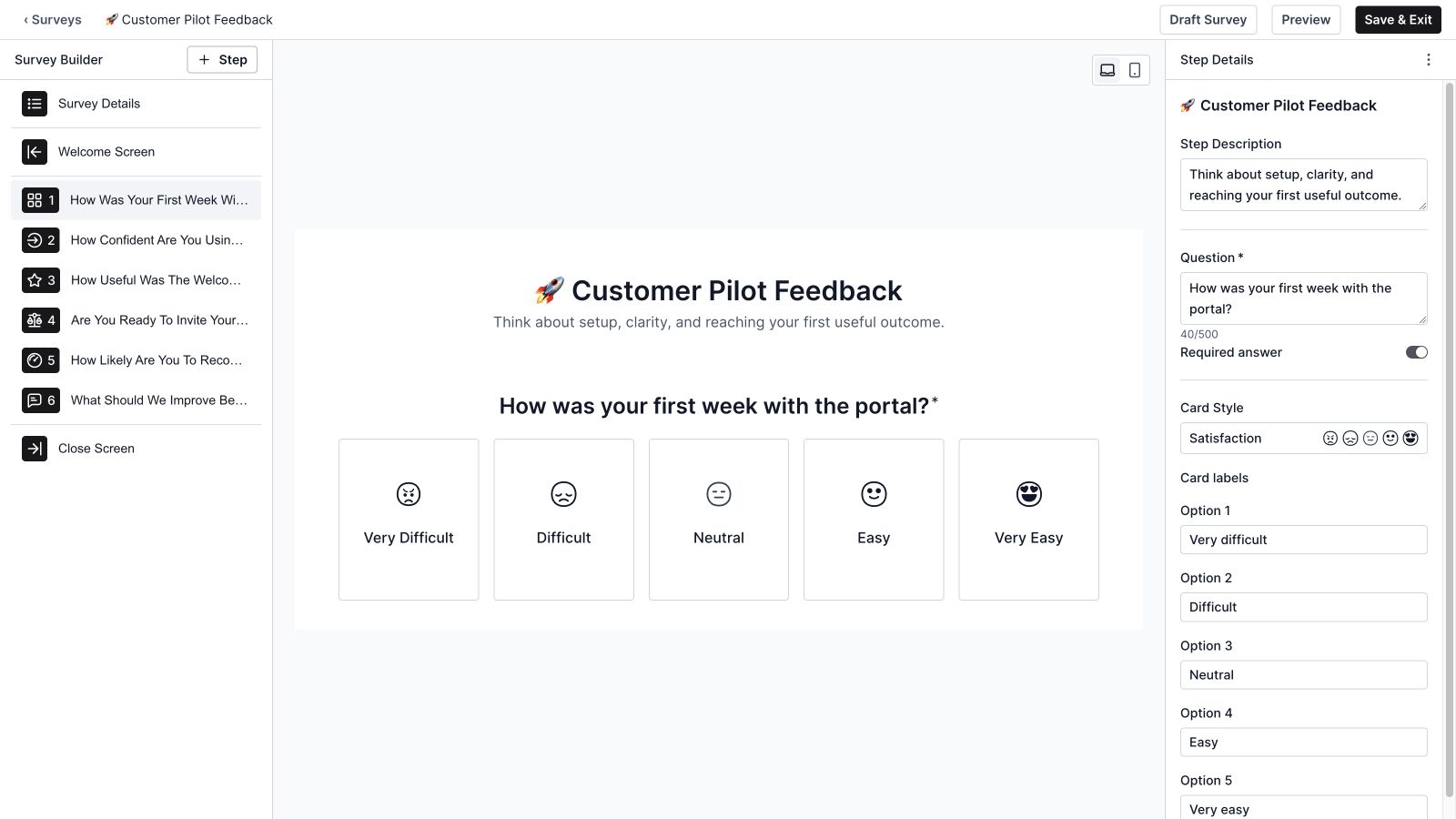
The builder places the survey steps on the left, a respondent preview in the middle, and settings on the right. Select a question to see its prompt, answer controls, and editable details together. The current builder supports up to 50 questions, although a focused survey will usually need far fewer.
8. Five-choice Cards questions
Cards present five labeled choices with a selected visual style. The sample asks how the first week felt, from Very difficult to Very easy. This format makes an ordered set of answers easy to scan and gives respondents a clear distinction between the available choices.
9. A 1–10 Slider question
Slider questions collect a whole-number response from 1 to 10. Use them for a graded judgment such as confidence, clarity, or usefulness. The pilot survey asks how confident someone feels using the portal, with endpoint labels that explain what a low or high answer means.
10. Five-star ratings
Stars provide a familiar 1–5 rating format. Northstar uses this to ask how useful the welcome kit was. Keep the prompt specific so the rating describes a defined experience rather than asking the respondent to combine several unrelated judgments into one answer.
11. A or B questions
A or B presents two labeled choices. The sample asks whether the respondent is ready to invite their team, with Not yet and Yes, ready as the answers. This can reveal a clear next-step signal while a separate written question explains what is still missing.
12. A dedicated 0–10 NPS question
The custom builder's NPS type offers scores from 0 through 10 for a recommendation question. This is a separate question type from the 1–10 slider. Use the dedicated NPS control when you want the corresponding promoter, passive, and detractor calculation in the results.
13. Written Feedback questions
Feedback questions collect the explanation behind the rating. In the sample, “What should we improve before launch?” produces specific suggestions about examples, invitations, and account ownership. Written responses help the team choose a useful change after noticing a pattern in the numbers.
14. Question prompts and supporting descriptions
Each step has a question and can include a short description. Use the description to define the experience or period you want someone to consider. The sample's first question asks respondents to think about setup, clarity, and reaching their first useful outcome.
15. Required and optional answers
The Required answer control lets the author decide which responses are necessary. Required questions are validated as someone progresses. Optional written feedback can leave room for people who have a clear suggestion without forcing everyone to invent a comment just to finish.
16. Visual styles for answer cards
The Card Style selector changes the answer visuals using Wave's existing styles, including satisfaction, alignment, energy, and other visual families. A or B has its own compatible choices. Select a style that supports the meaning of the question and remains understandable alongside the labels.
17. Editable choice labels
Card labels can be tailored to the question. Five-choice Cards keeps five options, while A or B keeps two. The pilot's difficulty labels and readiness labels describe different judgments; editing them avoids forcing both questions into the same generic agreement scale.
18. Low and high scale labels
Scale settings include labels for the low and high endpoints. “Need help” and “Very confident” give a confidence score practical context. Clear endpoints make answers easier to interpret later, particularly when the same survey contains several kinds of rating.
19. Feedback placeholders and character limits
Written questions support a placeholder and a maximum response length. The current limit setting accepts up to 5,000 characters. The sample uses a 2,000-character limit and asks for a specific example, giving respondents enough room for useful context without implying that a long answer is required.
20. Adding and reordering steps
Add Step opens the six available question formats. Questions can be reordered in the step list, including with the builder's drag controls. Put easy context-setting questions first and leave the open-ended improvement question until respondents have considered the experience you are asking about.
21. Duplicating and removing questions
The question actions menu supports duplication and deletion. Duplicating a question is useful when a similar structure will be reused with a different prompt. Review both copies before publishing so an accidental duplicate does not make the survey longer without adding information.
22. A configurable welcome screen
The welcome screen provides a title, description, and start-button text. It can introduce the purpose before the first question. Northstar's welcome explains that six quick questions will guide launch improvements, giving the respondent a concrete reason to participate.
23. A configurable closing screen
The close screen lets the author thank the respondent and explain what happens next. External surveys can include a button with a destination URL. There is also an Include Confetti setting. Internal completion uses a Done action, keeping the closing experience appropriate to the audience.
24. Desktop and mobile previews
The builder has desktop and mobile preview controls, plus a full Preview action. Review the question flow, labels, descriptions, and welcome or close screen before sharing. Preview mode lets an author try the experience without treating those test answers as live responses.
25. Draft saving and Save & Exit
The builder saves draft changes after editing pauses and provides Save & Exit. Its save state and error handling help distinguish a saved definition from a change that still needs attention. Check that the draft is saved before leaving or handing the survey to another author.
26. Publishing, drafts, and survey versions
Publishing makes the prepared definition available for use. Published questions are protected as a version, and existing campaigns retain the definition they were sent with. The publishing controls also support returning a survey to draft. This helps keep earlier answers tied to the questions respondents actually saw.
27. Duplicating a reusable survey
The library's Duplicate action creates a starting point for another survey. Use it when a customer pilot, onboarding review, or release retrospective needs similar questions with a different purpose or audience. Give the new copy a distinct name so its results remain easy to identify.
28. Archiving and restoring definitions
Archive removes an inactive survey from the main working collection while preserving an archived view. The library can show archived surveys and offers Restore. Available archived actions depend on the survey's type and publication history, including access to previously published external results.
Distribute the survey to the right people

29. Individuals, teams, and organization-wide recipients
The internal send form offers Individuals, Teams, and Org Wide. Select the audience that can answer the question you are asking. Northstar's sample launch check selects six teammates; a narrower team survey would be more appropriate for feedback about a single team's delivery process.
30. Due dates for internal campaigns
Set a Due Date when sending an internal survey. The date appears in recipient and campaign views and helps determine the status of incomplete responses. It gives the team a clear collection window before reviewing the answers and deciding what to do next.
31. Send More for successive surveys
The send flow includes Send More, allowing the sender to continue with another survey after completing the current distribution. This supports a sequence of deliberate sends. It is a convenience in the send workflow rather than a recurring-survey schedule.
32. Public links for external responses
External sharing produces a public survey link, with Copy and Open Survey controls when the link is ready. People can use that link to complete the questionnaire without being selected as workspace members. External responses are anonymous in the results view.
33. Custom link previews
The sharing flow includes a preview title, description, and optional thumbnail upload. The preview shows how the invitation will be presented with the survey's host. Use this space to explain the request clearly, especially when the link will be shared outside the team that created it.
34. Public-link lifecycle controls
Published external surveys expose link status and controls to copy, close, reopen, rotate, or revoke a link when applicable. These let the author manage whether a particular link should continue accepting responses. The respondent page also handles closed or unavailable links with an explicit message.
Answer and review the survey
35. Guided progress and navigation
The respondent experience presents the survey step by step, with progress markers and Previous or Next controls as appropriate. A focused question view helps people understand the current choice. The flow also supports moving back through reached steps to review an answer.
36. Answer validation and completion feedback
Required answers, supported numeric ranges, and feedback length are validated before completion. Keyboard interactions support the available answer controls. The closing experience confirms a completed submission, while a failed submission has an error state so someone is not left assuming their response was recorded.
37. Campaign response counts and status
Sent shows the survey name, participants, recipient type, responses, Sent On date, and Due On date. Pending, In Progress, Completed, and Overdue states distinguish where each campaign stands. Counts such as 5/6 are more useful than a status label alone because they show how much of the audience has responded.
Template-based result pages can also include an Overall completion score and a response trend chart. Custom survey results focus on the questions and their responses, so the available report layout depends on the survey type.
38. Results availability tied to the campaign
For identified internal campaigns, the results view becomes available when every recipient has responded or the due date passes. Older anonymous campaign formats apply their own closure and privacy conditions. Read the campaign's status before interpreting a partially collected set of answers as a finished report.

39. Question-level response distributions
Results keeps the original question beside its answers. Choice-based questions show percentages and a table with response counts and ranking. In the sample, 21 of 24 respondents choose Yes, ready, producing 87.5%; three choose Not yet, producing 12.5%. The counts make the size of that difference clear.
40. Numeric averages and rating breakdowns
Slider results show an average alongside the distribution of submitted values. Star questions show the rating breakdown. Keep the underlying scale in view when comparing results: a 1–10 confidence response and a 1–5 usefulness rating describe different questions and should not be treated as interchangeable scores.
41. An NPS calculation for the dedicated question
The custom NPS result groups 9–10 answers as promoters, 7–8 as passives, and 0–6 as detractors. It subtracts the detractor share from the promoter share and rounds the result. The sample has 14 promoters, six passives, and four detractors: (14 − 4) ÷ 24 × 100 gives an NPS of 42 after rounding.
An NPS of 42 is a score, not a 42% response rate or a task-completion percentage. This calculation applies to the dedicated 0–10 NPS question; inspect the questions in an older or ready-made survey before assuming that every recommendation rating uses the same scale.
42. Written responses alongside the numbers
The written feedback view preserves individual comments and the respondent label allowed by the survey's anonymity mode. Northstar's 24 sample comments include requests for a sample project, clearer invitation status, and a short walkthrough. The team can use those comments to choose a concrete onboarding improvement.

43. Participant and personal response review
Identified internal results can include a participant table and individual response views. My Surveys also keeps the recipient's completed or missed status visible. These views support reviewing what was submitted while keeping an individual's response separate from an aggregate result for the whole campaign.
44. Management access and anonymity rules
Survey management depends on the active account's organization permissions; the inspected controls support authorized administrators and managers. New custom internal campaigns use identified responses, while external surveys use anonymous responses. Existing anonymous internal campaigns can hide aggregate results until the survey closes and the privacy threshold is met. Check the actual survey mode rather than assuming every survey is anonymous.
Turn the responses into a useful next step
Start with the decision the survey should inform. Northstar wants to know whether pilot customers are ready to bring in their team and which onboarding changes should happen first. The survey combines a direct readiness choice, ratings, a recommendation question, and a written improvement prompt.
- Define the audience and purpose. Ask internal teammates about launch coordination and customers about their own product experience.
- Build and preview the questions. Check the wording, required fields, answer labels, and mobile layout.
- Share with a clear collection window. Set the internal due date or manage the external public link.
- Read the distribution and comments together. Notice that most sample customers are ready while several still need help with invitations or examples.
- Assign the improvement. Decide who will improve the welcome kit, when it will be ready, and how the team will learn whether it helped.
Use Wave To-Dos for an owned follow-up, Wave Issues for a problem that needs resolution, and Wave Projects for the delivery work. Discuss the decision in Wave Meetings and track daily coordination through Wave Stand Ups. Keep the decision and follow-up in the workspace so feedback leads to a visible improvement.
Wave Surveys frequently asked questions
What is Wave Surveys used for?
Wave Surveys collects structured feedback from workspace members or external respondents. Teams can use ready-made templates or custom questions, distribute the survey, and review responses to inform a practical decision.
Which question types can I build?
The current builder offers Cards, Slider, Stars, A or B, NPS, and Feedback. Cards use five choices, A or B uses two, sliders run from 1 to 10, stars from 1 to 5, and the dedicated NPS scale from 0 to 10.
Can I survey people outside my workspace?
Yes. An external survey can be shared through a public link. The sharing flow includes a customizable preview, and the results are anonymous.
Are internal surveys anonymous?
New custom internal campaigns use identified responses. Older anonymous internal campaigns have specific privacy rules. External surveys use anonymous responses. Review the survey type and its displayed visibility information before sending.
Can I preview on mobile before sharing?
Yes. The builder offers desktop and mobile previews as well as a Preview action. Preview answers are for checking the experience and do not count as live submissions.
Where do I find the results?
Internal campaign results are reached from Sent when the campaign's results are available. Published external survey results are available from the library's Results action. Reports depend on the question types and anonymity mode.
Can I stop accepting responses from an external link?
Published external survey settings provide applicable close, reopen, rotate, and revoke controls. A closed or unavailable link shows an appropriate message to respondents.
Does the demo use real customer or employee information?
No. The showcase uses actual Wave UI components with fictional questions, teammates, recipients, and responses. Its presentation runs separately from production, and it does not send surveys or submit real answers.
Ask a clearer question in Wave
A useful survey ends with a decision the team can explain. Wave Surveys gives you the tools to build the questions, reach the audience, and read the answers in context. Start with one decision, keep the questionnaire focused, and make the follow-up visible.
Get started with Wave or explore the workspace at ourwave.io.


