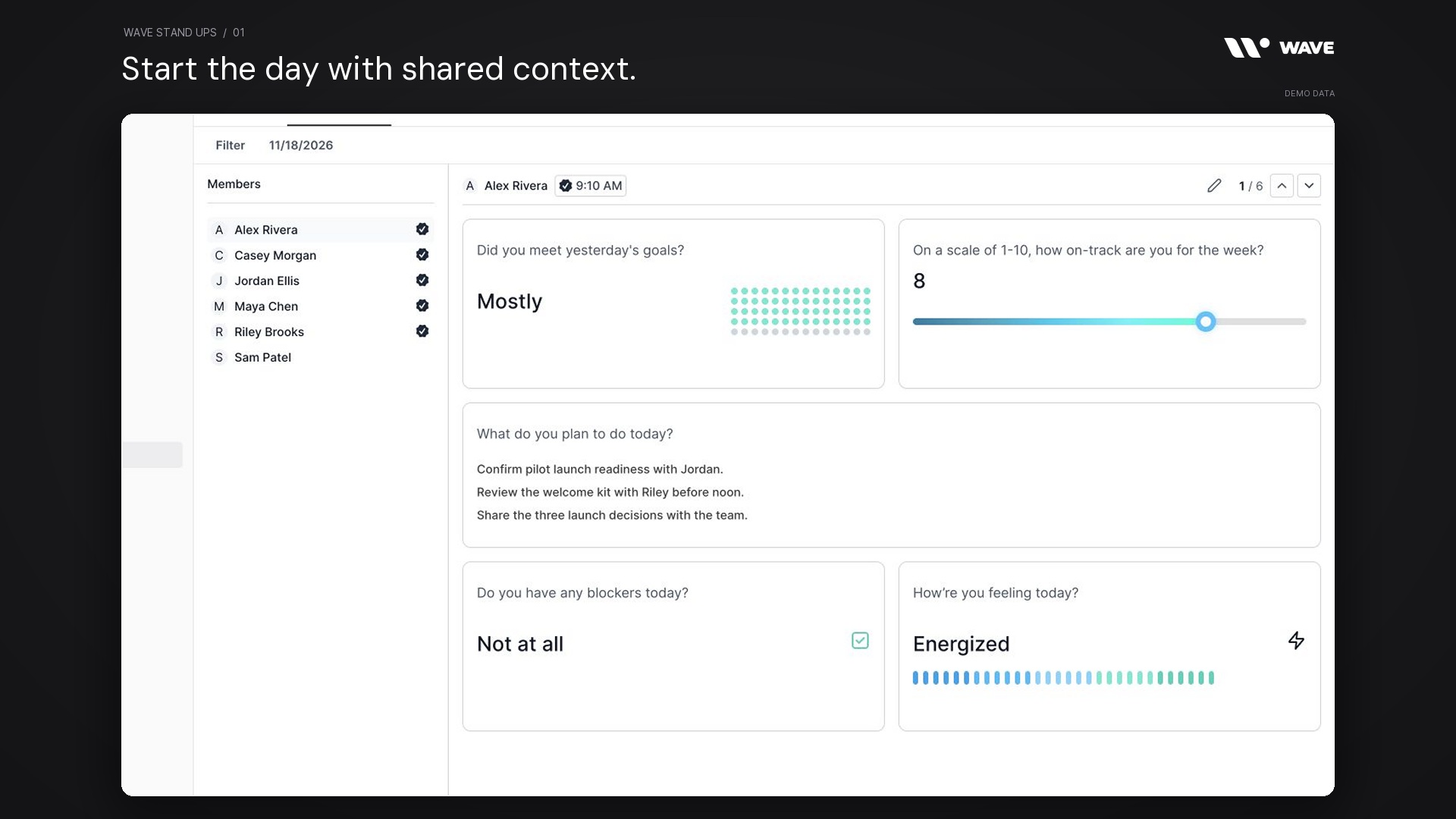
A team starts the day with several different versions of the plan. One person is waiting for a decision. Another finished the work but has not shared the update. A third is less confident about the week than their task list suggests.
Wave Stand Ups gives those updates a consistent place in your team's daily rhythm. Ask about the previous working day's goals, confidence in the week, today's plan, blockers, and how people are feeling. Review individual responses, see who has checked in, and use participation reports to improve the routine.
Watch the Wave Stand Ups showcase
The 48-second showcase uses actual Wave UI components with fictional sample data from Northstar Studio. It includes six teammates, three teams, and 32 check-ins. The November 9–13 sample report contains 27 responses out of 30 possible. The November 18 daily view shows five completed check-ins and one outstanding response. All people, plans, blockers, dates, and results are illustrative.
What is Wave Stand Ups?
Wave Stand Ups is the daily check-in tool inside Wave. It brings a teammate's progress, next steps, obstacles, confidence, and feelings into a structured update the rest of the workspace can review. The written format supports asynchronous updates while preserving the context for a useful conversation.
The tool has two main views. Daily Stand Up shows named responses for a selected date. Results shows participation totals, a response-rate chart, on-track and blocked rates, and a team breakdown for a reporting period. Organization settings provide the stand-up schedule.
In the showcase, Alex is preparing a pilot launch, Jordan is checking release readiness, and Riley is organizing the customer welcome kit. Riley needs a final account-owner confirmation before the kit can be sent. The update identifies both the obstacle and the person who can help, giving the team a practical next conversation.
Capture a useful daily check-in
1. A consistent five-question flow
The guided form covers the previous working day's goals, how on-track the teammate feels for the week, the day's planned work, blockers, and feelings. Asking the same core questions makes updates easier to scan and compare without requiring each person to invent a reporting format.
The questions combine short ratings with written context. A rating makes the signal easy to spot; the plan and blocker description explain what the team can do with it.
2. Progress against the previous day's goals
Choose from Not At All, Somewhat, Halfway, Mostly, and Completely. These options describe how far the teammate got with their intended work. The response appears as a visual progress card in the daily review.
Alex selects Mostly in the sample. That is a useful opening for clarifying what remains before the launch, rather than treating the answer as a task-completion calculation.
3. The previous scheduled working day
The guided question names the previous enabled day in the stand-up schedule. With a Monday-to-Friday schedule, the next check-in after the weekend can refer back to Friday. This keeps the question relevant to the team's chosen rhythm instead of assuming every calendar day is a working day.
4. Weekly confidence on a 1–10 scale
Rate how on-track you are for the week from 1 to 10. The daily response displays the number and a visual scale. This gives a teammate a way to surface uncertainty before the week's commitments become late.
Alex reports 8, while Riley reports 7. The useful follow-up is to ask what would increase confidence and whether a decision, clarification, or handoff is needed.
5. Written plans for today
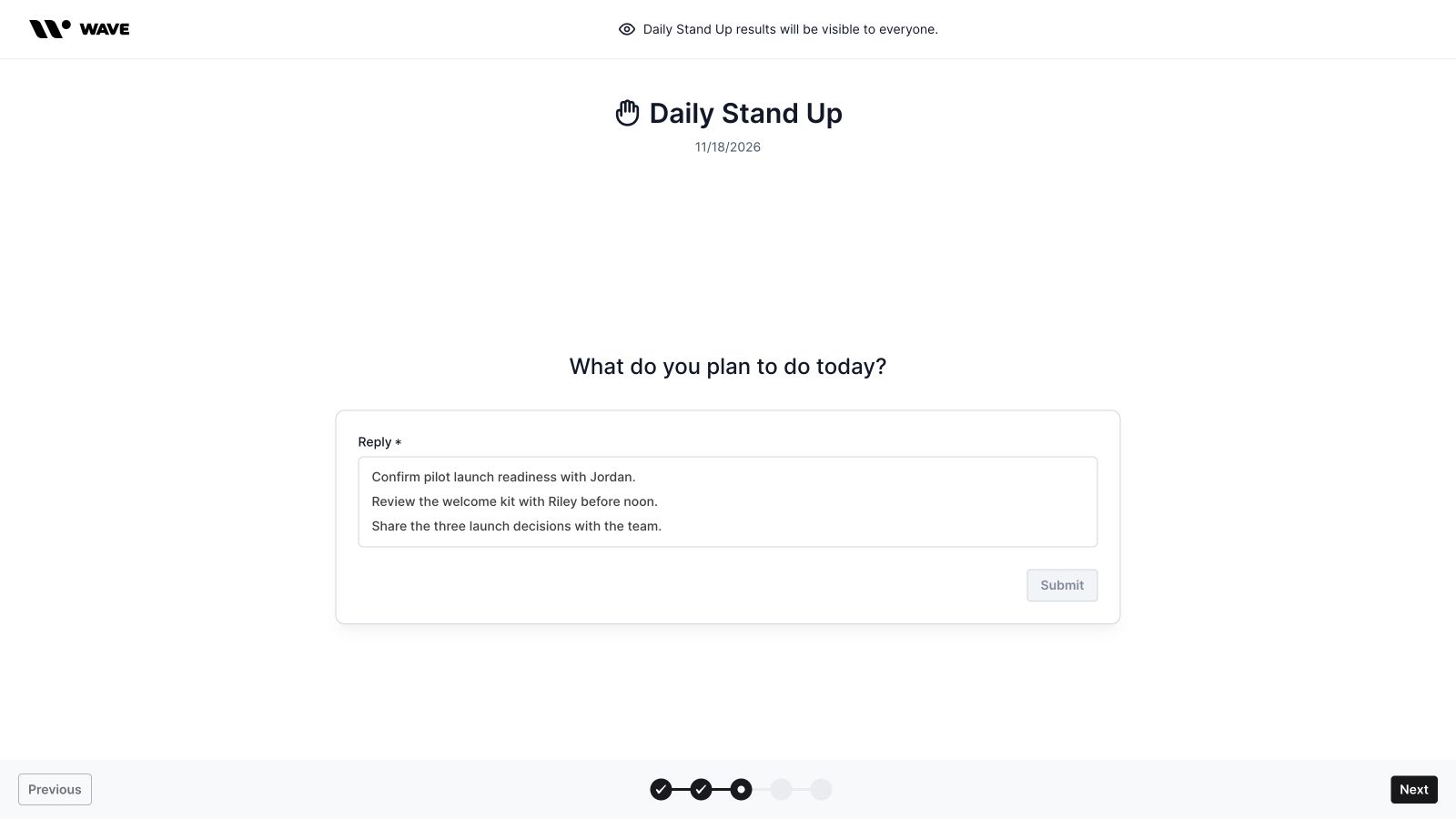
Use the rich-text reply editor to describe the work you plan to do. Specific actions give the team more useful context than a broad statement such as “working on launch.” The plan remains visible in the member's daily response.
Alex's sample plan names three actions: confirm launch readiness with Jordan, review the welcome kit with Riley before noon, and share the launch decisions. That tells teammates where coordination may be needed.
6. A clear blocker signal
The form asks whether anything is blocking you today. A teammate can indicate that there are no blockers or that help is needed. The daily review gives this answer its own card, so an obstacle is easy to find beside the plan.
7. Supporting blocker details
When a teammate reports a blocker, the form opens a written reply for the explanation. Describe what is missing, what it prevents, and the next useful action. The detail makes the blocker actionable for someone reading the update later.
Riley is waiting for one final account-owner confirmation. The example names Alex and a noon checkpoint. The team can respond to that specific request instead of starting another conversation just to understand the problem.
8. A feelings check-in
The guided form offers Stressed, Overwhelmed, Neutral, Productive, and Energized. The selected response appears as a visual card beside the work update. It adds context that a list of completed tasks may miss.
Use this as the teammate's own description of how they feel. A Neutral response alongside a blocker may call for a quick conversation; it does not explain the cause on its own.
9. Guided progress and navigation
The check-in guides the teammate through the questions with a progress indicator and navigation controls. Rating selections and submitted written answers advance the flow, while Previous and Next support reviewing the steps that have been reached. The daily form keeps the focus on one question at a time.
10. Confirmation after posting
After a successful submission, Wave confirms that the stand-up has been posted and provides navigation back to the stand-up area. That confirmation distinguishes a completed update from an answer still being written.
Review responses with the team
11. A daily response workspace
Daily Stand Up brings the five answers into one member detail view. The layout pairs goal progress and weekly confidence, gives the written plan room to read, and places blockers and feelings beneath it. A reviewer can understand the day's update without assembling the context from separate messages.

12. Member selection and sequential review
Select a teammate from the Members list or use the previous and next controls in the detail header. A position indicator, such as 1 / 6, helps orient a review across the available members. These controls support both a quick check of one person and a systematic team review.
13. Completion markers and response times
Completed check-ins have a visible marker beside the member. The detail header also shows the completion time. These signals help a reviewer distinguish a posted update from a teammate who has not yet completed the selected day's check-in.
14. An explicit outstanding-response state
When a response is missing, the member panel shows Stand Up Not Completed. The current member can use Complete Stand Up when that action is available for today. In the sample, Sam's response remains outstanding while five teammates have posted.
A missing response is a reason to check context, such as availability or the team's schedule. It is separate from the content and quality of the work itself.
15. Daily history by date
Use the date control to review a different day. Historical responses preserve the plan and context reported at that point in time. A team can revisit what it expected, what was blocked, and what needs follow-up in a later conversation.
16. Member and team filters
The Filter menu provides Member and Team criteria. Narrow the review to the people relevant to the current conversation, such as the customer launch team. Filtering helps keep a larger workspace manageable while retaining a shared place for the updates.
17. Editing today's own response
When available, the Edit Stand Up control opens the current member's response in a side panel. It brings the goal rating, weekly confidence, plan, blocker response and description, and feelings into an editable form with Cancel and Update controls.
The inspected interface limits the edit control to the current member and today's response. This supports correcting a same-day update without presenting historical responses as an unrestricted editing surface.
Understand participation and team signals
18. Total Stand Ups Available
Results displays the number of stand-ups available in the selected period. In the sample, six teammates across five dates gives 30 available check-ins. This provides the denominator needed to interpret participation.
The current report calculation counts calendar dates in the selected range. Choose the range deliberately: a period that includes weekends should not be interpreted as automatically excluding unscheduled days.
19. Total Completed Stand Ups
This card counts the submitted stand-up records in the selected period. The sample week has 27 completed responses. Read it alongside the available total so that the same number of responses is not mistaken for the same participation level across different team sizes or periods.
20. Average response rate
The response-rate summary shows participation as a percentage, supported by a donut chart and Completed and Remaining values. The sample's 27 distinct member-day responses out of 30 possible produce a 90% response rate and 10% remaining.
The response calculation counts distinct submission dates per member. Participation tells the team whether the check-in routine is being used; the written updates explain what people are doing.

21. Response-rate trends
The trend chart shows how response rates change across the selected period. A pattern of missed check-ins can prompt a discussion about timing, relevance, or availability. Looking at the pattern is more useful than drawing a conclusion from one isolated missing response.
The five-day sample alternates between five and six completed responses per day. The chart makes that pattern visible alongside the overall 90% rate.
22. On Track Rate
On Track Rate summarizes the submitted 1–10 confidence ratings as an average percentage. A rating of 8 contributes 80% to this calculation. The sample week displays 78.89%.
This is an average of reported confidence, not the percentage of tasks completed or the share of teammates above a pass/fail threshold. Review lower confidence with the relevant plans and blockers before deciding what support is needed.
23. Blocked Rate
Blocked Rate is the percentage of submitted responses that report a blocker. Five of the sample week's 27 responses have a blocker, producing 18.52%.
The rate describes responses in the period. One person can report a blocker on multiple days, so it should not be read as the percentage of distinct people currently blocked. Open the daily responses to understand the actual obstacles.
24. Response rates by team
The Response Rate Per Team table includes Team, Members, Response Rate, On Track Rate, and Blocked Rate. It helps a leader decide which team context to review next without losing the link between participation and the reported work.
Northstar Studio includes Product & Engineering, Customer Launch, and Leadership. Some teammates belong to more than one team. Team rows therefore represent overlapping groups and should not be added together as if they were separate populations.
25. Reporting-period selection
Use the Results date-range control to choose the period under review. A single day supports a current check-in review; a longer range reveals participation patterns. Keep the period visible when discussing a percentage so everyone is looking at the same set of responses.
Set the rhythm and make it easy to return
26. Configurable stand-up days
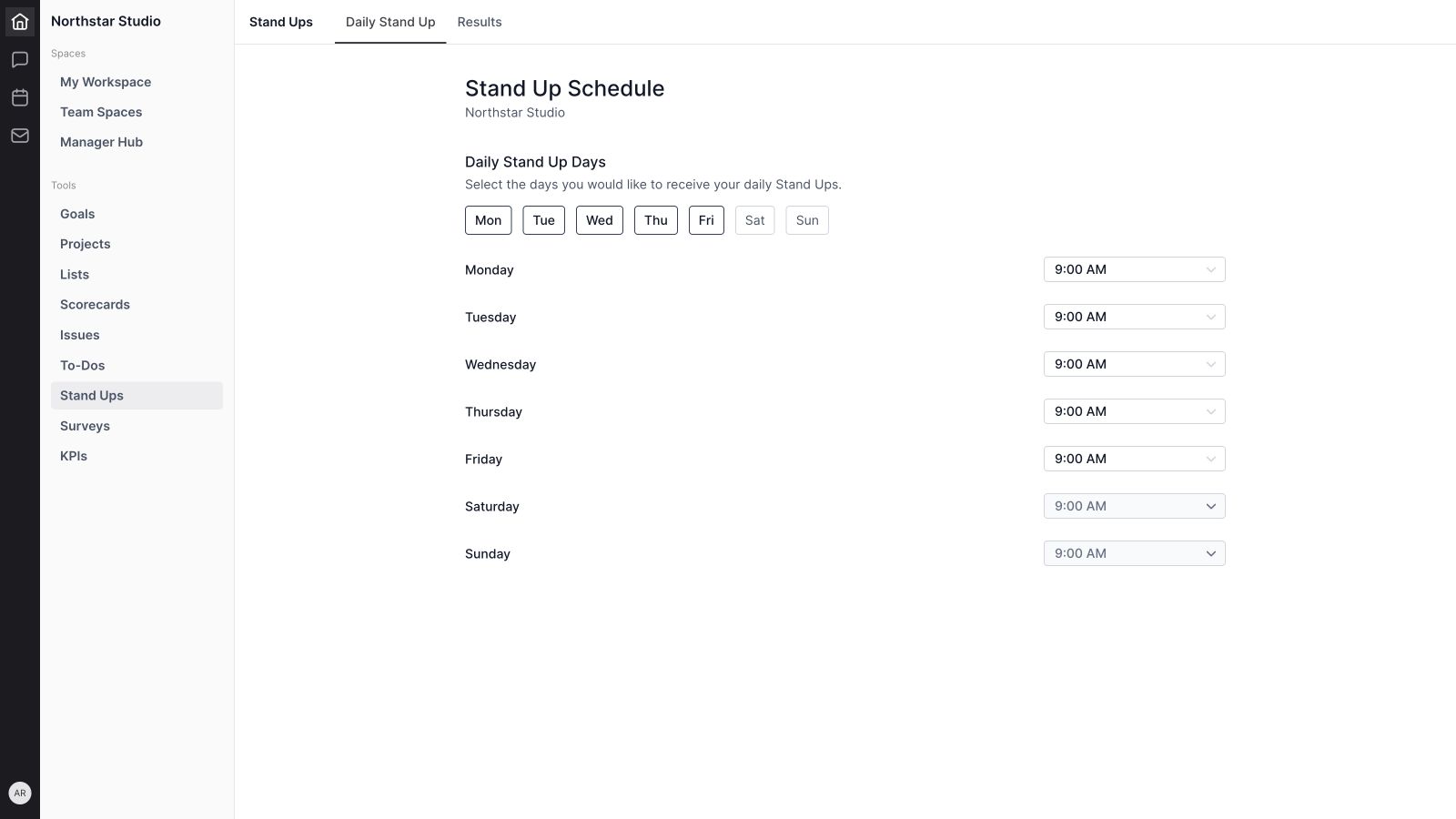
Organization settings provides Daily Stand Up Days with individual weekday controls. Enable the days that fit the team's routine. The sample uses Monday through Friday, with Saturday and Sunday disabled.
The stand-up schedule is distinct from the broader business-hours settings. It also informs which previous enabled day the guided goal question names.
27. A time for each day
The schedule includes a time control for each day, allowing the organization to configure its daily stand-up timing. Disabled days have inactive time controls. The demo uses 9:00 AM on the enabled weekdays.
Choose a time that gives teammates enough context to describe their plan and leaves room for someone to respond to a blocker. Notification delivery also depends on the workspace's configured settings; the showcase demonstrates the scheduling controls.
28. Workspace entry points and weekly status
Stand-ups are also represented in personal and team workspace views. The daily stand-up card can show the week's day markers, completion status, a completion count, and a streak when available. These entry points help make the check-in part of the place the team already uses to review its work.
Use the card to return to the underlying response when you need the plan or context. A streak is a consistency signal; the value comes from useful updates and timely follow-through.
29. Named, shared responses
The daily form explicitly states that results will be visible to everyone, and the review identifies the teammate who posted each update. Stand Ups is designed for shared work context. It should be understood as a named team check-in rather than an anonymous survey.
A practical workflow for Wave Stand Ups
Start with one team and a clear review habit. A useful daily rhythm has five parts:
- Set the schedule. Choose the enabled days and times that fit the team's working pattern.
- Write a specific update. Describe the next actions, give an honest confidence rating, and explain anything that is blocking progress.
- Review the responses. Look through the members and read the work behind the ratings.
- Act on the blocker. Confirm who can help and the next checkpoint. In the sample, Alex confirms the account owner before Riley sends the welcome kit.
- Review the routine. Use Results to check participation and patterns, then adjust the schedule or expectations when needed.
Keep the written update brief enough to read and specific enough to act on. A regular check-in becomes useful when the team responds to what people share.
How Stand Ups fits with other Wave tools
Use Wave Stand Ups for daily context. Put an action that needs ownership and completion in Wave To-Dos. Capture a problem requiring continued resolution in Wave Issues. Use Wave Projects for the broader delivery effort and Wave Goals for its intended outcome.
A blocker that needs a decision can become part of the next Wave Meetings conversation. These are complementary working habits; this guide does not assume that a written stand-up automatically creates tasks or issues.
Wave Stand Ups frequently asked questions
What is Wave Stand Ups used for?
Wave Stand Ups collects daily progress, plans, blockers, weekly confidence, and feelings in a consistent check-in. Teams can review named responses and examine participation through Results.
What questions does the daily check-in ask?
It asks about the previous working day's goals, how on-track you are for the week, what you plan to do today, whether anything is blocking you, and how you feel.
Can I review a previous day's stand-ups?
Yes. Daily Stand Up includes a date control for historical review. Results has a date-range control for reporting across a selected period.
Can I edit a response?
The inspected interface provides an edit panel for the current member's completed response on the current day. It includes the ratings, plan, blocker details, and feelings, with Cancel and Update controls.
Can we choose our stand-up days and times?
Yes. Organization settings includes enabled days and individual daily time controls. Available configuration actions depend on the user's access.
What do the report percentages mean?
Response rate measures participation against available member-day check-ins. On Track Rate averages the 1–10 confidence ratings as a percentage. Blocked Rate measures how many submitted responses report a blocker.
Are stand-up responses anonymous?
No. The form states that results will be visible to everyone, and the daily review associates responses with named members.
Does the showcase contain real employee data?
No. It uses actual Wave UI components with fictional teammates, responses, dates, and results in an isolated sample workspace. No production check-ins were created or changed.
Give your daily update a useful next step
Wave Stand Ups brings the day's plan, the team's confidence, and the obstacles that need attention into one review. Establish a clear rhythm, write updates that help someone act, and use the reports to improve the habit over time.
Get started with Wave or explore the workspace at ourwave.io.


