
Wave Directory helps your team find the right person and understand how to work with them. Browse members and teams, open a profile, check responsibilities and weekly working arrangements, and see the context behind someone’s work—all inside Wave.
A name and email address are a useful start. Day-to-day collaboration needs more: who owns a decision, which team someone belongs to, how they prefer to receive feedback, and where to find the person who can help. Wave Directory brings that context together in member profiles and team pages.
This guide covers the current Wave Directory features, including member and team views, search and filters, personal profiles, skills and interests, working preferences, schedules, activity, recognition, favorites, and profile maintenance.
Watch the Wave Directory product demo
The 48-second showcase follows Northstar Studio, a fictional eight-person team. Four overlapping teams connect product, engineering, customer experience, marketing, and leadership. Maya Chen’s profile includes an introduction, skills, interests, working preferences, a weekly schedule, sample activity, and two recognitions.
The video uses actual Wave UI components with fictional sample data in an isolated preview. Navigation, toolbar controls, and scene transitions are presentation wrappers. The member cards, directory tables, profile layouts, About content, schedules, activity calendar and timeline, and recognition cards use Wave’s existing components. No live member profiles, team assignments, activity records, or recognitions were changed.
What is Wave Directory?
Wave Directory is the people and teams workspace within Wave. It sits in Company navigation and provides two main starting points: Members and Teams. From either view, you can move into the relevant profile for more detail.
The member directory answers “Who is this person?” The team directory answers “Who works together, and who leads this group?” Profiles add the information that makes those answers useful: roles, reporting relationships, responsibilities, skills, working arrangements, and shared work context.
In the sample workspace, Maya belongs to both Product & Engineering and Customer Experience. Jordan leads Product & Engineering, while Riley leads Customer Experience. That overlap gives the demo a practical story: a teammate preparing a customer launch can identify a designer, understand how to collaborate with her, and find the team responsible for delivery.
Explore the guide: Find people · Understand a profile · Skills and working styles · Explore teams · Activity and recognition · Navigation and maintenance · Getting started · FAQs
Find the right person
1. A shared member directory
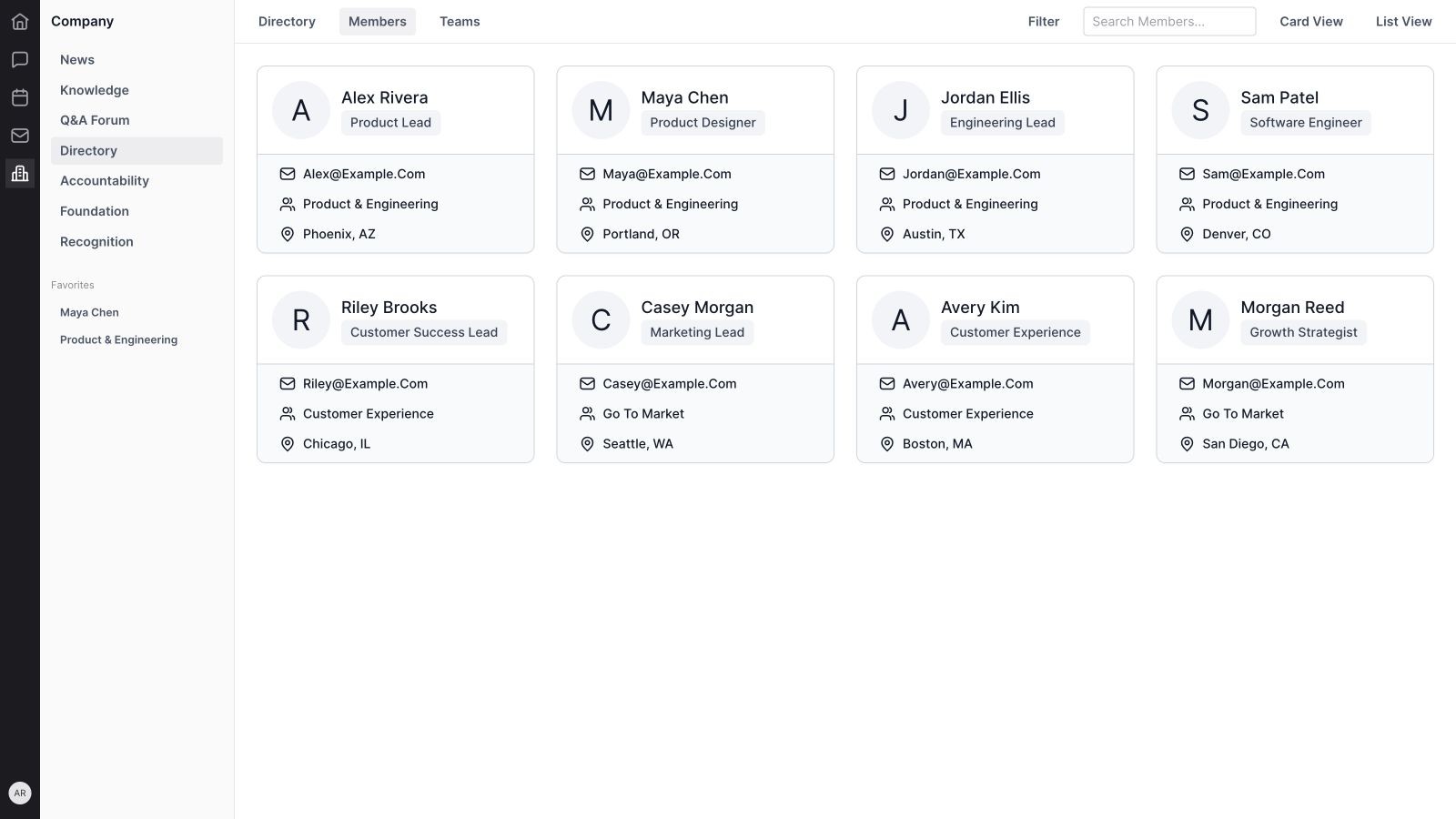
The Members view provides a central place to browse active organization members. It is designed around the people working in your Wave organization, so teammates can find one another without maintaining a separate contact spreadsheet.
The sample directory includes product, design, engineering, customer success, marketing, and growth roles. Each record leads to a member profile. Pending invitations and deactivated users belong to separate membership-management contexts rather than the active directory view.
2. Member cards with useful context
Card view combines a member’s image or initials, name, job title, email, a team label, and location. The layout makes it possible to recognize someone and understand their role before opening the full profile.
Maya’s card shows Product Designer, her fictional email address, Product & Engineering, and Portland, OR. A card’s team label is a compact summary; the profile provides the broader membership context when a person belongs to more than one team.
3. A compact member list
List view presents members in a table. On desktop, the columns include Member, Email, Title, Team, and Location. This is useful when scanning several people at once or checking whether the directory has enough information to be helpful.
Opening a row takes you to the member profile. The directory list is a browsing view; it is not an inline spreadsheet for editing every member field. Smaller layouts reduce the visible columns to keep the table usable.
4. Search by member name
Member search narrows the directory using a person’s name. Search for “Maya” when you know who you need, or use a surname to distinguish teammates with the same first name.
The current directory search matches names. Skills, interests, and profile paragraphs provide useful context after opening a profile, but they should not be treated as additional searchable fields in this member-search control.
5. Member and team filters
The Members filter menu includes Member and Team. A team filter helps narrow the directory to people connected to a particular group; a member filter focuses the view on selected people. Supported filter conditions can include or exclude matches.
Directory filter preferences are associated with the member’s current view. Search is applied after those filters, so an unexpectedly short result list may reflect both a saved filter and the current search term. Clear the relevant controls to return to the wider directory.
6. Members, Teams, and responsive views
The Directory navigation separates Members from Teams, with card and list choices for each. This lets you start with a person when you know their name or start with a team when you know the function you need.
The interface adapts to screen size. On smaller screens, profile details move into a dedicated Details tab, and navigation uses more compact controls. The same underlying information remains organized around the member or team you opened.
Understand a member profile
7. Identity, role, and email
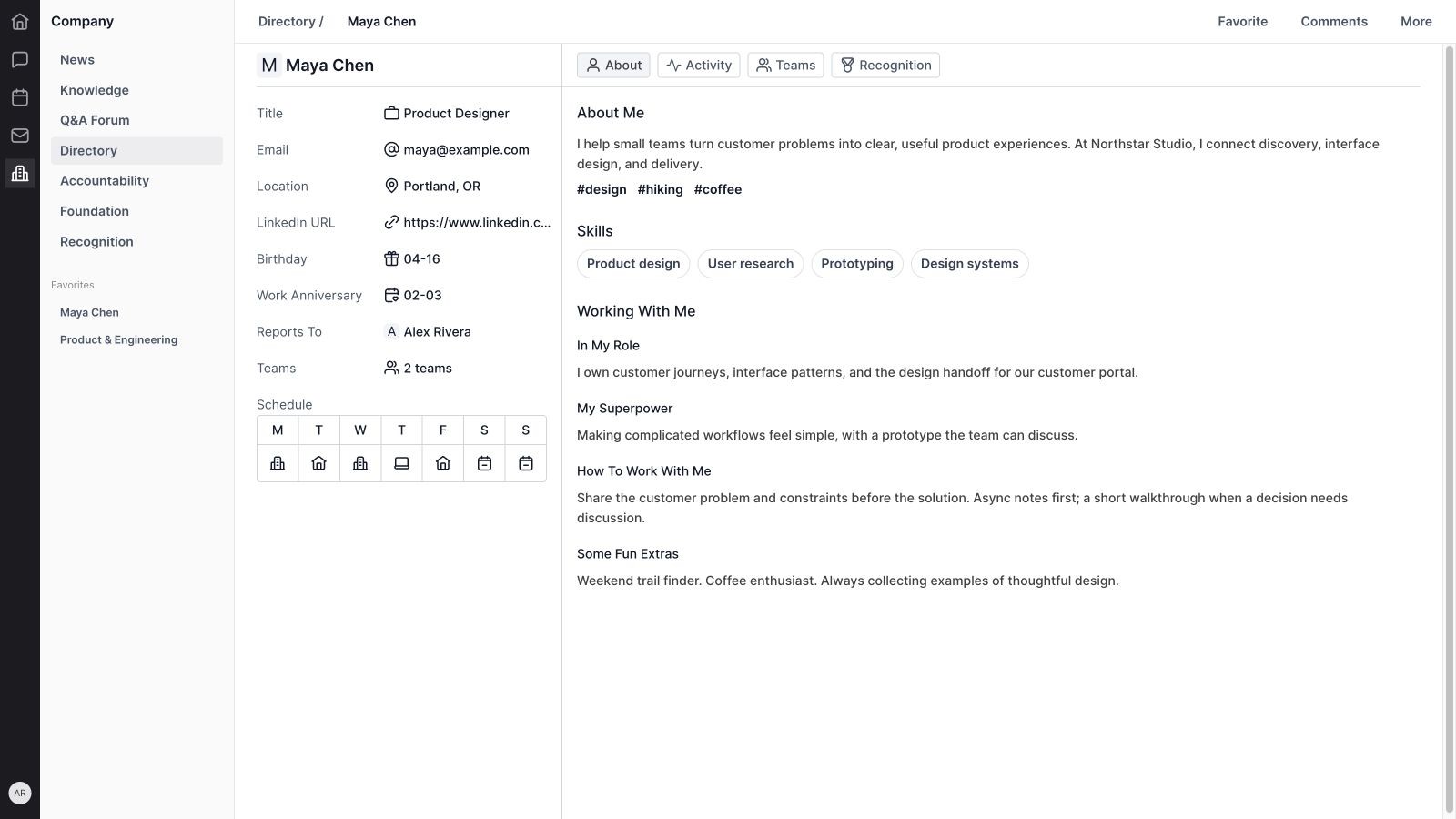
A member profile displays the person’s name, image or initials, title, and email. These details help a new teammate connect a person to their role and identify the right contact information.
Use a specific title that describes the work. “Product Designer” gives more context than a vague label. In the showcase, email addresses use example.com, so the visible contacts are clearly fictional.
8. Location and a LinkedIn reference
The profile includes location and a LinkedIn URL when supplied. Location gives teammates a useful starting point for understanding where someone works. The LinkedIn field can provide an external professional reference.
The profile editor normalizes supported LinkedIn URL input and validates the URL. Keep the reference current and choose information appropriate for your organization. A location label is not a live location tracker or a guarantee of someone’s availability.
9. Birthdays and work anniversaries
Birthday and Work Anniversary fields add personal and organizational milestones to the profile. They give teammates context for celebrating a colleague or recognizing their time with the company.
The showcase uses fictional month-and-day values. These profile fields provide the displayed information; their presence should not be read as a promise that Directory automatically schedules celebrations, sends reminders, or publishes announcements.
10. A reporting relationship
The Reports To section identifies the relevant reporting relationship when it is configured. This is useful for a teammate who needs to understand an escalation path or find the person responsible for supporting a colleague.
Maya’s sample profile reports to Alex Rivera. Reporting relationships and team leadership are separate pieces of information: someone can report to one person while participating in a team led by another.
11. Team membership from the person’s perspective
The profile summarizes how many teams a person belongs to, and the Teams tab lists the relevant teams with their member counts. This makes cross-functional participation visible without requiring the reader to inspect every team separately.
Maya’s two teams explain why she participates in both product delivery and customer onboarding. Open the relevant team to see its lead, responsibilities, and members. Membership describes organizational context; it does not itself assign a project task.
12. A weekly working schedule
The profile shows a seven-day schedule using status icons and explanatory tooltips. Supported statuses include working from office, working from home, working remote, hybrid or field work, on vacation, day off, and away.
This helps teammates understand someone’s usual working arrangements. It is separate from the event-level availability and scheduling workflows covered in the Wave Calendar guide. Use Calendar when you need to find an actual meeting time.
Get to know how someone works
13. An About Me introduction
The About tab supports a written introduction in the shared canvas format. A member can explain their background, the work they focus on, and what they want teammates to know.
Maya’s introduction connects customer discovery, interface design, and delivery. A useful introduction gives the reader a reason to reach out. It can be brief while still answering what the person contributes and where their experience is strongest.
14. Interest tags
Members can add interests to their About profile. The profile displays these as tags, such as #design, #hiking, and #coffee. They provide an easy starting point for conversation beyond a job title.
The editing flow supports choosing suggested interests and adding tags. Normalization keeps equivalent tags consistent. Add a few meaningful interests so the profile stays useful and easy to scan.
15. Shared-interest discovery
An interest tag can show a tooltip listing other members who share that interest. The tooltip includes names and profile images or initials, helping a teammate discover a natural connection within the organization.
For example, the sample profile associates hiking with Jordan and coffee with Riley. This feature uses the interests members have supplied; it does not infer hobbies or search their private activity.
16. Skills that explain where someone can help
The About profile includes skills displayed as readable chips. Maya’s sample skills are Product design, User research, Prototyping, and Design systems. These tell a teammate what kinds of problems she is equipped to help with.
The profile editor supports skill suggestions and custom entries. Skills are self-described context, rather than verified qualifications or an automatic ranking of employees. Keep the list focused on capabilities that are useful to colleagues.
17. Profile images and visual context
A member image helps people recognize a colleague throughout the directory. The About section also supports up to four images, giving someone room to share visual context alongside their introduction and interests.
Use images that make the profile more helpful or personal. The showcase uses initials for the member avatars and does not demonstrate an image upload. Upload and save behavior depends on the active profile-editing flow and available access.
18. Working With Me guidance
The Working With Me section contains four prompts: In My Role, My Superpower, How To Work With Me, and Some Fun Extras. Together, they explain responsibility, strengths, collaboration preferences, and personality.
Maya asks teammates to share the customer problem and constraints before proposing a solution. That is actionable guidance: a colleague can prepare a better request immediately. These fields are most useful when they describe concrete habits rather than broad adjectives.
Explore teams and ownership
19. Team cards
The Teams card view shows a team’s name, visual identity, member avatars, lead, and member count. It provides a quick overview of the groups that make up the organization.
The sample workspace has Product & Engineering, Customer Experience, Go To Market, and Leadership. People can appear in more than one team, so adding the counts from every card is not the same as counting unique organization members.
20. A team list with leads and counts
Teams also have a compact list view. The desktop table includes Team Name, Team Lead, and Members, making it easy to compare ownership across several groups.
Use this view when checking which team handles a function or confirming who leads a group. Opening a team takes you into its profile. The directory table presents the current information; team administration happens in the relevant management settings.
21. Search by team name
Team search narrows the list by team name. A person looking for customer-facing help can search for Customer Experience, while someone coordinating a release can look for Product & Engineering.
Clear team names improve discovery. Use labels that teammates understand and that reflect the group’s actual purpose. This search operates on names, so the responsibilities paragraph is supporting context on the team profile.
22. Filter teams by lead or member
The Teams filter menu includes Lead and Member. Lead narrows teams by their designated leader. Member identifies the teams that include a particular person.
These filters answer different questions: “Which teams does Riley lead?” and “Which teams does Maya belong to?” Member and team directory filters have separate preference contexts, so each view can retain the criteria relevant to its purpose.
23. Team responsibilities and leadership
A team profile brings its lead, member count, and responsibilities together. Responsibilities explain why the team exists and the work it owns, giving the reader more than a list of names.
In the demo, Product & Engineering owns discovery, design, engineering, and release quality. A clear responsibility statement helps route questions and decisions. Keep it aligned with how the team actually works.
24. Team members and weekly arrangements
The Members tab on a team profile shows its members, their titles, and day-by-day schedule indicators. This combines who is on the team with their usual working arrangements.
The sample Product & Engineering page contains four people. Open a member for their individual profile and collaboration preferences. The schedule indicators are useful context for coordination; they do not replace checking event availability before arranging a meeting.

Keep work context and recognition close
25. A member activity timeline
The Activity tab shows recorded activity associated with the member. Entries describe supported actions, their subject, and their timing, helping a reader understand recent work in context.
The demo includes a project, a published checklist, a task, and a canvas. These are prepared sample records. The timeline reflects activity available to the product and current access; it is not a complete account of everything a person does.
26. An annual activity calendar
Member activity includes a calendar visualization for the current year. Daily cells use intensity to represent recorded activity counts, with month labels and a less-to-more legend.
The chart gives a visual way to explore activity patterns. Counts describe recorded events, not hours worked, output quality, or productivity. Use the timeline and the person’s own context to understand what happened rather than treating the visualization as an employee score.
27. Activity at the team level
Team profiles also provide an Activity tab, scoped to the team. This gives people a place to review relevant recorded work without opening every member profile individually.
The annual calendar is specifically enabled for member activity in the current interface; the team activity view uses its timeline context. Work details remain subject to the underlying records and access available to the viewer.
28. Recognition on member and team profiles
Recognition tabs bring shoutouts into the profiles of the people or teams being recognized. Cards can show the recipient, giver, time, core value, points, message, and supporting media. A Shoutout action opens the relevant recognition flow.
Maya’s two sample recognitions describe concrete contributions to onboarding and a customer handoff. Points and giving options depend on the organization’s recognition setup and available balance. The showcase does not award points or publish a live shoutout.
29. Comments and reactions
Recognition cards include comment and emoji-reaction controls, supporting discussion and acknowledgement around a contribution. Profile navigation also provides a comments surface associated with the member or team.
These are contextual discussions. A private team conversation belongs in the appropriate Wave Chat workflow. Editing, deleting, or managing recognition depends on the permissions and controls available in the current context.
Return to profiles and keep information current
30. Favorites for frequent collaborators
Member and team profiles support favorites. A person who frequently works with Maya or Product & Engineering can keep those profiles close at hand instead of repeating the same search.
Favorites are a navigation shortcut. They do not change reporting relationships, team membership, or access. Keep the set focused on the people and teams you regularly need.
31. Profile links, identifiers, and navigation
Profile actions include Copy URL and Copy ID. The navigation also supports moving through members or teams and choosing another profile from the relevant selector.
A profile link gives a teammate a precise reference when coordinating work. It does not make the profile public or grant someone access. Copy ID provides the record’s identifier for workflows where an exact reference is useful.
32. Profile and team maintenance
The Member Profile settings flow lets a member maintain their photo, role, location, LinkedIn reference, relevant personal details, About content, interests, skills, images, and weekly schedule. Its form also includes a phone field; that does not mean the directory’s profile sidebar displays a phone number.
Team names, leads, membership, and responsibilities are maintained through the relevant organization team settings by people with the required access. Directory is where teammates discover and read that information. Keep updates close to real role or team changes so the directory remains dependable.
Feature availability and scope
This guide is based on the current Wave interface and product source. Directory browsing, personal profile settings, organization administration, and recognition share information but have different controls. Availability depends on the active surface, member access, organization setup, and service connection.
The video demonstrates the displayed states with fictional data. It does not test live profile saving, photo uploads, preference persistence, team administration, comments, reactions, or recognition submission. Directory activity and schedule displays provide context; they are separate from time tracking, meeting availability, and performance assessment.
How to get started with Wave Directory
- Complete the basics. Add a recognizable photo or use initials, a clear role, and current location information.
- Write a useful introduction. Explain what you do and the kinds of questions teammates can bring to you.
- Add skills and interests. Choose a focused set that helps colleagues find common ground and understand your experience.
- Explain how to collaborate. Use Working With Me to describe communication, feedback, and decision-making preferences.
- Keep working arrangements current. Set the weekly schedule and check Calendar for specific meeting availability.
- Clarify team ownership. Have the appropriate administrator review leads, members, and responsibilities.
- Use Directory in everyday work. Open profiles during onboarding, project handoffs, and cross-functional planning.
- Review after changes. Update profiles when responsibilities, reporting relationships, or team membership change.
For example, a new teammate preparing a customer launch can find Maya in Members, read her working preferences, open Product & Engineering, and identify Jordan as the team lead. The next step can happen in Wave Projects, while durable instructions remain in Wave Knowledge.
Wave Directory FAQs
What is Wave Directory used for?
Wave Directory helps organization members find people and teams, understand roles and responsibilities, and read profile context such as skills, interests, working preferences, schedules, activity, and recognition.
Can I view members and teams as cards or lists?
Yes. Both Members and Teams provide card and list views. Desktop lists show more columns, while smaller layouts simplify the visible information.
Can I search Directory by skill?
The current Members search matches names, and the Teams search matches team names. Skills are displayed on member profiles. Use the supported member, team, and lead filters to narrow directory views.
Can someone belong to multiple teams?
Yes. A profile can show multiple team memberships, and its Teams tab lists the relevant groups. A compact member card may show one team label, so open the profile for broader context.
What can I include in my About profile?
The About profile supports an introduction, interest tags, skills, up to four images, and Working With Me sections covering your role, strengths, collaboration preferences, and fun extras.
Does the weekly schedule show whether someone is free for a meeting?
It shows working-arrangement statuses for each day. It does not replace calendar availability or display every event. Use Wave Calendar when coordinating an actual meeting time.
Does Directory include recognition?
Yes. Member and team profiles have Recognition tabs with relevant shoutouts and a creation action. Giving options, points, comments, reactions, and management actions depend on the organization setup and available permissions.
Is Wave Directory a public employee directory?
Directory is part of the organization’s Wave workspace. Copying a profile URL does not make it an unrestricted public page or grant access. Keep profile information appropriate for the audience that can view it.
Help your team find its people
A useful directory does more than store names. It helps a teammate find an owner, understand a colleague’s strengths, and begin a better conversation. Start with clear profiles and team responsibilities, then keep them current as the organization changes.
Get started with Wave or talk with the Wave team about bringing your people and everyday work together.


