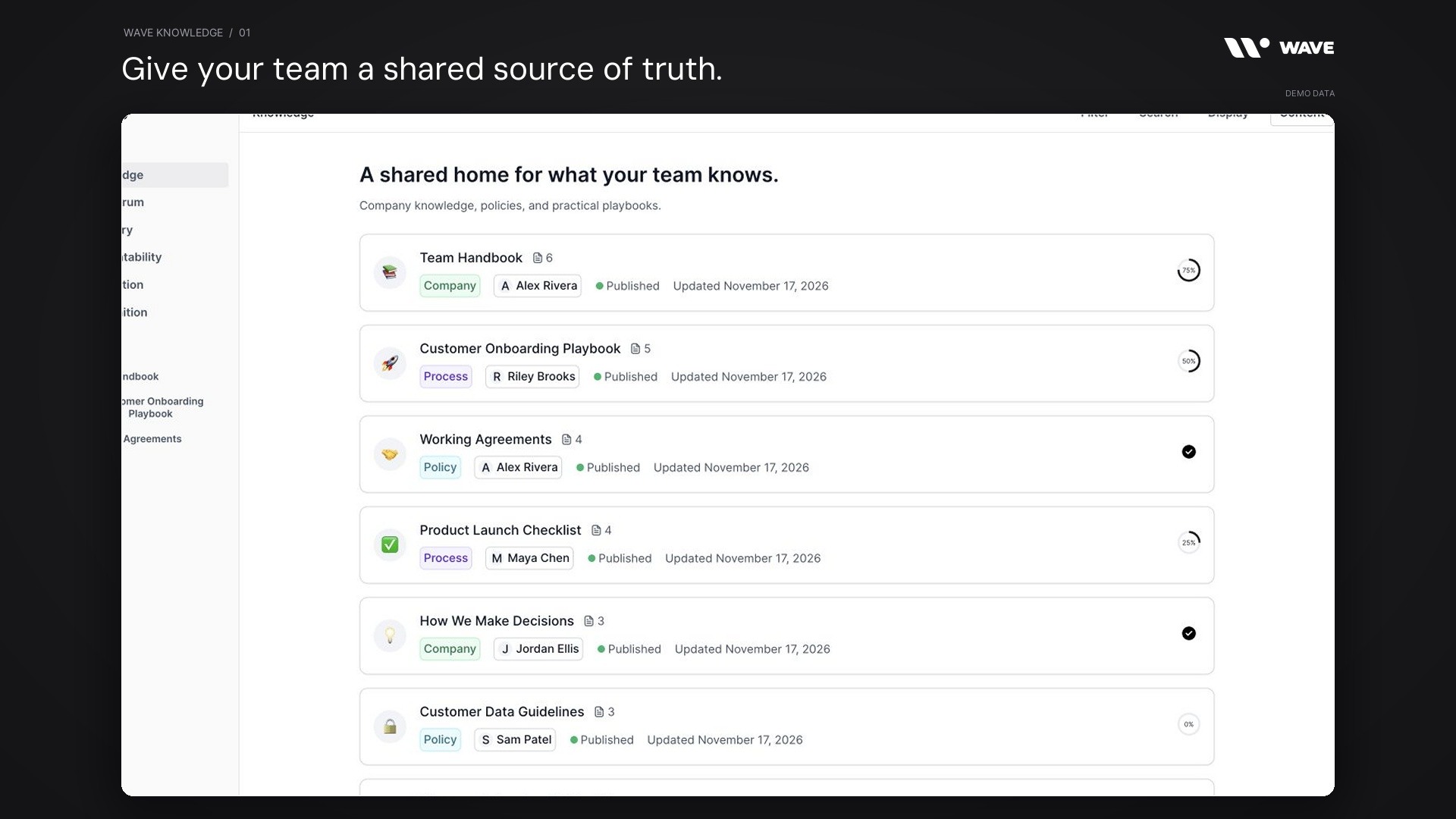
Wave Knowledge gives your team a shared home for company information, policies, processes, and practical answers. Build a handbook, organize a playbook into pages, assign the right reading, and keep useful knowledge connected to the work happening in Wave.
A team’s knowledge often starts as a message, a meeting decision, or an answer from someone who has done the work before. The problem comes later: a new teammate needs that answer, the process has changed, or nobody knows whether the latest guidance has been read. Wave Knowledge helps turn that information into something the team can find, maintain, and use.
This guide covers the current Wave Knowledge feature set and the related Q&A Forum: content organization, rich document editing, page hierarchies, collaboration, AI assistance, publishing, assignments, completion records, and reusable answers.
Watch the Wave Knowledge product demo
The 48-second showcase follows a fictional team at Northstar Studio. Its sample workspace contains eight knowledge items across Company, Policy, and Process, a six-page handbook, a five-page onboarding playbook, six teammates with sample completion records, and four forum questions with three accepted answers.
The video uses actual Wave UI components with fictional content in an isolated preview. Navigation, scene layout, document headers, and the reference panel are presentation wrappers. Assignment and completion states are prepared examples; no live documents were published, people assigned, answers posted, votes submitted, or AI requests run for the showcase.
What is Wave Knowledge?
Wave Knowledge is the shared content workspace inside Wave. It supports company documentation, policies, and processes, with a page-based editor and a publishing workflow. Readers can work through assigned content, while people responsible for the material can maintain it and review completion.
The Q&A Forum sits alongside Knowledge in Company navigation. It gives questions, discussion, and accepted answers their own place. Together, these surfaces support two everyday needs: documenting the guidance you already know and capturing the questions your team is still working through.
In the demo, Alex Rivera maintains the team handbook. Riley Brooks owns the customer onboarding playbook. Maya, Jordan, Sam, and Casey need practical instructions for a customer launch, so the sample content includes a handoff checklist, working agreements, and questions about launch readiness. Each item has a purpose beyond filling a screen.
Explore the guide: Organize knowledge · Write and structure content · Collaborate and use AI · Publish and assign · Find and reuse · Q&A Forum · Feature availability · Getting started · FAQs
Organize knowledge people can find
1. A shared Knowledge library
The Knowledge library brings reusable content into one workspace. Each item can represent a handbook, a policy, or a process, with its title and supporting metadata visible before someone opens it. This gives a new teammate a starting point and an experienced teammate a place to return.
The sample library includes a Team handbook, Working agreements, Customer onboarding playbook, Product launch checklist, Customer data guidelines, and Brand and voice guide. Clear titles describe the question each document is meant to answer.
2. Company, Policy, and Process categories
Wave separates knowledge into Company, Policy, and Process categories. Company content can explain how the organization works. Policies describe agreed rules and expectations. Processes capture repeatable steps, playbooks, and operating procedures.
The category appears as a visual label in the library. That distinction helps readers understand whether they are learning context, checking a rule, or following a workflow. Choose the category that matches the document’s purpose, then give it a specific title.
3. Cards with ownership, status, and page context
Card view presents content with its icon, title, page count, category, owner, publishing status, and update information, with details adapting to the available screen space. Eligible assigned content also shows the current reader’s completion state.
For example, the Team handbook has six pages and a sample 75% completion indicator. The Discovery interview guide is a draft. These signals help readers and editors distinguish material that is ready to use from work that still needs attention.
4. A compact list view
List view makes the library easier to scan when there are many items. The desktop table includes the title, type, owner, status, completion percentage, and updated date. The responsive layout reduces the visible columns on smaller screens.
Use cards when the extra context helps someone choose what to read. Use the table when reviewing a collection of documents or comparing ownership and status. Management controls, including row selection, depend on the current member’s permissions.
5. Search for the right content
The Knowledge workspace includes a search control to narrow the content list. Give documents meaningful names so a teammate can find “customer onboarding” or “working agreements” without knowing who wrote them.
The page-navigation menu also supports searching pages in the relevant Knowledge context. Library search and page navigation serve different scopes; they should not be treated as a promise that every attachment, image, or external resource is searched.
6. Filters for type, creator, and dates
Knowledge filters include Type, Creator, Created Date, and Updated Date. These controls help answer practical maintenance questions, such as which processes a person created or which guidance has changed recently.
Use a date filter while reviewing launch preparation, or narrow by type when checking policies. A filter changes what is visible in the current view; it does not change the content itself. Clear the filter when you need the broader library again.
7. Display preferences
The Display menu provides Card and List choices, along with type-related visibility controls. Saved preferences help a member return to a useful way of viewing their content.
Different roles may prefer different starting points. A new hire may browse the handbook cards, while a content owner may use a compact list during a maintenance pass. The controls available can vary with the screen size and the content surface.
Write guidance that is easy to follow
8. Written content with a clear identity
The Content action creates written knowledge. Content has a title, category, owner, and optional visual identity such as an emoji or cover image. These details make documents recognizable in the library and their navigation.
Start with the outcome the reader needs. “Customer onboarding playbook” is more useful than “Notes,” because it explains what belongs inside and when to open it. Keep ownership current so readers know who can clarify or update the guidance.
9. Multiple pages and nested structure
A knowledge item can contain multiple pages, with parent and child relationships. Use this structure to break a handbook into focused sections instead of putting every instruction into one long page.
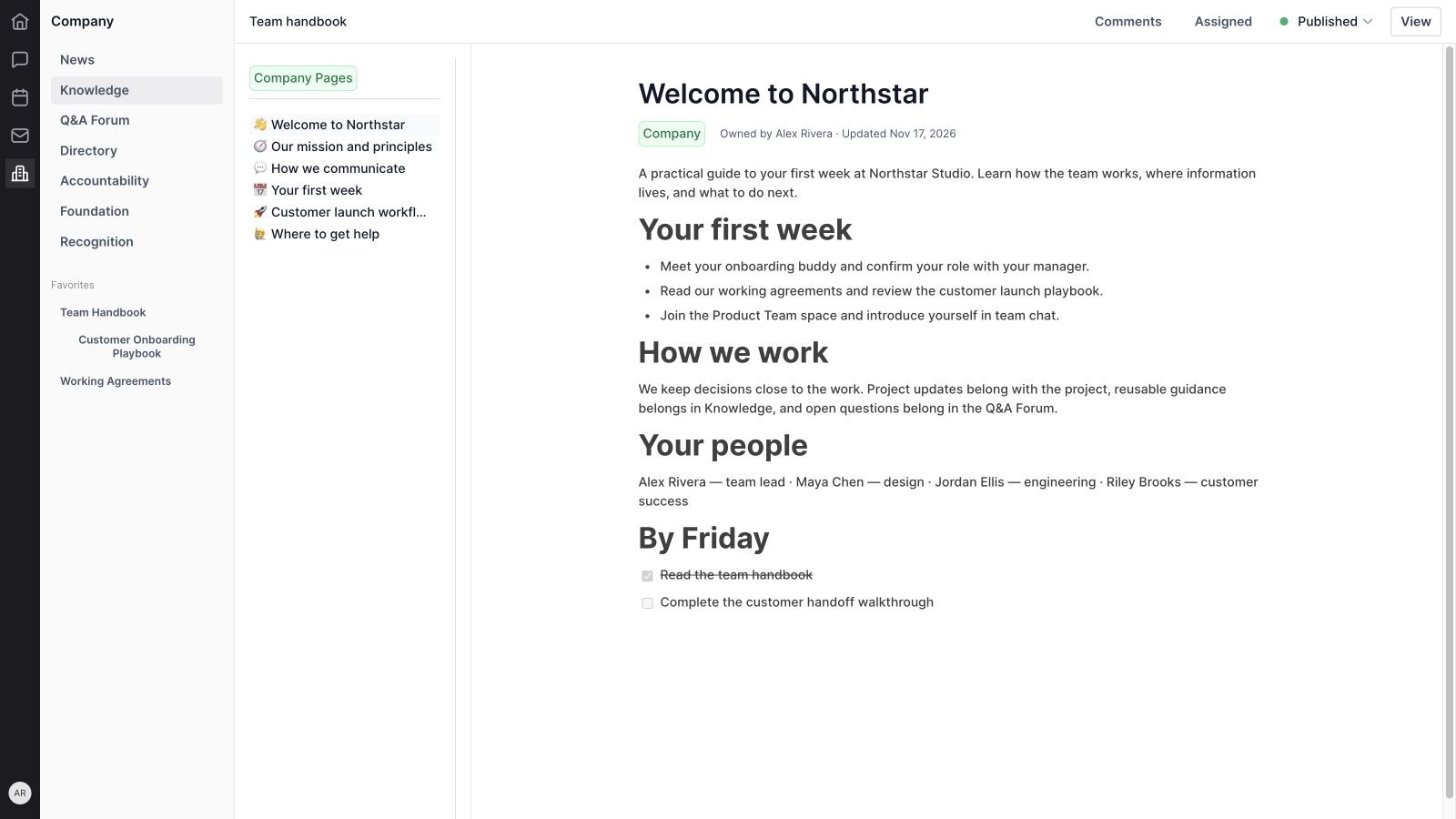
The sample handbook separates the welcome, principles, communication, first week, launch workflow, and help information. A reader can follow that structure without losing the context of the overall document. Page counts in the library provide an indication of the content inside.
10. Page ordering and navigation
Content editing supports adding pages, adding child pages, and arranging their order. The page sidebar makes the hierarchy visible, while the reading workflow includes navigation between sections.
Order a process in the sequence someone performs it. The onboarding example moves from confirming a launch plan to preparing the workspace, running the handoff, and closing the loop. A stable structure makes the playbook easier to follow and easier to revise.
11. Rich text and structured blocks
The canvas editor supports headings, paragraphs, bulleted and numbered lists, checklists, and text formatting. Its fuller document configuration also supports richer blocks such as tables and images. Use headings to organize the page and lists to make steps clear.
The handbook scene shows the actual Wave canvas rendering sample guidance. Short paragraphs and descriptive headings make the page easier to scan, especially when someone is reading while doing the work.
12. Checklists inside a document
Checklist blocks can turn guidance into a visible sequence of actions. The sample first-week page includes reading the handbook and completing a customer handoff walkthrough.
A checkbox inside a document and a reader’s content-completion record are separate things. Use checklist blocks to express the work described on the page. Use the assigned-content reading controls to record completion of required material. Keeping that distinction clear makes progress easier to interpret.
13. Links, mentions, and useful references
The shared canvas supports links and member mentions, helping a document point to relevant people or context. A process can explain the action and direct the reader to the related work rather than repeating information in several places.
For a customer launch, link to the delivery project and identify the person responsible for the handoff. Readers still need permission to open the destination. Adding a link to Knowledge does not change access to the linked resource.
14. Visual and embedded content
The document canvas includes image and video capabilities, alongside other structured content blocks. Use a screenshot when it explains a step more clearly than prose, or an appropriate video reference when the reader benefits from seeing the workflow.
Supported media behavior depends on the block, source, and upload or embed path. The demo focuses on written guidance and does not demonstrate a media upload. A concise written explanation should still make the purpose of each visual clear.
Keep content current with the team
15. Saving edits as you write
The content editor has an autosave workflow that sends changes after a short editing pause. Pending edits are also considered by the publishing flow, so saving and publishing work together.
This helps a content owner improve a playbook while the details are fresh. A successful save still depends on the connection, service response, and permission to edit. Review the visible state before leaving an important change; the showcase does not simulate a production save.
16. Collaborative editing
The Knowledge editing route enables the shared collaborative canvas. This supports working on content with other authorized teammates instead of maintaining separate copies of the same guidance.
Collaboration depends on the active document, room connection, and access available to each participant. The video uses a single isolated preview and does not demonstrate multiple live editors. The practical value is a common document that the responsible team can keep current.
17. Comments attached to content
Content has a comments surface for discussion about the document. A teammate can raise a clarification or propose a change close to the material it concerns.
For example, Jordan might ask whether an administrator-access check should happen before the pilot walkthrough. Resolve the question in context, then update the playbook if the answer changes the process. This gives future readers a better document rather than leaving the correction only in a separate conversation.
18. AI assistance through a freeform prompt
The AI-enabled canvas supports a freeform prompt. It gives an editor a way to ask for help with the content they are preparing, such as organizing rough notes into a first draft of a procedure.
Supply the purpose, audience, and facts the draft should preserve. Review the result before accepting it. AI availability depends on the enabled surface and usage access; a request for an action plan produces content and should not be confused with automatically executing that plan.
19. AI editing and summarizing selected text
Selection actions include Improve Writing, Fix Spelling and Grammar, Simplify, Make Shorter, Make Cleaner, Summarize, and Turn into Action Items. These options help refine a passage without rewriting the entire document.
The review workflow includes accepting or rejecting a proposed change. Check that owners, requirements, and decisions remain accurate. Turning a passage into action items is a writing transformation; it does not by itself demonstrate that project tasks were created or assigned.
20. Dictation in the editing experience
The Knowledge editing route enables dictation support in its canvas experience. This can help an author capture an explanation when speaking is more convenient than typing.
Dictation depends on the supported environment, microphone permission, and service availability. Review the captured text, especially names and specialist terms. Document dictation is separate from the meeting-recording workflow described in the Wave Meetings guide.
Publish guidance and understand completion
21. Draft and published states
Content can be unpublished or published. Eligible editors can prepare material, publish it when ready, and return it to an unpublished state when appropriate. The status appears in the library and the content controls.
Publishing internal Knowledge content is not the same as creating an unrestricted public web page. Wave’s support-article and collection surfaces have their own context. Check the content surface, intended audience, and available controls before distributing a link.
22. Assign to individuals, teams, or the organization
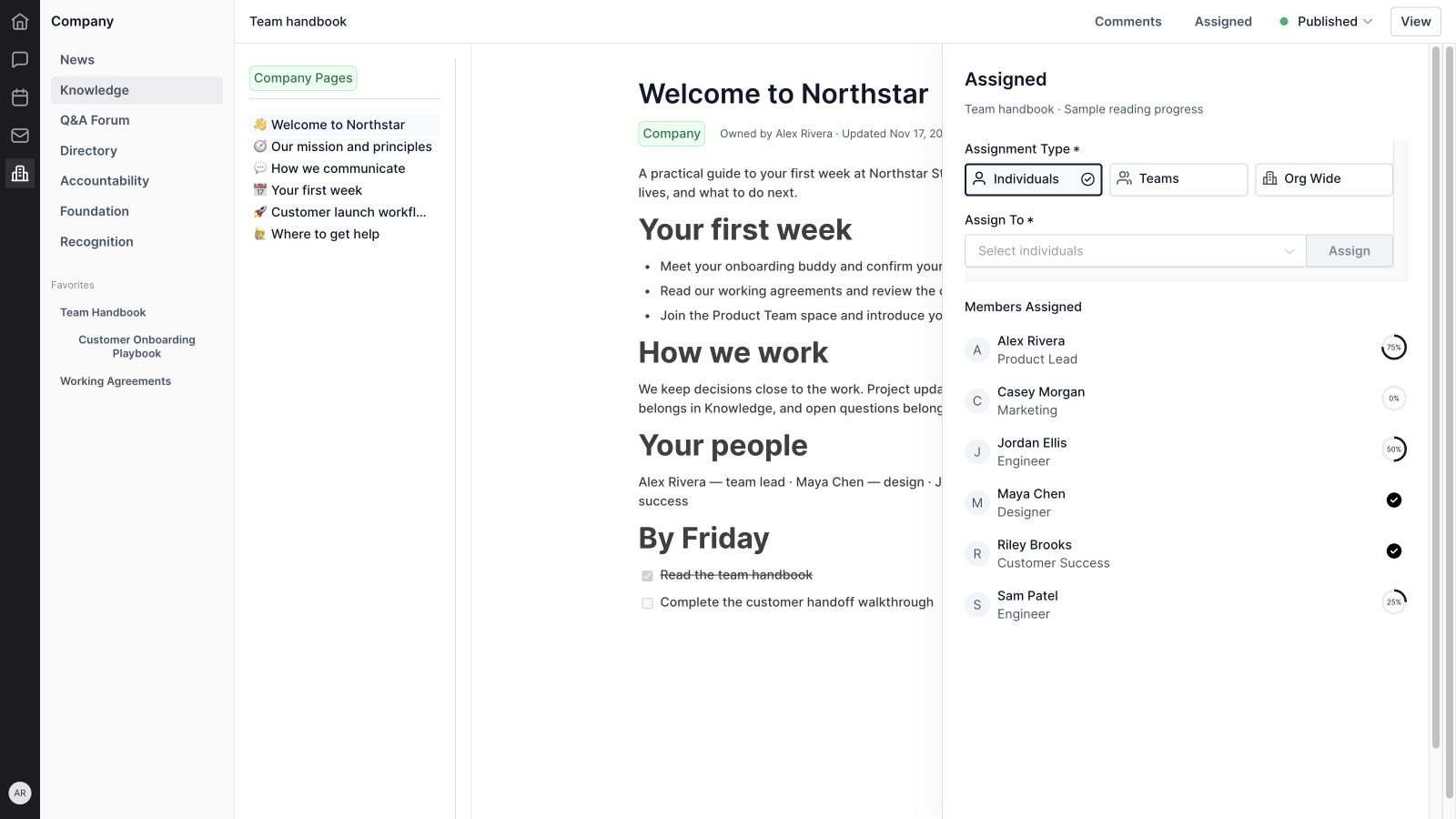
The internal-content assignment workflow supports Individuals, Teams, and Org Wide audiences. Choose the people who need the guidance instead of treating every document as required reading for everyone.
The demo prepares a handbook assignment for six fictional teammates. A broad handbook may suit an organization-wide audience; a specialist launch process may suit a particular team. Assignment choices and the ability to change them depend on the content’s status and the editor’s permissions.
23. Completion records by member
The Assigned view shows members and their completion indicators. Library cards and the table also use completion information in the relevant reading context.
The sample records range from 0% to 100%, with completed indicators for Maya and Riley. These are illustrative values, not live employee records. Completion describes the recorded reading workflow; it is not a test score, a measure of work quality, or evidence that someone has mastered a topic.
24. Mark required content completed
The eligible reading flow provides Mark Completed and, at the end, Mark Completed & Finish. It records a verification for the member and relevant content, with navigation that can advance through the required material.
Use this for a structured onboarding path or required policy reading. A person should read the material before marking it complete. Required sections, current progress, and available navigation depend on the document hierarchy and the active reading context.
Return to useful knowledge and share the right reference
25. Favorites for frequent references
Content can be favorited in supported navigation contexts, making regularly used guidance easier to return to. A team member might keep the handbook or customer onboarding playbook close at hand.
Favorites are a navigation aid. They do not transfer document ownership or change access. Choose a small set of useful references, then keep the underlying content current so the shortcut continues to lead to reliable guidance.
26. PDF export and Markdown copy
Where the relevant actions are available, the content menu supports Export PDF and Copy .MD. PDF export provides a portable document, while Markdown copy supports reuse in another writing workflow.
An exported copy reflects the content at the time it was created; it does not remain synchronized with later edits. Keep a link to the original when sharing material that may change. Export availability depends on the current content and editor readiness.
27. Content links, editing, and management
The content menu includes Copy URL and Copy ID, with editing, viewing, unpublishing, assignment, and deletion actions shown when relevant and permitted. These controls help maintain a document through its useful life.
Connect lasting guidance to the work that uses it. The Wave Projects guide covers delivery work, and the Wave Chat guide covers team conversations. Keep the reusable explanation in Knowledge and reference it from those workflows.
Capture answers in the Q&A Forum
28. Questions with supporting context
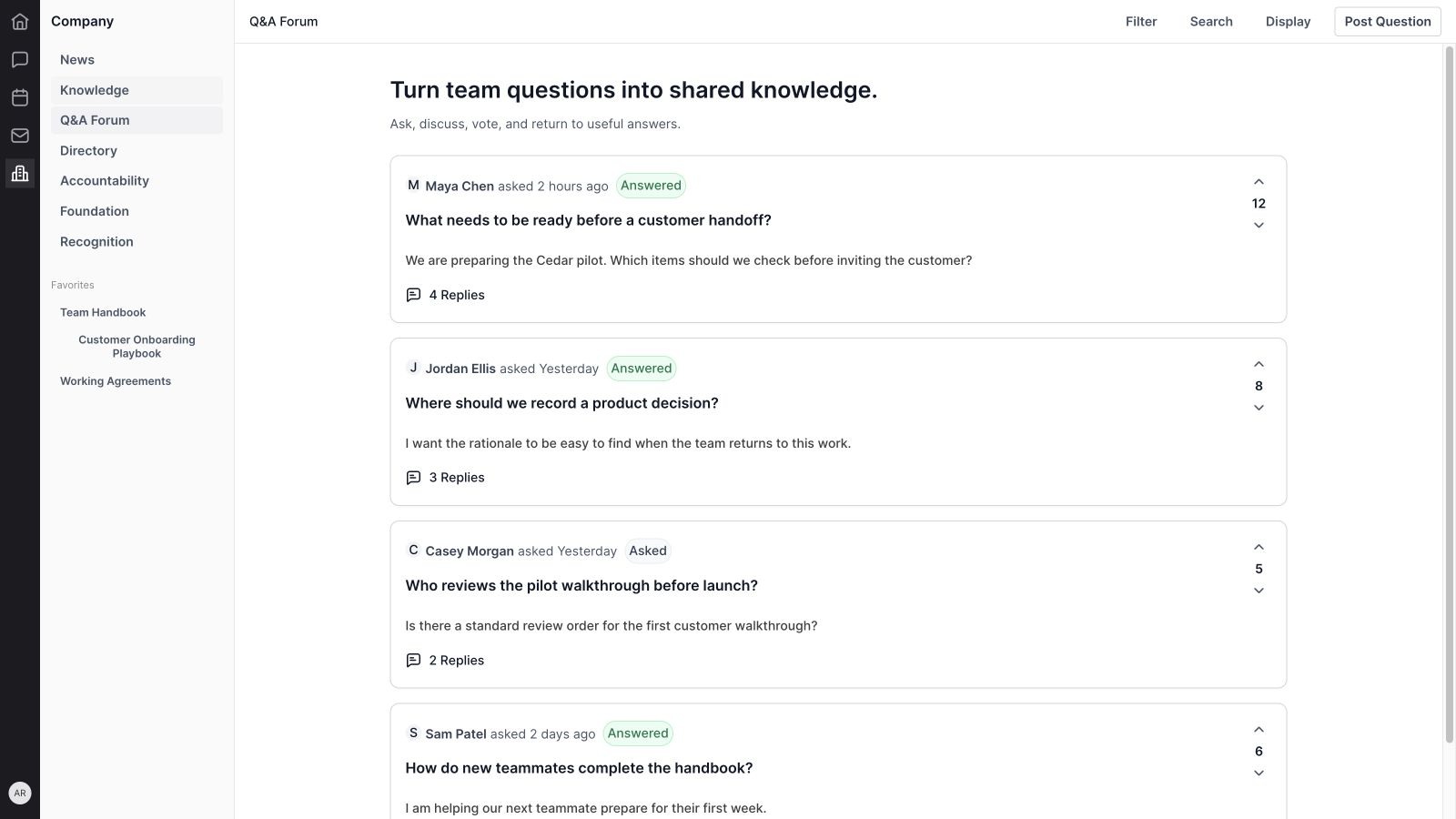
The Q&A Forum lets a teammate post a question with details. The question has an author, timestamps, status, and discussion context, making it easier to return to than an isolated message.
Ask a specific question and describe what you have already checked. In the demo, Maya asks what must be ready before a customer handoff. That gives Riley enough context to point to the relevant checklist and explain the readiness criteria.
29. Replies and accepted answers
Forum questions support replies and accepted answers. The interface distinguishes Asked from Answered using accepted-answer information, helping readers recognize when the discussion contains an identified answer.
The sample handoff question shows an accepted answer about administrator access, the pilot checklist, and success measures. Accepted answers make guidance easier to find, but they still need maintenance when the underlying process changes. Relevant editing and acceptance actions depend on permissions.
30. Votes and reactions
Questions support voting, and the discussion model includes answer interactions such as votes and emoji reactions. These give teammates ways to signal useful contributions and participate in a discussion.
A popular answer is not automatically a correct policy. Use votes to understand what people find useful, then rely on the responsible owner to maintain authoritative guidance. The showcase’s vote totals and reply counts are fictional examples.
31. Labels and supporting resources
Questions and answers support contextual resources, and question workflows include labels. These can help organize a topic and attach the reference needed to answer it well.
Use a relevant document link or supporting resource when it makes the explanation more useful. The accepted answer should still explain the key point, so a reader understands why the reference matters. Access to a linked resource remains governed by that resource’s permissions.
32. Forum search, filters, and views
The Q&A Forum provides search, filters, and card/list views. Filters support distinctions such as Asked or Answered, creator-related context, and dates. The list view shows fields including the question, status, reply count, author, and creation date.
Use these controls to find an existing answer before posting a duplicate, or to review questions still waiting for a useful response. When an answer becomes a recurring instruction, turn it into maintained Knowledge content and link back to that reference.
Feature availability and scope
This guide is based on the current Wave interface and product source. The Knowledge library, document editing, assigned reading, Q&A Forum, and support-article surfaces share some components but have different controls. A feature appearing in one context does not imply that every content type exposes the same action.
- Permissions: publishing, editing, assignments, answer management, and deletion depend on the member’s role, ownership, content, and current context.
- AI and dictation: availability depends on enabled capabilities, usage access, connectivity, and the capture environment. Review generated or transcribed content before relying on it.
- Collaboration and saving: live editing requires the relevant connection and access. The showcase uses isolated sample data and does not test production synchronization or saving.
- Completion: progress reflects recorded content verification. It is separate from checklist marks, task completion, and understanding.
- Publication and exports: internal publication does not imply public access. Exported files are snapshots, and sharing a link does not grant permission to the destination.
How to get started with Wave Knowledge
- Choose a recurring need. Start with an onboarding handbook, a frequently used policy, or a process people keep asking about.
- Name an owner. Give someone responsibility for keeping the guidance useful and current.
- Create and categorize the content. Use a clear title and the Company, Policy, or Process category that fits.
- Build focused pages. Put sections in a useful order and add links or visuals only where they help the reader act.
- Review the draft. Check the facts, steps, ownership, and any AI-assisted text with the people who do the work.
- Publish for the right audience. Use the internal assignment flow when the material is required reading.
- Review completion and questions. Look for missing guidance without treating completion as proof of understanding.
- Keep improving the source. Use comments and recurring forum questions to update the document.
Wave Knowledge FAQs
What is Wave Knowledge used for?
Wave Knowledge supports shared company information, policies, processes, handbooks, and playbooks. It combines document organization and editing with publishing, assigned reading, and completion records in the relevant contexts.
Can a Wave Knowledge document contain multiple pages?
Yes. Content can contain pages and nested child pages, with ordering and navigation. This is useful for a handbook or process that benefits from focused sections.
Can I assign content to a team?
Yes. The internal-content assignment workflow supports Individuals, Teams, and Org Wide audiences. The available controls depend on permissions, publication state, and content context.
Does Wave Knowledge track completion?
Yes. Eligible reading flows record content verification, and completion appears in supported library and assignment views. It records the workflow’s completion state rather than testing comprehension.
Does Wave Knowledge include AI writing tools?
The AI-enabled canvas supports freeform assistance and selected-text actions such as improving writing, fixing grammar, simplifying, shortening, summarizing, and turning text into action items. Review proposed changes before accepting them; usage access and availability apply.
How is the Q&A Forum different from a knowledge document?
The forum organizes questions, replies, and accepted answers. Knowledge documents provide maintained guidance with a clearer structure. A useful recurring answer can become a handbook section or process page.
Can I export Wave Knowledge content?
Supported content menus offer PDF export and Markdown copy when available. Exported content is a snapshot and does not automatically update when the original document changes.
Does publishing Knowledge make it public?
No. Publishing internal Knowledge content does not by itself make it an unrestricted public website. Public support articles and resource-center collections have a separate publishing context.
Give your team knowledge it can use
Start with one document that removes a repeated question or makes an important workflow easier to follow. Give it a clear owner, useful pages, and the right audience. Then use real questions and feedback to keep it current.
Get started with Wave or talk with the Wave team about bringing your company knowledge and everyday work together.


