
Wave SMS Blast helps teams turn a short message into an organized campaign. Write the text, review its phone preview, choose the audience, set the timing, and follow the results in the same workspace.
A useful text has a clear reason to arrive: a requested reminder, a pilot invitation, a timely customer update, or a next step in a welcome journey. SMS Blast is a dedicated tool inside Marketing in Wave, alongside Social Media and Newsletter. It combines individual campaigns with automated text workflows and shared subscriber lists.
Watch the Wave SMS Blast product showcase
This 48-second showcase uses actual Wave UI components with fictional Northstar Studio data. It includes eight campaigns, three audience lists, 96 sample recipients, a scheduled pilot invitation, illustrative delivery results, and a five-action welcome automation. All names, phone numbers, messages, and performance figures are sample data. No text messages were sent to produce the video.

What is Wave SMS Blast?
Wave SMS Blast is the text campaign and automation workspace in Wave. Campaigns organize a particular message and its audience. The builder takes that message through Compose, Audience, and Review. Results connect the send to delivery information, link activity, replies, opt-outs, and individual recipient records. Automations connect text messages with triggers, delays, conditions, and follow-up actions.
In the demo, Northstar is inviting customers to a portal pilot. The draft reminds interested customers about a walkthrough and gives them one link to reserve a place. An earlier invitation has results to inspect. The welcome automation then gives new pilot members a useful starting point and leaves time before following up.
Wave SMS Blast features
1. A dedicated SMS campaign workspace
The SMS Blast navigation separates Campaigns and Automations. Campaigns provide a home for individual broadcasts, while Automations organize repeatable subscriber journeys. Both remain inside Marketing, with access to shared Subscribers and the relevant sender settings.
2. Campaign status tabs and counts
All Campaigns, Drafts, Scheduled, Sent, and Archived tabs make the current workload visible. Counts help distinguish unfinished messages from planned and completed sends. The sample has seven active campaigns and one archived campaign, including three drafts, two scheduled sends, and two sent campaigns.
3. Search and campaign filters
Search the campaign list and use the available date, author, label, and status filters to narrow the view. This is useful when several people contribute to a recurring program. A descriptive campaign name makes the right reminder or invitation easier to find later.
4. Labels and bulk organization
Apply labels to organize campaigns around a launch, audience, or recurring initiative. Select rows to use the available bulk actions, including label and archive operations. Labels add editorial context without replacing the delivery status of the campaign.
5. Duplicate, rename, archive, and restore
Campaign actions support duplication, renaming, previewing, archiving, and restoring where appropriate for the record. Reuse a useful campaign as the starting point for another message. Deletion is separate and confirmed; the draft builder only enables deletion for eligible campaigns that have not launched.
6. Campaign names and emoji
Give each campaign an internal name and optional emoji. The name appears in the workspace and campaign header, helping teammates distinguish the work. It is separate from the message body the recipient receives, so an operational title can remain descriptive without making the text itself longer.
7. A focused text message composer
The Compose step brings the campaign name, message, timing, and sending number together. The message field includes a character counter and a current limit of 918 characters. Keep the message focused even when more space is available: explain the reason for the text and give the reader a clear next action.
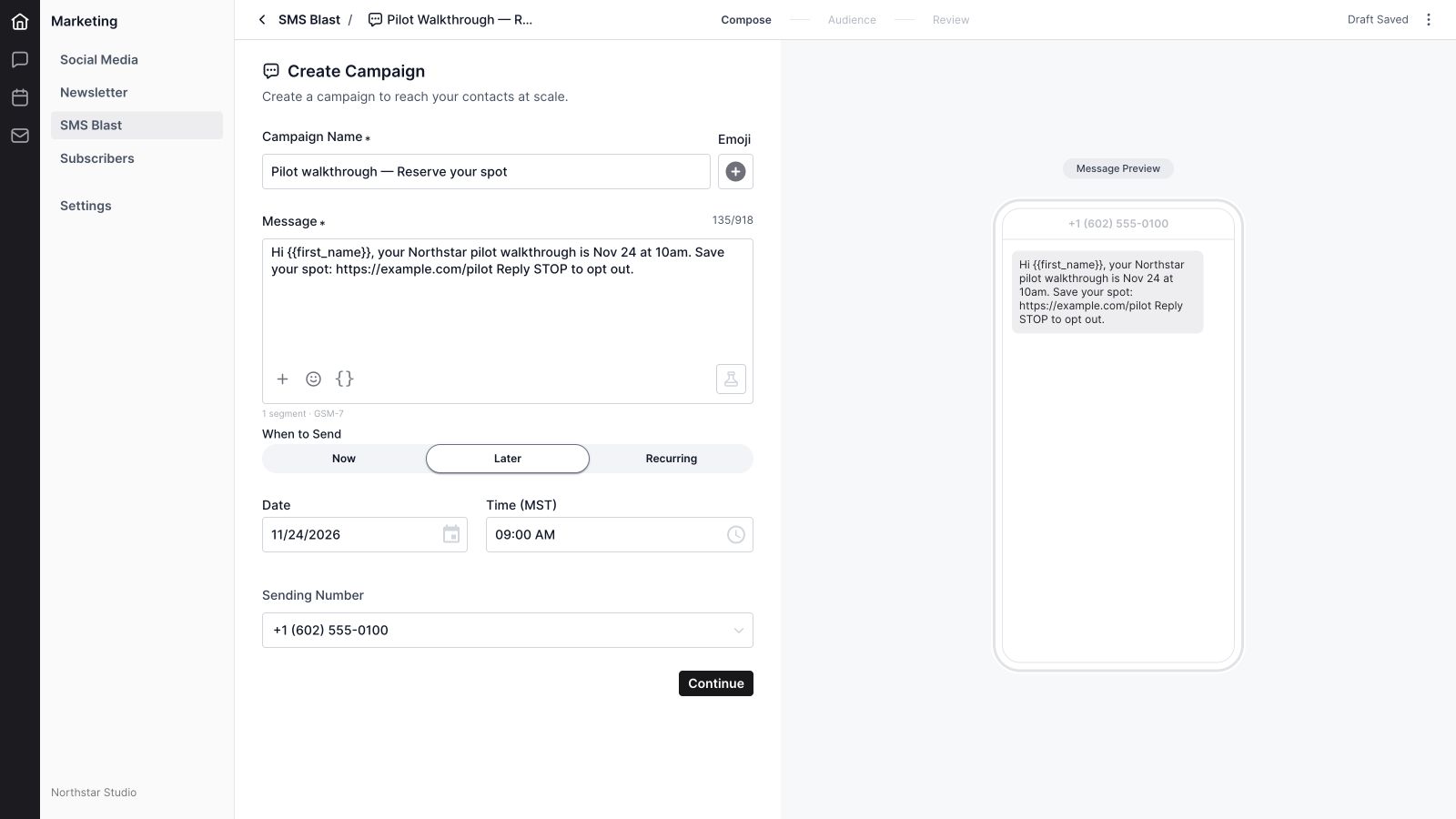
8. A phone-style message preview
The preview shows the selected sending number and message in a phone-shaped conversation view. Supported attachments appear with the message. This makes it easier to judge the reading experience while composing. The preview is illustrative; personalization tokens may remain visible rather than being replaced with a particular recipient’s values.
9. Personalization fields
The personalization menu inserts first name, last name, full name, and phone number tokens at the cursor. The sample uses {{first_name}} to make the invitation relevant to the recipient. Check the underlying subscriber data and review the resulting message before sending; inserting a token does not create a missing contact value.
10. Emoji, encoding, and segment counts
Add emoji through the composer and watch the segment indicator as the message changes. The counter distinguishes GSM-7 from Unicode and accounts for their different segment sizes. Some characters consume extra space or change encoding, so a visually short message can require more than one segment. The displayed count describes the current draft text.
11. Campaign attachments and MMS preview
Attach a supported file through the picker or drag and drop, review its upload state, and remove it when needed. Campaigns currently support one attachment. The builder checks the combined attachment and message size against a 5 MB limit and requires an MMS-capable sending number for an attachment. The phone preview displays the supported media presentation.
12. Send a test message
The composer includes a Send a test control. Its dialog accepts a test phone number and uses the campaign’s sending number. The campaign is saved before the test is queued, and invalid numbers or media readiness can prevent the action. This is a real delivery action in the product; the showcase does not send a test.
13. Choose a ready sending number
Select an available Wave number for the campaign. Numbers that are not ready for texting remain unavailable for selection. If the organization has one ready number, the builder can use it as the initial choice. The selected number also matters when determining recipient eligibility and sender-specific opt-outs.
14. Sending number settings
Marketing settings includes an SMS Sender section with the available numbers and their readiness. Manage Phone Numbers leads to the Phone settings workflow. Readiness and registration are explicit product states, so having a number listed does not automatically mean it can send a campaign.
15. Send now or schedule for later
Choose Now for an immediate campaign or Later for a planned send. Later exposes a date and time using the campaign’s configured timezone, with a visible timezone abbreviation. The sample reminder is prepared for November 24 at 9:00 AM in Phoenix, ahead of a 10:00 AM walkthrough.
16. Recurring campaign schedules
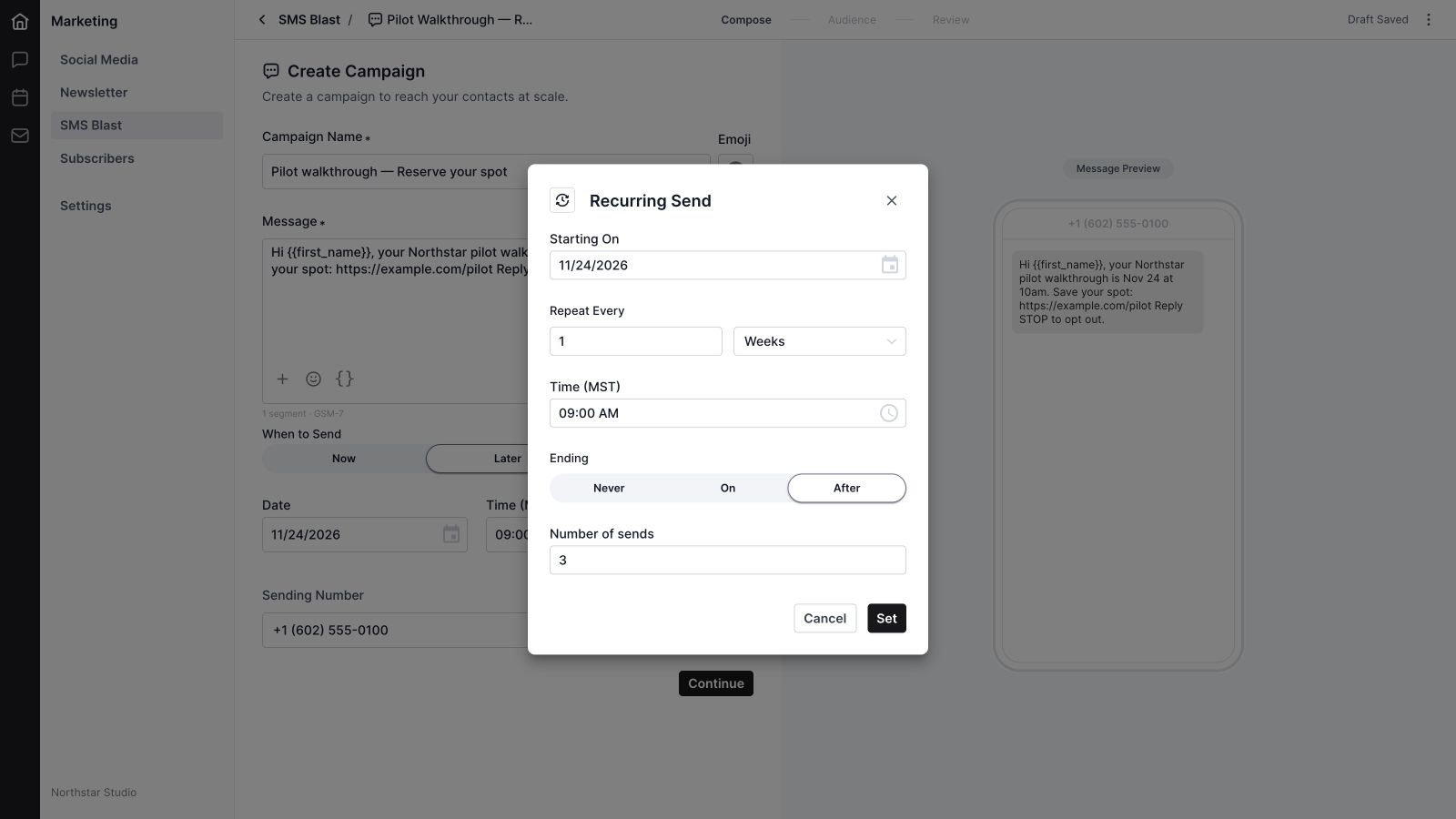
Recurring opens a dedicated schedule dialog. Set a starting date, repeat interval, days, weeks, or months, and a sending time. Choose whether the recurrence never ends, ends on a date, or stops after a number of sends. The composer summarizes the saved recurrence and lets the team reopen it for review.
17. Audience list selection
The Audience step lets the team choose the intended lists. Use a relevant group instead of assuming every subscriber needs every message. Northstar targets its Customer portal pilot list, matching the reminder to the customers who need that particular event information.
18. Eligible recipients and exclusions
The audience preview separates list members, recipients, and excluded members. SMS recipients are unique valid phone numbers. The current workflow excludes inactive subscribers, blocked numbers, and opt-outs for the selected sending number, along with missing or invalid phones; a shared phone receives one copy. The sample shows 104 members, 96 recipients, and eight exclusions.
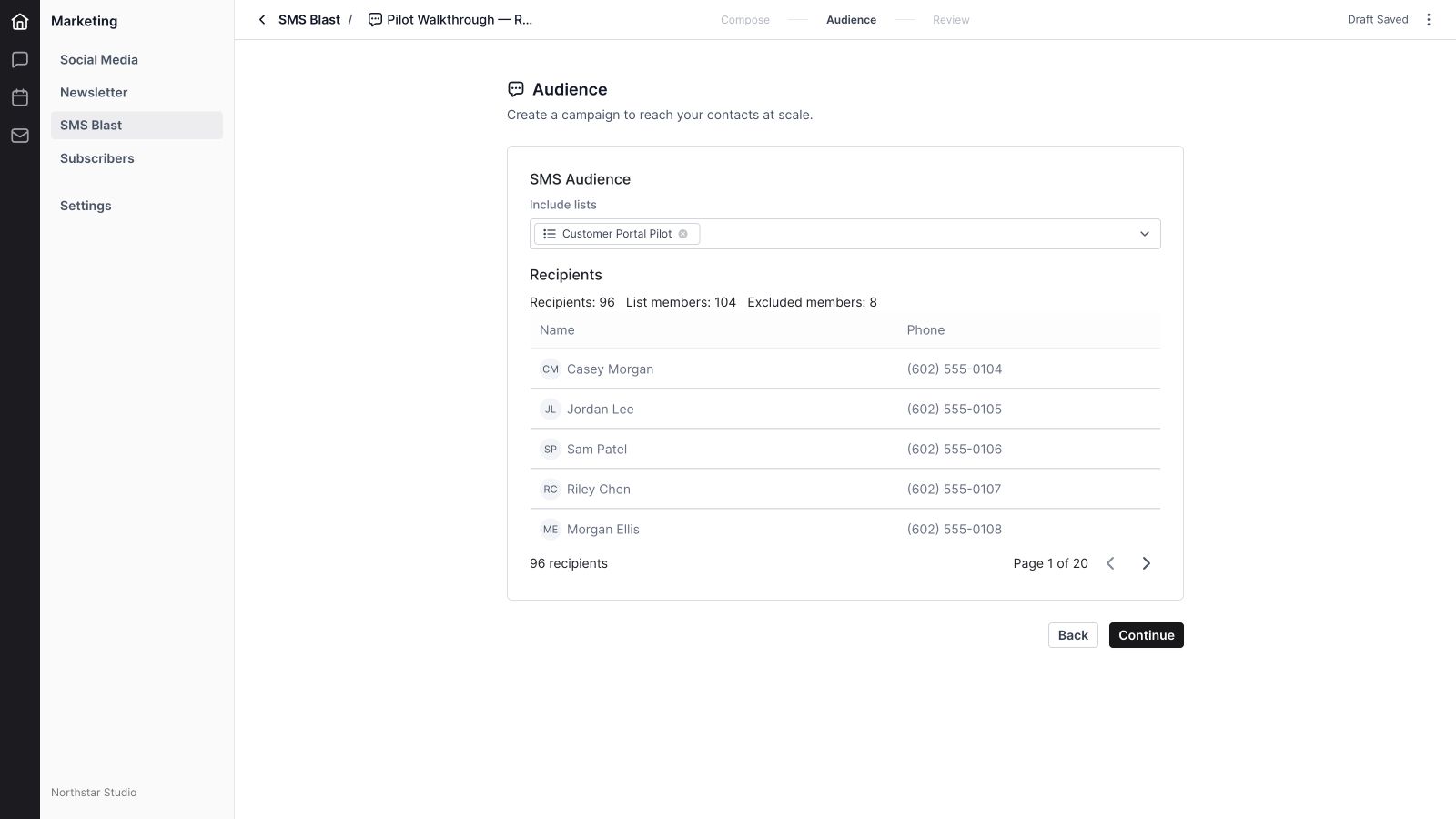
19. Recipient names, phones, and pagination
Inspect recipient names and phone numbers before moving to Review. Pagination keeps larger lists manageable and makes the total count visible. This helps catch an audience that is unexpectedly broad or small while the campaign is still being prepared.
20. Shared subscribers and CRM context
The shared Subscribers area organizes audience lists and member records, including contact or company context and labels. Newsletter and SMS Blast can use that organizational context while applying their own channel eligibility. A record appearing in a list is not, by itself, proof that it is eligible to receive a text.
21. Review before launching
Review summarizes selected lists, eligible and excluded counts, timing, the sending number, and recipients. Edit links return to the relevant step. The current Message Credit Summary shows the sender and recipient count; it should not be treated as a quoted currency price. Review issues and save state determine whether Send Now or Schedule is available.
22. Draft saving and retry feedback
The builder shows Draft Saved, Saving, or an unsaved state as edits change. It preserves newer typing while an earlier save is in flight and provides retry feedback for save failures. Moving to review or leaving through the campaign controls saves the current draft, helping the team work from a consistent version.
23. Delivery lifecycle and cancellation
Campaigns distinguish draft, scheduled, sending, sent, failed, and canceled states. Results provide timing and error context where available. Scheduled results expose cancellation for future recurring sends. A recorded send state and a delivery confirmation are separate facts, so the report provides distinct counts for them.
24. Delivery and engagement metrics
Performance shows recipients, sent, delivered, failed or suppressed, total clicks, unique clicks, replies, and opt-outs. Delivery rate uses delivered recipients divided by total recipients. The campaign list’s click rate uses unique clickers divided by delivered recipients. These definitions matter when comparing campaigns with different delivery outcomes.

25. Link performance
When link metrics are available, the Links table lists each URL with total and unique clicks. This connects the campaign’s call to action to a visible response. In the sample, the pilot link has 37 clicks from 24 unique clickers. These figures are illustrative and do not represent actual customer activity.
26. Replies and opt-outs
The report includes reply and opt-out counts. When the service supplies reply attribution metadata, the interface labels the measure Attributed replies and Attributed reply rate. The rate uses delivered recipients as its denominator. Read this as the product’s attributed campaign result, rather than assuming every subsequent inbound text belongs to that campaign.
27. Individual recipient results
The Recipients tab lists each recipient’s name, phone, status, clicks, and available error details. Search by name or phone, filter by a status present in the results, and page through the records. This view helps explain the headline totals and identify where a send needs investigation.
28. Recipient CSV export
Export CSV downloads the currently filtered recipient results. The export includes name, phone, status, clicks, error, and sent time. A filtered export is useful when the team needs to inspect a particular outcome without manually copying rows from the campaign report.
29. An organized automation library
Automations have their own searchable, filterable workspace with All Automations, Drafts, Live, Inactive, and Finishing states. Available rows include trigger, enrollment, progress, completion, and performance context. Measures depend on the channel and supplied data; unavailable email-style metrics should not be interpreted as SMS read receipts.
30. A visual automation builder
The workflow canvas connects triggers and actions into a sequence. Zoom, fit the view, select a step, and edit its properties while retaining the surrounding path. Northstar’s sample sends a welcome text, waits two days, and branches into either a subscription update or a focused follow-up.

31. Subscriber entry triggers
The SMS workflow exposes audience subscription, manual enrollment, API enrollment, label changes, contact field changes, and birthday triggers, subject to the available source data. Workflows support up to three triggers. Form and segment triggers appear in the catalog but are currently marked unavailable until their source is connected to SMS consent.
32. Automated text actions
Add a Send text action, choose a ready sending number, and write the message in its properties. The action uses the shared text field with personalization, emoji, character and segment counts. Its attachment control inserts a link; this differs from uploading an MMS attachment in the campaign composer.
33. Delays and wait schedules
Time delay pauses the journey for a duration in minutes, hours, or days. Wait until provides permitted days, a time, and timezone settings. These controls make room between useful messages and help a repeatable journey respect the timing intended by its author.
34. Conditional and weighted branches
True/false branches and multi-split branches route subscribers according to supported rules. Random cohort branches use configured weights. Available conditions depend on the subscriber fields and channel activity supplied to the workflow. Review the selected condition and source rather than assuming every shared email signal exists for SMS.
35. Subscription updates and connected journeys
Update subscription actions can change supported status and labels. Enroll in automation connects a subscriber to another available journey, and Exit automation ends the current path. These actions let a response lead to a relevant next step instead of continuing every subscriber through an identical sequence.
36. Reentry, validation, and publishing
Reentry settings determine whether a subscriber can enter again, with the supported limits and cooldown choices. Validate and publish the saved workflow when it is ready. Draft, live, inactive, and finishing states distinguish work being edited from work running or winding down.
37. Workflow versions and enrollment management
Version history and restore controls help manage workflow changes. Available enrollment tools let authorized users inspect subscriber participation, manually enroll an eligible subscriber, and remove an enrollment. A change to an editable draft should not be confused with the version already associated with a running journey.
38. Automation reporting and delivery exports
The automation overview, activity, enrollment, and delivery views expose the data available for that journey. Inspect delivery records and export available delivery data for further review. Treat unavailable measures as unavailable, keeping the distinction between a configured workflow, an attempted send, and a confirmed outcome clear.
A practical SMS workflow for a small team
Start with one audience and one reason to send. Northstar’s invitation names the event, gives the time, links to the next action, and includes opt-out wording. The message stays short enough to scan, while its campaign name gives teammates the internal context they need.
Check the sending number and phone preview, then inspect the audience counts. Review exclusions instead of treating the raw list size as the delivery audience. Use a test when ready, confirm the timing, and review the saved campaign before launching. Recurring schedules suit repeated reminders; automations suit a journey that starts when an individual subscriber meets a trigger.
After sending, read delivery, clicks, replies, and opt-outs together. A high delivered count does not mean every recipient read the message. Open the recipient view when a total needs explanation, and use the filtered CSV when a teammate needs the underlying records. Make the next campaign more useful based on what the response actually shows.
Keep customer context in Wave CRM, manage phone communication in Wave Phone, use Wave Newsletter for a longer email edition, and coordinate public updates in Wave Social Media.
Wave SMS Blast frequently asked questions
What is Wave SMS Blast used for?
Wave SMS Blast helps teams prepare audience-based text campaigns, schedule sends, review results, and build automated text journeys. Examples include requested reminders, customer pilot invitations, and useful welcome follow-ups.
Can I schedule a text campaign?
Yes. Choose Later to set the date and time, or Recurring to configure an interval and ending condition. The campaign must have the required saved details, a ready sender, and an eligible audience.
Can I personalize the message?
Yes. The composer includes first name, last name, full name, and phone number tokens. Review the relevant subscriber data and message before sending.
Does Wave SMS Blast support attachments?
The campaign composer supports one attachment, subject to its supported file, size, upload, and MMS-capable sender checks. Automated text actions provide a link-insertion control rather than the campaign attachment upload workflow.
Why is my recipient count lower than my list count?
Eligibility uses unique valid phone numbers and accounts for inactive subscribers, blocked numbers, sender-specific opt-outs, invalid or missing phones, and shared numbers. The Audience step displays member, recipient, and exclusion totals.
What results can I see?
Campaign results include delivery counts and rates, clicks, replies, opt-outs, available link metrics, and recipient-level statuses and errors. These are distinct measures; delivery does not establish that a person read the message.
Can I automate a welcome text?
Yes. Build an SMS automation with a relevant entry trigger, a Send text action, timing controls, and any needed conditions or follow-up actions. Validate the workflow and confirm sender and audience readiness before publishing it.
How is SMS Blast different from Wave Phone?
SMS Blast focuses on campaigns and repeatable subscriber journeys. Wave Phone supports the broader phone and conversation workflow and provides the number management connected to SMS sending.
Make every message count. Give the recipient a timely reason to read and a clear next step. Get started with Wave.


