
Wave Social Media brings post planning, publishing, and community conversations into the same workspace. Build a publishing queue, see the schedule on a calendar, adapt a post for different accounts, and return to the replies and performance after it goes live.
For a small team, the value is continuity. The person preparing a launch can see what is scheduled, what remains a draft, what has been published, and which conversations still need attention. Social Media lives inside Marketing in Wave, alongside the separate Newsletter and SMS Blast tools.
Watch the Wave Social Media product showcase
The 48-second showcase uses actual Wave UI components populated with fictional Northstar Studio data. The example contains four connected social accounts, twelve posts across queue, draft, and published states, three conversation threads, nine comments, and three existing replies. The campaign follows a customer portal pilot. All account names, messages, dates, and performance metrics are illustrative sample data.
What is Wave Social Media?
Wave Social Media is the social publishing and community workspace in Wave. Its Publish view organizes the content lifecycle, while Community brings supported post conversations into a place where the team can review and respond. Connected accounts provide the publishing destinations and the context for each post.
The workflow can start with a simple update: introduce a customer pilot, show the working plan, answer a common question, or share what the team learned. Save the idea as a draft, prepare the right version for each network, choose a publishing time, and review the response once it is live.
Which social networks does Wave support?
The current Connect a Channel screen offers X (Twitter), Facebook Pages, Instagram professional accounts, and TikTok. LinkedIn Pages and Google Business locations are displayed as Coming Soon. They should not be treated as currently available publishing destinations.
A connected account also needs usable authorization and the required publishing permissions. The composer identifies accounts that need attention instead of treating every selected account as ready. Available formats, media requirements, comments, and metrics vary by provider and account.
Wave Social Media features
1. A dedicated social publishing workspace
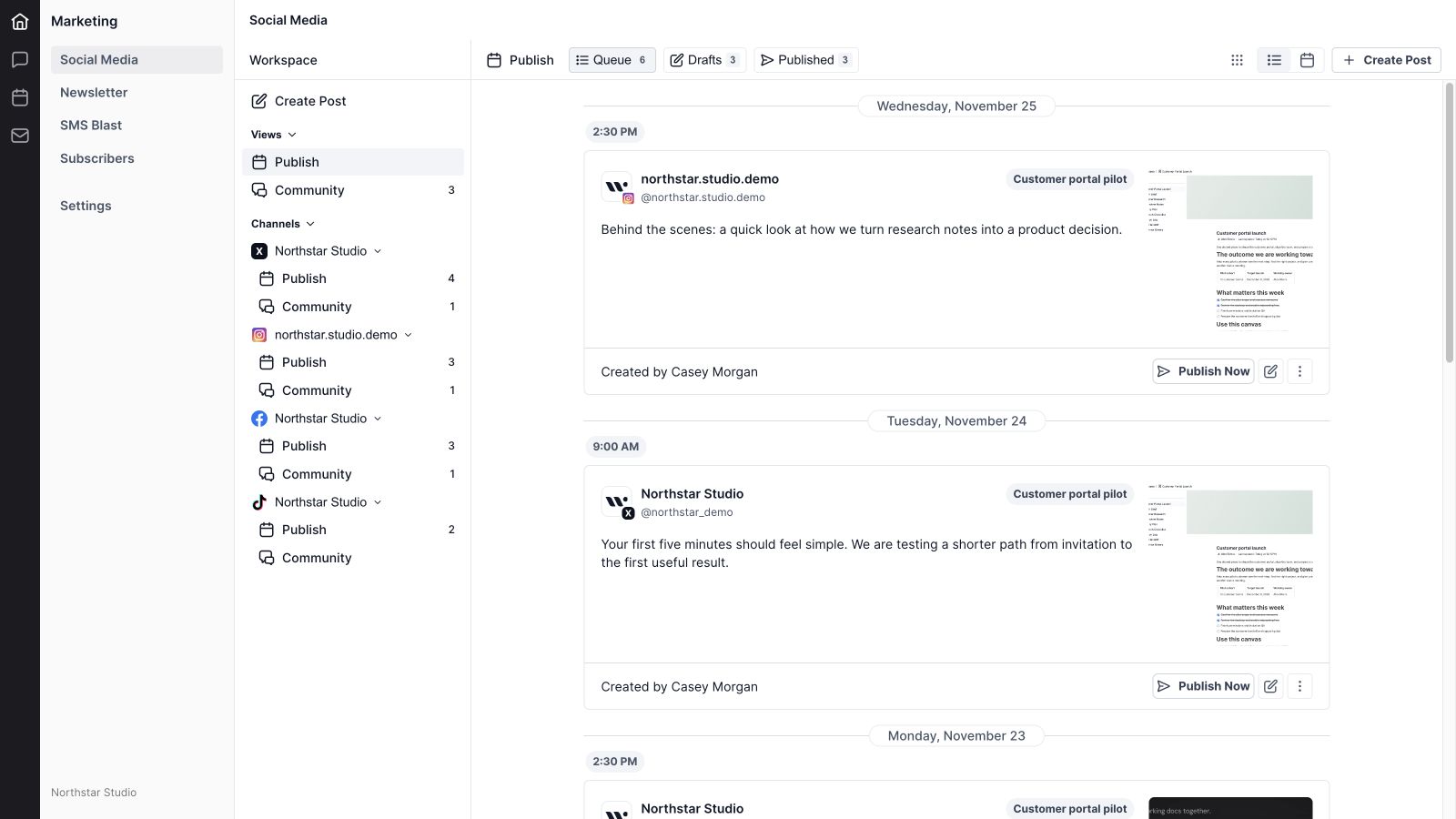
Open Marketing and select Social Media to work with social posts. The workspace separates Publish and Community while keeping connected channels visible in the same navigation. This gives preparation and follow-up a consistent home without mixing social posts into an email campaign or SMS audience.
2. Organization social account connections
Connect a supported organization account through the channel dialog. The current choices identify the account type: an X profile, Facebook Page, Instagram professional account, or TikTok account. An administrator manages connections and selects the appropriate Page or account when the provider requires that extra setup step.
3. Account readiness and connection status
Connection state matters as much as selecting a network. Wave distinguishes conditions such as missing permissions, expired authorization, pending authorization, and required account configuration. The composer surfaces publishing requirements for the selected accounts so the user can understand what needs attention before publishing.
4. Connected-channel navigation
The sidebar lists the connected accounts with recognizable network badges and account names. Each account has Publish and Community destinations where applicable. Channel navigation can be reordered, helping a user keep the accounts they work with most often in a useful position.
5. All-channel and individual-channel views
Use the channel selector to look across the workspace or focus on one account. A combined view helps coordinate a launch across channels; an individual view makes it easier to inspect one account’s publishing queue or conversation activity. Account names and handles remain visible on the relevant post cards.
6. Queue, Drafts, and Published sections
The Publish workspace separates scheduled work, unfinished content, and published posts. Counts beside the section names help the team understand the current state of the selected view. In the sample, six queued posts, three drafts, and three published posts make the content lifecycle visible immediately.
7. A publishing list with dates and times
List view groups posts under date headings and shows their publishing times. Cards provide the caption, destination account, supporting media, and the actions appropriate to the post’s state. This is useful when reviewing what is coming next and checking the wording of individual updates.
8. Account queues and available slots
An individual channel queue provides a timeline of scheduled posts and available posting slots. Use the queue to keep a steady publishing rhythm and place the next piece of content where it belongs. The available queue actions include moving an eligible post to the top or to the next available slot.
9. A visual publishing calendar
Switch to Calendar view to see publishing activity in its date context. Network badges and account names identify the scheduled entries. The calendar helps a team spot crowded days, coordinate a sequence of launch messages, and understand how posts are distributed over time.
10. Month and week calendar views
The calendar supports month and week views, date navigation, and a return-to-today control. Use a month to review the broader publishing plan and a week for a closer look at timing. Weekend visibility controls help shape the view around the schedule being reviewed.

11. Post details from the calendar
Calendar entries provide a route back to the content behind the date. The post detail card shows the relevant account, text, and available actions, including editing or queue actions when the post’s state permits them. This keeps schedule review connected to the actual message.
12. A shared post composer
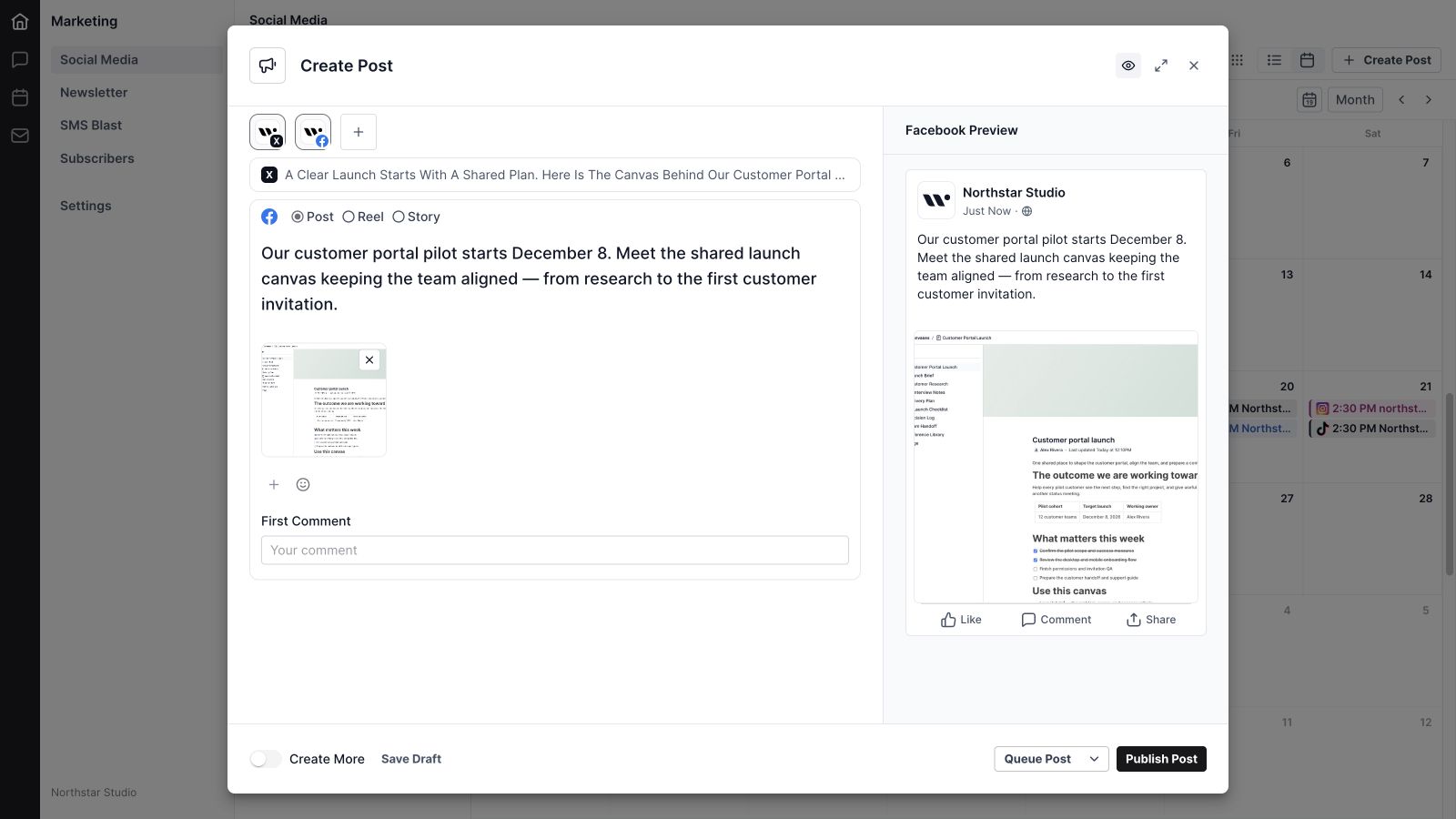
Create Post opens the social composer. Add the caption, choose the destination accounts, review the media, and decide whether to save, queue, or publish. The composer can expand for more space, and its preview panel can be shown or hidden while writing.
13. Multiple account selection
Account chips show the destinations included in the current post. Add accounts through the account menu or remove a selected account from the draft. This makes the publishing scope visible while preparing the content and helps prevent a message from reaching an unintended channel.
14. Network-specific captions and media
A multi-account draft can contain different versions for different networks. Expand the relevant network editor to adjust its caption and media. In the showcase, the X version asks a short question while the Facebook version explains the upcoming pilot in more detail, keeping the core story consistent without forcing identical copy everywhere.
15. Live post previews
The preview changes with the selected network editor. Review the account identity, caption, and attached media in a network-specific presentation before publishing. Previews support editorial review; the destination platform still controls the final rendering of the published post.

16. Images, video, and attachment review
The composer includes file selection, drag-and-drop media controls, image selection, and attachment previews. Review the selected file and remove it when the draft needs something else. Upload progress and errors are shown alongside the media workflow, and publishing readiness depends on meeting the destination’s requirements.
17. Emoji and longer writing space
Use the emoji control to add a relevant expression to the caption. Expand the composer when a longer post or multiple network versions need more room. These controls support writing and review while leaving the selected accounts and publishing actions close at hand.
18. X publishing and video validation
Prepare an X caption with supported media and review the X preview. The current video workflow requires one MP4 of up to 50 MB without other attachments. Wave checks the required media preparation before allowing that video to be published, helping the user identify an unsuitable upload early.
19. Facebook posts, reels, and stories
The Facebook editor offers Post, Reel, and Story formats. The format changes the requirements: a Reel needs the appropriate video, while a Story requires a single media attachment. Choose the format deliberately and review the relevant preview and validation messages before sending the post to the Page.
20. Facebook first comments and eligible draft handoff
The Facebook editor includes a First Comment field for suitable posts. Eligible single-account video drafts also expose a workflow for sending the video to Facebook Drafts. Availability depends on the draft’s format and content, so this option should not be assumed for every Facebook post.
21. Instagram photo and Reel workflows
The current Instagram publishing workflow accepts a prepared JPEG photo or Reel MP4. The composer checks that the required media is present and ready. This guide covers those available workflows and does not promise an Instagram carousel or Story workflow that the current composer does not expose.
22. TikTok visibility, interaction, and disclosure settings
TikTok publishing requires an MP4 and the settings supplied by the connected creator account. The editor includes video visibility, comment, duet, and stitch controls, along with commercial-content disclosure choices and publishing consent. Some options may be disabled by the creator’s TikTok settings, and supported video duration comes from that account’s capabilities.
23. Save Draft and Create More
Save Draft keeps work in progress separate from the publishing queue. Create More supports preparing another post after completing the current workflow. Together, these controls suit a focused writing session where the team develops several ideas before assigning their final publishing times.
24. Date, time, and timezone-aware scheduling
The schedule picker provides a date calendar, time selection, and a visible timezone. Choose the intended date and time, then review the queue action. The showcase uses America/Phoenix; the timezone displayed in the product is the relevant reference when scheduling your own work.
25. Queue Post and Publish Post
Queue a prepared post for its publishing workflow or use Publish Post when it is ready to go out immediately. The composer checks the selected accounts and required content. An account needing attention or an incomplete media requirement is a reason to resolve the visible issue before publishing.
26. Editing, reordering, and removing posts
Post actions depend on state and provider support. Drafts and queued posts can expose editing and publishing actions; eligible queue entries offer reordering; supported records include removal. Published posts have different controls from drafts, so the actions shown on the card are the best guide to what can be changed.
27. Published history and delivery context
The Published section keeps previously sent content available for review. Cards preserve the account, caption, media, and publishing context. The workflow also communicates relevant failure or in-progress states where available, helping the team distinguish a prepared post from a successfully published result.
28. Provider-specific post insights
Published posts can show the metrics supplied by their provider, including reactions, comments, engagement rate, impressions, reach, shares, clicks, views, saves, and follows. TikTok and Instagram Reel insights can include watch-time measures. The exact set varies by network and content format; unavailable values are shown as missing rather than presented as measured zeroes.

29. A dedicated Community workspace
Community brings supported post conversations into a list and detail layout. Select a post to see its context, comment activity, and the relevant conversation. Network-specific support and provider permissions determine which posts, comments, and actions are available; the view is not a promise of a universal inbox for every social interaction.
30. Reply drafts, thread context, and resolution
Read the original comment, prepare a reply, and keep the response connected to its thread. The X example shows the replying account, a character counter, existing replies, and unanswered comments. Where supported, comments can be resolved without sending another response, keeping attention on the conversations that still need work.
31. Refresh, reactions, and post links
Refresh Community to request updated activity. Supported conversations expose actions such as liking a comment, opening the provider’s post or comment, and copying a link. These actions vary by network and item; use the controls offered for the specific conversation being reviewed.
32. Connection maintenance in Marketing settings
The Connected Channels settings provide account maintenance actions such as reconnecting, selecting the appropriate Page or account, and disconnecting where permitted. Administrators manage organization connections. Keeping authorization current helps the publishing and community workflows continue to use the intended account.

A practical social workflow for a small team
Start with one campaign and a clear audience. In the sample, Northstar Studio is preparing a customer portal pilot. Its posts explain the customer problem, introduce the working plan, show the people behind the launch, and share lessons from the first walkthrough.
Draft the message before filling the calendar. Choose the accounts that fit the story, adapt the copy for each network, and attach the right media. Review the previews and connection requirements, then schedule the posts in a sequence that makes sense to a reader seeing them over several days.
After publication, return to both insights and conversations. Metrics show one part of the response; comments reveal the questions people still have. A useful reply can become the subject of a later post, while the team’s internal learning can be captured in Wave Q&A Forum or the launch plan in Wave Canvases.
Use Wave Projects for the work behind the campaign and Social Media for preparing, publishing, and following up on the public updates. The tools share a workspace while keeping each workflow’s purpose clear.
Wave Social Media frequently asked questions
What is Wave Social Media used for?
It helps teams prepare social posts, manage drafts and queues, review a publishing calendar, inspect available post insights, and respond to supported community conversations inside Wave.
Which networks can I connect today?
The current connection screen offers X, Facebook Pages, Instagram professional accounts, and TikTok. LinkedIn and Google Business are marked Coming Soon.
Can I schedule posts in advance?
Yes. The composer includes a date and time picker with a visible timezone, and the publishing workspace includes queue, list, and calendar views.
Can the same post have different copy for each network?
Yes. A multi-account draft can contain network-specific captions and media, with the corresponding preview available while editing.
Does Wave Social Media support video?
Yes, through supported network-specific workflows. X, Facebook, Instagram Reels, and TikTok have different media requirements. The composer checks the relevant requirements before publishing.
Can I see how published posts performed?
Published post insights display the metrics returned by the provider for that network and format. Available measures vary, and a missing value should not be interpreted as zero activity.
Can I reply to comments in Wave?
The Community workspace supports available provider conversations and reply actions. The exact comments and controls depend on the connected account, provider permissions, and post type.
Is this the same tool as Newsletter or SMS Blast?
No. Social Media handles social accounts and posts. Newsletter and SMS Blast are separate Marketing tools for their respective campaign workflows.
Bring your social workflow into Wave. Plan the next message, publish with the right context, and keep the conversation moving. Get started with Wave.


