
Wave Newsletter brings email creation, audiences, campaign delivery, and follow-up into one workspace. Write a useful update, shape its layout, choose who should receive it, and review the response without losing the context behind the campaign.
For a small team, that can mean a monthly product note, a customer pilot invitation, a founder update, or a welcome sequence. Newsletter is a dedicated tool inside Marketing in Wave, alongside Social Media and SMS Blast. It combines a visual email editor with templates, audience lists, campaign reports, and automated journeys.
Watch the Wave Newsletter product showcase
This 48-second showcase uses actual Wave UI components with fictional Northstar Studio data. The workspace contains eight campaigns across draft, scheduled, published, and archived states; three audience lists; a complete email; 240 eligible sample recipients; a reusable template; and a five-action welcome automation. All names, email addresses, audience counts, and performance results are illustrative. No email was sent to produce the showcase.

What is Wave Newsletter?
Wave Newsletter is the email campaign and automation workspace in Wave. Campaigns organize individual sends. Templates preserve useful content and styles. Automations connect triggers, messages, delays, and conditions into an ongoing subscriber journey. The shared Subscribers area provides the audience lists used by Marketing.
The sample campaign introduces a customer portal pilot. Its purpose is specific: explain the change, show the working plan, and give interested readers a clear next step. The surrounding campaigns make the workflow practical, with a walkthrough invitation scheduled for later, an earlier edition available for performance review, and unfinished ideas kept as drafts.
Wave Newsletter features
1. A dedicated campaign workspace
The Newsletter navigation separates Campaigns, Templates, and Automations. Start in Campaigns to see individual emails, move to Templates to reuse an established design, or open Automations to work on a subscriber journey. Each area stays within the Marketing workspace.
2. Campaign status tabs and counts
All Campaigns, Drafts, Scheduled, Published, and Archived tabs organize work by state. Counts make the current workload visible. The sample has seven active campaigns and one archived campaign, including two scheduled sends and two published editions.
3. Campaign search and filters
Search campaign names and subjects, then narrow the view with available date, label, author, and status filters. These controls help a team find the right edition without scrolling through every historical send. Filters are useful when several people contribute to the same publication.
4. Campaign labels and bulk organization
Apply labels to group campaigns around a launch, audience, or recurring publication. Select campaign rows to perform the available bulk actions, including label changes and archive operations. Label names and colors provide an editorial organizing layer alongside delivery status.
5. Duplicate, rename, archive, and restore
Campaign actions support renaming, duplication, previewing, and the lifecycle actions appropriate to the record. Archive older work to keep the main list focused and restore it when needed. Deletion has a separate confirmation; published and draft records do not necessarily offer identical actions.
6. Start from scratch or a template
Create a campaign from a blank starting point or use a template. The creation options also provide a route to the organization’s saved default style. A blank draft suits a new format; a template helps a recurring edition begin with a familiar structure.
7. A focused visual email editor
The Compose view provides a large document canvas, an editing toolbar, and a style inspector. Edit the title, subtitle, author, and body in context. The full-screen workspace gives the email room to develop while keeping Preview and the campaign steps nearby.

8. A searchable block catalog
Insert content through the block menu or the slash command while writing. The catalog includes paragraphs, six heading levels, bulleted and numbered lists, several quote treatments, images, buttons, link cards, and social links. Use the block type that matches the reader’s next action.
9. Sections, columns, groups, and spacing
Build the layout with sections, two- or three-column arrangements, groups, dividers, and spacers. Reorder blocks to change the reading sequence and adjust the relevant layout settings. Preview the result on a narrow screen so a design that works on desktop remains useful on mobile.
10. Tables, code, HTML, and supporting content
The editor supports tables, code and HTML blocks, a table of contents, footnotes, file and audio content, and supported embeds. These make longer editions and resource-focused updates possible. Email rendering varies by client, so linked or fallback presentations are important for content that cannot behave like an interactive webpage inside an inbox.
11. Image selection, editing, and accessibility
Add an image, review its placement, edit or crop it through the available image tools, and provide useful alternative text. Captions can explain what the reader is seeing. In the sample, the image shows the pilot’s working plan rather than an unrelated decorative visual.
12. Typography and visual styling
The inspector provides controls for the selected content, header, footer, or overall post. Adjust supported fonts, colors, alignment, spacing, borders, and corners. The editor separates canvas and post styling, making it possible to create a consistent publication without rewriting each block’s content.
13. Header, author, and publication details
Control the title, subtitle, author presentation, author image, logo, header media, and available date and read-online settings. The editor supports multiple author records and relevant visibility controls. These details help a recurring newsletter feel like a recognizable publication.
14. Footer, company address, and social links
Configure company and copyright information, a mailing address, footer colors, and supported social links. The footer also contains preference and unsubscribe destinations. Reusable addresses and custom footer content support consistent information across campaigns; required footer details are checked before sending.
15. Personalization with fallback values
Use supported merge fields to personalize content and supply a fallback when a value may be missing. For example, {{first_name|friend}} allows the greeting to remain readable when the recipient has no first name. Validation calls attention to personalized fields that lack a fallback.
16. Editing tools and draft recovery
Saved and saving states keep the draft’s status visible. Undo and redo, find and replace, word count, and the link inspector support careful editing. Conflict and recovery flows help users handle an interrupted session or a draft changed elsewhere instead of silently assuming their local copy is current.
17. Desktop and mobile previews
Open Preview to switch between desktop and mobile presentations. The preview shows sender, subject, preview text, and the rendered content. Sample recipient and audience controls help review personalization and conditional content. The preview identifies itself as local, with no email sent.
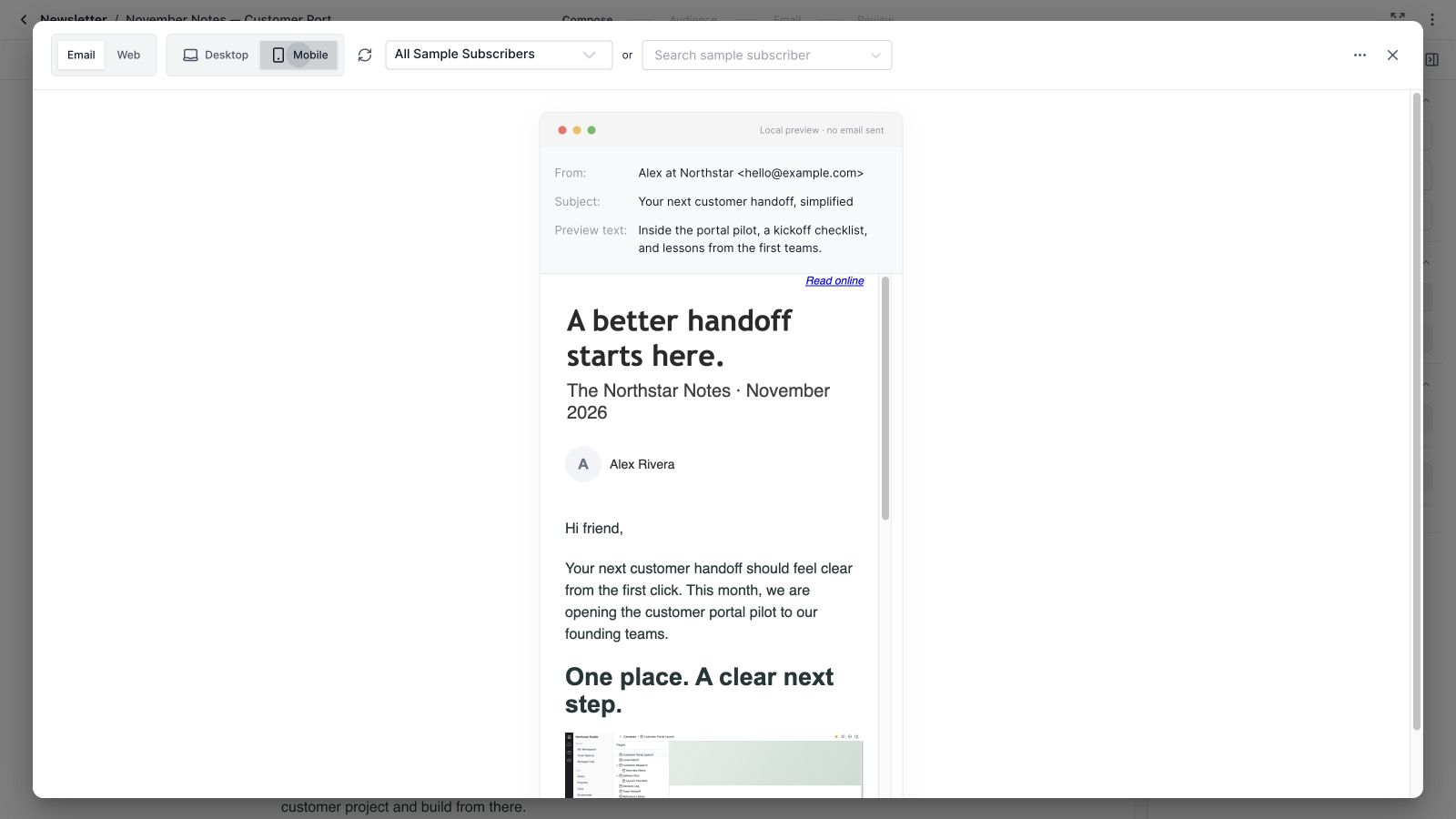
18. Email and web preview formats
Preview includes Email and Web formats so the team can inspect the available presentations. A preview is a review tool, not proof that a public webpage has been published. The current campaign review screen identifies the sending destination as Email Only.
19. HTML, plain text, and recovery downloads
The editor’s More actions menu includes Download HTML, Download plain text, and Download recovery document. These exports are useful for inspecting the content, retaining a local copy, or troubleshooting an email. The recovery document preserves structured campaign information rather than only its visible text.
20. Organization and starter templates
The template library combines organization templates, saved templates, and Wave starter designs. Search the library, filter by source or author, and sort by the available name and date fields. Preview a design before using it so the starting point matches the campaign’s purpose.
21. Reusable content and default styles
Save a useful design as a template and reuse it for later campaigns. Content templates preserve a starting layout and content, while style templates and the organization default support a consistent visual identity. Available template actions include editing, duplication, renaming, deletion, and default-style selection.
22. Shared audience lists
Choose the audience in the second campaign step. Send to the available active lists or select specific lists for a narrower campaign. The sample targets the Customer portal pilot audience rather than every newsletter reader, matching the message to people who requested that context.
23. Recipient preview and exclusion counts
The Audience view distinguishes list members, eligible recipients, and excluded members. It displays recipient names and email addresses with pagination. The email workflow uses unique valid addresses and accounts for unsubscribes, bounces, complaints, manual suppressions, missing addresses, and duplicates when resolving the audience.

24. Subscriber lists connected to CRM records
The shared Subscribers area lists audience groups and their member counts. Open a list to inspect member names, record types, email addresses, phone numbers, and labels. The member picker can add appropriate contact or company records, connecting the marketing audience to the records already maintained in Wave.
25. Subscriber labels
Review and manage the labels available for subscriber records. Labels provide a way to organize people around interests, campaigns, or journey stages, and they can also be used by automation conditions and actions. The same underlying subscriber context supports Newsletter and the separate SMS workflow.
26. Managed sending addresses
Select a verified, enabled managed sender in the Email step. The sender’s readiness determines whether it is usable; a typed display name alone does not authorize a sending address. Administrators can add, verify, enable, disable, or remove managed sending addresses in Marketing settings. The sender and domain verification workflow establishes readiness, while the campaign keeps the selected identity visible.
27. Subject, preview text, and reply-to details
Set the subject line, preview text, sender name, and reply-to address. Subject and preview text can inherit the post title and subtitle until customized. Character counters and validation help review these details before the campaign reaches its final sending step.
28. A/B subject lines
The Email step includes an A/B test option for a second subject line. The current review identifies this as a balanced fixed split with no automatic winner. Use it to compare two subject approaches, without assuming the product automatically chooses and expands a winning variation.
29. Test email sending
Send test opens a dedicated test workflow for the saved campaign. A usable managed sender is required, and the dialog identifies when sender setup needs attention. A test is a useful final review in a real inbox; the showcase demonstrates preparation without sending to external recipients.
30. Review, send, and schedule
The Review step summarizes the campaign and exposes Send Newsletter and Schedule Newsletter. Validation checks the saved content, sender, audience, and required details. Scheduling includes a local date and time plus a timezone, and the server validates the saved revision before accepting the campaign for queuing.
31. Delivery lifecycle and outcomes
Campaign results distinguish scheduled, publishing, published, failed, and relevant cancelled states. The delivery summary separates recipients, eligible recipients, pending, sent, failed or unconfirmed, and suppressed counts. A sent count describes the recorded send outcome; it should not be confused with a guaranteed inbox placement.
32. Open, click, and reply measurements
Available engagement reports show unique and total opens and clicks, open and click rates, click-through rate, and replying recipients when supported. The current rate denominator is sent recipients; click-through rate uses unique clickers divided by unique openers. Observed requests may include automated scanners, so these are signals for analysis rather than perfect measures of human attention.

33. Click maps and top-performing links
Inspect the saved email through desktop and mobile HTML click maps. Tracked links show total clicks and unique recipients, and the map can be enlarged. Counts are shared by URL rather than individual placement, so two buttons pointing to the same address should not be interpreted as independently measured placements.
34. Engagement trends and recipient detail
Available reports include top openers and clickers, hourly engagement trends, and recipient search and status filtering. Recipient rows show send and failure context where available. Some measures, including reading duration, email application details, plain-text clicks, and unsubscribe reasons, are currently unavailable and should not be presented as collected data.
35. A visual automation builder
Automations connect an entry trigger to a sequence of actions on a visual canvas. Zoom, fit the view, inspect a step, and edit its properties while retaining the surrounding journey. The sample welcomes new pilot subscribers, waits two days, and branches into follow-up actions.
36. Multiple subscriber entry triggers
The trigger catalog includes audience subscription, confirmed form submission, segment changes, manual enrollment, API enrollment, label changes, contact field changes, and birthdays. A workflow can contain up to three triggers. Available source choices and conditions depend on the trigger and the organization’s data.
37. Automated emails and message variants
Add Send email actions and edit their content with the Newsletter composer. Email actions support variants, configurable weights, and the relevant sender and content settings. The variant controls can balance unlocked weights while preserving locked allocations, supporting deliberate comparisons within the journey.
38. Delays and wait schedules
Use a time delay for a duration in minutes, hours, or days. Wait until supports permitted days, a time, and timezone choices. These controls let a welcome sequence leave useful space between messages instead of treating every step as an immediate send.

39. Conditions and branching
True/false, multi-split, and random cohort branches route subscribers through different paths. Conditions can use supported subscriber attributes and message activity, including relevant open, click, delivery, bounce, reply, and elapsed-time signals. Random branches use configured weights; data-driven branches use their stated rules.
40. Subscription updates and connected journeys
Automation actions can update supported subscriber status and labels, enroll a subscriber in another automation, or exit the current journey. These actions help connect a useful response to the next step: a reader who engages with a pilot invitation can receive a relevant label and a more focused follow-up.
41. Reentry, publishing, and workflow versions
Reentry settings define whether a subscriber may enter again, with supported limits and cooldown choices. Workflows have draft, live, inactive, and finishing states. Validation, publishing, version history, and restore workflows help the team manage changes without treating an edited draft as the same thing as a running version.
42. Automation overview, enrollment, and delivery review
The Overview and reporting surfaces provide available journey counts, enrollment states, and performance context. Authorized users can inspect subscribers, manually enroll or remove an enrollment through the supported controls, review delivery records, export available delivery data, and inspect version-specific test workflows. Unavailable metrics remain visibly unavailable rather than being substituted with zero.
43. Website newsletter capture code
The Subscribers → Tracking Pixel section in Marketing settings lets the team select destination audience lists and generate the published capture script. Install that code on pages containing a newsletter signup form. The setup keeps the chosen audience destinations explicit, so a website signup can feed the intended email lists.
44. Connect and verify a website form
After installing the capture code, validate the page, review detected eligible forms, and connect the intended form. The setup shows validation history and the connected form. This workflow ties website signup capture to a specific form and saved audience configuration instead of assuming every form on a page is a newsletter subscription.
A useful newsletter workflow for a small team
Begin with one audience and one reason to write. Northstar’s pilot edition answers three questions: what changed, why it helps the reader, and what to do next. The email uses a short introduction, a working-plan image, and a focused call to action. Its audience is the pilot list, keeping a specialized invitation out of a broader monthly update.
Use a template to preserve the recurring structure, then review the content in both desktop and mobile previews. Check the sender, subject, fallback text, audience exclusions, and footer. Send a test when the campaign is ready, inspect it in an inbox, and choose an appropriate sending time.
After the send, read the results with their definitions in mind. A click on a useful resource can suggest the next topic, while a reply can reveal a customer question worth answering. Treat unavailable delivery or engagement measurements honestly. For a repeatable welcome sequence, move the follow-up into an automation with explicit timing and entry conditions.
Keep the work behind the newsletter in Wave Projects, organize customer context in Wave CRM, and prepare related public updates in Wave Social Media. Each tool has a clear purpose while sharing the same workspace.
Wave Newsletter frequently asked questions
What is Wave Newsletter used for?
Wave Newsletter helps teams create email campaigns, reuse templates, select audiences, schedule sends, review available results, and build automated subscriber journeys.
Can I build an email without writing HTML?
Yes. The visual editor provides text, media, layout, and supporting content blocks, along with a style inspector. HTML and other advanced blocks are available when the campaign needs them.
Can I preview an email on mobile?
Yes. Preview includes desktop and mobile views, sender and subject context, and sample personalization controls. A preview does not send an email.
Can I send to a specific audience list?
Yes. Select specific audience lists or the available active-list audience. The recipient preview distinguishes members, eligible unique email addresses, and exclusions.
Can I schedule a newsletter?
Yes. Review includes a scheduling dialog with date, time, and timezone controls. The saved campaign must pass the required server validation before it is queued.
Does Wave Newsletter have A/B testing?
The campaign Email step supports two subject lines using a balanced fixed split, with no automatic winner. Automation email actions also provide message variants and allocation controls.
Can I automate a welcome email sequence?
Yes. Build a journey using a relevant subscription trigger, email actions, delays, conditions, and follow-up actions. Configure reentry and validate the workflow before publishing it.
How is Newsletter different from Wave Mail?
Newsletter focuses on audience-based campaigns and automated subscriber journeys. Wave Mail handles the everyday email inbox workflow. They serve different communication needs inside Wave.
Make the next email useful. Give the reader context, a clear next step, and a reason to come back. Get started with Wave.


