
A proposal should make the next decision easier. The scope needs to be clear, the pricing needs to add up, and everyone needs to know who reviews, who signs, and what happens next. Wave Proposals brings that work into the same workspace as your customer relationships.
Inside Wave CRM, Proposals gives your team a dedicated place to create documents, reuse templates and pricing, coordinate reviewers, share a proposal, collect signatures, and understand engagement. This guide walks through the current proposal workspace and its features, from the first draft to the performance dashboard.
Watch Wave Proposals in action
The 48-second showcase uses actual Wave interface components populated with fictional demo data: 12 proposals, three saved templates, eight pricing catalog items, and a four-section brand and website proposal. Customers, teammates, prices, and analytics are illustrative. The video is an edited tour of populated screens.
What is Wave Proposals?
Wave Proposals is the proposal creation and management tool within Wave CRM. It connects the document you send to the company, contact, and deal behind it. The workspace has four main destinations: Docs, Templates, Pricing Catalog, and Metrics.
A useful workflow is simple: choose a starting point, build the scope, add pricing, assign recipients, review the proposal, and share the right version. After sharing, your team can follow views, signing progress, and outcomes without treating the document as a disconnected file.
Keep the proposal pipeline organized
1. A dedicated document workspace
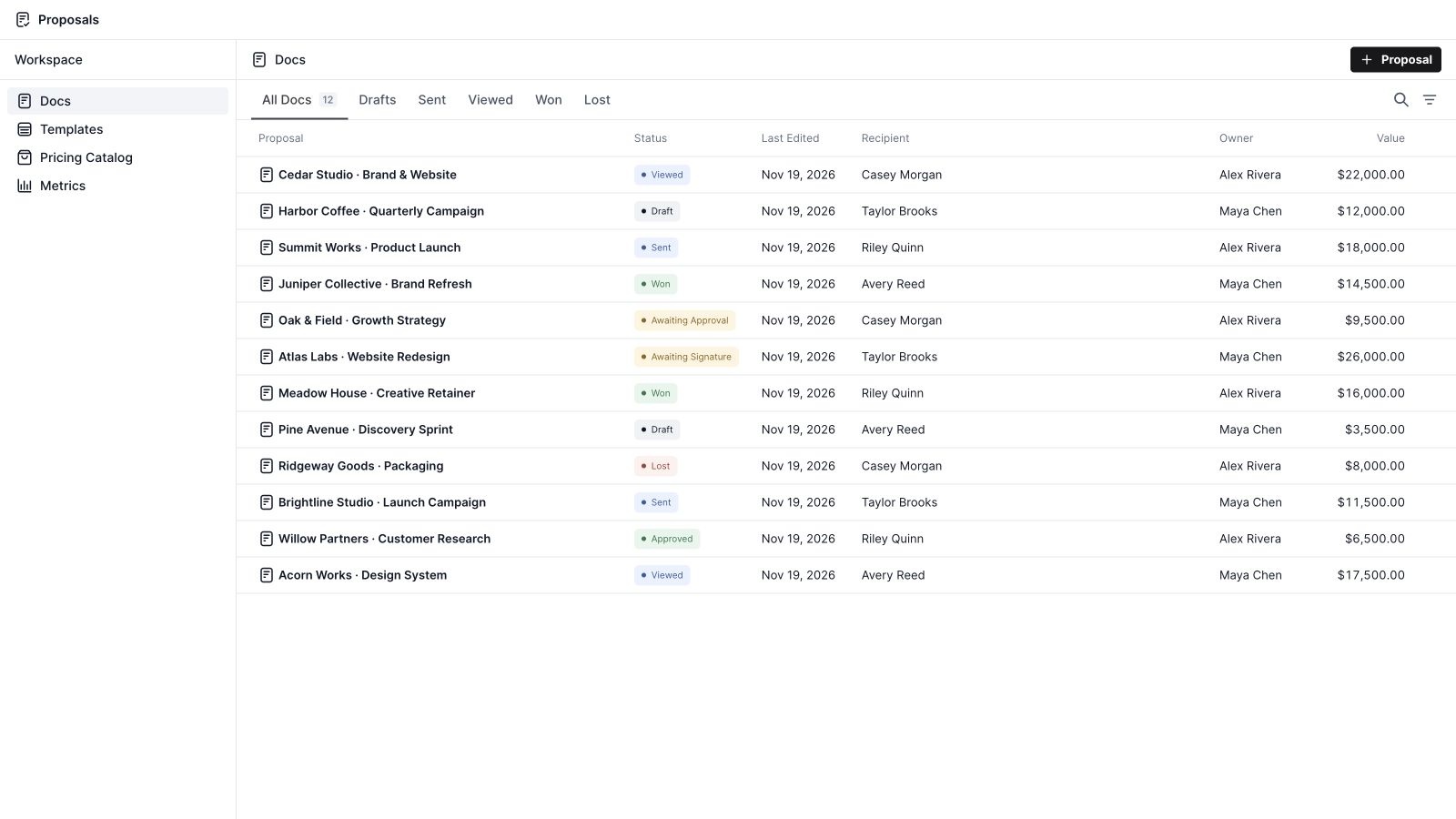
The Docs view puts proposals in a table with their title, status, last edited date, recipients, owner, and value. Open the document directly from its row. A sales lead can scan what is active, while an account owner can find the proposal that needs the next conversation.
2. Status views for the next action
Move between All Docs, Drafts, Sent, Viewed, Won, and Lost. Individual documents also carry states such as Awaiting Signature, Awaiting Approval, and Approved. These states give the team a more useful picture than a folder full of filenames, especially when several proposals are moving at once.
3. Search, filters, and sorting
Search for a proposal and use the available status, owner, and sorting controls to narrow the workspace. Proposal lists can also be scoped to linked CRM records. That makes a customer review easier: start with the relevant company or deal instead of reviewing every document in the organization.
4. Document actions and ownership
Proposal actions support working with existing documents, including duplication and moving documents to trash where permitted. Assign an owner so responsibility is explicit. Access to actions follows proposal permissions, which helps teams give contributors the tools they need while keeping document management controlled.
5. Linked companies, contacts, and deals
Connect a proposal to its CRM context through Linked Records. Company, contact, deal, owner, and sender information become part of the workflow. The document can therefore sit alongside the relationship and opportunity your team is already managing, rather than requiring a separate customer record.
6. Refresh linked record details
When customer information changes, use Refresh Linked Records to update the draft’s captured CRM details. The interface makes clear that refreshing those details requires fresh approval. This keeps reviewers focused on the version being prepared for sharing, including changes to the information behind the proposal.
Start with reusable proposal content
7. Wave original templates
The template gallery includes Wave originals for different kinds of work, including brand and creative, consulting, marketing, technology, construction, architecture, events, financial advisory, service, product, film, and sponsorship proposals. Preview a template before using it so the structure fits the engagement you are preparing.
8. Your team’s saved templates
Save a document as a template when its structure is worth repeating. Your team can build a common starting point for a discovery sprint, a project engagement, or a recurring service. Template source controls help distinguish reusable team content from the Wave original collection.
9. Saved sections and snippets
Reuse content at a smaller scale through saved sections and text snippets. A delivery process, an introduction, or a standard next-steps section can be inserted into another proposal. This lets teams maintain useful building blocks while still tailoring the overall document to each client.
10. Images and proposal assets
The editor’s library brings together proposal assets, images, and reusable visual elements. Browse the available categories and styles, search for assets, or work with uploads associated with a proposal. Keeping reusable materials near the document reduces the effort of rebuilding the same visual presentation.
11. PDF import
Import a PDF when an existing document is the right starting point, or upload a PDF while working in the builder. This provides a route for bringing established material into the proposal workflow. Review the imported pages, layout, and signing setup before sharing the resulting document.
Build and design the proposal
12. A visual document canvas
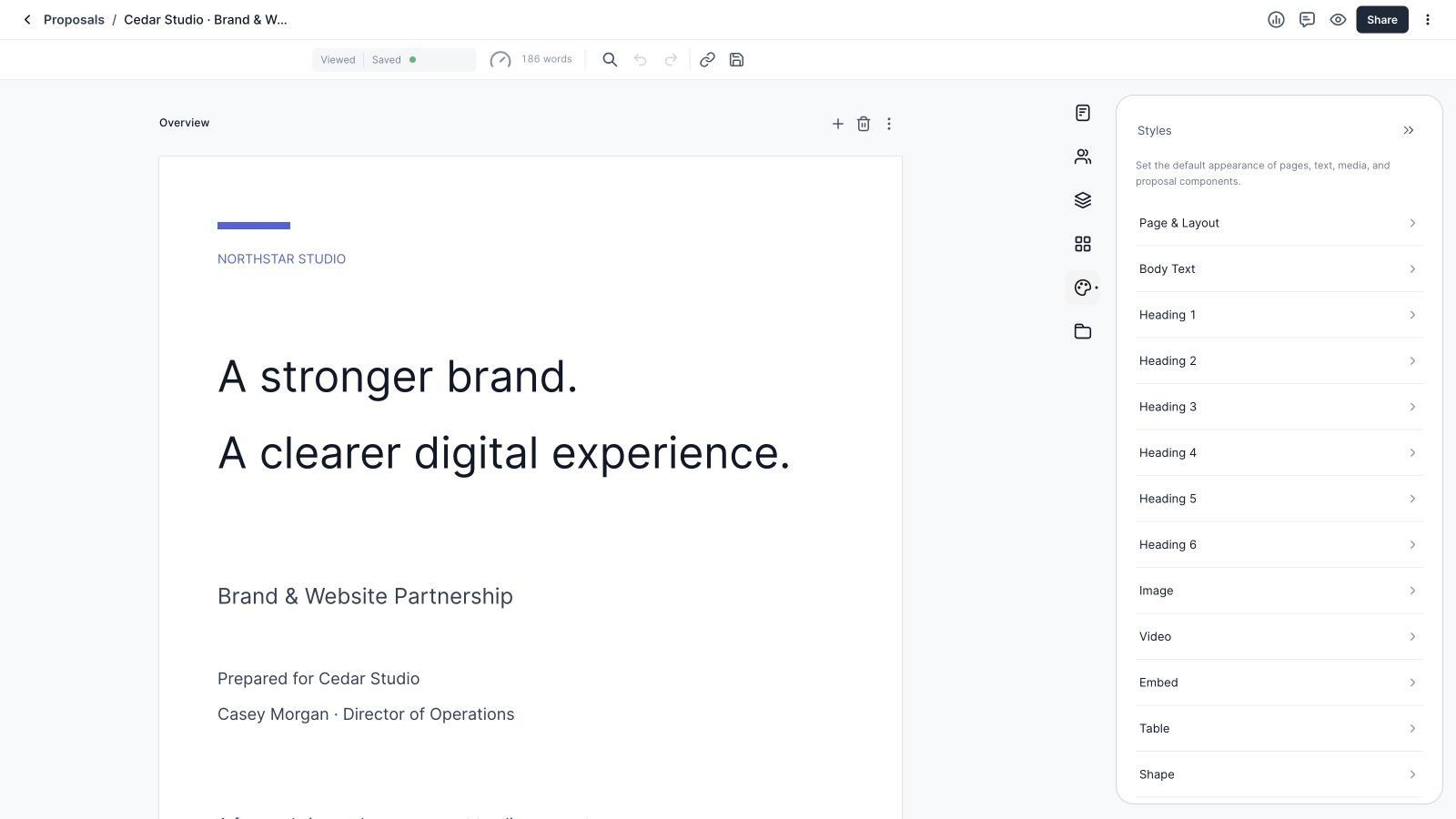
The proposal builder combines a document canvas with focused panels for Details, Recipients, Pages, Build, Styles, and Library. Select a component to work on its content or appearance. The proposal stays visible as you move between structure, design, and document setup.
13. Pages, sections, and navigation
Name sections, add new ones, and use the Pages panel and section actions to manage the document’s structure. A clear sequence—overview, scope, investment, and next steps—helps the recipient understand the proposal. Section names also support navigation in the preview and section-level engagement reporting.
14. Rich text and structured writing
Add paragraphs, six heading levels, bulleted and numbered lists, and quotations. Format text with the editor’s controls and insert components through the build tools or slash command menu. Use headings to make the proposal easy to scan and lists to make deliverables or responsibilities concrete.
15. Flexible component layouts
Build with two-column and three-column layouts, image-and-text combinations, dividers, and shapes. Components support positioning and sizing controls, with flow and free placement available in the editor. This gives teams room to create a visual proposal without forcing every section into the same arrangement.
16. Document styles and page settings
Set page and layout preferences, typography, colors, and default component styles. Body text, headings, tables, images, media, shapes, and signatures have their own style controls. Shared defaults help a proposal feel consistent; component-specific adjustments let a particular section receive the emphasis it needs.
17. Images, graphics, video, and embeds
Use images and graphics to explain the work, add video, or include a supported sheet embed. Image editing controls help with presentation, and uploaded SVG artwork can become a graphic component. Each medium should support the client’s decision, whether that means showing a concept or explaining a delivery approach.
18. Variables and custom fields
Insert fields for proposal and CRM information, and use custom fields for details that vary between engagements. The custom field editor supports field types, placeholder text, and options where applicable. Reusable templates become more practical when changing a client-specific detail does not require rewriting every occurrence.
19. Find, replace, links, and word count
Find and Replace helps review repeated wording across the document. Link tools support checking and managing linked content, while the word count gives a quick sense of length. Together, these tools help catch stale client names, inconsistent terms, and unnecessary text before a proposal leaves the team.
20. Saving and editing history controls
The editor displays its save state and provides undo and redo controls. Wave also supports collaborative editing with presence indicators. These controls help teammates work on a shared draft and understand whether their latest changes have been saved before moving into preview or sharing.
Make pricing clear and reusable
21. A shared pricing catalog
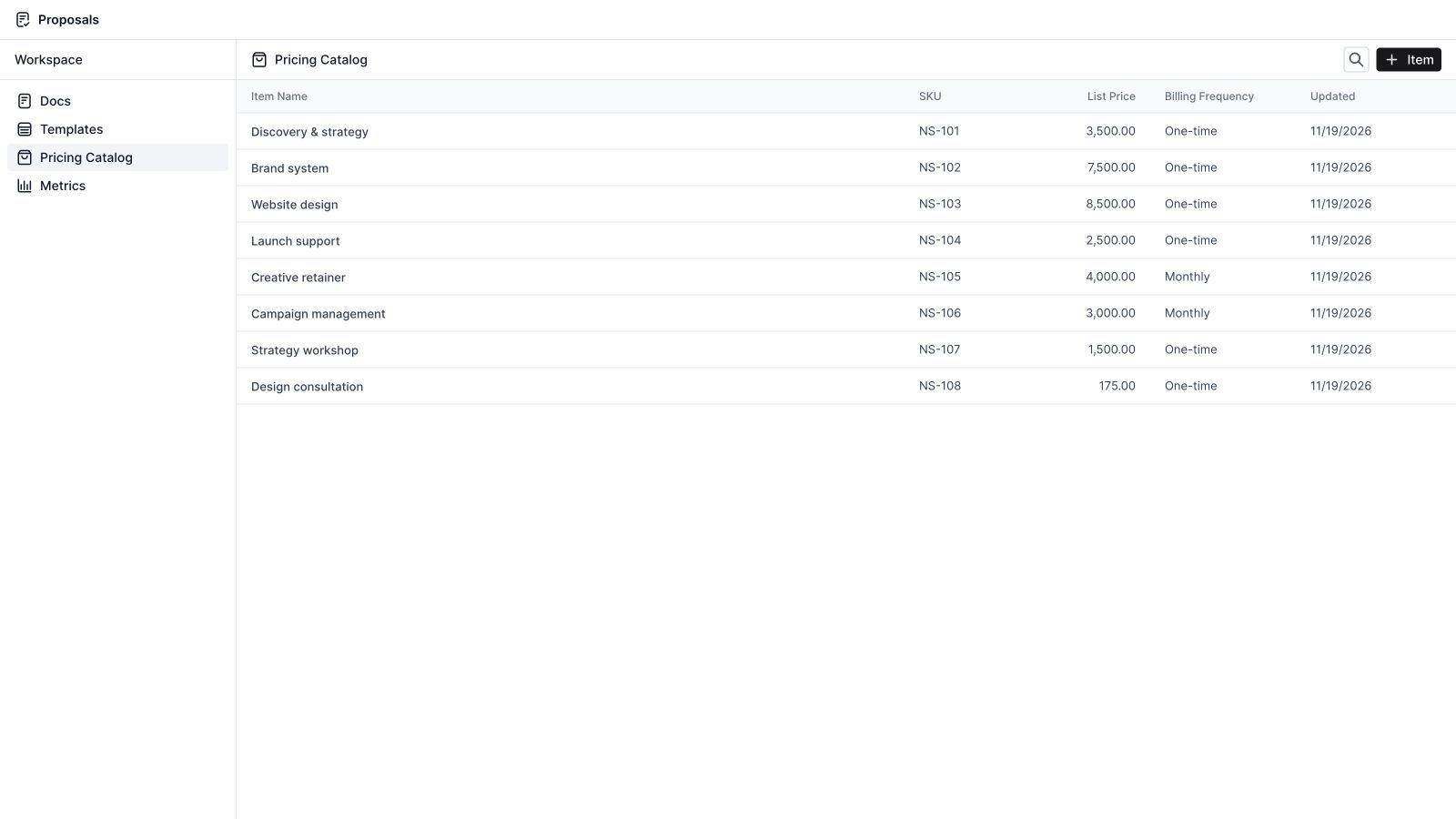
Store products and services in the Pricing Catalog with an item name, SKU, list price, billing frequency, and supporting item details. Search the catalog and edit entries as your offering changes. The sample workspace includes strategy, brand design, website design, launch support, and recurring services.
22. Insert catalog items into a proposal
Add catalog items to a pricing table from within the editor. Reusing established items gives the team a consistent starting point for quoting. The proposal can then present the specific combination of services relevant to the engagement, with the client-facing document keeping the scope and investment together.
23. Data tables and pricing tables
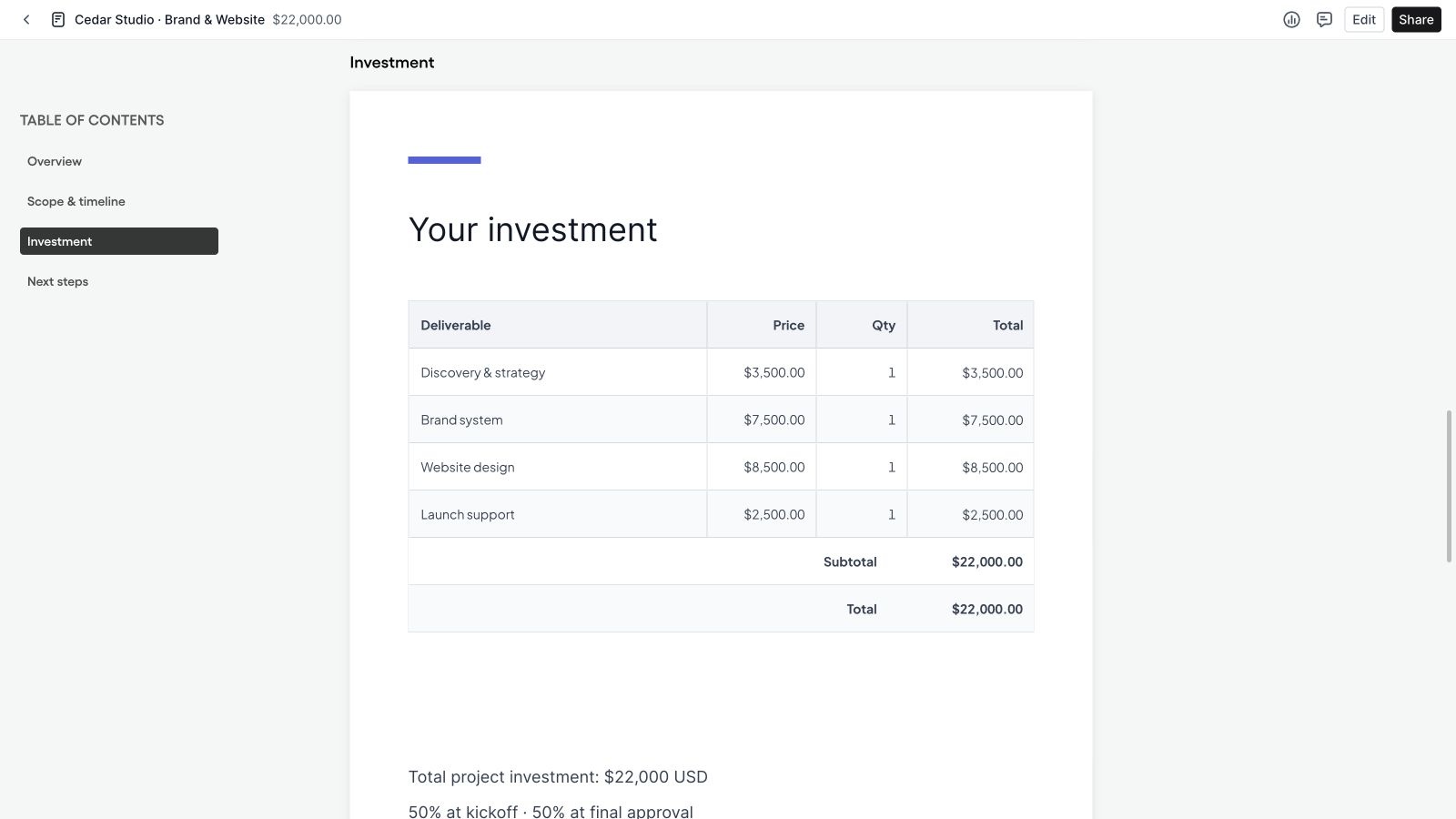
Use a data table for structured information and a pricing table for an investment breakdown. Pricing tables support line items, quantities, prices, subtotals, and totals. In the demo, four deliverables add up to a $22,000 fictional project, making the relationship between scope and cost easy to follow.
24. Optional items and editable quantities
Pricing rows can be optional, and quantities can be made editable for recipients. These controls let a proposal present choices where the engagement calls for them. Preview the configuration so required work, optional additions, and the resulting totals are understandable before sharing with a client.
25. Billing frequencies, discounts, and taxes
Represent one-time and recurring charges with billing frequency settings. Pricing controls also include discounts, taxes, and additional adjustments, with fixed or percentage options where supported. Table styling, labels, decimal precision, and footer controls help present the breakdown clearly for the proposal’s currency and commercial structure.
26. Proposal currency and displayed value
Set the proposal currency and control the value shown for the document, including whether the total appears in the proposal. Document value is also visible in the workspace and reporting. Review it alongside the pricing table so the summary your team sees matches the offer you intend to present.
Coordinate people, review, and access
27. Sender and recipient setup
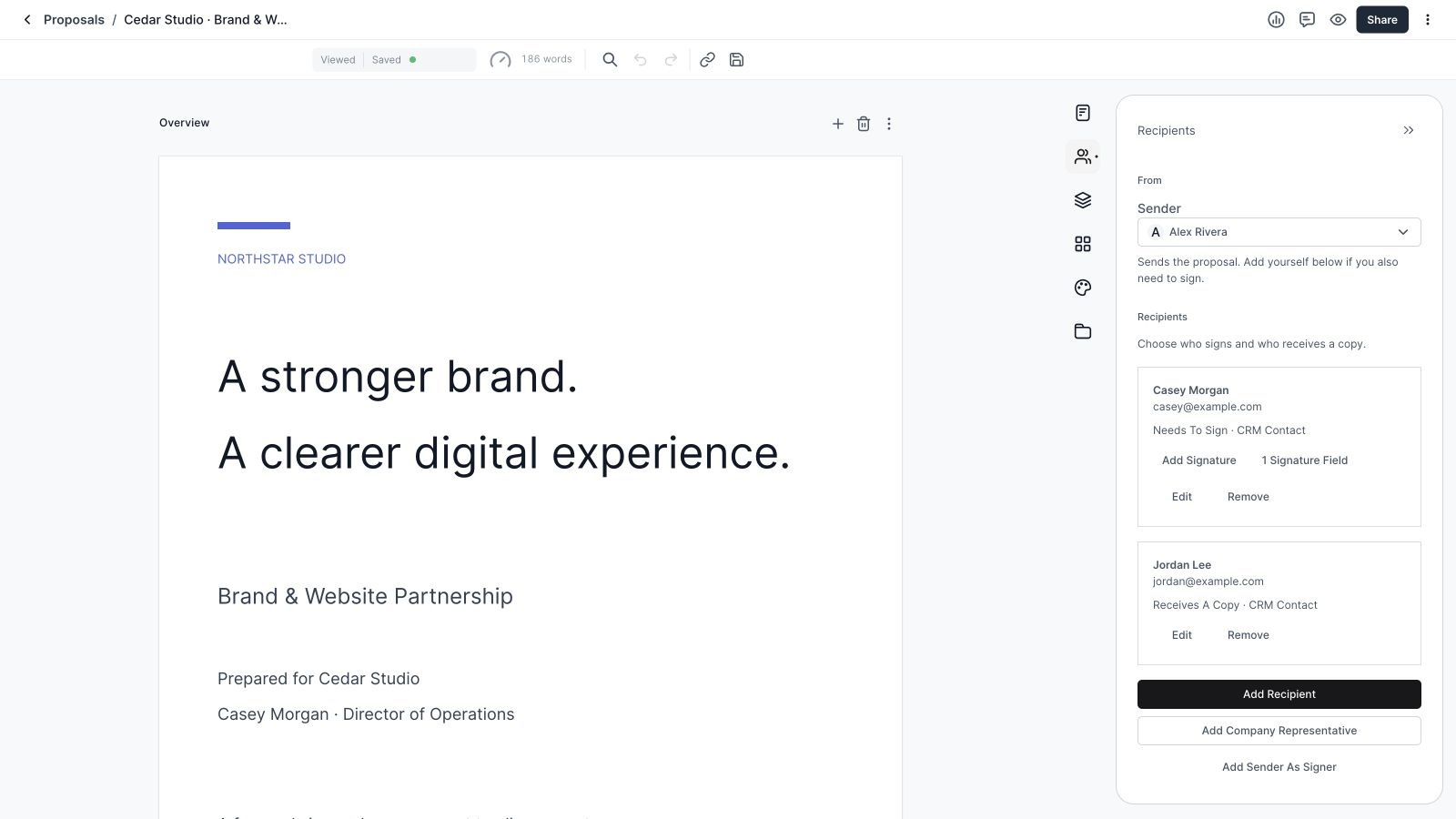
Choose the sender and add recipients from the proposal’s contact context. Mark who needs to sign and who receives a copy. The Recipients panel shows names, email addresses, roles, and signature field counts, making it possible to review the delivery setup alongside the document itself.
28. Named signers and company representatives
Add a named signer when a specific person should sign, or configure a company representative when that workflow fits the proposal. The sender can also be added as a signer. Representative signing includes its own identity and authority confirmation flow, separate from simply collecting a viewer’s email address.
29. Signature fields and signing blocks
Place signature components or a signing block in the document and assign them to recipients. The editor provides controls for managing signature assignments and required fields. Review each signer’s field count so an invitation leads to a document that is ready for that person to complete.
30. Comments and collaborative review
Open the comments drawer to discuss the document, including comments anchored to selected content. Teammates can work with collaborator access appropriate to their role. Keeping feedback next to the proposal helps reviewers explain what should change without leaving the author to interpret a separate conversation.
31. Review and approval
The document workflow includes review and approval actions and approval status. Where approval is required, designated reviewers can assess the proposal before it is shared. This is especially useful when the document’s content, pricing, or refreshed customer details need another person’s review.
32. Proposal roles and approval rules
Workspace administrators can manage proposal roles, document scope, and permissions for viewing, creating, editing, trashing, duplicating, sharing, library access, and metrics. Approval rules support designated approvers and thresholds such as maximum discount or total value. Invited collaborators can receive view, comment, or edit access to specific documents.
Preview, share, and complete the document
33. A navigable proposal preview
Preview presents the proposal with a table of contents and its document value. Move directly to a named section to check scope, investment, or next steps. This is a useful final review of the reading experience before sending, including whether the sections and pricing tell a coherent story.
34. Share a viewing link
Copy Link publishes a viewing link for the current version of the document. The sharing interface explicitly distinguishes this from sending personal signing invitations. Use the viewing link when the purpose is to let someone review the proposal, and use email sharing when named signers need their invitations.
35. Share through email
Share Via Email provides recipient addressing, Cc and Bcc controls, a subject, and a message. Named signers receive personal invitations through this workflow. Review both the document’s signer assignments and the email recipients: adding someone’s address to a delivery does not, by itself, assign a signing role.
36. Viewer identification
Require a viewer’s email address before opening a proposal when identification is useful. Named invitees and viewers already identified in the current tab can skip that prompt. Viewer identification and signing verification serve different purposes, so collecting an email for viewing should not be confused with completing a signature.
37. Signing deadlines
Set a signing deadline in Share Settings. After that date, recipients can still view and download the document, but signing is disabled. This makes the deadline’s effect clear: it controls the signing window while preserving the ability to review the proposal.
38. Published links and delivery history
The document’s published links and delivery view helps manage released versions and their delivery records. Link management includes revocation controls. When preparing a revised proposal, review the version and active links so the recipient is directed to the intended document.
39. Signing progress and completed documents
The recipient experience shows signing progress, including when another recipient must finish first or when the document is complete. Completion preserves the signed version and makes a signed PDF available. The workflow distinguishes an individual’s completed signature from completion by all required recipients.
40. PDF downloads
Download a proposal as a PDF from the sharing workflow, and access the signed PDF once signing is complete. This gives the team and recipients a portable copy for their records. Check the exported document when your proposal includes imported pages, embedded material, or a complex layout.
Understand engagement and proposal performance

41. Document engagement insights
Proposal insights show total views, unique viewers, total viewing time, and the last viewed time. These signals help an owner decide where a follow-up conversation might be useful. They describe engagement with the document; a view is not the same as an approval or a signed agreement.
42. Viewer and section analytics
Inspect activity by viewer and see which sections receive attention. Section-level time and view information can highlight whether a recipient is reviewing scope, pricing, or next steps. The demo shows two fictional viewers and 16 minutes of total viewing time across the proposal.
43. An activity timeline
Switch from analytics to activity to review proposal events. The timeline adds context to the engagement numbers by showing what happened and when. It helps an owner connect a delivery, a view, and subsequent document activity while preparing the next customer conversation.
44. Workspace performance metrics
The Metrics dashboard summarizes proposal count, total value, win rate, average time to first view, and average time to close. Date range and owner controls focus the report. The interface explains that the selected period includes proposals created or whose status changed during that period.
45. Performance by status and teammate
Compare proposal performance by count or value, then inspect member and proposal tables for more detail. Currency-aware values keep financial summaries understandable. Managers can use the reporting to discuss workload, outcomes, and follow-up habits with the team, while keeping the selected date window in mind.
46. Activity alerts and attention reminders
Configure alerts for the first external view, each new viewer, every visit, or no view alerts. Set reminders for unopened proposals, unsigned proposals, or an approaching expiry. Default rules can be overridden by following or muting a specific proposal, and delivery follows your existing Wave notification preferences.
A practical Wave Proposals workflow
Start with the customer and deal in CRM. Choose a template, write the scope, and add the relevant catalog items. Link the customer records, confirm the owner and sender, and assign the people who need to review or sign. Preview each section and check the investment before moving to sharing.
After sharing, use engagement insights to prepare a helpful follow-up: ask about the scope they reviewed, clarify pricing choices, or confirm the signing step. When the work is ready to move into delivery, your team can organize it in Wave Projects, coordinate conversations in Wave Chat, and keep supporting guidance in Wave Knowledge.
Frequently asked questions about Wave Proposals
Is Wave Proposals part of Wave CRM?
Yes. Proposals is available within Wave CRM, with its own Docs, Templates, Pricing Catalog, and Metrics workspace. Documents can connect to company, contact, and deal records.
Can I use my own proposal templates?
Yes. Save a document as a template, reuse saved sections and snippets, or start from a Wave original. You can also import a PDF when an existing document is the appropriate starting point.
Does Wave Proposals support electronic signatures?
Yes. Assign signers and signature fields, send personal signing invitations through email sharing, and follow signing progress. A signed PDF is available when the required signing process is complete.
Does copying a proposal link send a signing invitation?
No. Copy Link is for viewing. Use Share Via Email to send personal invitations to named signers, and confirm their recipient roles and signature assignments first.
Can recipients choose optional items?
Yes. Pricing tables support optional items and editable quantities when enabled. Preview the proposal to confirm that the available choices and totals are clear.
Can I see whether a client viewed the proposal?
Proposal insights include views, viewing time, unique viewers, last viewed time, and section-level engagement. Viewer identification settings determine whether an email is requested before someone opens a viewing link.
What happens after the signing deadline?
Recipients can still view and download the proposal, but signing is disabled. The sender can review the proposal’s sharing setup and determine the appropriate next step.
Can I control who edits or shares proposals?
Yes. Proposal roles and document scopes control workspace permissions, and invited collaborators can receive view, comment, or edit access. Administrators can also configure approval rules.
Create your next proposal in Wave
Wave Proposals brings the document, customer context, pricing, review, signing, and engagement reporting into one connected workflow. Give your team a reusable starting point and give your client a proposal with a clear next step.
Get started with Wave or explore the Wave workspace.


