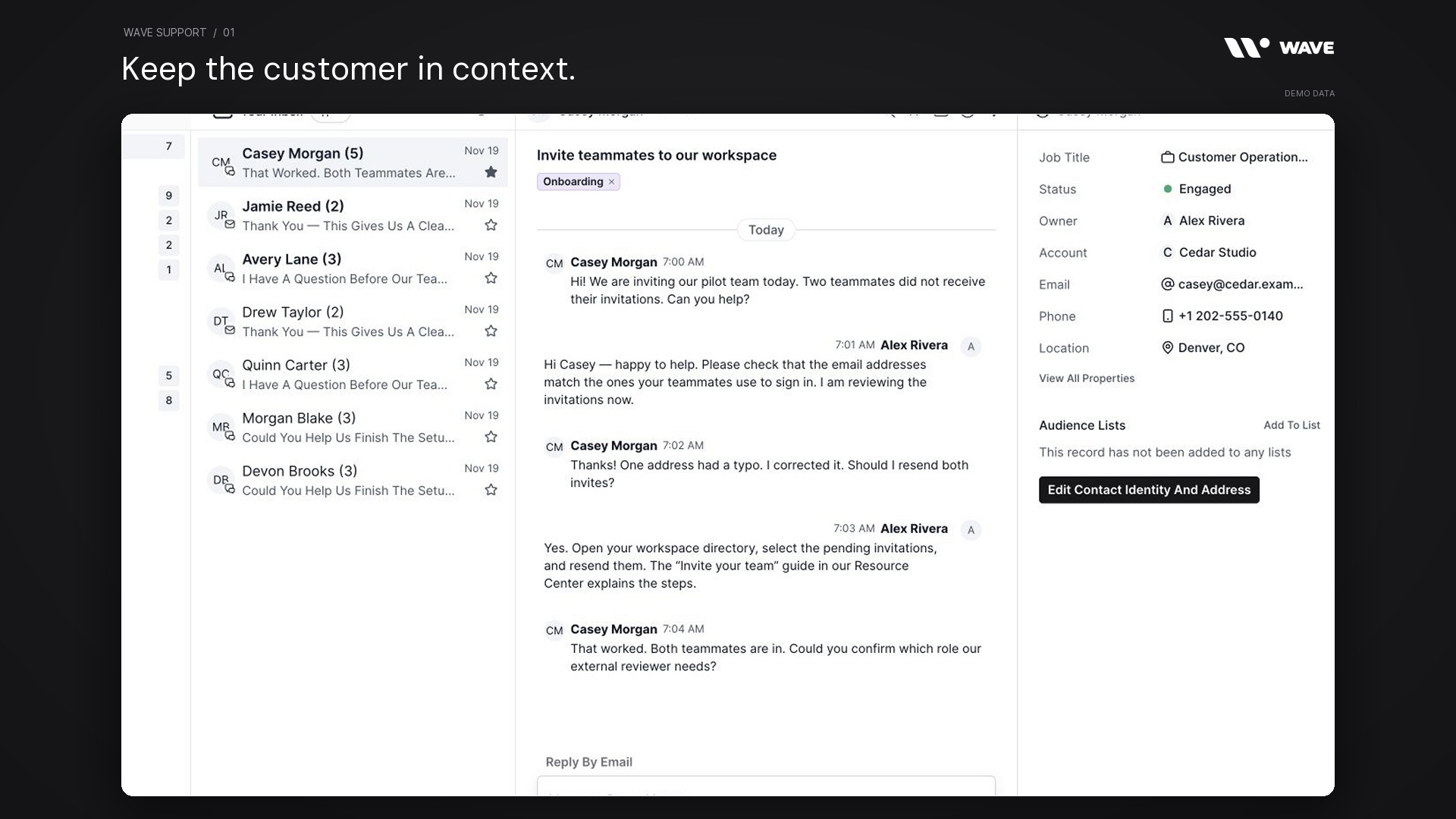
Customer support works better when the conversation, the customer, and the next action stay connected. Wave Support brings a shared inbox, website messenger, support email, tickets, and a public Resource Center into the same workspace.
A customer can ask a question on your website, your team can review their contact and company context, and work that needs follow-up can become a ticket. When the answer is useful beyond one conversation, your Resource Center gives it a lasting home.
Watch Wave Support in action
The showcase uses Wave’s actual interface components with fictional sample data: 12 conversations, eight tickets, four labels, three collections, and 12 help articles. The edited walkthrough follows an onboarding question from the inbox to a ticket and a customer-facing guide. It does not send messages or change a live customer workspace.
What is Wave Support?
Wave Support is the customer support workspace inside Wave. It gives your team a place to handle Messenger and Email conversations, identify who owns a request, organize follow-up work, and publish help content. Customer details sit beside the conversation, while tickets and articles provide a path beyond a single reply.
For an onboarding team, that could mean resolving an invitation problem, assigning the remaining access question, and directing the customer to a clear setup guide. For an established account, it could mean connecting a billing question to the right person and keeping the response history accessible.
A shared inbox with customer context
1. A shared view of support conversations
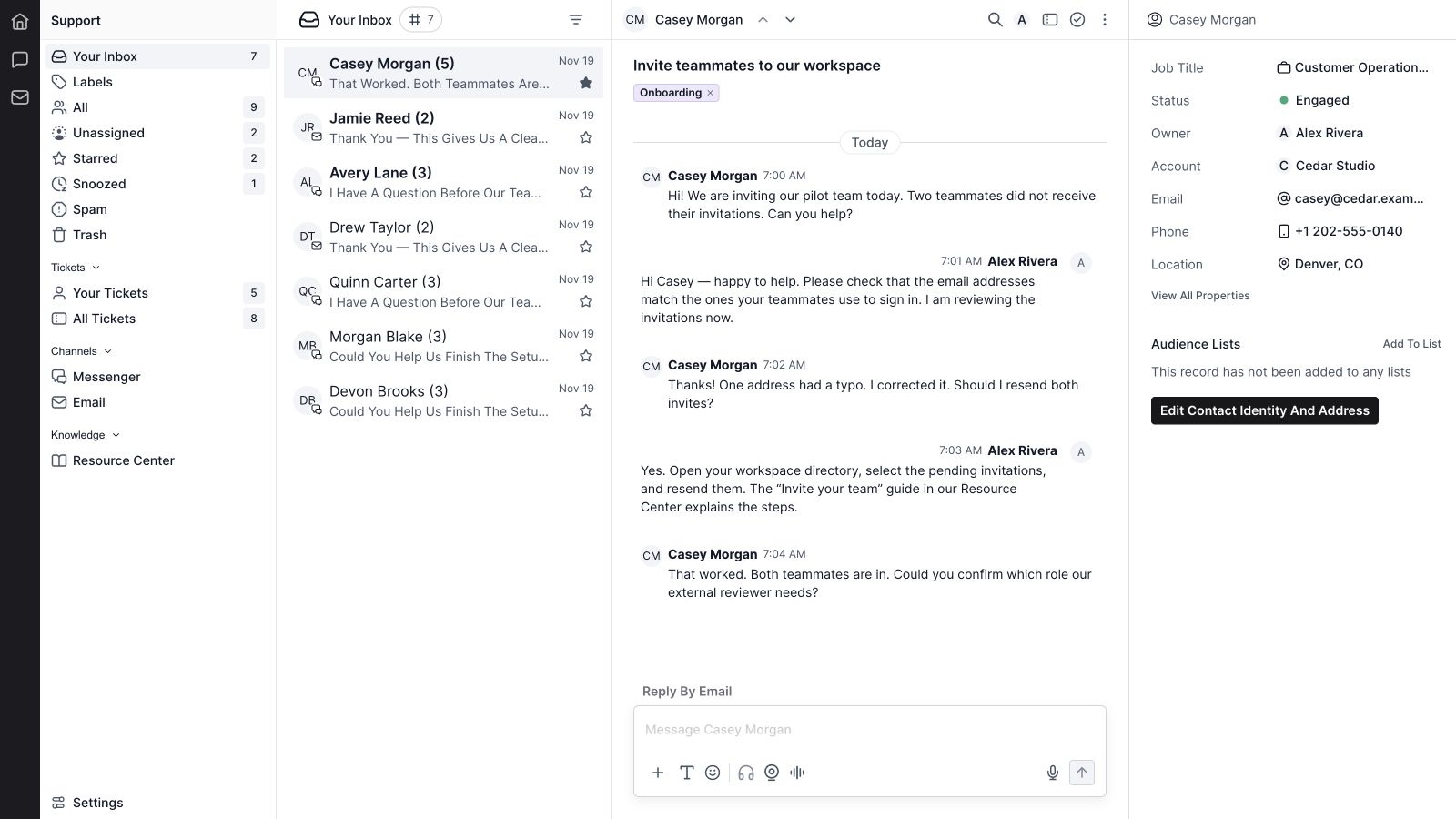
The inbox presents conversations as a navigable list with customer identity, a preview, channel indicator, message count, and recent activity. Your team can open a request and read the discussion without losing its place in the queue. This makes the inbox a practical starting point for daily support work.
2. Personal and unassigned queues
Your Inbox focuses attention on assigned work. All provides a wider queue, while Unassigned exposes conversations that still need an owner. These views support a simple triage routine: pick up new requests, give them an accountable person, and return to your own work with a clear next step.
3. Messenger and Email channel views
Separate Messenger and Email views let the team focus on the channel it is handling. The shared support workspace preserves the surrounding customer context while presenting messages in a format appropriate to the channel. A website conversation and an email thread can each be managed without treating them as identical experiences.
4. Conversation history and message details
Messenger discussions show author names, timestamps, and the sequence of replies. Email conversations retain their subject and sender details within a thread. That history helps a teammate understand what the customer already tried before responding, especially when ownership changes or the request returns later.
5. Conversation assignment
Use the assignment control to give a conversation an owner. The current assignee is visible in the conversation header, so the team can see who is responsible for the next response. Assignment is particularly useful when a question needs someone with account, product, or onboarding knowledge.
6. Open and completed conversations
Close a resolved conversation and reopen it when more work is needed. Open and Completed filters keep active requests distinguishable from finished discussions. A completed conversation remains part of the support history; the status communicates whether it currently requires attention.
7. Stars and snoozed work
Star a conversation to make it easy to return to, or use the snoozed state for work that should leave the immediate queue. Dedicated Starred and Snoozed views provide a way back to those discussions. Stars are useful for emphasis; ownership and conversation status still communicate responsibility and progress.
8. Spam and trash handling
Support includes Spam and Trash queues for conversations that should be separated from normal work. These controls help keep the active inbox useful and allow the team to review those categories explicitly. Avoid using ordinary queue cleanup as a substitute for resolving a real customer request.
9. Labels and grouped conversations
Apply existing labels to classify conversations by topic, then use the Labels view to work through grouped requests. The interface supports moving conversations between label groups and removing a label from a discussion. Categories such as onboarding, account access, billing, and product feedback make a busy inbox easier to scan.
10. Search within a conversation and navigate the queue
The conversation search control helps locate matching message content in the selected discussion. Previous and next controls let a teammate move through the current queue. Together, these are useful for finding a detail in a longer exchange and reviewing adjacent requests without repeatedly starting over.
11. Contact and company context beside the reply
The side panel connects support with customer information. Depending on the associated record, it can show job title, status, owner, company account, email, phone, location, and additional properties. Contact and company association controls help attach the conversation to the appropriate record, bringing Wave CRM context into support work.
A website messenger customers can use where they work
12. A customer-facing messenger
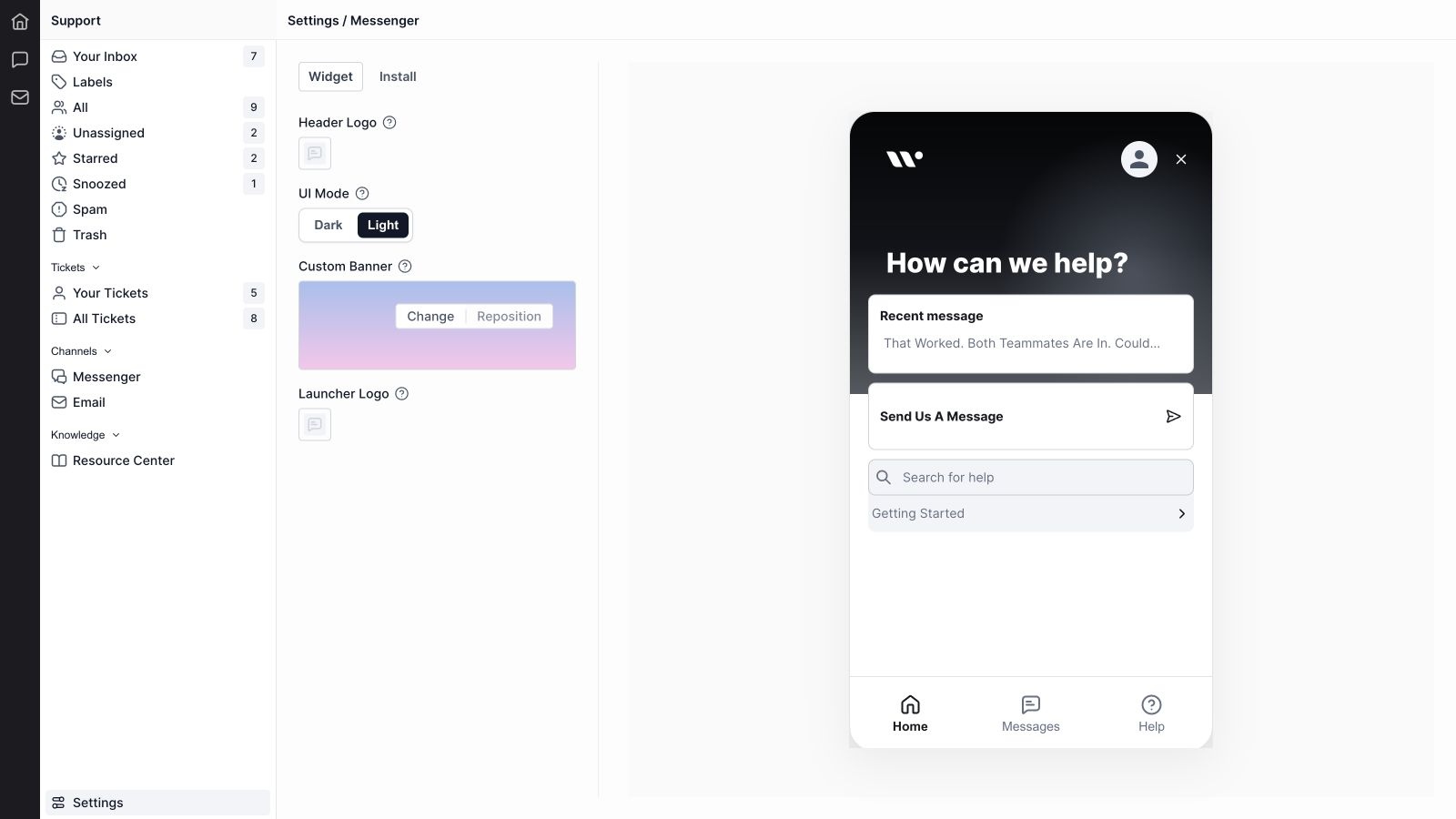
The embedded messenger provides Home, Messages, and Help navigation. Customers can start a conversation, return to a recent message, or look for an answer in help content. Bringing these paths together gives customers an obvious place to begin while keeping self-service guidance close to human support.
13. Visitor and signed-in installation paths
Installation guidance distinguishes public website visitors from users who sign in to your product. Visitor conversations can continue in the same browser when browser storage is available. Signed-in installations use verified identity supplied by your backend, allowing the messenger to associate the session with the appropriate customer identity.
14. Ongoing conversations and typing feedback
The messenger supports a continuing conversation rather than a one-time contact form. Its message views retain the discussion, and typing feedback can indicate when the other side is composing a response. Customers can return to messages as the request progresses, subject to the installation and session configuration.
15. A richer support composer
The support message composer includes text formatting, emoji, and attachment controls, with recording and dictation options where the browser and device support them. Message attachments remain alongside the discussion. These tools help customers and teammates explain an issue with useful context, such as a screenshot or a short recording.
16. Reply to a messenger conversation by email
A Reply by Email action provides another way to follow up on a messenger request. It requires a valid contact email and a verified default support sending address. This is useful when a customer has left the page and the team needs to continue the response through an available email address.
17. Messenger appearance controls
Customize the header logo, launcher logo, light or dark UI mode, and banner. The settings screen includes a messenger preview so the team can inspect the result. These controls help support feel like part of the customer’s experience with your business, rather than a disconnected destination.
18. Installation instructions and verification
The Install tab provides a website snippet and separate setup steps for each audience. The signed-in path explains backend identity signing, session updates, and shutdown on logout. Installation verification checks for recent detection of the widget; identity verification remains a separate part of a correctly configured signed-in installation.
Support email with setup and response controls
19. Domains and support addresses
The Domains & Addresses screen organizes support email addresses by domain. It shows setup information and the state of forwarding and outbound messaging. This gives administrators a clear place to understand which support addresses belong to the workspace and whether each address is ready for its intended role.
20. Domain authentication and setup guidance
Domain authentication and address setup controls guide the configuration required for support email. Review the domain’s authentication state and the address-specific setup information before relying on it for customer replies. The interface makes setup status visible so a listed address is not mistaken for a fully configured sender.
21. Inbound forwarding and the workspace address
Email settings expose the workspace forwarding address and a copy control. Address setup also shows automatic forwarding status. These controls connect an existing support address to the support workspace, helping incoming customer emails reach the team’s shared conversation queue.
22. A verified default sending address
Choose a verified address for outgoing support replies. The default sender is also used when replying by email from a messenger conversation. A consistent sender helps customers recognize the response and gives the team one deliberate configuration point for routine outgoing support mail.
23. Automatic email replies
Enable or disable automatic replies and write the acknowledgement message in Email Settings. The message has its own save control. A useful auto reply confirms receipt and explains what the customer should expect next; it should reflect the team’s actual response process and availability.
24. Autoresponder and closed-conversation behavior
Conversation Handling includes controls for marking autoresponders as spam and choosing how replies to closed conversations are handled. These settings help administrators decide which messages deserve renewed attention and how automated responses should be separated from normal customer discussion.
25. Readable email threads
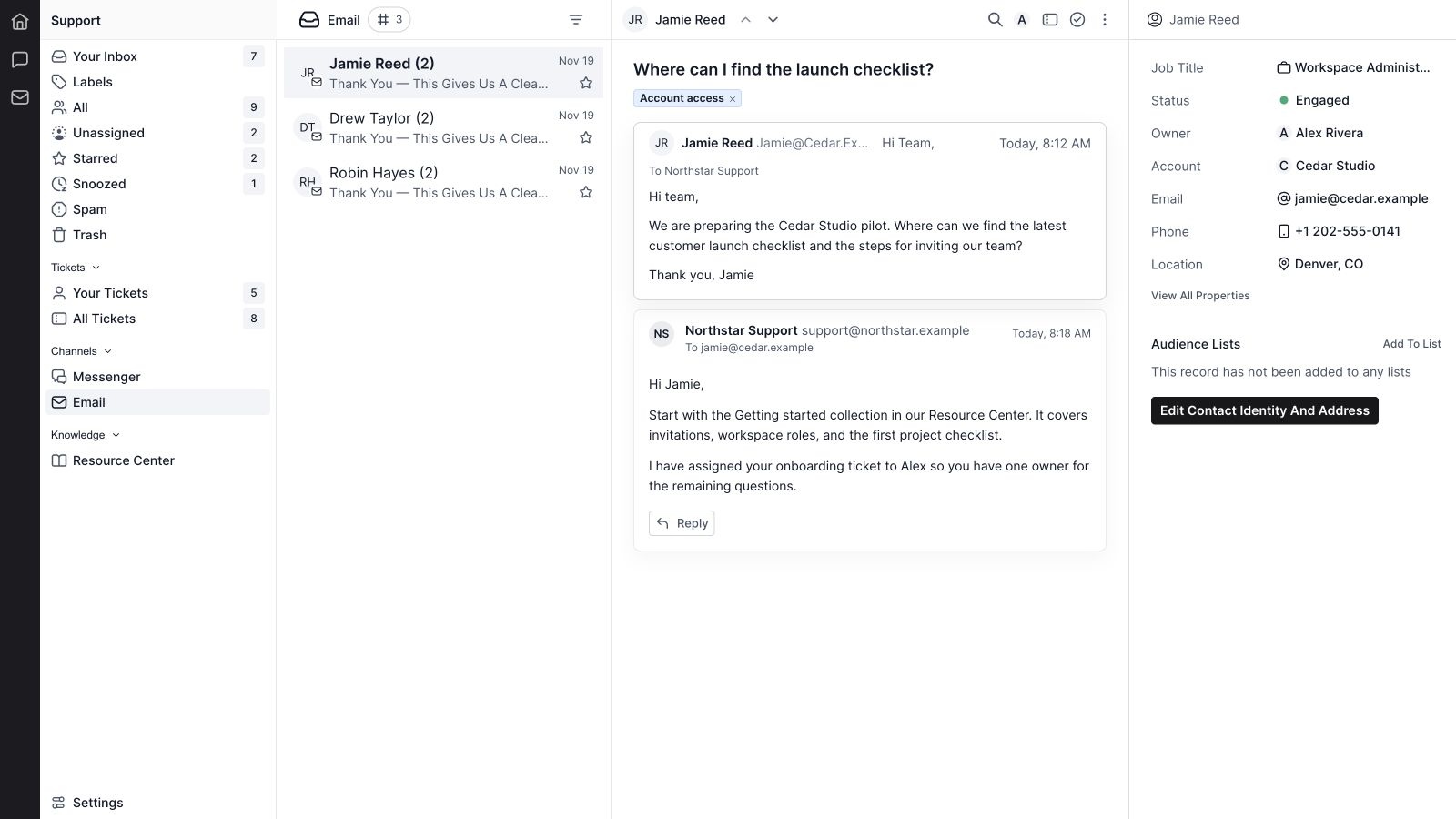
Support email uses a threaded reading surface with sender, recipient, subject, and message timing. Earlier messages can be expanded when more context is needed. The customer panel remains available beside the thread, making it easier to connect the email with the account and the person who needs help.
26. Direct replies and scheduled responses
The support email response surface supports direct replies and scheduling a response for a future time. Its current response mode is reply-only, with the conversation’s customer as the recipient. This keeps support replies focused on the active request rather than presenting the full set of actions available in the separate Wave Mail tool.
Tickets for work that needs follow-through
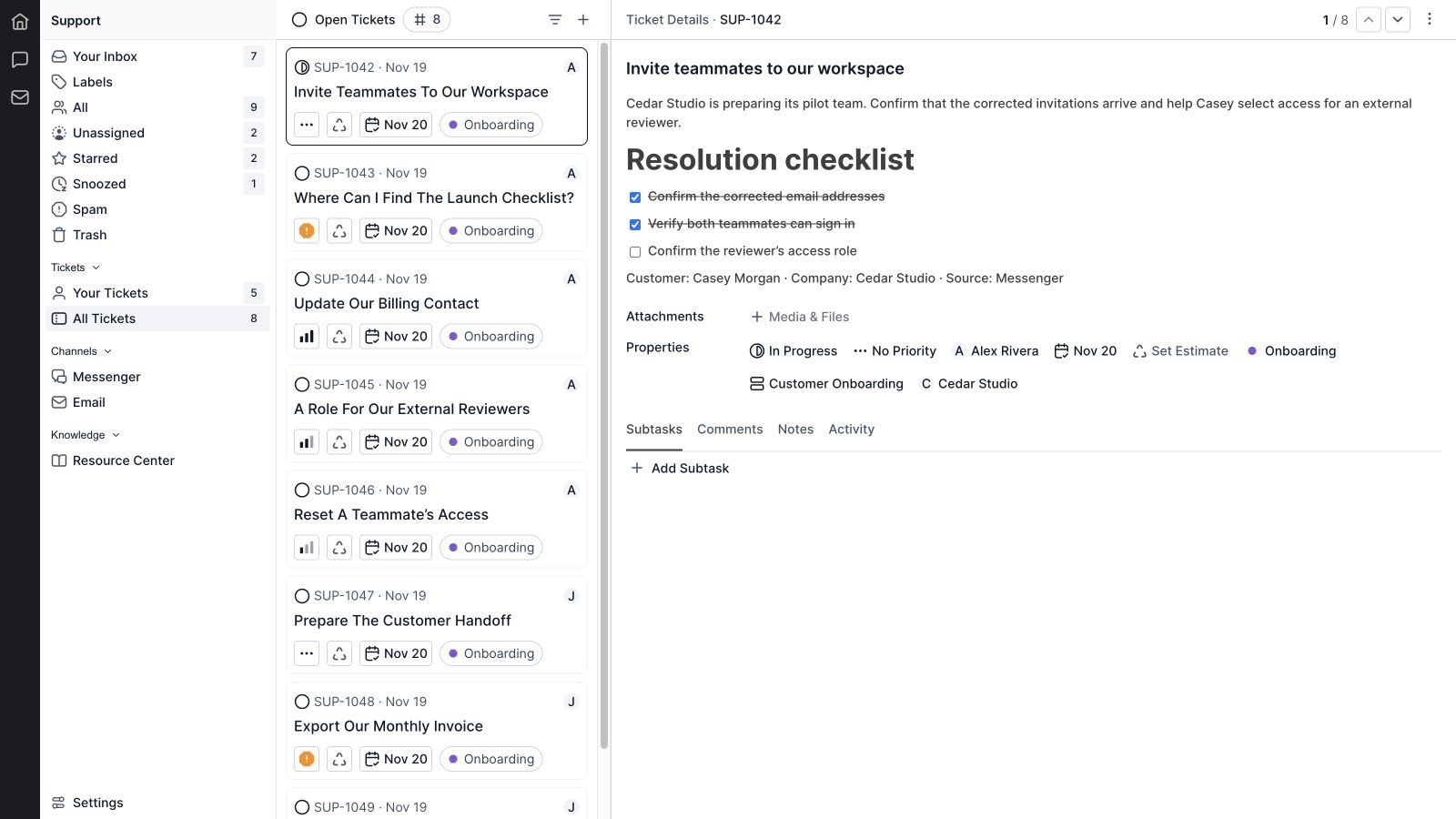
27. Create a ticket from a conversation
A conversation can lead directly to a support ticket, and an already linked ticket can be reopened from that conversation. This gives the team a place to track work that will take more than a reply. In the sample case, the invitation problem is resolved while the reviewer-access question remains an explicit follow-up.
28. Personal and team ticket queues
Your Tickets and All Tickets separate an individual’s work from the wider support workload. Ticket lists provide open and completed filtering, selection, and navigation. The team can review the queue while keeping a detailed ticket open alongside it.
29. Ticket ownership, priority, and planning fields
Tickets include status, priority, assignees, due date, estimate, labels, project, and company fields. These properties explain who owns the work, how it is progressing, and where it belongs. Connecting a ticket with a company and a Wave Project can give follow-up work the context it needs.
30. Rich descriptions and attachments
The ticket description supports structured content, including headings, lists, and checklists. Attachment controls keep supporting resources with the ticket. A concise description of the problem, the steps already tried, and the remaining action helps the next teammate continue without asking the customer to repeat everything.
31. Subtasks for smaller steps
Use the Subtasks tab to break a larger ticket into manageable pieces. This is helpful when a support request involves several checks or owners. The parent ticket remains the overall request, while subtasks make the work required to complete it more explicit.
32. Comments, notes, and activity
Dedicated Comments, Notes, and Activity tabs provide space for discussion, working notes, and recorded changes around the ticket. These surfaces keep follow-up context attached to the work. Use them to preserve the reasoning and progress that a short status label cannot communicate on its own.
A Resource Center that turns answers into reusable help
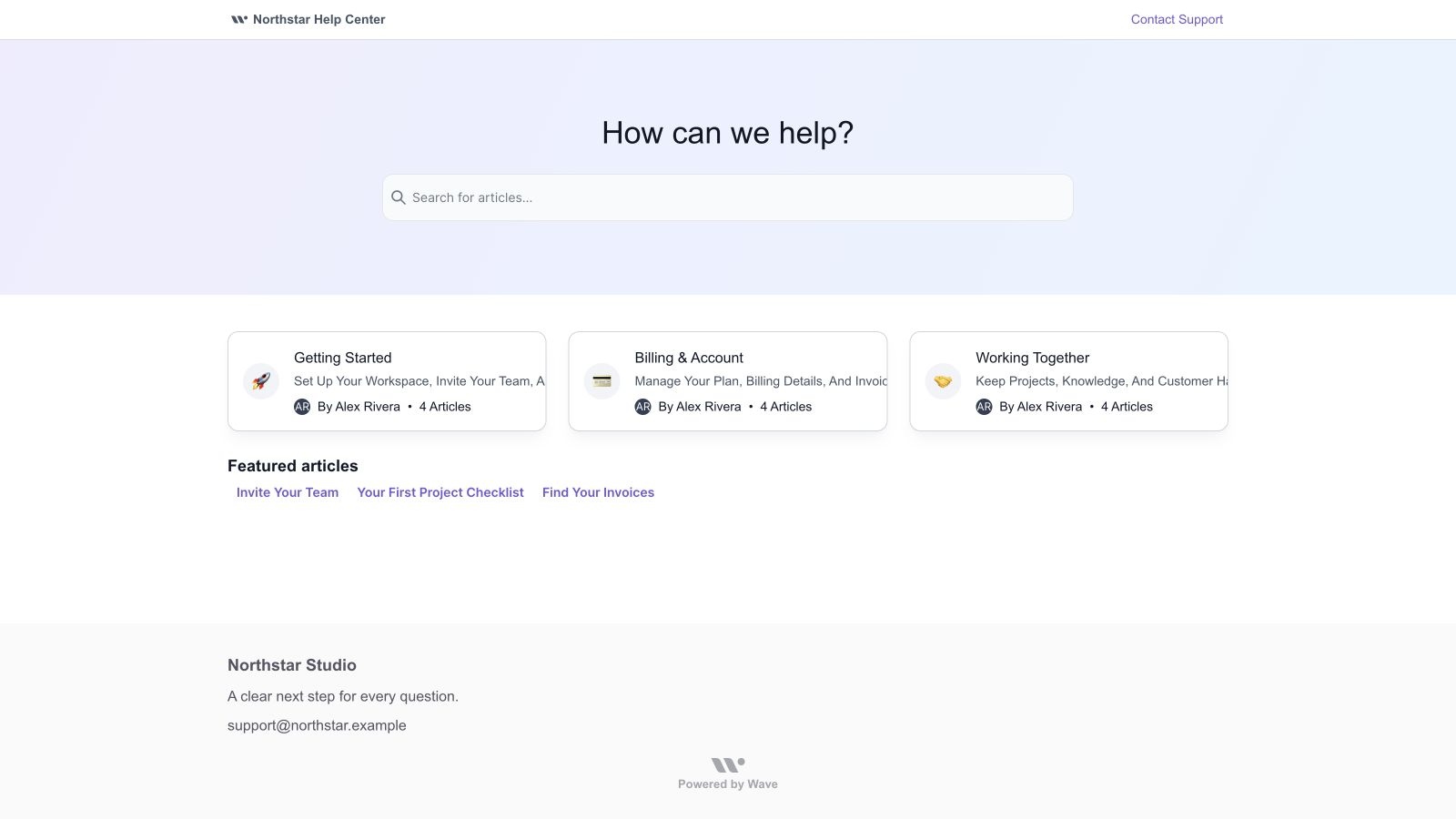
33. An article management view
The Resource Center article view brings titles, owners, publication status, collections, and update information together. Your team can see what exists and open content for further work. A maintained article library helps recurring questions become clear guidance that customers can find again.
34. Collections and nested organization
Organize related help content into collections, with nested collections available for a larger library. Public collection views make articles easier to browse by topic. Start with categories that match customer tasks—such as getting started, billing, and working together—so the organization helps people find their next action.
35. Article editing and publication state
Write and maintain help content using Wave’s content editor, then manage its publication state. Structured articles can combine headings and practical instructions rather than relying on a long, unbroken answer. Public availability depends on published content and an enabled Resource Center.
36. Search across help content
Customers can search the public Resource Center and explore matching articles. Help search is also available in the messenger when help content is enabled. Providing both search and collection browsing supports people who know the phrase they need and people who are still figuring out where to begin.
37. Classic and Modern layouts
Choose between the Classic banner layout and the Modern sidebar layout. Classic emphasizes the homepage banner and search, while Modern adds a persistent collection-navigation approach. The choice lets the team adapt the help center to the size and structure of its content.
38. Shared appearance and header branding
Set fonts, page and action colors, card display style, corners, and author visibility. Header settings include the Resource Center name, logo, website links, and browser icon. These options let the public help experience carry the same recognizable identity as the rest of your customer-facing website.
39. Hero and search presentation
The Classic layout’s hero can be styled with a headline, height, text color, background, and fade. Search controls include size, alignment, and corner radius. Use those settings to make the main customer action—finding a useful answer—clear when someone arrives at the help center.
40. Collection cards, featured articles, and custom sections
Control collection columns, layout, visual treatment, descriptions, and presentation imagery. Highlight selected articles and add homepage text sections with links. This gives the team ways to surface important onboarding steps or frequently needed guidance without requiring every customer to browse the entire library.
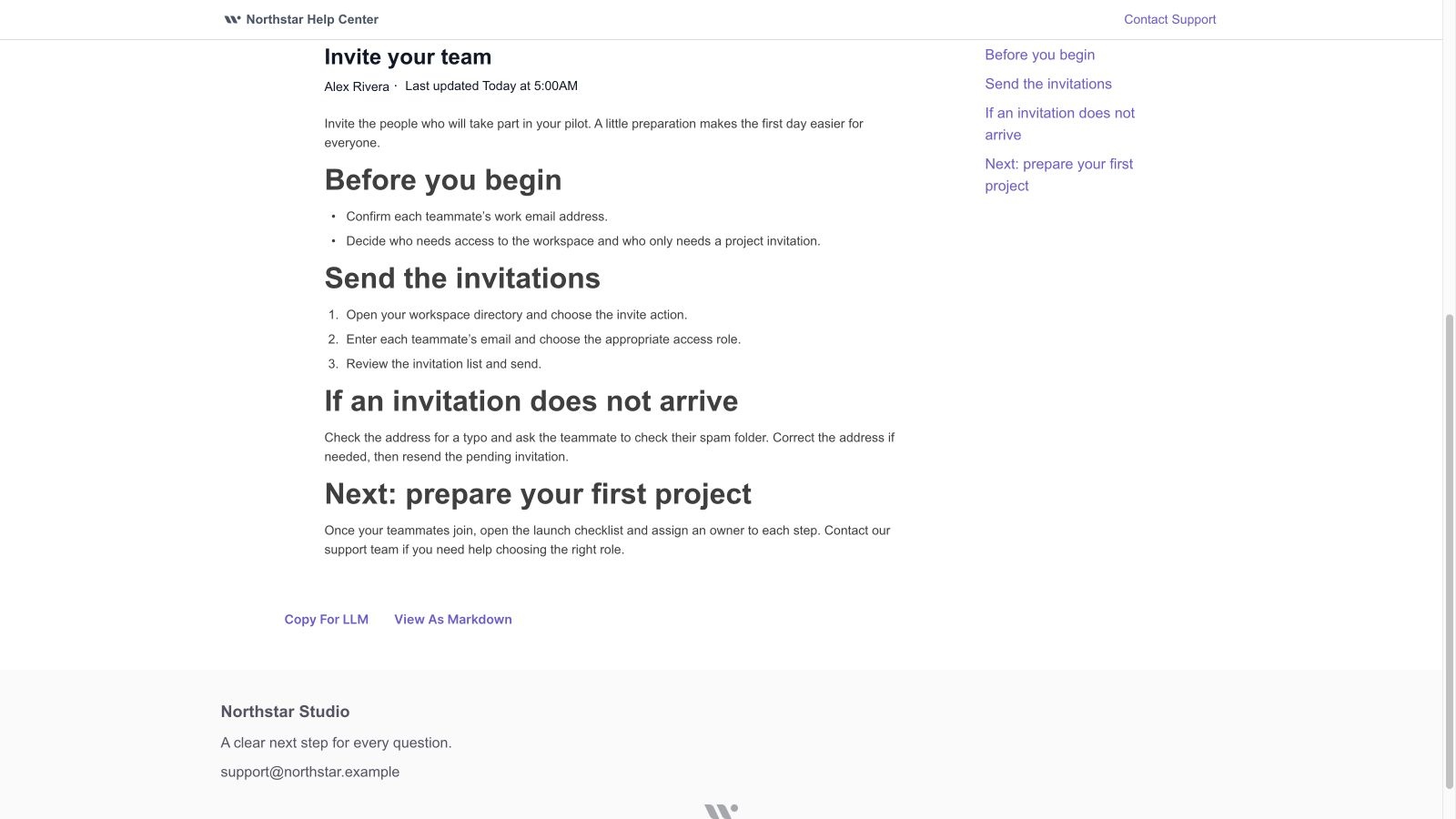
41. Article navigation and reusable text
Article settings include heading navigation, related articles, and the option to copy article Markdown. The reader can use an on-page contents list to jump to a relevant section. Author and update information provide additional context when enabled, while Markdown access makes the written guidance easier to reuse.
42. Footer content and links
Choose a footer style and configure branding, contact text, a slogan, link columns, social links, colors, and Wave attribution. The footer gives customers a consistent place to find additional destinations after reading an article or browsing a collection.
43. Search indexing and social images
Resource Center settings include a choice about whether search engines may index the public help center and an image for social sharing. These settings control discoverability and link presentation; they do not guarantee a particular search ranking or immediate inclusion in a search engine.
44. Preview and availability controls
Preview different Resource Center pages and device sizes while configuring the experience. The enable control determines whether the Resource Center is available. Reviewing the homepage and an article on both desktop and mobile helps the team catch presentation issues before customers encounter them.
An example support workflow
- Receive the question. Casey asks why two teammates have not received their invitations.
- Review the context. Alex reads the messenger history and checks the Cedar Studio contact record.
- Resolve the immediate issue. The team corrects an address and confirms the invitations worked.
- Track the remaining work. A linked ticket records the question about the external reviewer’s access.
- Make the answer reusable. The customer can find the invitation guide in the Getting started collection.
The value is continuity: the customer’s question, the team’s ownership, and the help content all contribute to a clear next step.
Current channel availability
This guide covers the current Messenger and Email support channels. The Support settings screen marks Phone, WhatsApp, Slack, Discord, and SMS integrations as Coming Soon. Those labels should not be read as active Support integrations. Wave’s separate communication and marketing tools have their own feature sets.
Frequently asked questions about Wave Support
What does Wave Support include?
Wave Support includes a shared conversation inbox, website messenger, support email configuration and replies, support tickets, customer context, and a public Resource Center with help articles and customization controls.
Can customers contact the team from a website?
Yes. The messenger can be installed on a website or web app. Setup distinguishes public visitors from signed-in users, with backend identity verification required for the signed-in path.
Can we use our support email address?
Support includes domain and address setup, forwarding information, domain authentication, and a verified default sending address. Complete the relevant setup for your address before using it for incoming conversations or outgoing replies.
Can a conversation become a ticket?
Yes. A conversation can create a support ticket, and a linked ticket can be opened from the conversation. Tickets provide ownership, status, priority, due dates, other planning fields, and supporting detail for follow-up work.
Can customers find answers without starting a conversation?
Yes. An enabled Resource Center presents published help articles in collections with search. The messenger also provides a Help area, bringing self-service content close to the conversation entry point.
Can we customize the messenger and help center?
Yes. Messenger settings include logos, UI mode, and a banner. Resource Center settings cover layouts, appearance, header, hero, collections, featured content, articles, footer, indexing, and social images.
Does Wave Support include every communication channel?
No. Messenger and Email are the current active Support channels reviewed for this guide. Phone, WhatsApp, Slack, Discord, and SMS are marked Coming Soon in Support settings.
Does the demo show real customers or performance results?
No. The video and screenshots show Wave’s actual presentation components populated with fictional local records. Counts illustrate a useful support workspace; they are not customer results, delivery measurements, or a promise of response performance.
Bring customer support into Wave
Give customer questions a shared inbox, follow-up work a responsible owner, and useful answers a place customers can find. Wave Support connects those steps in one workspace.
Explore Wave or get started with Wave.


