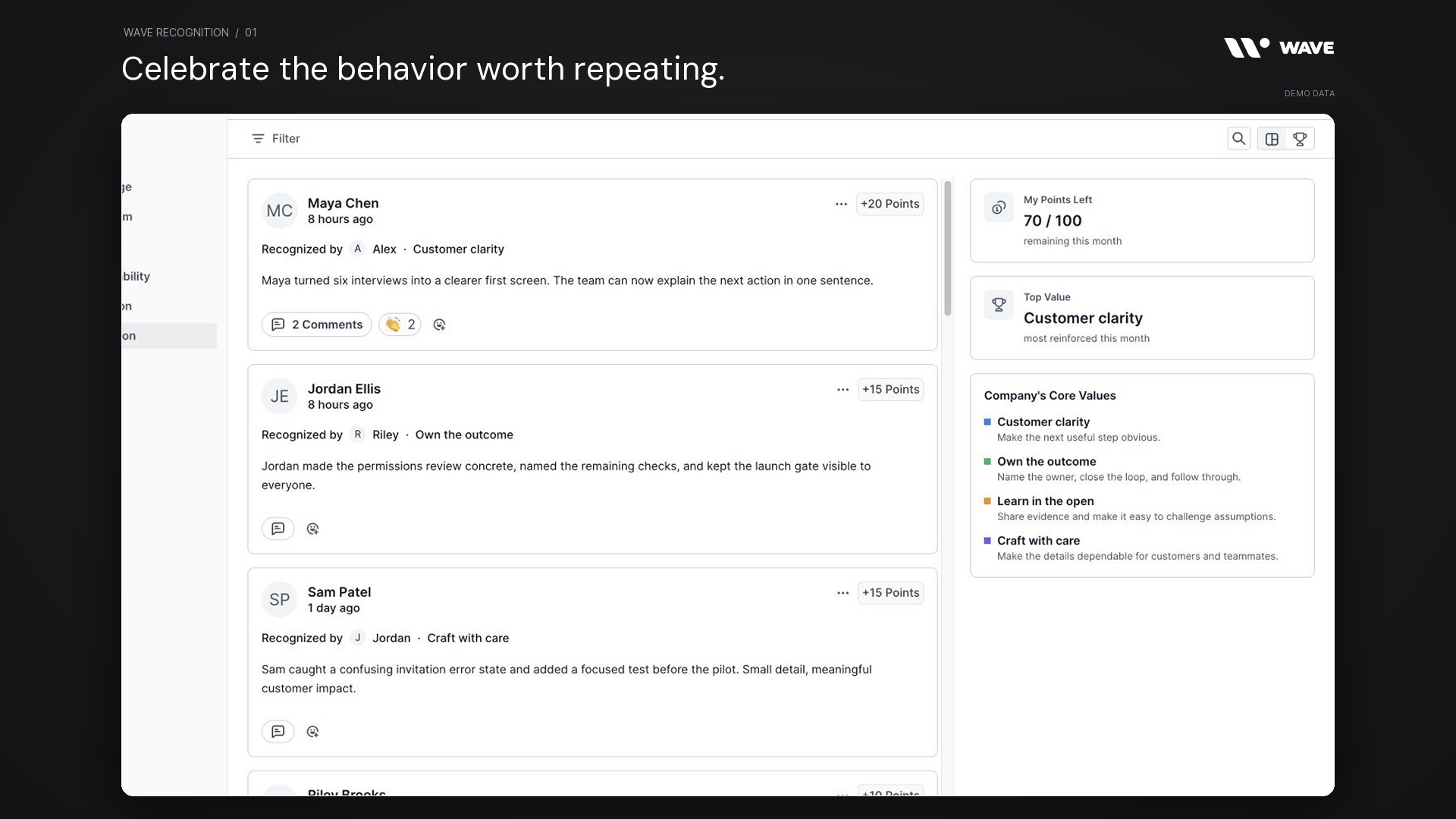
Wave Recognition makes useful contributions visible and connects them to the company’s core values. A good shoutout explains what someone did, why it mattered, and which behavior the team wants to see again. Wave gives that appreciation a shared home alongside the rest of the company’s work.
Recognize a teammate or a whole team, select a core value, assign points from your available balance, and add a specific message. The recognition feed, comments, reactions, search, filters, and leaderboard help the team see the contributions behind the work.
Watch the Wave Recognition product showcase
The 48-second showcase uses actual Wave UI components with fictional Northstar Studio data. Six teammates and two team recipients appear across sixteen sample recognitions, four core values, a populated leaderboard, and a discussion about a customer research contribution. All people, messages, points, and company activity are illustrative.
What is Wave Recognition?
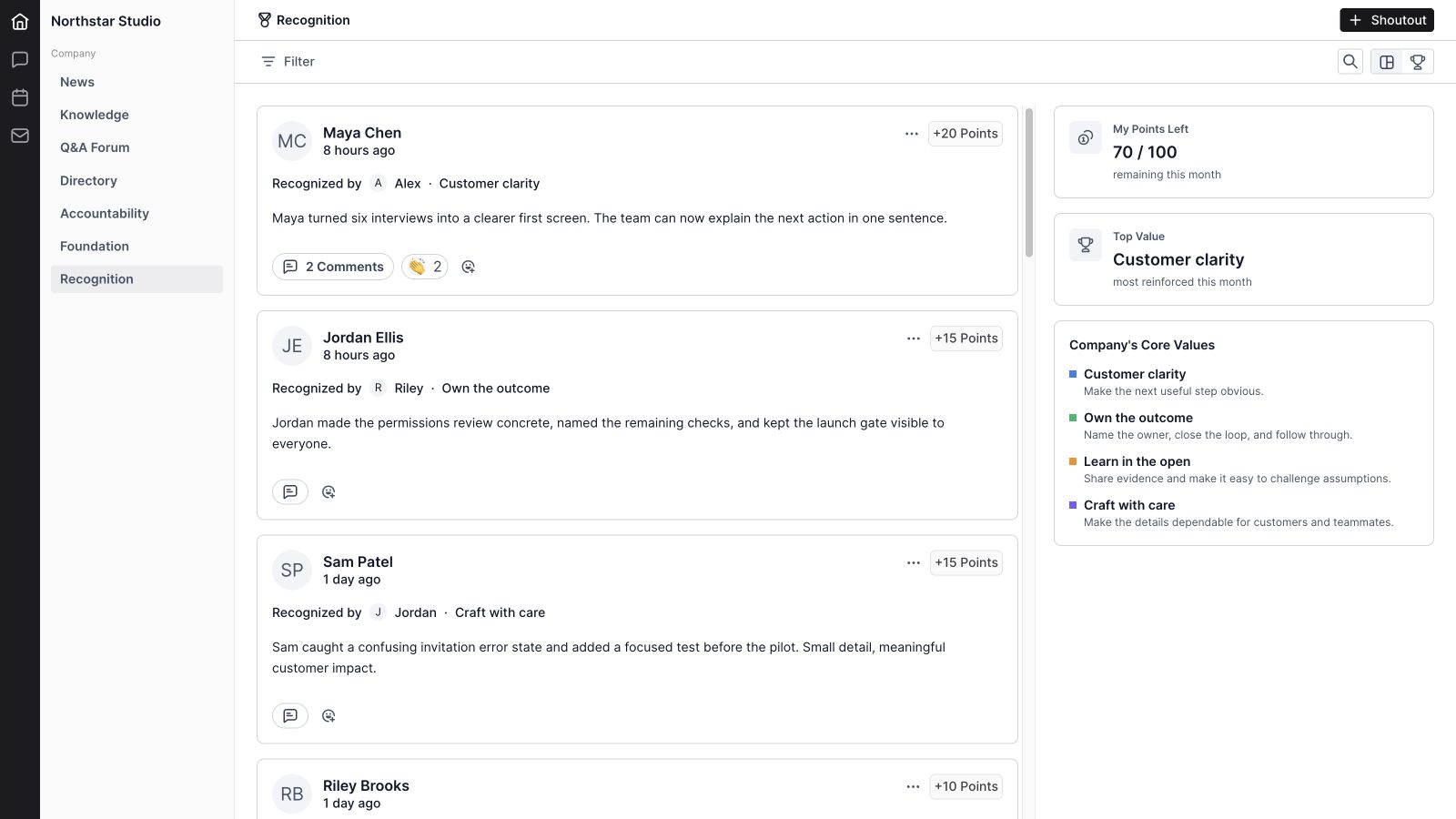
Wave Recognition is the shared appreciation and values workflow inside Wave. A recognition names the recipient, identifies the person giving it, connects the contribution to a core value, and explains its impact. Points, comments, and reactions add context around that original story.
For example, the sample recognizes Maya for turning customer interviews into a clearer first screen. The message names the behavior and its result: the team can explain the next action in one sentence. Connecting that story to Customer Clarity makes the value more concrete than a slogan on its own.
Wave Recognition features
1. A shared recognition feed
The feed brings shoutouts into a dedicated Company area. Each card makes the recipient, timing, giver, value, points, and message visible together. Teammates can browse the contributions that are being recognized and understand the actual work behind the appreciation.
2. Member recognition
Choose a teammate as the recipient when the contribution belongs to a person. Be specific about what they did and what changed because of it. The recipient selector helps find the person, while the resulting feed card makes their contribution easy for others to see.
3. Team recognition
The recipient selector also includes teams. Use a team shoutout when a result came from shared effort, such as bringing the welcome guide, kickoff schedule, and follow-up ownership into a consistent customer experience. The team becomes the recognition recipient instead of assigning the whole achievement to one person.
4. Searchable recipient selection
Search the recipient selector to find a member or team. The options are grouped so the type of recipient is clear. This keeps the workflow practical as the company grows and helps the person giving recognition choose the intended audience for the appreciation.

5. Company core values
Recognition uses the organization’s core values. The feed’s supporting panel displays their names and descriptions, keeping the meaning visible while people read or prepare a shoutout. Clear descriptions help different teammates apply the same value with a shared understanding.
6. A core value on each shoutout
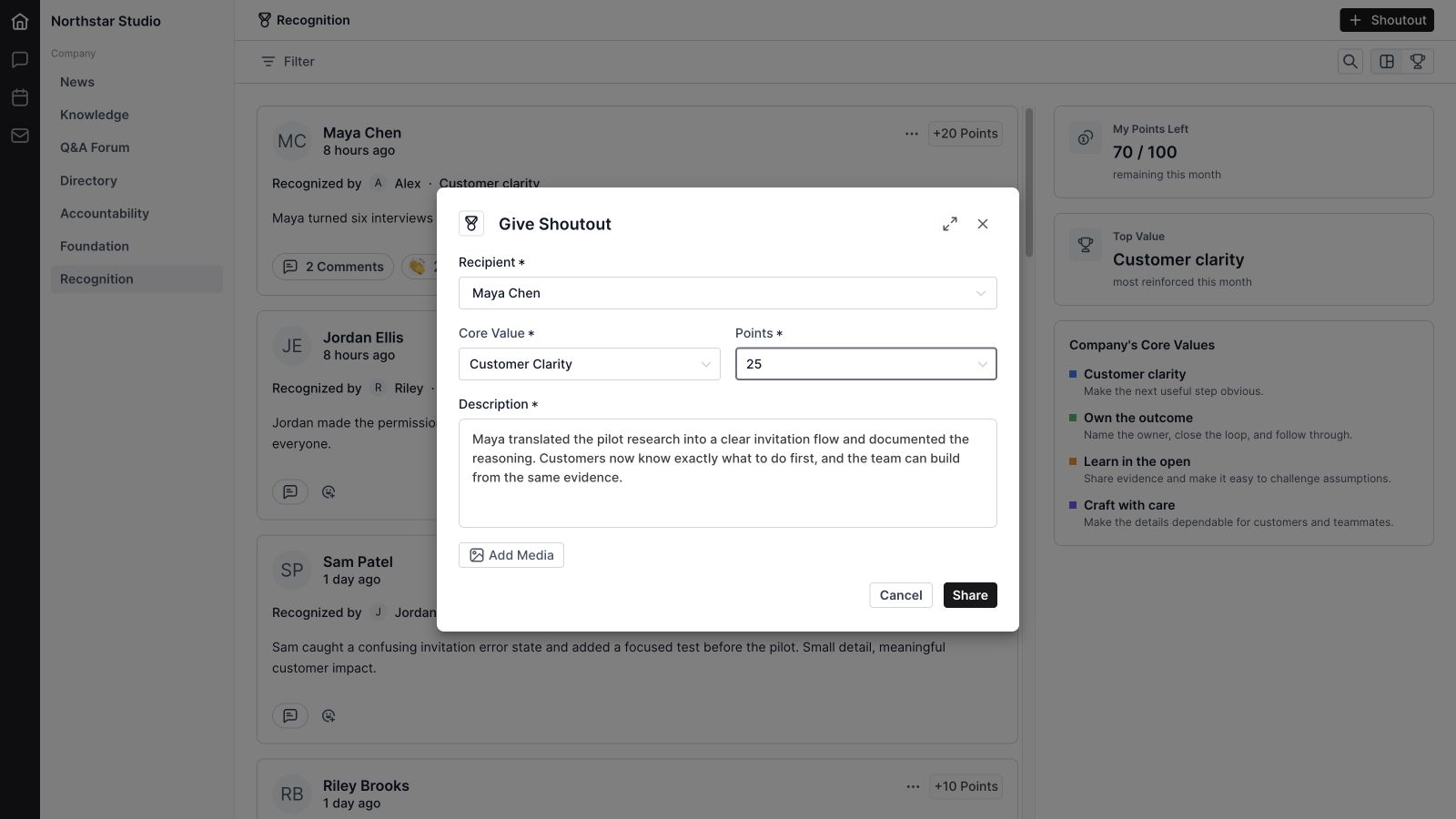
The composer requires a core value. Choose the one that best explains the behavior being recognized, then make that connection clear in the message. In the sample, documenting a trade-off supports Learn in the Open, while closing the loop on a reported issue supports Own the Outcome.
7. A specific written message
The description field asks what the recipient did and why it mattered. The current form requires a message of at least twenty characters, encouraging more than an empty thank-you. A strong message identifies the action, its impact, and enough context for someone outside the immediate project to understand it.
8. Recognition points
New shoutouts include a positive points amount. The current composer provides 5, 10, 25, and 50 point choices, subject to the giver’s available balance. Points accompany the message and value; the explanation remains what makes the recognition useful to the wider team.
9. Monthly points balance
My Points Left shows the remaining monthly balance alongside the allowance. The sample displays 70 of 100 points remaining after Alex’s existing contributions. This gives the giver a visible budget for appreciation without having to reconstruct it from earlier posts.
10. Validation before sharing
The composer checks for a recipient, core value, positive points, and a description. It prevents a member from recognizing themselves and checks that the selected points do not exceed the available monthly balance. These checks help keep the submitted recognition complete and consistent with the workflow.
11. Image, video, and GIF media
Add Media supports a visual alongside the written recognition. A short clip or image can show the contribution being celebrated, such as an improved customer experience or a team milestone. Keep the description specific so the appreciation remains understandable without relying on the media alone.
12. Media review and upload state
The media workflow provides a review step and communicates upload status. If media is still uploading, the composer waits for it to finish; if an upload fails, the user can remove it or try again. This helps the giver understand whether the supporting visual is ready to include.
13. An expanded composer
The shoutout modal includes an Expand control for more writing space. Use it when the contribution needs a little more context or when reviewing a longer message. Keep the final recognition focused on the behavior and impact so it remains easy to read in the feed.
14. Giver and date context
Recognition cards show who gave the shoutout and when it was posted. The giver’s identity makes the appreciation personal and helps teammates understand the connection to the work. This guide covers attributed recognition; it does not present anonymous shoutouts as a feature.
15. Comments on recognition
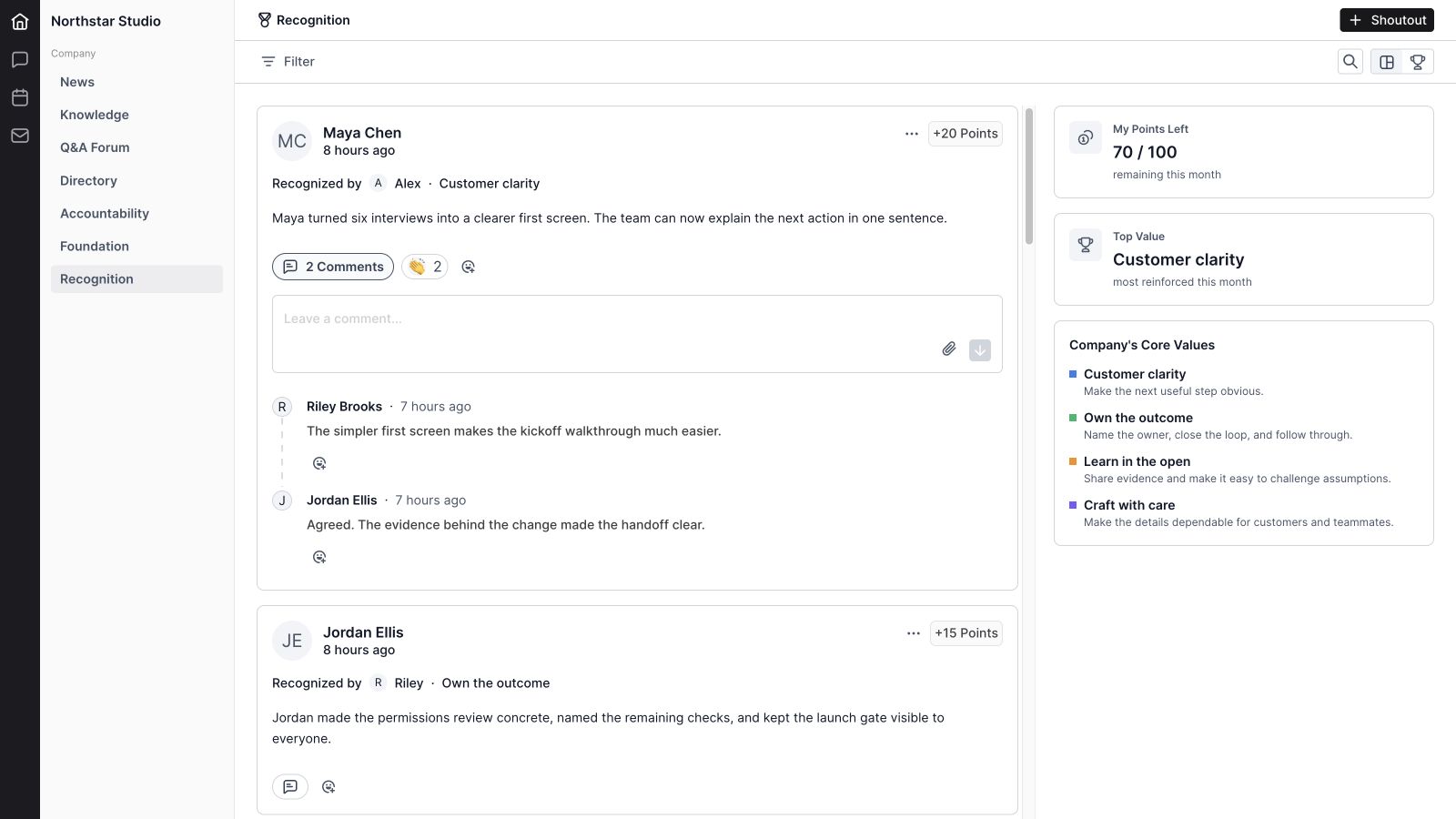
Open the comment area on a recognition card to add another perspective or explain the wider impact. In the sample, customer success says the clearer first screen improved the kickoff walkthrough, and engineering adds that the supporting evidence made the handoff easier.
16. Comment attachments and reactions
The discussion includes a rich comment composer, attachment controls, and emoji reactions. Teammates can add useful context or acknowledge someone else’s contribution to the discussion. Keep comments connected to the recognized behavior so the original story remains clear.
17. Reactions on shoutouts
React directly to a shoutout with an emoji. Visible reaction counts give others a lightweight way to join the appreciation. A written comment is useful when you can add something specific about the contribution’s impact that the original message did not capture.
18. Recognition search
Search Recognition helps find a contribution using the text you remember. In the showcase, searching “permissions” returns the shoutout about making the access review concrete. Search is useful when preparing a team recap or revisiting the story behind a particular improvement.
19. Period filtering
The Period filter includes This Month, Last Month, This Quarter, This Year, and All Time. Choose the period that matches the discussion, whether you are reflecting on a recent month or looking across a longer stretch of company activity.
20. Core-value filtering
Filter by core value to explore the examples attached to a particular principle. This can help a team discuss what a value looks like in practice. Read the messages behind the selection so the discussion focuses on behavior and impact, not just the number of mentions.
21. People and team filters
The filter menu includes Recognized Member, Given By, and Team. These provide different ways to look at participation: whose contribution was recognized, who gave appreciation, and which team context is relevant. Use the filter that matches the question you are trying to explore.
22. Points filters
The Points filter includes Any, With Points, and No Points for browsing the recognition history. These controls describe records in the feed; the current new-shoutout composer still requires positive points. This distinction matters when reviewing older or imported recognition records.

23. A recognition leaderboard
Switch from Feed view to Leaderboard view to see a table of participation. The current columns include rank, member or team, points received, points given, and top values. In the sample, the table includes the six teammates and two team recipients represented in the recognition history.
24. Points received and points given
The leaderboard makes both sides of participation visible. Points received describe recognition coming to a recipient, while points given show appreciation contributed by a person. Read these measures in context; they are recognition activity, not a complete assessment of someone’s work.
25. Values alongside the leaderboard
The Top Values column adds behavioral context to the leaderboard. It helps connect participation with the company’s principles instead of showing a rank alone. Open the relevant recognition stories when you need to understand why a value appears or what the contribution involved.
26. The monthly Top Value summary
The feed’s Top Value card highlights the value most reinforced in the current month. The company core-values panel provides the definitions alongside that summary. Use the indicator as a starting point for reviewing the actual examples and the kinds of contributions people are noticing.
27. Administrative editing and removal
Administrators and managers have recognition management actions. In the current edit workflow, the recipient, core value, and points are locked while the message and supporting media can be maintained. Authorized removal supports keeping the feed accurate when an item needs to be taken out.

How to write a useful shoutout
Start with the action. “Maya translated six customer interviews into a clearer invitation flow” tells the reader what happened. Add the impact: “Customers now know what to do first, and engineering can build from the same evidence.” Then choose the value that best fits that behavior.
Choose a person when the contribution is individual and a team when the result reflects shared work. Select points within the available balance, review the message, and add media only when it makes the story clearer. The best shoutout is specific enough that someone else could recognize and repeat the behavior.
In the sample dataset, appreciation covers research, permissions, error states, customer follow-up, launch language, and team coordination. That variety makes the feed useful: people can see that thoughtful support, clear communication, and dependable follow-through matter alongside visible launch milestones.
Recognition in the company’s operating rhythm
Use the feed throughout the week while the contribution is still fresh. During a team review, revisit a few specific examples and explain the impact. Filters and the leaderboard can help find the relevant activity, while the original messages preserve the human context behind it.
Wave Foundation gives the company’s values and direction a structured home. Recognition shows examples of those values in action. Wave News shares the wider update, and Wave Q&A Forum preserves reusable learning from the work.
The points shown here represent the recognition workflow. This feature guide does not describe cash value, gift-card redemption, payroll rewards, or a formal performance-rating system.
Wave Recognition frequently asked questions
What is Wave Recognition used for?
It helps teammates appreciate individual and team contributions, connect those contributions to company core values, and share the stories through a feed with comments, reactions, and recognition activity views.
Can I recognize a whole team?
Yes. The recipient selector includes both members and teams. Choose the team when the contribution reflects shared work.
Are points required?
Yes. The current new-shoutout form requires a positive points amount within the giver’s remaining monthly balance. The feed can still filter historical records that have no points.
What point amounts can I choose?
The current new-shoutout composer offers 5, 10, 25, and 50 points. The selected amount must fit within the available balance shown by the recognition workflow.
Can a shoutout include media?
Yes. Add Media supports visual content such as images, videos, and GIFs. The composer shows upload state so the user can review whether the attachment is ready.
What does the leaderboard show?
The leaderboard shows rank, member or team, points received, points given, and top values. It is a view of recognition activity and should be read alongside the contribution stories.
Who can edit recognition?
The current management actions are available to administrators and managers. The edit form locks the recipient, core value, and points while allowing the message and media to be maintained.
Are the people and points in the demo real?
No. Northstar Studio, the teammates, teams, recognition messages, balances, and leaderboard totals are fictional sample data shown through actual Wave UI components.
Make the contribution visible
Wave Recognition helps a team notice the work, explain its impact, and reinforce the values behind it. Get started with Wave and bring thoughtful appreciation into the same workspace as the work that made it possible.


